Intercom
 Shopify
 Stripe
 Slack
Slack Notion
 Google Workspace
 Confluence

The Zendesk Web Widget Explained


Most support tools live where your agents work. The Zendesk Web Widget is the opposite: it lives where your customers are — that small "Help" or chat bubble in the corner of your website or Help Center that lets someone get an answer without ever leaving the page they're on. Click it and you can search the knowledge base, talk to a bot, start a live chat, or file a ticket, all in a panel that floats over your site.
Key takeaways
- Web Widget (Classic) is only available on Zendesk accounts created before June 5, 2023, and accounts created before November 2, 2021 have it enabled by default.
- The Chat Web SDK and Chat Conversation APIs that powered Web Widget Classic's live chat were announced for removal on April 25, 2025, with removal starting April 30, 2025.
- Independent measurements have clocked the Zendesk widget at well over 500KB of compressed JavaScript, and one customer reported a roughly 50-point drop in mobile PageSpeed Insights scores after enabling it.
- Zendesk recommends placing the widget's script snippet just before the closing </body> tag so the page's actual content loads first before the widget arrives.
- When installing the widget through Google Tag Manager, the async and defer attributes on the script tag must be kept, since Zendesk's docs say they are needed for GTM support to function correctly.

It sounds simple, and at the surface it is. The confusing part is that "the Web Widget" isn't one thing. Zendesk currently ships two of them — the older Web Widget (Classic) and the newer messaging Web Widget — and they behave differently, install differently in spirit, and are on very different trajectories. If you've ever read two Zendesk help articles that seemed to contradict each other, this is usually why.
This guide is the plain-English tour. We'll cover what the widget actually does, the all-important Classic-vs-messaging distinction (and which one you have), how to install it, how it's configured, how far you can customize it, the mobile equivalent, and the mistakes that trip people up. The mechanics here are verified against Zendesk's own documentation, June 2026.
What the Web Widget does
The Web Widget is an embeddable help experience — a snippet of JavaScript you drop into your website (and optionally your Zendesk Help Center) that renders an interactive launcher in the corner of the page. Depending on which version you run and how you configure it, the widget can:
- Surface Help Center articles. As a customer types, the widget searches your knowledge base and suggests relevant articles inline, so a lot of questions get answered before they ever become a ticket. This is the self-service layer of the widget.
- Answer questions with a bot or AI agent. The widget can run a conversational bot that greets visitors, asks what they need, and replies with answers drawn from your content — handing off to a human only when it can't resolve the request.
- Offer live chat / messaging. Visitors can start a real-time conversation with an agent (or an asynchronous, chat-like thread they can come back to later).
- Capture a ticket via a contact form. When no answer fits, the customer fills in a form and submits a ticket without leaving the page — it lands in your Zendesk queue like any other request.
In other words, the widget is a funnel: deflect with articles, then a bot, then a person, then a ticket — in that order — so the cheapest resolution gets the first shot. It's the front door to the self-service portal you've built in Zendesk.
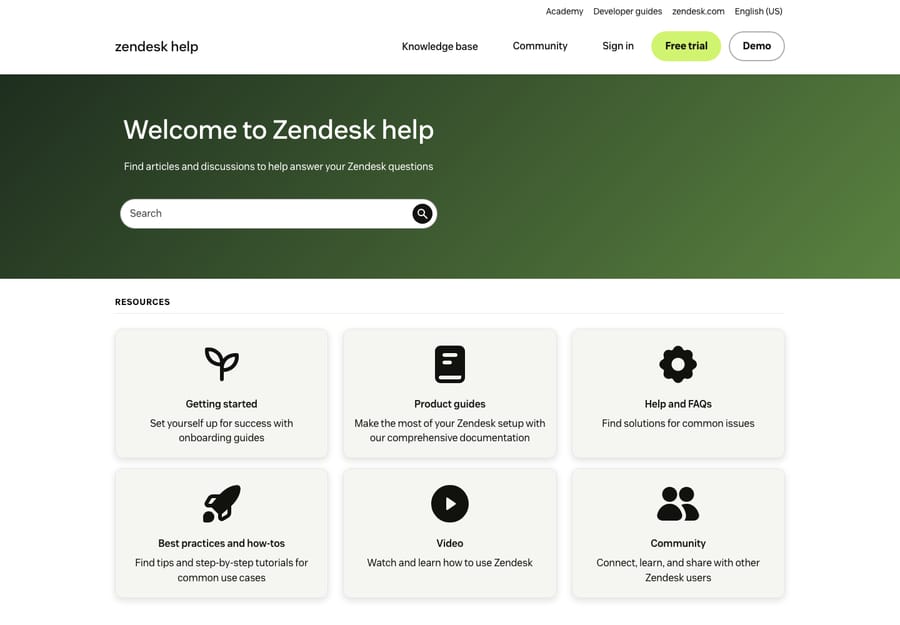
The big distinction: Web Widget (Classic) vs the messaging Web Widget
Here's the thing that confuses almost everyone. There are two Web Widgets, and which one you can use depends on when your Zendesk account was created.
Web Widget (Classic) — the legacy, component-based widget
The original Web Widget is component-based: it stitches together separate Zendesk products — Chat (live chat), Talk (call/callback), and Guide (Help Center search and contact form) — into one launcher. You'd turn individual components on or off, and the widget would assemble them.
Critically, Web Widget (Classic) is now legacy, and availability is gated by account age:
- It's available only on accounts created before June 5, 2023.
- Accounts created before November 2, 2021 have Classic enabled by default and have to opt in to messaging.
- If your account is newer than June 5, 2023, you never had Classic at all — you're on the messaging widget, full stop.
Classic does still do useful things on the accounts that have it: real-time article recommendations from your Help Center, fully customized contact forms, and live chat via legacy Chat. But it has no persistent conversation history, limited bot capability, and Zendesk is steering everyone off it. The underlying Chat Web SDK and Chat Conversation APIs that powered Classic's live chat were announced for removal on April 25, 2025, with removal starting April 30, 2025, so leaning on Classic for live chat going forward is building on sand.
The messaging Web Widget — the current, conversational one
The newer widget is built on Zendesk messaging rather than stitched-together components. The practical differences are significant:
- Conversations are persistent. A customer can start a thread, close the tab, come back tomorrow, and pick up where they left off — the history is retained. Classic can't do this.
- It's bot-first. The messaging widget is designed around an AI agent / bot that handles the opening conversation, answers from your knowledge, and escalates to a human when needed.
- It's omnichannel-aware. The same messaging foundation lets conversations flow across web, mobile, and social channels (WhatsApp, Facebook, Instagram).
- It's the default and the future. Zendesk's own docs state the messaging Web Widget "replaces the legacy Web Widget (Classic)," and all new setups land here. If you're starting today, this is the only widget you'll see.
The honest summary: Classic is being wound down; messaging is where Zendesk is investing. If you're on Classic and relying on its live chat, plan a migration — and the good news is that converting Classic to messaging keeps the same embed snippet, so you don't have to re-touch your site's code to switch. For a deeper look at how the two chat models actually differ in practice, see Zendesk messaging vs live chat.
Not sure which one you have? A quick tell: if your widget settings live under Admin Center → Channels → Messaging and social → Messaging, you're on the messaging widget. If you're configuring separate Chat/Talk/Guide components for the widget, that's Classic — and your account predates June 2023.
How to install the Web Widget
Installation is the same idea for both widgets: copy a JavaScript snippet from Admin Center and paste it into your site. For the messaging Web Widget, the path is:
- In Admin Center, click Channels in the sidebar, then go to Messaging and social → Messaging.
- Click the name of the widget you want to install.
- Scroll to and expand the Installation section.
- Click the copy icon to grab the code snippet (a short
<script>tag with your account's unique key). - In your website's source, paste the snippet just before the closing
</body>tag, on every page where you want the widget to appear.
Placing it right before </body> matters: it lets the page's actual content load first so the widget doesn't block or slow the initial render. If you only want help on certain pages, add the snippet only to those pages (or gate it with your own logic).
For your Zendesk Help Center, you don't paste raw code — you enable the widget on the Help Center directly so it rides along with your knowledge base. And if you're still on Web Widget (Classic), the equivalent setup lives under the Classic widget's own admin page, but the principle is identical: copy snippet, drop it before </body>.
Installing it on common platforms
The snippet is plain JavaScript, so it works anywhere you can edit page HTML. The specifics differ a little by platform:
- WordPress. Paste the snippet into your theme's footer (
footer.php, just before</body>) — but theme updates can overwrite that file, so most teams use a header/footer code-injection plugin (e.g. WPCode or Insert Headers and Footers) and drop the snippet in the "before</body>" / footer slot instead. That survives theme updates and keeps it off the<head>. - Shopify. In your admin, go to Online Store → Themes → ⋯ → Edit code, open
theme.liquid(the wrapper rendered on every storefront page), and paste the snippet immediately before the closing</body>tag. Becausetheme.liquidis shared across the storefront, one paste covers every page. - Google Tag Manager. Create a new Custom HTML tag, paste the widget snippet into it, and set a trigger (e.g. All Pages, or only the pages where you want help). One caveat Zendesk calls out explicitly: when you take the snippet through GTM, keep the extra
async/deferattributes on the script tag — Zendesk's docs note they're "needed for GTM support to function correctly." Strip them and the widget can fail to load. GTM is also the cleanest way to fire the widget on only certain pages without editing site code.
How the Web Widget is configured
Once the snippet is live, almost everything else happens in Admin Center — no code required. For the messaging widget, the settings are grouped into a handful of tabs:
- Basics — name the widget, enable channel switching (WhatsApp, Facebook, Instagram), turn on calling, allow multiple concurrent conversations, and add a privacy notice.
- Style — frame and launcher appearance: the widget's name, colors, and the look of the bubble customers click.
- Responses — the conversational behavior: greeting messages, what customer info to collect up front, business-hours handling, and — importantly — which AI agent / bot answers in the widget.
- Wait time — whether to show estimated wait times and queue position so customers aren't left guessing.
- Authentication — whether to remember a returning visitor's conversation history or forget it for a fresh start each visit, plus end-user authentication (JWT) so logged-in customers are recognized.
- Installation — the snippet itself, plus domain allowlisting and authentication toggles.
The single most consequential setting is under Responses: the bot/AI agent you wire up there is what determines whether the widget actually resolves anything or just routes everyone to a human. A widget with no answer engine behind it is just a fancy contact form.
Performance and load time
The widget is convenient, but it isn't free — it's a third-party JavaScript bundle that every visitor's browser has to download, parse, and run. This is the part teams most often underestimate, so it's worth being clear-eyed about it.
A few mechanics matter here:
- It loads asynchronously. The snippet doesn't block the rest of your page from rendering — the browser keeps building the page while the widget code downloads in the background. That's why placement matters: Zendesk tells you to put the snippet just before
</body>so your actual content paints first and the widget arrives after, rather than competing with it. - It's still real weight. Async doesn't make the bytes disappear. Independent measurements have clocked the Zendesk widget at well over 500KB of compressed JavaScript (a couple of megabytes uncompressed) with hundreds of milliseconds of script parse-and-execute time — and that runs for every visitor on every page, whether or not anyone opens the widget.
That weight shows up in real complaints. On Zendesk's own community forum, one customer (Yuliia11, June 23, 2021) reported: "We use a Zendesk Web Widget on our site and it greatly affects the performance of the page," describing a roughly 50-point drop in mobile PageSpeed Insights scores with the widget enabled. A Zendesk employee (Grzegorz15, June 26, 2021) acknowledged it directly — confirming "the Web Widget is having an impact on the performance of your website" — and pointed to the connectOnPageLoad API as a mitigation.
You don't have to choose between "help on the page" and "fast page," though. The standard mitigations:
- Load on interaction (lazy-load). Instead of loading the full widget on page load, load it only when a visitor actually clicks your "Help" button. You render a lightweight placeholder button yourself, and only inject/initialize the Zendesk script on first click — deferring hundreds of KB until someone genuinely wants help. (Teams have used this to cut multiple megabytes of JavaScript off initial load.)
- Only the pages that need it. Don't ship the widget site-wide if you only want it on, say, support and pricing pages. Add the snippet to those templates only, or fire it conditionally via Google Tag Manager triggers.
- Suppress where it doesn't belong. Use the Web Widget JavaScript API to hide or skip the widget on checkout flows, landing pages, or anywhere the extra weight isn't earning its keep.
- Delay the chat connection. Zendesk's own
connectOnPageLoadsetting holds off the live chat connection until a visitor interacts, easing load and helping under high traffic.
The honest takeaway: the widget is fine on most sites, but if you're chasing Core Web Vitals or running a conversion-sensitive page, treat it as a performance budget item and lazy-load it deliberately rather than dropping it site-wide and hoping.
Customization and advanced control
Beyond the admin tabs, you can push the widget further:
- Appearance and position. Color and launcher style are set in Style; the widget defaults to a corner of the screen, and its placement and theming can be tuned to match your brand.
- Contextual help. You can make the widget context-aware so it suggests articles relevant to the page a visitor is on — surfacing billing articles on the pricing page, for example, rather than generic top hits.
- The Web Widget API/SDK. For anything the admin UI can't do, Zendesk exposes a JavaScript SDK. You can open or close the widget programmatically, prefill the contact form with what you already know about a logged-in user, pass through identity, trigger the widget from your own "Help" button, and listen for events. This is how teams make the widget feel native instead of bolted-on. (Classic and messaging have separate SDKs — make sure you're reading the docs for the widget you actually run.)
A fair watch-out: deeper styling is code-dependent, and reviewers say the ceiling is lower than they'd like. One G2 reviewer put it bluntly: "Customization and branding (where it is allowed) is entirely code-dependent, and still manages to be extremely limited. Many key touch points for customers offer zero customization ability." If pixel-perfect, fully branded chat UI is a hard requirement, budget for developer time and validate what's actually possible before you commit.
The mobile equivalent: the SDK
The Web Widget is for the web. Inside a native iOS or Android app, the equivalent is the Zendesk SDK (the messaging SDK, or the older Support/Chat SDKs for Classic-era setups). It delivers the same capabilities — bot answers, messaging, persistent conversations, ticket creation — but rendered with native mobile UI and embedded directly in your app rather than injected via a <script> tag. The configuration largely mirrors the web settings, so what you set up for the widget carries over conceptually to mobile.
Setup notes and common mistakes
A few traps catch nearly every team setting up the widget:
- Assuming you can use Classic on a new account. If your account was created after June 5, 2023, Classic simply isn't available — don't follow a Classic tutorial and wonder why the settings don't exist. Confirm which widget you have first.
- Building on Classic live chat in 2026. With the Classic Chat SDK/APIs being removed, standing up new live chat on Classic is a dead end. New setups should use messaging.
- Forgetting to put a brain behind it. Enabling the widget without configuring article recommendations or an AI agent turns it into a pure ticket-intake form — you've added a channel but no deflection.
- Adding the snippet to one page only. The script has to be on every page you want the widget on. A common "the widget disappeared" report is just a page that's missing the snippet.
- Letting it look generic. An unstyled, default-position widget reads as third-party bolt-on. A few minutes in Style (and contextual help) makes it feel like part of your product.
- Ignoring the Help Center. The widget is only as good as the knowledge it can surface. Thin or stale articles mean the deflection layer does nothing — invest in the knowledge base the widget reads from.
Where AI fits — making the widget actually resolve
The widget is plumbing. What it can resolve depends entirely on the answer engine behind it. Zendesk's native AI agents can power the messaging widget's bot directly, and that's covered in Zendesk AI explained.
There's also a layer worth knowing about. An AI agent layer like Macha sits on top of your existing Zendesk — it isn't a help desk and it doesn't replace Zendesk or the widget. Connected to your Help Center, past tickets, and other systems, it can power the answers the widget gives customers: understanding the question, pulling the right knowledge, looking up order or account data, and resolving routine requests in-widget — while anything it can't handle becomes a normal Zendesk ticket with full context intact.
The honest framing: it's another integration to manage, and it only performs as well as the knowledge and rules you connect to it. Worth noting on cost — Macha bills per ticket, and a whole widget chat counts as one: charged once however many messages, knowledge searches, lookups and drafts it takes, and never per resolution. If your widget is collecting tickets but not deflecting them, that's exactly the gap an AI layer fills. You can try it free — $50 of free usage, no credit card required.
Frequently asked questions
What is the Zendesk Web Widget? It's an embeddable help experience — a JavaScript snippet you add to your website or Help Center that renders a launcher (the "Help"/chat bubble) in the corner of the page. From it, customers can search your knowledge base, chat with a bot or agent, and submit a ticket without leaving the page they're on.
What's the difference between Web Widget (Classic) and the messaging Web Widget? Web Widget (Classic) is the older, component-based widget that stitches together Chat, Talk, and Guide; it's legacy and available only on accounts created before June 5, 2023. The messaging Web Widget is the newer one built on Zendesk messaging — conversational, with persistent conversation history and a bot/AI agent at its core. Zendesk steers all new setups to messaging, which "replaces" Classic.
How do I install the Zendesk Web Widget? In Admin Center, go to Channels → Messaging and social → Messaging, open your widget, expand the Installation section, and copy the code snippet. Paste it just before the closing </body> tag on every page where you want the widget to appear. For your Zendesk Help Center, enable the widget directly instead of pasting code.
Can I customize how the Web Widget looks? Yes. The Style settings control the widget's name, colors, and launcher appearance; you can adjust its position and make it context-aware so it suggests articles relevant to the current page. For deeper control, Zendesk's Web Widget JavaScript SDK lets you open/close it, prefill fields, pass identity, and trigger it from your own buttons.
Is Web Widget (Classic) being discontinued? It's legacy and being wound down. New accounts (after June 5, 2023) can't use it at all, and the underlying Chat SDK/APIs that powered its live chat were announced for removal in 2025. Zendesk recommends converting Classic to the messaging widget — and because both use the same embed snippet, you don't have to change the code on your site to switch.
Does the Zendesk Web Widget slow down my website? It can. The widget is a third-party JavaScript bundle (well over 500KB compressed) that loads for every visitor, and customers have reported noticeable PageSpeed drops on mobile. It loads asynchronously and Zendesk recommends placing the snippet just before </body> so it doesn't block your content. If performance is critical, lazy-load the widget on first click, add it only to pages that need it, or fire it conditionally via Google Tag Manager.
How do I install the Web Widget on WordPress, Shopify, or via Google Tag Manager? The same snippet works on all three. On WordPress, paste it into your theme footer or a header/footer code-injection plugin. On Shopify, add it to theme.liquid just before </body>. In Google Tag Manager, create a Custom HTML tag, paste the snippet, and set a trigger — keep the async/defer attributes Zendesk includes, as they're required for the widget to load correctly through GTM.
Is there a Web Widget for mobile apps? Not the web snippet itself, but the equivalent is the Zendesk SDK (the messaging SDK for current setups) embedded in your native iOS or Android app. It offers the same bot answers, messaging, and ticket creation with native mobile UI.
The bottom line
The Zendesk Web Widget is your support front door on the web: a small launcher that lets customers self-serve, chat, and file tickets without leaving the page. The one thing to get straight before you do anything else is which widget you're dealing with — the legacy, component-based Web Widget (Classic) (only on pre-June-2023 accounts, and on its way out) or the current messaging Web Widget (conversational, persistent, bot-first, and where all new accounts live). From there it's straightforward: copy the snippet, drop it before </body>, configure the behavior in Admin Center, and — most importantly — put a real answer engine behind it so it deflects instead of just collecting tickets. Pair it with a strong knowledge base and a capable AI layer, and the widget stops being a contact form and starts being your cheapest support channel.
Web Widget mechanics verified against Zendesk's official documentation, June 2026. Zendesk updates its product periodically — confirm specifics in your own account before relying on them.
Add AI agents to your Zendesk
Macha reads the ticket, drafts the reply and takes the action, inside the Zendesk you already run.