Intercom
 Shopify
 Stripe
 Slack
Slack Notion
 Google Workspace
 Confluence

How Do You Export Data from Zendesk in 2026? Tickets, Users, Explore and the API


Zendesk has six different exports: the full account export in Admin Center stays off until Zendesk Customer Support enables it and is not sold on Team plans, while a view export to CSV works on every plan. Pick by the file you need, because each method has its own plan gate and limit.
Key takeaways
- Zendesk offers six ways to export data: full account export, view export, Explore report export, Explore dataset export, the incremental export API, and single-user export.
- The Zendesk account data export is off by default and must be enabled by Zendesk Customer Support before Admin Center shows the Tools › Reports page.
- Zendesk JSON account exports arrive as NDJSON and drop a ticket's comments once that ticket holds more than 1 MB of data.
- Zendesk view exports are limited to one per 10 minutes and only work when the view has no in-view filter applied.
- The Zendesk incremental export API allows 10 requests a minute, so a full ticket backfill moves at roughly 10,000 tickets a minute at best.

To export everything from Zendesk, use the account data export at Admin Center › Account › Tools › Reports, which Zendesk Customer Support must switch on first and which Team plans do not get; for a slice of tickets in a spreadsheet, open a view and click Export CSV, which works on every plan. Those are two of six export methods, and each has its own plan gate and limit. Every path, cap and plan below was checked against Zendesk's current documentation on September 20, 2026, and the key limits again on September 24.
Which Zendesk export do you actually want?
| Method | Best for | Output | Where it lives | Plan |
|---|---|---|---|---|
| Account data export | A full backup or a migration | JSON, CSV or XML zip | Admin Center › Account › Tools › Reports | Suite Growth and up, Support Professional and up |
| View export | A filtered slice of tickets in a spreadsheet | CSV | Support › Views › Export CSV | Every plan including Team |
| Explore report or dashboard export | A chart you already built | CSV, Excel, PNG, PDF | Explore › report › Export | Explore Lite and up |
| Explore dataset export | Granular rows for a warehouse or BI tool | CSV | Explore › Dataset exports | Explore Professional and up |
| Incremental export API | Scheduled or automated pulls | JSON | /api/v2/incremental/… | Every plan including Team |
| Single-user export | One person's data for a GDPR request | JSON | Agent interface or the Users API | Every plan |
The sections below take them in that order.
How do you run a full Zendesk account data export?
This is the one people mean by "export my Zendesk". It dumps tickets, users or organizations as a zip of JSON, CSV or XML files.
- Get the account owner to ask Zendesk Customer Support to enable data exports, quoting your Support subdomain. Exports are off by default on every account.
- In Admin Center, click Account in the sidebar, then select Tools › Reports.
- Click the Export tab if your account shows the options on a separate tab.
- For JSON, pick a date range and choose tickets, users or organizations, then click Export. For CSV, pick a date range and click Export. For XML, click request file next to the option you want; XML takes no date range and no object type.
- Wait for the email. Zendesk generates the file in the background and mails a download link that stays valid for at least three days.
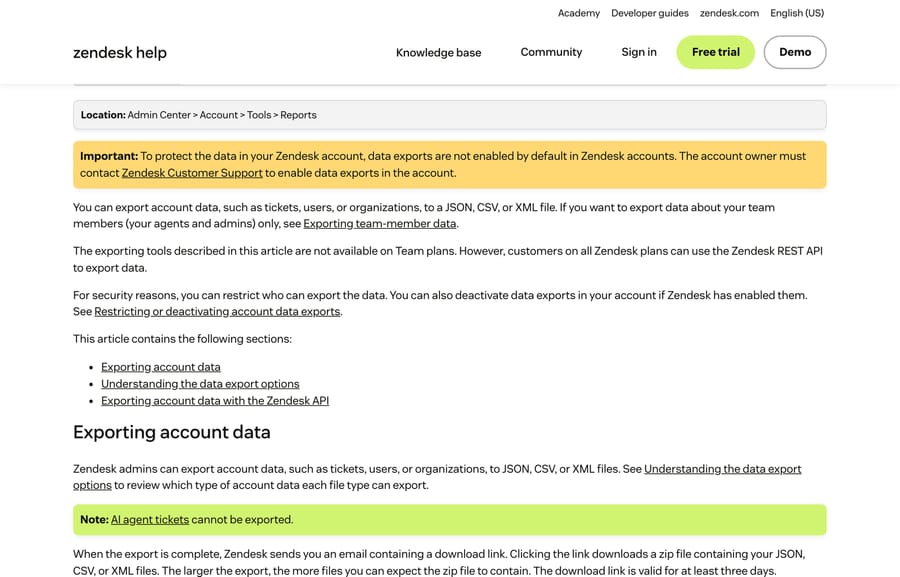
We checked for that page first-hand on our own Zendesk sandbox, a Suite Enterprise account, on September 20, 2026. It isn't there. The Account section of Admin Center runs Billing, Usage, Security, Brand management, Appearance, Logs, Sandbox and Forms and agreements, with no Tools group, and /admin/account/tools/reports returns "Nothing to see here". Step 1 isn't a formality. Until Zendesk Customer Support switches exports on, step 2 has no page to click.
The zip arrives with files named export_YYYY_MM_DD_uniqueID_X, where the trailing number just counts files in the archive and says nothing about record order. If the email never turns up, the Reports page carries a latest link next to Full JSON export, CSV export, Full XML export and User XML export that re-downloads the last file you generated, not a fresh one. Zendesk's export documentation says a large export can take anywhere from a few minutes to more than a day.
What each format quietly leaves out
- JSON is the most complete option and the one to use for a real backup. It ships as NDJSON, one object per line, so you can stream it. Accounts over one million tickets arrive in 31-day increments. Any single ticket holding more than 1 MB of data comes back without its comments, and the zip then contains a second JSON file listing those tickets with an error explaining why.
- CSV is ticket metadata for a spreadsheet: 35 or so columns covering requester, assignee, group, tags, status, channel and the whole family of reply and resolution time metrics. It excludes deleted tickets, ticket comments and ticket descriptions, plus multi-line text fields, multi-select fields and custom date fields. A ticket over 1 MB is dropped from the file entirely.
- XML comes in Full and User flavors, caps at 500 MB of file size, and per Zendesk works out to roughly 200,000 tickets. Above that the export fails with "Full XML export is no longer supported". XML also drops custom ticket fields, custom user fields, custom organization fields, metric sets and comment metadata; the API's List Ticket Fields, List User Fields and List Organization Fields endpoints are how you recover them.
Two timing details explain most "the numbers don't match" tickets. JSON and CSV exports both skip anything with a system timestamp inside the six minutes before you pressed Export, so a run started at 09:00 will not contain a ticket updated at 08:56. And a CSV export converts every timestamp to the account's default time zone, while the JSON export uses UTC and Explore shows the viewer's own time zone. Three tools, three clocks, one dataset.
One more, added since most guides were written: AI agent tickets cannot be exported at all. If you are running Zendesk's AI agents and reconciling ticket counts, that gap is in the product, not in your spreadsheet.
Why you cannot see the Export tab
Two separate gates, in the order they actually catch people.
- Exports are disabled by default. Only the account owner can get them switched on, through Zendesk Customer Support. There is no self-serve toggle, which is a deliberate security default rather than an oversight.
- Even when they are on, the domain allowlist applies. Once Zendesk enables exports, only admins whose email address is on an allow-listed domain can export. The account owner's domain is approved by default and can be changed. Admins whose address sits on a different domain cannot open the Reports page in Admin Center at all, per Zendesk's article on restricting account data exports. If one admin can see Reports and another cannot, check their email domains before you file a ticket.
Plan gating is the third check: the export tools run on Suite Growth, Professional, Enterprise and Enterprise Plus, and on Support Professional and Enterprise. Team plans do not get them and use the API instead. JSON and CSV exports are also unavailable in sandbox instances, so you cannot rehearse a migration export in a sandbox first.
How do you export a view of tickets to CSV?
For "give me the tickets in this view as a spreadsheet", the view export is faster than the account export and works on every plan, Team included.
- In Support, click Views in the sidebar.
- Click the view's name to open it.
- Click Export CSV at the top right, or Actions › Export as CSV, depending on the view.
- Check the email on your user profile's primary address for the download link.
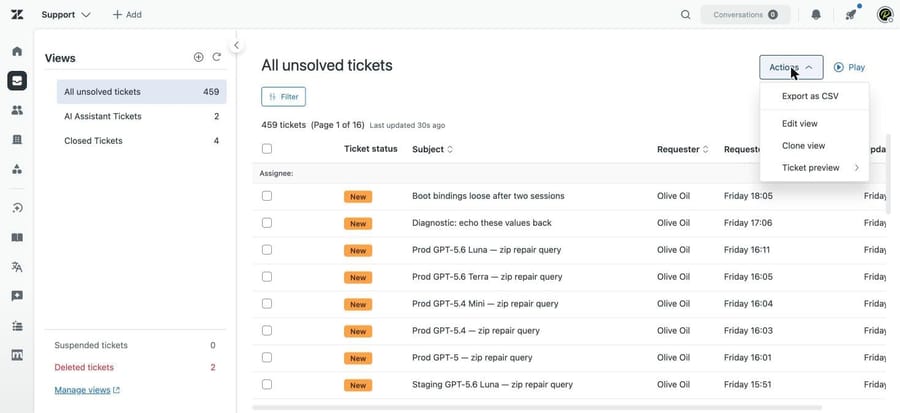
Three documented limits, from Zendesk's view export article:
- One export per 10 minutes. Ask again sooner and you get an error, so a script that loops over views needs to sleep between them.
- The view must be unfiltered. If you have applied an in-view filter, the export option disappears. Clear the filter and it comes back.
- On Enterprise, a custom role permission controls it. An agent whose role lacks that permission never sees the button.
Large views can also fail silently: they render fine in the agent interface and then no email arrives. Zendesk's own advice is to narrow the view or use the Views API. Our older version of this post repeated a community figure of roughly 1,000 tickets as the ceiling. Zendesk does not publish a row cap for view exports, so treat any number you see quoted as folklore and split by date range instead. And a view export is metadata only. For the conversation itself you need a JSON account export or the API, which is exactly what one r/Zendesk poster found when asking how to export ticket information via the API after the CSV came back without comments.
How do you export an Explore report or dashboard?
If the answer already exists as a chart, export the chart rather than re-exporting raw tickets.
- Open the report in Explore's report builder, click the arrow next to Save, then Export. For a dashboard, open the tab and click the Export dashboard icon.
- Choose CSV, Excel, Image or PDF.
Per Zendesk's export article for dashboards and reports, Excel exports stop at 50,000 rows and 16,000 columns, and both Excel and CSV drop the metric and date formatting you configured. Export a whole dashboard tab and each report lands on its own sheet. Dashboard tabs export one at a time.
The trap worth knowing: filters you applied in Explore are not included in the export. The file contains the report's own definition, not what you were looking at. Zendesk's documented workaround is to print the browser page to PDF instead, which tells you how deep the limitation goes.
How do Explore dataset exports work?
This is the method the older version of this guide skipped, and it is the right answer for anyone feeding a warehouse. A dataset export writes granular, unfiltered rows to CSV with no 50,000-row ceiling.
- In Explore, click the Dataset exports icon in the left sidebar.
- Click Create one-time export, or set up a recurring one.
- Pick the dataset. There are eight: Answer Bot Flow Builder, Chat and Messaging Engagement, Chat and Messaging Messaging tickets, Guide Knowledge Base, Support Tickets, Support SLAs, Support Updates History, and Talk Calls.
- Pick the window: 24 hours, 7 days, 30 days, 3 months, 6 months or 12 months.
- Click Create, then download the CSV from the email or the Dataset exports page.
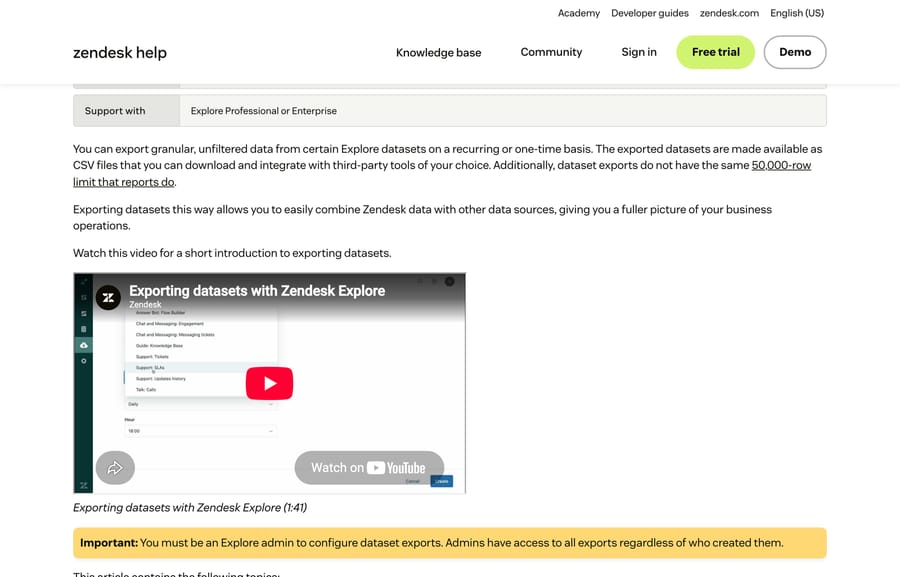
The gates here are tighter than for report exports: Explore Professional or Enterprise, and you must be an Explore admin. The quota is unusual and worth planning around. Per the dataset export documentation, you get as many exports a month as you have datasets you can access, and the slot frees up on a rolling calendar basis: use one on March 15 and it returns on April 15. Each finished export can be downloaded three times. Only the admin who created an export and the account owner get the email, though any admin can download any export.
How do you automate exports with the incremental export API?
For a nightly sync, a warehouse load or anything on a schedule, the UI exports are the wrong tool. The incremental export API returns only what changed since your last call, and it works on every plan including Team.
Zendesk supports two shapes, and the difference matters more than the docs' tone suggests:
# cursor-based (recommended, tickets/users/custom objects only)
GET /api/v2/incremental/tickets/cursor.json?start_time=1332034771
GET /api/v2/incremental/tickets/cursor.json?cursor=MTU4MDc1Mzc5OC4wfHw0MzJ8

# time-based (all incremental endpoints)
GET /api/v2/incremental/tickets.json?start_time=1332034771
With cursor-based exports each page returns after_cursor and after_url; you save the last one and start the next run from it. With time-based exports each page returns end_time, and you use that as the next start_time. Either way, end_of_stream tells you when to stop paginating. Do not use the page count for that: Zendesk's incremental export guide says pages hold about 1,000 items but can exceed that when items share a timestamp.
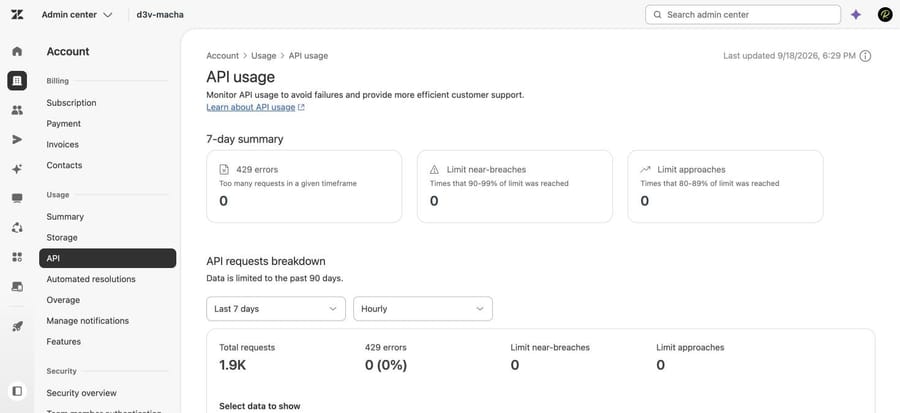
Three things to build in from the start:
- Rate limit. 10 requests a minute to these endpoints, so a full backfill moves at roughly 10,000 tickets a minute at best. The incremental users cursor export is the exception at 20 requests a minute, or 60 with the High Volume API add-on. Read the
Retry-Afterheader rather than guessing a sleep. - Duplicates are expected on time-based runs. Zendesk repeats boundary items on purpose so nothing gets skipped. Deduplicate on
idplusupdated_atfor tickets and users,idpluscreated_atfor ticket events. - System updates leak in. A Zendesk-side backfill bumps
generated_timestampwithout generating a ticket event, so time-based runs return tickets whoseupdated_atis older than yourstart_time. Filter those out. Cursor-based runs have nostart_timeto compare against, which is one more reason to prefer them.
The detail that changes retention policy: deleted tickets keep appearing in exports because the record still exists, but Zendesk scrubs the user-provided content 30 days after deletion, replacing subject and description with "SCRUBBED", text fields with an X and numeric fields with 0. Ninety days after permanent deletion the record disappears from the API entirely. Zendesk's own timeline is deleted on Day 0, permanently deleted and scrubbed on Day 30, gone from exports on Day 120. If your compliance policy assumes deleted tickets are recoverable from an export later, that is your window.
How do you export one person's data for a GDPR request?
A data subject request is about one person, so the bulk tools are the wrong shape: slower, and they over-collect.
- Export. Export an individual end user's data to JSON through the agent interface or the Users API, as described in Zendesk's privacy and data protection guidance.
- Delete. Forgetting a user is a two-step operation: soft delete first, then permanent delete. The API's
DELETE /api/v2/users/destroy_many.json?ids={user_ids}takes up to 100 IDs per call.
Where does an AI agent layer fit, and where doesn't it?
A large share of ticket exports are not backups at all. Someone pulls a year of solved tickets into a spreadsheet to find the repeat questions, the answers worth turning into macros, the gaps in the help center. That is slow, and the file is stale the day after it lands. It is also why the marketplace is full of export tools, as one r/Zendesk thread looking for an export app shows.
Macha is an AI agent layer that runs on the Zendesk you already have, so it reads that ticket history and your help center in place and uses them to answer incoming tickets, tag, route and escalate with the thread attached. It does not replace any export above. Backups, migrations and DSARs still go through Zendesk's own tools. Macha on Zendesk suits teams whose queue is mostly repeat questions their existing knowledge already answers, and it is the wrong fit if your export problem is a one-time migration to another help desk.
Worth naming the incentive, since it shapes every vendor's answer here: a migration vendor earns more when your export is painful, and an AI vendor billing per resolution earns more the more tickets you fail to prevent. Macha bills per ticket instead, one thread with one person as one charge however many replies it takes, from $299 a month for 750 tickets on published pricing, with setup and monitoring by our team included. Trying it costs $50 of free usage and no credit card.
How we researched this
Every path, cap and plan statement here comes from Zendesk's current help center and developer docs, read on September 20, 2026: the account export article (edited July 15, 2026), the export restriction article, the view export article, the dashboard and report export article, the dataset export article, and the incremental exports guide and API reference. Two of the four screenshots are of those documentation pages. The other two come from our own Zendesk sandbox, d3v-macha, a Suite Enterprise account, captured on September 20, 2026: the view export menu and the API usage page. We also checked for the account export page in that sandbox and couldn't find it, which is reported above. Community evidence comes from public r/Zendesk and Zendesk community threads, linked where cited.
Frequently asked questions
Where is the data export option in Zendesk? Admin Center › Account › Tools › Reports, then the Export tab on accounts that still show one. If the page or the tab is missing, the usual causes in order are: exports are not enabled on the account yet (the owner has to ask Zendesk Customer Support), your admin email is not on the allow-listed export domain, or you are on a Team plan, which does not include the UI exports.
How do I export Zendesk tickets to CSV? For a slice, open the view in Support and click Export CSV, or Actions › Export as CSV; you can do this once every 10 minutes per view and the view has to be unfiltered. For the whole account, use Admin Center › Account › Tools › Reports and pick the CSV export. CSV leaves out comments, descriptions, deleted tickets, multi-line and multi-select fields, and custom date fields.
What is the difference between the CSV, XML and JSON exports? JSON is the most complete, arrives as NDJSON and includes comments except on tickets over 1 MB. CSV is ticket metadata only and is the one that drops field types. XML caps at 500 MB, roughly 200,000 tickets, and omits custom fields and metric sets. Use JSON for a backup or migration and CSV for analysis.
Which Zendesk plans can export data? The UI export tools run on Suite Growth, Professional, Enterprise and Enterprise Plus, and on Support Professional and Enterprise. Team plans use the REST API, which is available on every plan. Explore dataset exports need Explore Professional or Enterprise plus an Explore admin role.
How do I set up a recurring or automated Zendesk export? Two options. Explore dataset exports run on a recurring schedule and deliver CSV. For anything custom, poll the incremental export API, preferably the cursor-based endpoint, saving after_cursor between runs and stopping when end_of_stream is true. The endpoints allow 10 requests a minute.
How long does a Zendesk export take, and how long is the link valid? Zendesk generates account exports asynchronously and says they can take from a few minutes to more than a day depending on the date range and account activity. The emailed download link is valid for at least three days, and the Reports page keeps a "latest" link to re-download the last file you generated.
Can I export deleted tickets from Zendesk? For a limited window. Deleted tickets still appear in incremental exports, but the content is scrubbed 30 days after deletion, and 90 days after permanent deletion the record leaves the API for good. Zendesk's own timeline is Day 0 deleted, Day 30 scrubbed, Day 120 gone.
How do I export one customer's data for a GDPR request? Export that end user's data to JSON from the agent interface or the Users API rather than running an account export. To erase them, soft delete the user and then permanently delete, or call DELETE /api/v2/users/destroy_many.json with up to 100 user IDs.
Once the file is in hand, the next question is usually what survives the move to another help desk. Our guide to what actually transfers in a Zendesk data migration covers that, and how Zendesk structures tickets explains why the JSON export looks the way it does.
Sources: Exporting ticket, user, or organization data from your account · Restricting account data exports · Exporting a view of tickets to a CSV file · Exporting dashboard tabs and reports · Exporting datasets from Explore · Using the Incremental Exports API · Incremental Exports API reference · Complying with Privacy and Data Protection Law · Forgetting a user in Zendesk · Export to CSV please (Zendesk community)
Add AI agents to your Zendesk
Macha reads the ticket, drafts the reply and takes the action, inside the Zendesk you already run.