Shopify
 Stripe
 Slack
Slack Notion
 Google Workspace
 Confluence

How to Integrate Freshdesk with Jira (2026)


When a support ticket turns out to be a real bug, two teams have to talk: support, who owns the customer conversation, and engineering, who owns the fix. Without a connection between the tools, that handoff is a copy-paste job — an agent retypes the ticket into Jira, then keeps hopping back to check whether anything moved. The Freshdesk Jira integration closes that gap: link a ticket to a Jira issue once, and comments and status flow both ways so support always knows where the fix stands without leaving the ticket.

This guide walks through it end to end — why you'd connect support and engineering, which apps are actually available (and which are official versus third-party), how to install and authorize, how to map projects, fields, and statuses, how to link a ticket to a Jira issue, how two-way sync behaves, the limits worth knowing, and what to do when something breaks. Everything here was verified against the Freshworks Marketplace and Freshdesk's support docs in June 2026. If you're new to the platform, start with what is Freshdesk; for the wider toolkit, see the best Freshdesk integrations.
Why connect Freshdesk to Jira
The point isn't novelty — it's removing a manual relay between two teams that work in different systems. A good Freshdesk Jira integration does four things:
- Escalate bugs without retyping. Turn a ticket into a Jira issue (or attach it to an existing one) from the ticket itself, carrying over the summary, description, and key fields.
- Keep status in sync, both ways. When engineering moves an issue from In Progress to Done, support sees it on the ticket — no Slack ping required.
- Sync the conversation. Comments added on either side show up on the other, so engineering's questions and support's customer context stay together.
- Avoid duplicate work and dropped threads. One issue can serve many tickets reporting the same bug, and resolution updates fan back out to every linked ticket.
The net effect: support stops chasing engineering for updates, and engineering stops getting the same bug filed five times.
The available apps: official vs third-party
This is where accuracy matters, because the Marketplace lists several Jira apps and they are not all built by the same people.
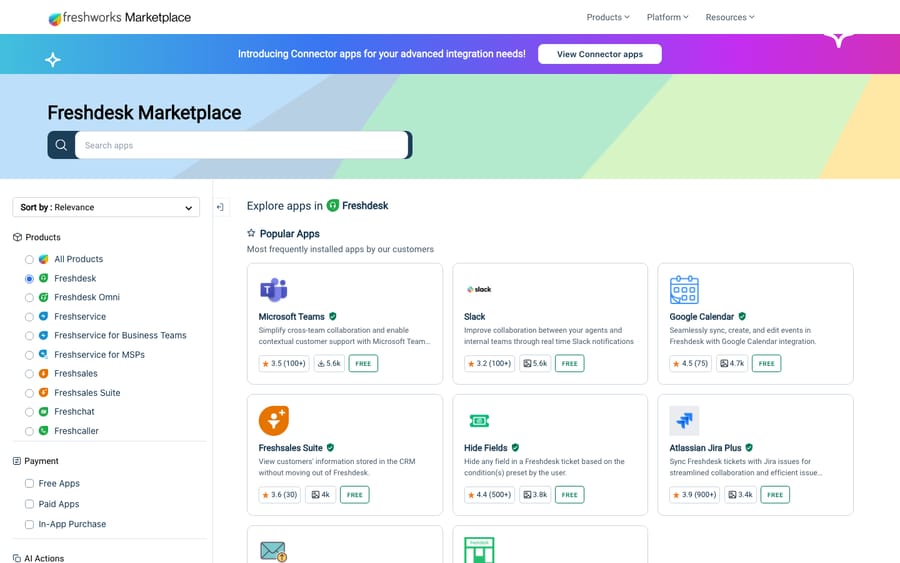
The official app — Atlassian Jira Plus (by Freshworks). The Atlassian Jira Plus app is published and verified by Freshworks, it's free, and it's actively maintained (version 49.0 with roughly 3.4k installs as of June 2026). It supports both Freshdesk and Freshdesk Omni, and it's the app Freshworks' own support documentation walks you through. For most teams, this is the one to install. It works with Jira Cloud and on-premise Jira (Server/Data Center) — the on-prem path requires a bit of extra network setup, covered below.
Third-party options. If you need a different flavor of sync, the Marketplace also lists third-party apps. The most established is IntegrateCloud's Atlassian JIRA-Freshdesk Integration (built by IntegrateCloud Inc, not Freshworks — free, 200+ installs, lets you create, link, and comment on Jira issues), and there's a dedicated Jira Service Management-Freshdesk Integration for teams whose engineering side runs JSM. On the Atlassian side, the complementary "Freshdesk by Freshworks" app and a couple of two-way-sync connectors live on the Atlassian Marketplace.
The honest recommendation: start with Atlassian Jira Plus. It's official, free, well-documented, and covers the common cases. Reach for a third-party app only if it offers a specific capability Jira Plus lacks — and when you do, check the publisher, reviews, and last-updated date before trusting it with your data.
Note: Jira Plus is supported on paid Freshdesk plans (Growth, Pro, Enterprise, and Omni variants; legacy Blossom/Garden/Estate/Forest) but not on the free Sprout tier. Confirm plan eligibility on the listing before you start.
Step 1 — Install Atlassian Jira Plus from the Marketplace
In Freshdesk, go to Admin → Apps → Get More Apps (this opens the Freshworks Marketplace), search for Atlassian Jira Plus, and click Install. You'll need admin rights in Freshdesk to install and configure an app.
Step 2 — Authenticate your Freshdesk account
The app first asks you to connect Freshdesk itself: enter your Freshdesk domain (your yourcompany.freshdesk.com URL) and your Freshdesk API key. You'll find your API key in your Freshdesk profile settings. This lets the app read and update tickets.
Step 3 — Connect your Jira account
Next, connect Jira. The app supports both cloud and on-premise deployments and asks for:
- Your Jira domain URL (e.g.
yourcompany.atlassian.netfor Cloud). - Your Jira admin email.
- A Jira API token, which you generate at
id.atlassian.com(Account settings → Security → Create and manage API tokens).
On-premise (Jira Server / Data Center): if your Jira is self-hosted, you'll also need to whitelist Freshworks' VPC IP addresses for your region so the app can reach your instance — Freshworks publishes the specific IPs per data-center region (US, Europe, India, Australia) in the setup doc. Cloud users can skip this.
Step 4 — Map projects, fields, and statuses
This is the step that makes the integration feel native instead of bolted-on. In the app's configuration:
- Pick what to link. Select the Freshdesk product to associate with the connected Jira account, then choose the Jira project issues should be created in.
- Map fields. Map Freshdesk ticket fields — Source, Group, Agent, Ticket Number, Customer Name, Email, Phone, Company — to Jira text fields, so the context engineering needs lands on the issue automatically.
- Map statuses. Set up a one-to-one mapping between Jira statuses and Freshdesk statuses so a status change on one side can update the other (for example, Jira Done → Freshdesk Resolved).
- Set sync behavior. Choose what happens when a linked item updates — Do Nothing, Update status, or Add a comment — and optionally turn on Always sync priority so a priority change carries across.
- Control deletion rights. You can restrict which Freshdesk agent roles are allowed to delete Jira issues from within the app.
Step 5 — Install the companion app on the Jira side
To let your engineers see the linked Freshdesk ticket inside the Jira issue, install the complementary "Freshdesk by Freshworks" app on your Jira instance from the Atlassian Marketplace. This is the piece that makes the integration genuinely two-way for both teams — support sees Jira on the ticket, engineering sees the ticket on the issue.
Step 6 — Link a ticket to a Jira issue
With setup done, day-to-day use happens from the ticket. Open a Freshdesk ticket and find the Jira Plus app in the ticket sidebar, where you get two options:
- Link existing issue — search by Issue ID or issue summary and attach the ticket to an issue engineering is already tracking. Use this when the bug's already filed.
- Create issue — fill in the required fields (Issue Type, Summary, Reporter, Assignee, Description) and the app creates a new Jira issue and links it in one move. Use this for a newly discovered bug.
Once linked, the app adds the Jira issue ID as a tag on the Freshdesk ticket (plus any pre-configured tag from setup), which makes linked tickets easy to filter later.
Limit to know: you can link up to 5 Jira issues to a single Freshdesk ticket. That's plenty for most cases, but worth knowing if you triage sprawling, multi-bug tickets.
Step 7 — How two-way sync behaves
Here's what actually flows between the two systems once a ticket and issue are linked:
- Comments sync both directions. A comment added on the Freshdesk ticket appears on the Jira issue and vice versa — including comments that were edited in Jira, which update on the Freshdesk side too.
- Status and key fields sync per your mapping, so engineering's progress is visible on the ticket without anyone re-checking Jira.
- The behavior is configurable, not forced — your global sync settings (Do Nothing / Update status / Add a comment, plus optional priority sync) decide exactly what an update on one side does to the other.
A practical note: design your status mapping to match how each team actually works. If support's Resolved should only fire when engineering hits Done (not In Review), map it that way — otherwise you'll resolve tickets while the fix is still in QA.
Limits and gotchas
- Five issues per ticket is the hard cap on linking.
- On-prem needs IP whitelisting — budget time with whoever owns your Jira network rules.
- API tokens, not passwords. Both sides authenticate with API keys/tokens; if sync silently stops, an expired or rotated token is the usual culprit.
- Status mapping is one-to-one — plan your mapping so there are no ambiguous states, and remember a mapping change affects future syncs, not retroactively.
- Plan eligibility — not available on the free Sprout plan.
Troubleshooting
- Issues won't create or link. Re-check the Jira API token and admin email, and confirm the connecting account has permission to create issues in the target project. For Server/Data Center, verify the Freshworks IPs are whitelisted.
- Comments or status aren't syncing. Open the app's sync settings — if the action is set to Do Nothing, nothing will propagate. Confirm your status mapping covers the states you're moving between.
- Engineers can't see the ticket in Jira. You likely skipped Step 5 — install the "Freshdesk by Freshworks" app on the Jira instance.
- Can't install or configure the app. You need Freshdesk admin rights, and the account must be on a supported (non-Sprout) plan.
- Need a different sync model. If Jira Plus doesn't fit (say you need conditional field-level rules), evaluate a third-party app like IntegrateCloud's — but verify its maintenance and reviews first.
Where an AI agent layer fits (an honest aside)
The Jira integration solves the engineering handoff — but most of a support queue isn't bugs. It's the repetitive, knowledge-answerable tickets: "how do I reset my password," "where's my invoice," "does this plan include X." Those don't belong in Jira at all; a human just answers them.
That's the gap Macha fills. Macha isn't a help desk and it isn't a Jira connector — it's an AI agent layer that connects on top of your Freshdesk, reads the customer's actual question, pulls from your connected knowledge, and resolves routine tickets end to end, escalating the rest to a human with full context. The honest framing: it only helps with tickets your knowledge can answer, and it's one more system to configure and supervise — Macha bills per AI action (each step it takes, like drafting a reply or looking up a record), not per ticket. But pairing it with a clean Jira escalation path is a tidy division of labor: the agent layer clears the repetitive volume, and the genuine bugs route straight to engineering. You can try it free — 7-day free trial, no credit card required.
Frequently asked questions
What is the best Freshdesk Jira integration? For most teams, the official Atlassian Jira Plus app by Freshworks — it's free, verified, actively maintained, supports Jira Cloud and on-prem, and is the one Freshdesk's own docs document. Third-party apps like IntegrateCloud's exist if you need a specific sync behavior, but start with Jira Plus.
Is the Freshdesk Jira app free? Yes — Atlassian Jira Plus is free to install from the Freshworks Marketplace. You still pay for your underlying Freshdesk and Jira plans, and the integration isn't available on Freshdesk's free Sprout tier.
Does Freshdesk Jira sync work both ways? Yes. Once a ticket is linked to an issue, comments sync in both directions and status/key fields sync according to your mapping. You control exactly what an update on one side does to the other in the app's global sync settings.
Can I link one Freshdesk ticket to multiple Jira issues? Yes, up to 5 Jira issues per Freshdesk ticket. You can also link many tickets to a single issue when several customers report the same bug.
Does the integration work with on-premise Jira (Server/Data Center)? Yes — Jira Plus supports both Cloud and on-prem. For self-hosted Jira you'll need to whitelist Freshworks' regional VPC IP addresses so the app can reach your instance; Cloud users skip that step.
How do I connect Freshdesk to Jira step by step? Install Atlassian Jira Plus from Admin → Apps → Get More Apps, authenticate Freshdesk (domain + API key), connect Jira (domain URL, admin email, API token from id.atlassian.com), map your project, fields, and statuses, install the companion "Freshdesk by Freshworks" app on the Jira side, then link or create issues from the ticket sidebar.
The bottom line
The Freshdesk Jira integration is one of the highest-leverage connections a support team can make: it turns the support-to-engineering handoff from a copy-paste relay into a linked, two-way sync. Use the official, free Atlassian Jira Plus app, map your projects, fields, and statuses carefully (especially status, so you don't resolve tickets before fixes ship), install the companion app on the Jira side, and reach for a third-party app only when you need something Jira Plus genuinely can't do. Wire it up alongside your other Freshdesk integrations, and let an AI agent layer clear the repetitive tickets so the issues that reach Jira are the ones that truly need engineering.
Verified against the Freshworks Marketplace and Freshdesk support documentation, June 2026. Vendors update apps and pricing periodically — confirm current details on the app's marketplace listing before installing.
Add AI agents to your Freshdesk
Macha resolves tickets end to end on Freshdesk — no migration, no code.