





 Shopify
 Stripe
 Slack
Slack Notion
 Google Workspace
 Confluence

How Do You Integrate Freshdesk with Salesforce? Setup, Sync and Field Mapping (2026)


Freshworks' Salesforce Connector App shows Salesforce leads, contacts, accounts and opportunities inside a Freshdesk ticket on the Growth, Pro and Enterprise plans. Syncing contacts and accounts in the background needs the Connector apps add-on at $80 per 5,000 tasks, and tickets never sync to Salesforce Cases.
Key takeaways
- Freshdesk connects to Salesforce through the Salesforce Connector App, installed from Admin, Apps with a Consumer ID and Secret from a Salesforce Connected App.
- The native Freshdesk Salesforce Connector syncs contact and account data only, so ticket-to-Case sync needs middleware such as Exalate.
- The Salesforce widget is included on Freshdesk Growth ($19), Pro ($55) and Enterprise ($89) per agent a month billed annually.
- Background sync between Freshdesk and Salesforce runs through Recipes and needs the Connector apps add-on, priced at $80 per 5,000 tasks.
- Freshdesk Salesforce Recipes match records on email by default, with external ID, Twitter ID or phone available when contacts share addresses.

Freshdesk integrates with Salesforce through the Salesforce Connector App from Freshworks, whose in-ticket widget is included on Growth, Pro and Enterprise: install it from Admin → Apps, connect it with a Consumer ID and Secret from a Salesforce Connected App, and agents see Salesforce leads, contacts, accounts and opportunities inside the ticket. Background sync of contacts and accounts costs extra through the Connector apps add-on at $80 per 5,000 tasks, and the app never syncs Freshdesk tickets to Salesforce Cases.
The steps below cover install, credentials, sync direction and field mapping, plus a newer option for teams who want more than a sidebar: giving an AI agent live Salesforce lookups inside the ticket.
Should you use the native app, middleware or Zapier?
Before you install anything, be clear about what you actually need to move between the two platforms, because that determines the route.
| Approach | Best for | Sync direction | Tickets ↔ Cases? |
|---|---|---|---|
| Salesforce Connector app (native, Freshworks) | Viewing CRM data in tickets + contact/account sync | One-way either direction, or two-way | No — contacts and accounts only |
| Middleware (e.g. Exalate) | Full bidirectional ticket ↔ case sync with field-level control | Configurable two-way | Yes |
| Zapier / iPaaS | Simple trigger-based automations (new ticket → new lead) | One-way per Zap | Only what you build, record by record |
| A Custom Tool on an AI agent | Live, per-conversation lookups and writes | On demand, not batched | Whatever query you define |
The native connector is free to view data and paid to sync it, and it's the right starting point for most teams. Reach for middleware only when you genuinely need Freshdesk tickets and Salesforce Cases to mirror each other, which the native app does not do. If your goal is workflow automation rather than record mirroring, you may be better served by automating Freshdesk with AI than by wiring a CRM sync at all.
How do you install the Salesforce Connector app? (Step 1)
The native integration lives in the Freshworks Marketplace. Per Freshworks' Salesforce Connector app documentation, it's a Freshworks-verified app — version 9.0 with 200+ installs as of 24 September 2026 — supported on both Freshdesk and Freshdesk Omni.
- Go to Admin → Apps in your Freshdesk account.
- Search for "Salesforce Connector App" and open the listing.
- Click Install.
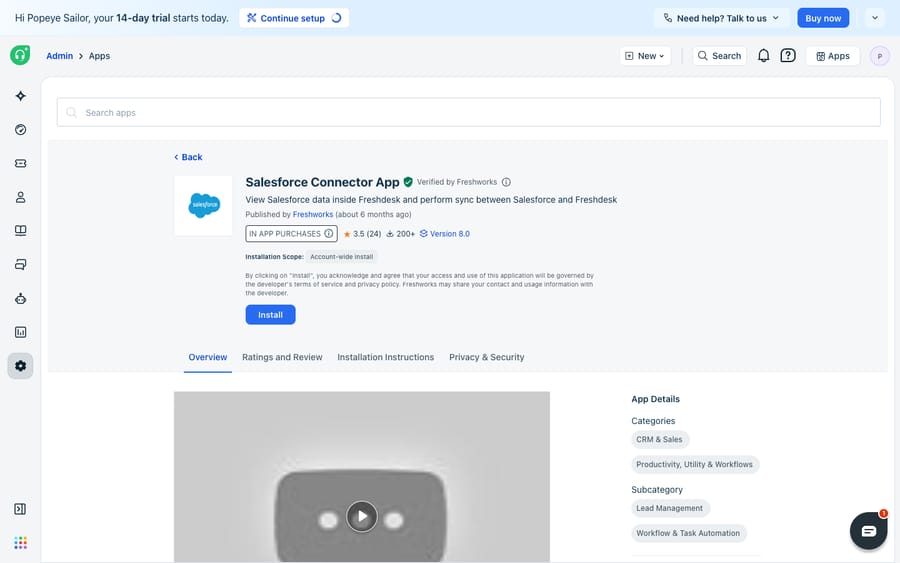
The widget itself — the part that shows Salesforce data inside a ticket — is available on the Growth, Pro and Enterprise plans, which is every plan Freshworks currently sells; the pricing page lists those three at $19, $55 and $89 per agent a month billed annually and nothing below them, so older guidance about a free tier being excluded no longer describes a plan you can buy (new accounts start on a 14-day trial of Enterprise). Installing the app is the easy part; the credentials are where teams get stuck.
What credentials does the connector need? (Step 2)
The connector authenticates through a Salesforce Connected App, which you or your Salesforce admin create on the Salesforce side to generate the OAuth credentials. During install, Freshdesk asks for five things:
- Salesforce URL, in the form
acme.my.salesforce.com. - Consumer ID (also called the Consumer Key) from your Salesforce Connected App.
- Consumer Secret from the same Connected App.
- Freshdesk domain, in the form
yourcompany.freshdesk.com. - Freshdesk API key for an admin account, under Profile Settings → View API key.
You then choose which agents get access to the widget, and click Install. This is the first place the integration crosses an account boundary: creating the Connected App and finding the Consumer ID and Secret needs Salesforce admin access, not just Freshdesk admin. If you don't own the Salesforce org, this step needs your CRM administrator, so plan it as a coordination task rather than a five-minute self-serve install.
What Salesforce data shows inside the ticket? (Step 3)
Once connected, the widget renders in the ticket detail view. It surfaces the matched Lead and Contact information, the associated Account, and the related Tasks, Cases and Opportunities for that record. Agents can also create new Leads, Contacts, Tasks, Cases and Opportunities in Salesforce directly from a Freshdesk ticket — a genuinely useful bit of two-way action before you turn on any background sync.
Worth flagging clearly: the "Cases" and "Tasks" the widget shows and creates are Salesforce objects, not Freshdesk tickets. Displaying a Salesforce Case in the sidebar is not the same as syncing your Freshdesk ticket into Salesforce. That distinction trips up a lot of first-time setups.
How do you turn on data sync with Recipes? (Step 4)
Viewing data is free; keeping records in step is not. Background sync runs through Recipes and requires the Connector apps add-on, billed at $80 per 5,000 tasks and purchased under Admin → Plans and Billing. That rate is printed on Freshworks' own pricing page as well as in the connector documentation (both checked 24 September 2026), but confirm it against your billing screen, since add-on pricing changes.
A Recipe is a workflow that defines the flow and direction of data. When you build one, you choose a direction:
- One way — Salesforce to Freshdesk (the CRM is the source of truth).
- One way — Freshdesk to Salesforce (support captures new contacts).
- Two-way — sync between both (records mirror each other).
Pick the direction deliberately. Two-way sync feels tidy but can create loops and clobber edits if both sides can change the same field; most teams are better served by a clear one-way flow from whichever system is authoritative for that data.
How do you map fields between Freshdesk and Salesforce? (Step 5)
Inside the Recipe you decide which fields move and how they line up. The core rule from the docs: you map fields from the source to the destination, and each mapped field must already exist in the destination. Freshdesk won't invent a Salesforce field for you, or the reverse. So before mapping, make sure the target field exists on the other side.
You also set the unique field used to match an existing record instead of creating a duplicate. On the Freshdesk side this can be the external ID, email, Twitter ID or phone, and by default it's mapped to email. Email is the pragmatic default, but if your contacts share addresses — shared inboxes, role accounts — pick a genuinely unique key like external ID to avoid merges you didn't intend.
A sensible starting point:
- Match on: email, or external ID for higher precision.
- Sync: name, company/account, phone — the fields agents actually read.
- Leave out: free-text notes and status fields that each system owns differently, which are the usual source of sync conflicts.
What can't the native connector do?
For its actual job — putting CRM context in front of an agent and keeping contacts and accounts aligned — the connector does that cleanly. But be clear-eyed about its edges.
It syncs contacts and accounts, not tickets. The single biggest misconception is that the native connector will mirror Freshdesk tickets into Salesforce Cases. It won't; its sync scope is contact and account data. If you need true ticket-to-case bidirectional sync, with status, comments and attachments flowing both ways, you're into middleware territory — Exalate, Workato or similar — which the Exalate team documents in their Freshdesk–Salesforce integration guide.
Sync is a paid add-on. The in-ticket widget is included; the background data sync costs extra per task. For a low-volume team that just wants to see Salesforce data, that's fine. For high-volume two-way sync, model the cost first.
It crosses account boundaries. The Connected App and its OAuth credentials need Salesforce admin access. If support and sales are different orgs with different admins, expect a coordination step.
It's display and sync, not action. It shows fields; it doesn't decide to look something up mid-conversation, pass the right parameters, and reason over the result. And you get the objects and fields the connector exposes, not the specific query your workflow needs — "is this account past due?" isn't a field.
Even with Salesforce data sitting in the sidebar, an agent still has to read every ticket, interpret it, and write the reply. The integration surfaces context; it doesn't act on it.
How can an AI agent look up Salesforce data live?
The high-value version of this integration isn't a synced field — it's the agent doing the work. A customer emails Freshdesk; the agent recognizes them, looks up their live Salesforce account by email, and answers "yes, your Enterprise plan includes that" or "I can see your renewal is next month," grounded in Salesforce rather than a stale synced copy.
Macha runs on top of the Freshdesk you already use — it's an AI agent layer, not a Freshdesk or Salesforce replacement, and it connects to Freshdesk the ticketing product, not Freshchat, Freshservice or Freshcaller. A Custom Tool is a single action you define once and point at Salesforce's REST API. No Marketplace app, no code.
1. Point it at the Salesforce API. Salesforce exposes a REST API with OAuth 2.0; you give Macha the endpoint and credentials. The built-in Sidekick can scaffold the request from a plain-English description if you'd rather not fill in the form.
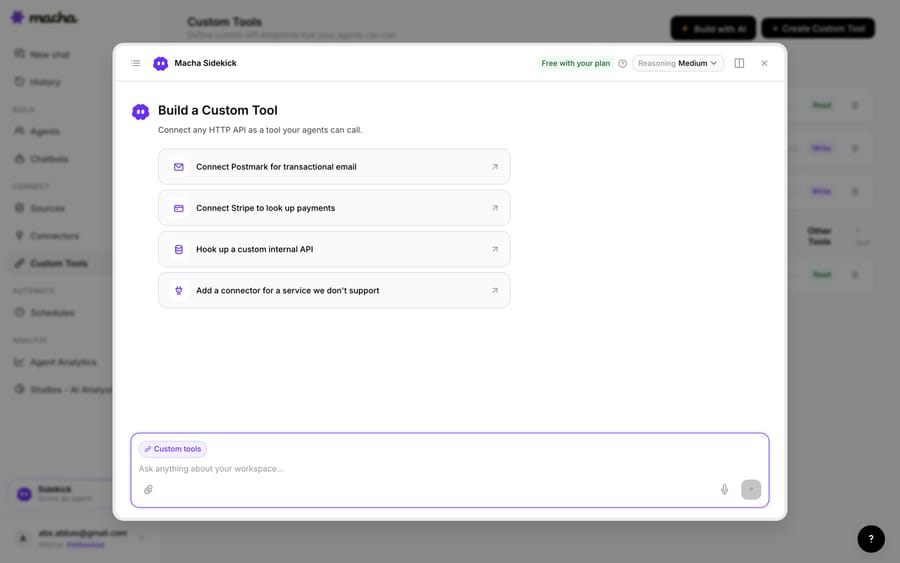
2. Define the action. Give it a label and a description the AI uses to decide when to call it — "Get the Salesforce account, plan and renewal date for a customer by email," say — set the method and URL (a SOQL query against the Salesforce REST API, with an email placeholder), and choose Read or Write. A lookup is a Read; updating a case or logging to an opportunity is a Write, which requires confirmation before it runs.
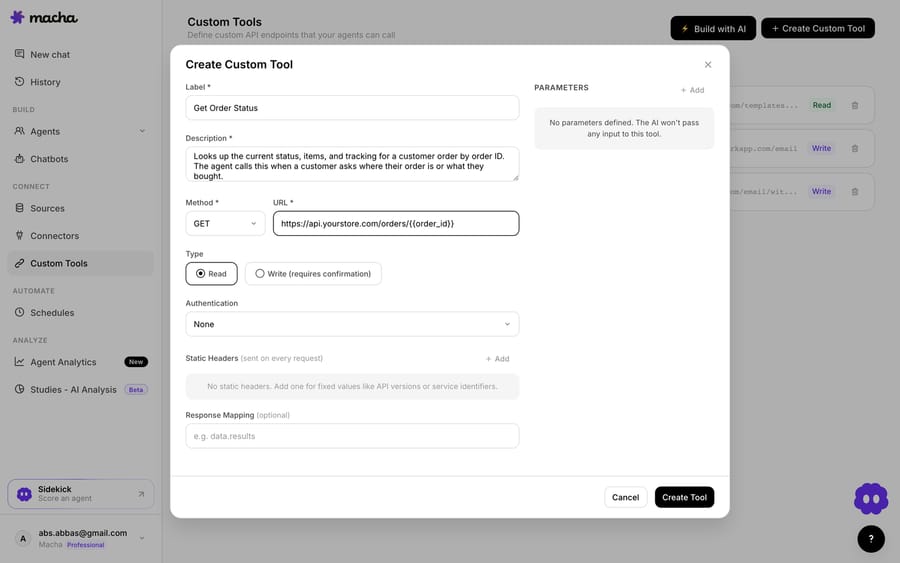
3. The agent uses it live. Once the tool exists, the agent calls it mid-ticket, passes the customer's email, and reasons over the Salesforce record it gets back — answering the question or taking the next step.
Read vs Write, and staying safe
Because a Custom Tool can reach into Salesforce, the guardrails matter. Read tools (lookups) are free to call; Write tools (update a case, log an activity, change a field) require confirmation. Each tool is scoped to one action, permissioned per agent, and every call is audited. Salesforce's OAuth handles credentials, so secrets never live in the conversation.
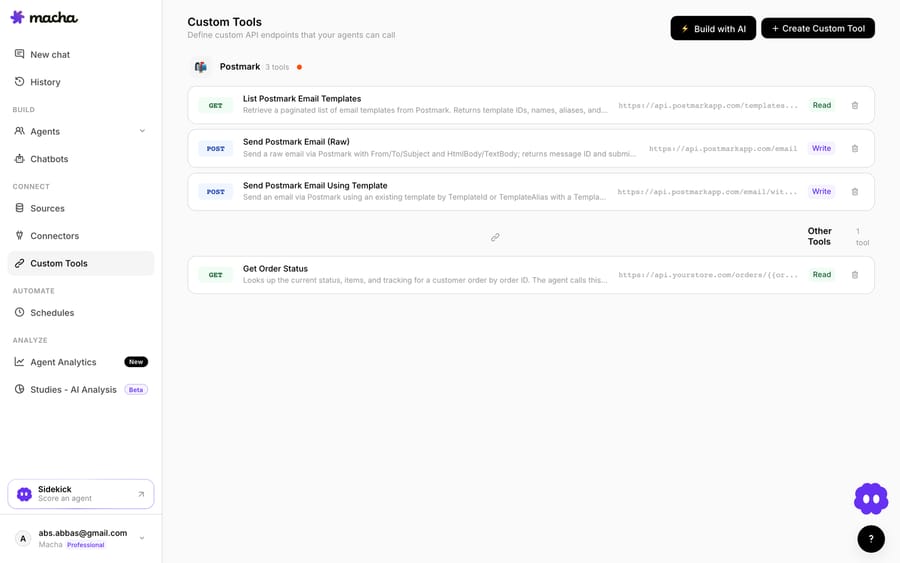
Teams usually build a few Salesforce tools and group them — a lookup, a "log ticket to opportunity," a "flag account" — alongside tools for their other systems. Once the agent can reach Salesforce, the same pattern covers more: check an account's entitlement before answering, read the open opportunity and owner to route a VIP, log the ticket to the account timeline, or flag churn risk. And because Custom Tools aren't Salesforce-specific, the same approach connects your billing system, data warehouse or internal API — see the integration directory, or the pillar on building custom Freshdesk integrations.
On cost: Macha is one plan priced on monthly ticket volume, from $299 a month for 750 tickets — about $0.40 a ticket at every tier — with setup and monitoring by the Macha team included and $50 of free usage to try it. The wider category, and how these tools differ, is covered in AI agents for customer service.
Native connector vs Custom Tool — which to use
- Use the native Salesforce Connector app if you want accounts, contacts and cases visible in the ticket for human agents, and you're fine paying the add-on for background sync.
- Use a Custom Tool when you want your AI agent to look up live Salesforce data or take an action from the ticket, you need a specific query or write the connector doesn't expose, or you'd rather not gate it behind the add-on.
The two coexist happily. The clean division of labour: let the Salesforce Connector keep contacts and accounts aligned and put CRM context in the sidebar, and layer an agent on top for the part a sync can't do — reading the ticket and writing the answer.
Frequently asked questions
Does Freshdesk have a native Salesforce integration? Yes — the Salesforce Connector App, published and verified by Freshworks. It surfaces leads, contacts, accounts, cases and opportunities in the ticket, lets agents create those records from a ticket, and can sync contact and account data in the background through a paid add-on.
Does the native Freshdesk Salesforce integration sync tickets to Salesforce Cases? No. Its sync scope is contact and account data only. It can display and create Salesforce Cases from a ticket, but it does not mirror your Freshdesk tickets into Salesforce Cases. For full ticket-to-case bidirectional sync you need middleware such as Exalate.
Where do I install the Salesforce Connector app? In Freshdesk, go to Admin → Apps, search for "Salesforce Connector App," and click Install. You'll then supply your Salesforce URL, a Consumer ID and Secret from a Salesforce Connected App, your Freshdesk domain, and an admin Freshdesk API key.
Is the Freshdesk Salesforce integration free? The in-ticket widget is included on Growth, Pro and Enterprise — every current plan — at no extra charge. Background data sync requires the paid Connector apps add-on, printed at $80 per 5,000 tasks; confirm the current rate on your Plans and Billing screen.
Which direction does the sync run? You choose per Recipe: one-way Salesforce → Freshdesk, one-way Freshdesk → Salesforce, or two-way. Prefer a clear one-way flow from whichever system owns that data, because two-way sync can loop or overwrite edits when both sides can change the same field.
How are records matched between Freshdesk and Salesforce? On a unique field you choose, which defaults to email. The other options on the Freshdesk side are external ID, Twitter ID and phone. If your contacts share addresses — shared inboxes, role accounts — switch to external ID so the sync doesn't merge people it shouldn't.
Why isn't my field mapping working? The most common cause is that the destination field doesn't exist yet. You map source to destination, and each mapped field has to already exist on the receiving side; neither system creates one for you.
Do I need a Salesforce admin to set this up? For the native connector, yes — the Connected App and its OAuth Consumer ID and Secret are created in Salesforce. A Freshdesk admin can do everything on the Freshdesk side, but the credentials come from the CRM.
Can an AI agent look up Salesforce data from a Freshdesk ticket? Yes, with a Custom Tool pointed at Salesforce's REST API rather than the Marketplace connector. Reads such as account lookups run freely; writes — updating a case, logging an activity — require a confirmation step, and you control which agents can use them. Each tool is scoped to one action, authenticated via Salesforce OAuth so secrets never appear in the conversation, and every call is audited.
Can I add AI to Freshdesk without replacing Salesforce or Freshdesk? Yes. An AI agent layer like Macha connects to Freshdesk as a native connector and runs on top of your existing help desk — it doesn't replace Freshdesk or your CRM. It reads tickets and drafts grounded replies, and can pull live account data via a custom tool, while Salesforce stays your system of record for customer data.
Which route should most Freshdesk teams take?
For most teams, start with the native app. The Freshdesk Salesforce integration is two jobs in one app: a sidebar that shows agents who they're talking to, free on every current plan, and a background Recipe sync for contacts and accounts that costs $80 per 5,000 tasks. Install it from Admin → Apps, get your Salesforce admin to create the Connected App, choose a deliberate one-way direction unless you truly need mirroring, and match on something more unique than email if your contacts share addresses. Just don't expect it to sync tickets into Cases — that's middleware. And if you want the CRM context your agents can see to actually get used, a Custom Tool puts Salesforce in an AI agent's hands: live lookups and writes, decided in context, with Read/Write guardrails and an audit trail. See how Custom Tools work, or start a trial and wire up your first Salesforce tool.
Install path, credential fields, Recipe directions and the add-on rate verified against Freshdesk support article 50000009747, the Marketplace listing and Freshworks' pricing page, 24 September 2026.
Sources: The Salesforce Connector app (Freshdesk support), Salesforce Connector App on the Freshworks Marketplace, Freshdesk pricing, Exalate on Freshdesk–Salesforce integration.






