



 Intercom
 Shopify
 Stripe
 Slack
Slack Notion
 Google Workspace
 Confluence

How Do You Integrate Freshdesk with Shopify in 2026?


Freshdesk connects to Shopify through a free app published by Freshworks, which puts each customer's orders, payment status and tracking in the ticket sidebar. Since January 1, 2026, the setup starts with a custom app in the Shopify Dev Dashboard.
Key takeaways
- The Freshdesk Shopify integration starts with a custom app in the Shopify Dev Dashboard, then the free Freshworks Shopify app is installed and authenticated from Admin → Support Operations → Apps.
- Since January 1, 2026, Shopify store owners must create new custom apps in the Shopify Dev Dashboard, which issues the Client ID and Secret the Freshdesk app needs.
- Freshdesk's Shopify app article lists three API scopes: read_customers, read_orders and write_orders, and write_orders is what enables cancellations and refunds.
- Order cancellation inside Freshdesk works only before payment or before the items ship, and refunds can be full or partial with an option to restock items.
- The Freshworks Shopify app for Freshdesk is free, shows about 1.7k installs and supports Freshdesk and Freshdesk Omni.

To integrate Freshdesk with Shopify, create a custom app in the Shopify Dev Dashboard with the read_customers, read_orders and write_orders scopes, copy its Client ID and Secret, then install the free Freshworks Shopify app from Admin → Support Operations → Apps in Freshdesk and authenticate your store. Since January 1, 2026, Shopify requires the Dev Dashboard for new custom apps, so older setup guides that start in the Shopify admin no longer work. Once connected, agents see order number, status, items and shipping in the ticket sidebar, and can cancel unshipped orders or refund from the ticket.
| Item | What you need (checked 24 September 2026) |
|---|---|
| App | Shopify app published by Freshworks; free; about 1.7k installs; supports Freshdesk and Freshdesk Omni |
| Shopify side | Store owner creates a custom app in the Shopify Dev Dashboard |
| API scopes | read_customers, read_orders, write_orders (write_orders only for cancel and refund) |
| Credentials | Client ID and Secret from the Dev Dashboard |
| Freshdesk side | Admin role; Admin → Support Operations → Apps → Get more apps |
| Multiple stores | Supported: install the custom app on each store and authenticate each one |
New to the platform? Start with what is Freshdesk, or browse the wider best Freshdesk integrations roundup for the rest of the stack.
Why do ecommerce teams connect Freshdesk to Shopify?
For an ecommerce team, the order is the context. Without it, every WISMO ("where is my order") ticket is a scavenger hunt. With it, the answer is already on screen. Connecting the two gets you:
- Order context in the ticket sidebar. The customer's recent and past orders appear next to the conversation (order number, date, status, items and shipping), so agents stop alt-tabbing into the Shopify admin.
- Faster WISMO answers. Tracking number and carrier are right there, so "where's my order?" becomes a 15-second reply instead of a two-tab investigation.
- Refunds and cancellations in-flow. With the write_orders scope, agents can cancel an unshipped order or issue a full or partial refund from inside Freshdesk, with an optional notification to the customer.
- Fewer mistakes. Agents reply against the actual order state (paid, unfulfilled, shipped) instead of guessing or trusting the customer's memory.
- Multi-store support. If you run several Shopify storefronts for different brands or regions, you can connect them to one Freshdesk account.
The honest framing: the native integration is a display-and-act layer. It shows agents the order and lets them take a couple of actions; it doesn't answer tickets for you. (More on that, and where an AI layer changes the equation, near the end.)
Which Shopify app should you use?
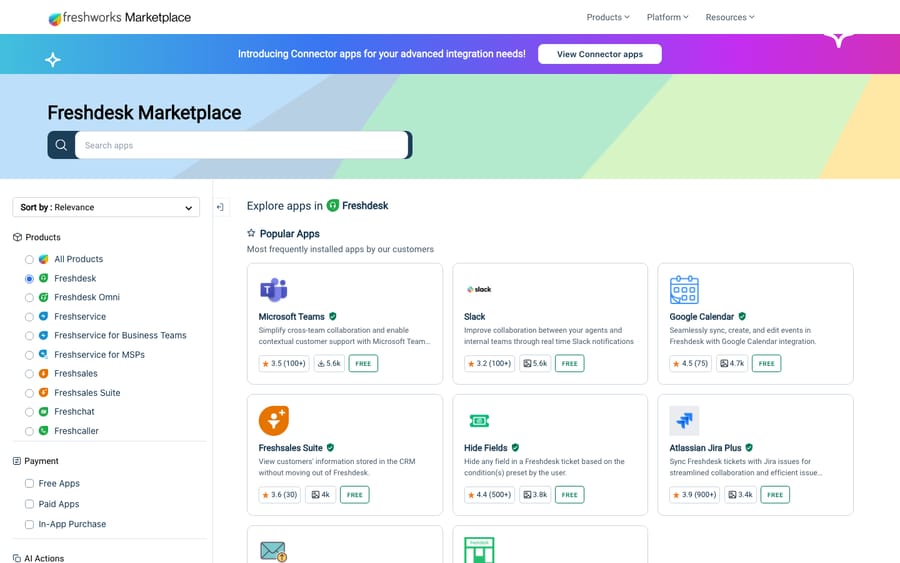
Here's the part most guides gloss over. On the Freshworks Marketplace there is an official Shopify app published by Freshworks (it carries the verified-publisher badge). It's free, shows about 1.7k installs, and the listing states support for Freshdesk and Freshdesk Omni (checked 24 September 2026). That's the one most teams want.
A couple of nuances to keep you accurate:
- There are separate per-product Shopify connectors. Rather than one shared connector, the Marketplace lists distinct Shopify connectors for individual Freshworks products (for example a separate "Shopify for Freshcaller" listing). Capabilities described for another product's connector may not surface inside Freshdesk at all, so trust the Freshdesk listing and Freshdesk's Shopify app article for what you'll see in a ticket. Everything below comes from those two sources.
- Third-party connectors also exist (via iPaaS tools and independent developers) if you need a sync the native app doesn't do. We cover those in Alternatives below.
For the standard "show order context in the ticket, occasionally refund or cancel" job, the official Freshworks Shopify app is the right starting point.
What do you need before you start?
- Freshdesk admin access: installing and configuring Marketplace apps requires an admin role.
- Shopify store-owner access: you'll create a custom app for the store, which needs owner permissions.
- A few minutes in two places: the setup spans the Shopify Dev Dashboard and Freshdesk Admin.
Important 2026 change: Freshdesk's Shopify app article states that effective January 1, 2026, Shopify store owners must use the Shopify Dev Dashboard to create new custom apps, because the legacy method is no longer available. The Dev Dashboard is where you generate the Client ID and Secret the integration uses. Any new install follows the steps below.
How do you integrate Freshdesk with Shopify, step by step?
Step 1: Create a custom app in the Shopify Dev Dashboard
In the Shopify Dev Dashboard, create a new custom app for your store. Use the default app URL (https://shopify.dev/apps/default-app-home) and disable Embed app in Shopify admin (this app feeds Freshdesk, not the Shopify admin UI). Give it a name you'll recognize later, like "Freshdesk Connector."
Step 2: Grant the required API scopes
The integration needs read access to customers and orders, plus write access to orders so agents can cancel and refund. Enable these scopes:
read_customers: to match the ticket requester to a Shopify customerread_orders: to display order history, status and shippingwrite_orders: to cancel orders and issue refunds from Freshdesk
Those three are the scopes Freshdesk's article names. An earlier version of this guide also listed read_products; Freshdesk's current instructions don't ask for it. If you only want a read-only, view-the-order experience, you can skip write_orders, but then the cancel and refund actions won't be available.
Step 3: Install the custom app and copy your credentials
Release the app version and install it on your store. Then open the app's settings in the Dev Dashboard and copy the Client ID and Client Secret. You'll paste these into Freshdesk in a moment, so keep them handy and treat the secret like a password.
Step 4: Install the Shopify app in Freshdesk
Switch to Freshdesk. Go to Admin → Support Operations → Apps → Get more apps (or the Apps icon in the top-right), search for Shopify, open the official Freshworks listing, and click Install.
Step 5: Authorize your Shopify store
In the app's configuration screen, enter your store URL (your your-store.myshopify.com address), then paste the Client ID and Client Secret from Step 3. Click Authenticate account, then Save. That handshake authorizes Freshdesk to read order data (and, if you granted write_orders, to take actions) from your store.
Step 6: Connect additional stores (optional)
If you run multiple Shopify storefronts, install the same custom app on each store, then authenticate each one from the app's settings in Freshdesk. The integration supports connecting multiple Shopify stores to a single Freshdesk account, so a multi-brand or multi-region team can see every order in one place.
Step 7: Verify it in a real ticket
Open a ticket from a customer who has placed an order, and look at the ticket details page. The Shopify widget should appear in the sidebar with that customer's order. If it shows up and the order details load, you're done. (If it doesn't, jump to Troubleshooting.)
What Shopify data appears in the Freshdesk ticket?
Once connected, the Shopify widget surfaces the customer's order context directly in the ticket sidebar. Per Freshdesk's Shopify app article, that includes:
- Order number and purchase date
- Payment status (for example, paid or pending)
- Products purchased in the order
- Shipping information: shipping address, shipping date, carrier name, and tracking number
- Current and past orders: agents can expand "Show past orders" to see the customer's full history, not just the latest
And with the right permissions in place, agents can take action without leaving the ticket:
- Cancel an order: available only if the customer hasn't paid yet, or has paid but the items haven't shipped. The option disappears once an order is fulfilled. Agents can pick a cancellation reason.
- Refund an order: full or partial, with the taxes, shipping charges and discounts visible, and an option to restock the items to inventory.
Both actions can trigger an optional customer notification. One caveat: Freshdesk describes cancel and refund as part of "Shopify's advanced app integration," and they depend on the write_orders scope, so confirm they're active after install rather than assuming.
What are the integration's limits?
No integration is magic. Set expectations with your team on these:
- Shipping details exist only after shipment. Carrier and tracking won't appear until Shopify has the fulfillment; you can't surface a tracking number that doesn't exist yet.
- Cancellation is state-dependent. Once an order is fulfilled, in-Freshdesk cancellation is off the table; that's a Shopify constraint, not a Freshdesk bug.
- Matching depends on the customer record. The widget links the ticket requester to a Shopify customer, usually by email. If the customer wrote in from a different address than they ordered with, the order may not auto-appear.
- It's a display-and-act layer, not automation. The app shows agents the order and lets them refund/cancel; a human still reads every ticket and writes every reply. It doesn't deflect or resolve WISMO tickets on its own.
- The listing is old. The Marketplace entry shows Version 1.0, published by Freshworks more than 10 years ago, even though the setup changed in 2026. Go by the support article for current steps, not the listing.
How do you fix common Freshdesk Shopify problems?
The Shopify widget doesn't appear in the ticket. Confirm the app installed and authenticated successfully under Admin → Support Operations → Apps, and that you saved the configuration. Re-open a ticket from a customer who actually has an order; the widget needs a matched customer to populate.
No orders show for a customer who definitely ordered. The most common cause is an email mismatch: the ticket's requester email differs from the email on the Shopify order. Check the contact's email in Freshdesk against the order's email in Shopify.
Authentication fails on "Authenticate account." Re-check the store URL (it should be the myshopify.com domain), and re-copy the Client ID and Secret; a trailing space or a stale credential is the usual culprit. If you created the custom app before the 2026 Dev Dashboard change, generate fresh credentials there.
Cancel or refund buttons are missing or greyed out. Confirm you granted write_orders when creating the custom app; without it the actions won't appear. Also remember cancellation is disabled once an order is fulfilled.
Multiple stores aren't all showing. Each store needs its own authorized connection with that store's credentials; re-run the authorization for any missing storefront.
What are the alternatives if the native app isn't enough?
The native app covers the common cases. If your needs are more specific, you have options:
- Zapier or Make (iPaaS). No-code automation platforms that connect Shopify events (new order, fulfillment, refund) to Freshdesk actions (create or update a ticket, add a note, set a custom field) and vice versa. Best when you want workflow automation, like auto-creating a priority ticket when a high-value order is refunded, rather than an in-ticket order widget. You build the flows yourself and they bill per task/operation.
- Third-party connectors. Independent developers and integration vendors (for example, SyncSpider) offer Shopify–Freshdesk syncs with their own field mappings. Useful if you need a sync direction or data point the native app doesn't cover; check the maintainer, reviews, and pricing before relying on one.
- Custom build via the APIs. Both Shopify and Freshdesk expose REST/GraphQL APIs, so an engineering team can build exactly the sync they want. Highest effort, most control.
Can AI answer the order tickets instead of just showing the order?
Here's the limit of everything above: the native Shopify app displays the order and lets an agent act on it, but a person still reads each "where's my order?" message, looks at the widget, and types the reply. For a high-volume store, that's a lot of human time spent on the same handful of order questions.
This is where an AI agent layer is a different shape from an integration. Macha isn't a help desk and it isn't a replacement for the Shopify app. It's an AI agent layer that connects on top of your Freshdesk (Macha runs on Zendesk, Freshdesk, Gorgias, Front, HubSpot or Intercom), and it has its own Shopify connector. So it can do more than show the order: it reads the customer's actual question, looks up the order, and resolves routine "where's my order" tickets end to end, sending the tracking status back to the customer, then hands off to a human with full context when something's off (a lost package, a disputed refund, an edge case). The honest watch-outs: it's only as good as the data and systems you connect, it's another thing to configure and supervise, and if your queue isn't repetitive the payoff is smaller. Macha bills per ticket: one conversation, charged once however many order lookups and drafted replies it takes, not per resolution. Plans start at $299 a month for 750 tickets, and the free trial gives $50 of usage with no credit card required.
The native integration and an AI layer aren't either/or: the integration brings the order data in, and the agent layer puts that data to work on the repetitive tickets so your team spends its time on the ones that need a person.
Frequently asked questions
Is the Freshdesk Shopify integration free? Yes. The official Shopify app on the Freshworks Marketplace is free to install. You still pay for your Freshdesk plan and your Shopify plan; the connector itself doesn't add a fee. Third-party connectors and iPaaS tools (Zapier, Make) carry their own costs.
Is the Shopify app built by Freshworks or a third party? The primary Shopify app for Freshdesk is published by Freshworks (it carries the verified-publisher badge on the Marketplace) and supports Freshdesk and Freshdesk Omni. Note the Marketplace lists separate per-product Shopify connectors (for example a distinct Freshcaller listing), so capabilities described against another product may not surface in Freshdesk; third-party Shopify connectors also exist if you need something the native app doesn't do.
What Shopify data shows up in a Freshdesk ticket? The ticket sidebar widget surfaces the customer's order number and date, payment status, products purchased, and shipping information (address, carrier, tracking number), plus current and past orders. With write_orders permission, agents can also cancel eligible orders and issue full or partial refunds.
Can agents issue refunds or cancel orders from Freshdesk? Yes, with the right setup. Refunds can be full or partial, with an option to restock the items. Cancellation works only before payment or, after payment, before the items ship. Both can notify the customer. Both need the write_orders scope, so confirm they're active after install.
Can I connect more than one Shopify store? Yes. The integration supports connecting multiple Shopify stores to a single Freshdesk account, which suits multi-brand or multi-region teams. Install the custom app on each store and authenticate each one in Freshdesk.
Why don't I see a customer's orders in the ticket? The most common reason is an email mismatch: the integration matches the ticket requester to a Shopify customer (usually by email), so if they wrote in from a different address than they ordered with, the order won't auto-appear. Check the emails on both sides.
Can AI answer Shopify support tickets, not just display the order? The native app shows agents the order and lets them act on it; a human still writes the reply. An AI agent layer like Macha connects on top of Freshdesk and can use that order context to resolve routine WISMO and order-status tickets end to end, escalating the rest. It complements the integration rather than replacing it.
Is the Freshdesk Shopify integration worth installing?
Yes, for any ecommerce support team. The Freshdesk Shopify integration costs nothing: connect the official Freshworks Shopify app, and your agents get order number, payment status, items and tracking in the ticket sidebar, plus refunds and cancellations without leaving the conversation. The setup is two-sided in 2026 (create a custom app in the Shopify Dev Dashboard, then authenticate it in Freshdesk Admin), and it's a one-time, few-minutes job. Know the limits: email matching, post-shipment cancellation rules, and the fact that it displays and acts rather than resolves. Use Zapier or Make for workflow automation the native app doesn't cover. If WISMO volume is eating your team's day, that's the point where an AI agent layer on top of Freshdesk earns its keep.
Verified against the Freshworks Marketplace and Freshdesk support documentation, 24 September 2026. Freshworks and Shopify update apps, scopes and setup flows periodically, so confirm current details on the marketplace listing and Shopify Dev Dashboard before installing.
Add AI agents to your Freshdesk
Macha reads the ticket, drafts the reply and takes the action, inside the Freshdesk you already run.





