



 Intercom
 Shopify
 Stripe
 Slack
Slack Notion
 Google Workspace
 Confluence

How Do You Integrate Zendesk with HubSpot? Step by Step (2026)


Zendesk connects to HubSpot through two official apps: Zendesk's own timeline connector, which pushes ticket events onto HubSpot contacts, and HubSpot's Data Sync, which mirrors contacts, companies and tickets as records. Here is how to install and test each, who has to authorize them, and the plan gates and limits that trip teams up.
Key takeaways
- Zendesk integrates with HubSpot through the Zendesk-built Zendesk Support for HubSpot app, installed from the HubSpot App Marketplace and authorized by a Zendesk admin and a HubSpot Super Admin.
- Authorizing the Zendesk Support for HubSpot app creates three [Hubspot Integration] triggers and one webhook in Zendesk, which push ticket created, solved and CSAT events to HubSpot.
- Zendesk ticket activity appears only on HubSpot contact timelines, never on company or deal records, and the ticket fields shown cannot be customized.
- HubSpot's Data Sync app syncs Zendesk users and organizations both ways and tickets one way, and custom field mapping needs HubSpot Data Hub Starter or higher.
- The Zendesk-built timeline app is rated 2.2/5 from 37 reviews on the HubSpot Marketplace, with most complaints about its one-way, contact-only scope.

To integrate Zendesk with HubSpot, install the Zendesk-built "Zendesk Support for HubSpot" app from the HubSpot App Marketplace and authorize it as a Zendesk admin and a HubSpot Super Admin. It then creates three triggers and one webhook in Zendesk that push ticket events onto HubSpot contact timelines. If you also need contacts and companies kept in sync both ways, add HubSpot's own Data Sync app. There are two official connectors, built by two different companies, and mixing them up is the source of nearly every "why isn't this syncing?" thread. We point to the HubSpot and Zendesk primary docs as we go (checked 24 September 2026).
Which Zendesk HubSpot integration do you need?
Picking the wrong app wastes an afternoon, so start with the landscape.
| Zendesk Support for HubSpot | Data Sync | |
|---|---|---|
| Built by | Zendesk | HubSpot |
| What it does | Pushes ticket events (created, solved, CSAT) onto the HubSpot contact timeline | Syncs records as objects between the two systems |
| What flows | Tickets → HubSpot contact timeline | Users ↔ contacts, organizations ↔ companies (two-way); tickets → HubSpot tickets (one-way) |
| Direction | One-way (Zendesk → HubSpot) | Two-way for users/orgs; one-way for tickets |
| Best for | Giving sales/marketing visibility into support activity | Keeping the actual CRM and helpdesk databases aligned |
| Cost gotcha | Free to install; needs Zendesk Support Team+ or any Suite plan | Default fields free; custom field mapping needs HubSpot Data Hub Starter or higher |
| Marketplace rating | 2.2/5 from 37 reviews, 4,000+ installs | 2.5/5 from 23 reviews, 3,000+ installs |
Despite the names, the connector that produces the "see Zendesk tickets on the HubSpot contact" experience most people are after, Zendesk Support for HubSpot, is the one built and maintained by Zendesk, even though you find it on the HubSpot App Marketplace too. HubSpot's own connector is Data Sync, which is about keeping records (contacts, companies, tickets) mirrored as database objects rather than posting timeline activity. The HubSpot Marketplace listing for the timeline app states it plainly: it's "Built by Zendesk." Keep that distinction in your head and the rest of this is easy.
For most teams the answer is: start with Zendesk Support for HubSpot (the timeline app) for visibility, and add Data Sync only if you genuinely need contact/company records mirrored both ways. You can run both.
What do you need before you start?
- A Zendesk admin. Authorizing the connection and letting it create triggers/webhooks requires an admin role in Zendesk.
- A HubSpot Super Admin (or App Marketplace permissions). HubSpot requires Super Admin or explicit App Marketplace permissions to install any app.
- A paid Zendesk plan. Zendesk's setup doc lists Support Team, Professional or Enterprise, or Suite Team, Growth, Professional, Enterprise or Enterprise Plus. The HubSpot Marketplace listing names only the Suite plans.
- Your Zendesk subdomain handy (the
yourcompanyinyourcompany.zendesk.com). The OAuth flow asks for it. - A decision on scope. Timeline visibility only? Or full record sync too? That determines whether you install one connector or both.
Step 1: Install the Zendesk integration from the HubSpot App Marketplace
We'll set up the timeline connector first, because it delivers the most-wanted outcome (support context on the contact record) with the least configuration.
- In HubSpot, click the Marketplace icon in the main top navigation bar, then choose App Marketplace.
- Search for Zendesk and open the listing built by Zendesk (the "Zendesk Support for HubSpot" app, the one that adds ticket activity to the CRM timeline).
- Click Install app / Connect app to start the flow.
Behind the scenes this hands you to Zendesk's own integration service (hubspot.zendesk-integrations.com) to complete authorization, which is why the connector is Zendesk-built even though you launched it from HubSpot's marketplace. You can also start setup directly at hubspot.zendesk-integrations.com/zendesk, per Zendesk's doc. There's no code and nothing to paste into Zendesk manually.
Step 2: Connect and authorize (OAuth, both admins)
This is the handshake that links the two accounts. You'll bounce between Zendesk and HubSpot consent screens:
- Enter your Zendesk subdomain when prompted.
- Authorize the Zendesk app: log into Zendesk as an admin and approve access.
- Allow access to the HubSpot app: approve the HubSpot side as a Super Admin.
- Authorize Zendesk to use your data to finish the OAuth grant.
Because the grant touches both products, do this with both an active Zendesk admin and a HubSpot Super Admin session. If you hit a permissions error, it's almost always a non-admin trying to approve one side.
When authorization completes, the connector automatically provisions the plumbing inside Zendesk; you don't build it. Per Zendesk's setup doc, it creates three triggers ([Hubspot Integration] - Ticket Created, [Hubspot Integration] - Ticket Solved and [Hubspot Integration] - Ticket CSAT Rating Submitted) plus a single webhook named HubSpot Integration. Those triggers fire on the matching events and the webhook pushes them to HubSpot in near real time. You can see (and audit) those auto-created triggers in the Zendesk Triggers admin, under Admin Center → Objects and rules → Business rules → Triggers:
![Zendesk Triggers admin in Admin Center, where the auto-created [Hubspot Integration] triggers appear alongside your other ticket triggers](/images/grid/6a368cc5c44962509174f7f6?w=900)
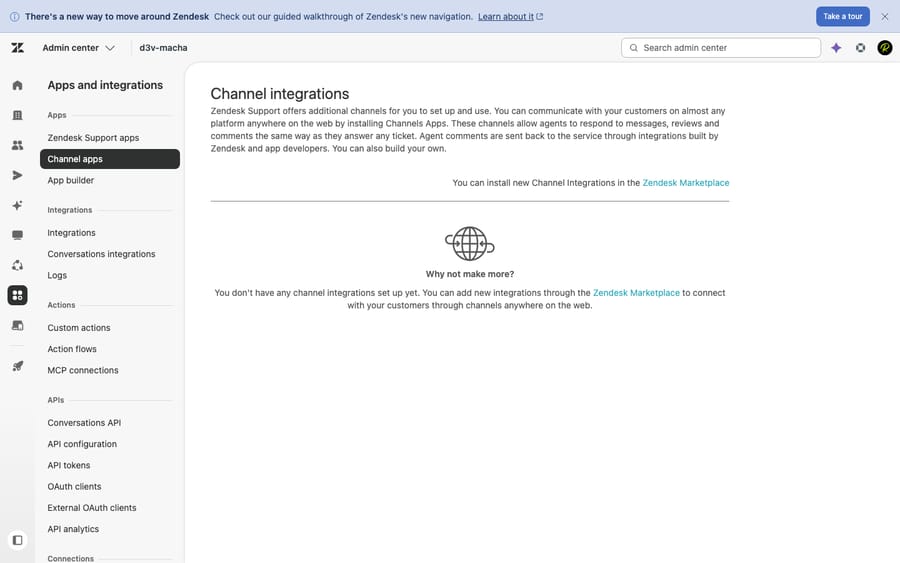
Here's the honest nuance worth stating plainly: this integration is installed and primarily configured on the HubSpot side (the App Marketplace plus your HubSpot timeline view). On the Zendesk side, what you'll see afterward is the auto-created triggers and webhook, and that's also where any Zendesk-built apps you install are managed, under Admin Center → Apps and integrations. The screenshot below shows that Zendesk apps admin area for reference; it's where you'd verify or remove Zendesk-side app components, not where you configure the HubSpot connection itself.
Step 3: Configure ticket sync to the contact timeline
Once connected, ticket activity starts flowing one-way from Zendesk into HubSpot. There's intentionally little to configure here, and one limitation to know up front.
What lands on the HubSpot contact record (matched by the requester's email, with a new contact auto-created if one doesn't exist):
- The ticket title and status
- The full conversation history
- A direct link back to the ticket in Zendesk
- The CSAT rating (once submitted)
- Group / assignee and any applied tags
To view it in HubSpot:
- Go to Contacts and open any contact.
- Open the Activities tab.
- Click Filter activity, then under Integrations tick Zendesk so ticket events show in the timeline.
The limitation to plan around: the Zendesk doc is explicit that ticket activity appears only on contact timelines, not on company or deal records, and that you can't customize which ticket fields appear. If your sales team works primarily from company or deal views, they won't see tickets there. That's a real constraint, not a configuration you missed.
Step 4 (optional): Add contact and company sync with Data Sync
If you need the records themselves aligned, not just timeline activity, install Data Sync, the connector built by HubSpot. This is the piece that keeps your CRM and helpdesk databases mirrored.
- In HubSpot, open the App Marketplace again, search Zendesk, and choose the Data Sync option (HubSpot-built). Click Install and sign into Zendesk to authorize.
- After connecting, configure the sync: choose the sync direction, map fields between Zendesk and HubSpot properties, set conflict resolution rules (which system wins on a clash), and apply filters to limit which records sync.
- Turn the sync on.
What Data Sync covers, per HubSpot's documentation:
- Zendesk users ↔ HubSpot contacts: two-way
- Zendesk organizations ↔ HubSpot companies: two-way
- Zendesk tickets → HubSpot tickets: one-way, and archived tickets don't sync (per the Data Sync listing)
Timing: HubSpot checks for changes every five minutes, and after the initial sync, records sync within 10 minutes of a change.
The cost gotcha: syncing default fields works on free HubSpot, but mapping custom properties (e.g. pushing a HubSpot "plan tier" or "renewal date" onto a Zendesk user/organization field) requires Data Hub Starter or higher (Data Hub is the renamed Operations Hub). If custom mappings silently don't appear, your plan tier is usually why.
Step 5: Test the connection
Don't trust it until you've watched a ticket make the round trip:
- Create a test ticket in Zendesk from a known email that exists (or should exist) in HubSpot.
- In HubSpot, open that contact → Activities → Filter activity → Integrations → Zendesk and confirm the new ticket appears on the timeline.
- Solve the ticket in Zendesk and confirm the status updates on the timeline; submit a CSAT response and confirm the rating shows.
- If you set up Data Sync, edit a contact field on the synced side and confirm it propagates within about 10 minutes (the sync is periodic, not instant).
If nothing appears: verify the requester's email matches a HubSpot contact (matching is email-based), confirm the auto-created triggers and webhook still exist in Zendesk, and check you authorized with the right admin accounts.
What should you check on an older or inherited setup?
If you inherited an older configuration, a few things are worth a sanity check:
- The connector landscape consolidated. Older write-ups reference assorted third-party apps and a legacy version of the Zendesk app; today the two official paths above (Zendesk-built timeline app + HubSpot-built Data Sync) are the supported ones. If you're on an unmaintained third-party connector, plan a migration.
- Visitor / CRM context inside Zendesk. The native timeline app pushes data Zendesk → HubSpot. If your goal is the reverse, surfacing HubSpot CRM or marketing context inside the Zendesk agent workspace so agents see deal stage or plan tier, that's a separate capability (Data Sync field mappings, a sidebar app, or a purpose-built layer), not something the timeline connector does on its own.
- Clean your identifiers first. Because matching is email-based, duplicate or inconsistent emails create duplicate contacts. Tidy key identifiers before a broad rollout.
What permissions and limitations should you plan around?
- Permissions: HubSpot Super Admin or App Marketplace permissions to install; a Zendesk admin to authorize and let triggers/webhooks be created.
- Direction: the timeline connector is one-way (Zendesk → HubSpot). Data Sync is two-way for users/orgs, one-way for tickets.
- Placement: tickets show on contact timelines only, not company or deal views.
- Customization: you can't change which ticket fields appear in the timeline.
- User detail: the timeline connector's user sync carries only the email address (first/last name don't sync via that path); Data Sync is the route for richer field mapping.
- Plan gates: the Zendesk connector needs Support Team or higher, or any Suite plan; custom Data Sync mappings need HubSpot Data Hub Starter or higher.
- Quality bar: the timeline app is rated 2.2/5 from 37 reviews on the HubSpot Marketplace, and Data Sync 2.5/5 from 23. Most complaints are about the one-way, contact-only, non-customizable scope above. Set expectations accordingly: it's a visibility tool, not a deep two-way bridge.
Why aren't Zendesk tickets showing up in HubSpot?
Most setup problems trace back to one of a handful of causes. Before you assume the connector is broken, check these:
- Tickets aren't showing on the contact timeline. First, confirm you've actually enabled the Zendesk filter under Contacts → a contact → Activities → Filter activity → Integrations: events are present but hidden until you tick it. Second, remember matching is by email: if the ticket requester's email doesn't match a HubSpot contact (and auto-creation is restricted), nothing lands. Third, the three
[Hubspot Integration]triggers must still exist and be active in Zendesk. If someone deactivated or deleted them, events stop flowing. - Duplicate HubSpot contacts after connecting. This happens when the same person exists under different email addresses in Zendesk vs HubSpot. The timeline app auto-creates a contact from the requester's email, so mismatched emails produce duplicates. Clean up email consistency (or use Data Sync with a clear matching rule) before a large backfill.
- "Permission denied" during authorization. The OAuth grant needs an admin on both sides simultaneously: a Zendesk admin and a HubSpot Super Admin (or a user with App Marketplace permissions). A non-admin approving one side is the most common cause.
- Custom field mappings won't save in Data Sync. Custom mappings require HubSpot Data Hub Starter or higher. On free HubSpot you're limited to default-field sync. The save simply won't stick on an unsupported tier.
- Wrong objects syncing in Data Sync. Data Sync direction and object selection are configured per object during setup; if companies sync but tickets don't (or vice versa), re-open the Data Sync configuration and confirm each object's sync is switched on and pointed the right direction.
When in doubt, the connector's own logs (Zendesk webhook activity, and HubSpot's sync health view) tell you whether events are firing and where they're failing.
Where does an AI agent fit once Zendesk and HubSpot are connected?
Connecting Zendesk and HubSpot solves a visibility problem: now the context exists in one place. But context sitting on a timeline still needs a human to read it, interpret it, and act. That's the next gap, and where an AI agent layer is useful.
To be clear about what Macha is: Macha is an AI agent layer that runs on top of your existing help desk, whether that's Zendesk, Freshdesk, Gorgias, Front, HubSpot or Intercom. It isn't a help desk or a CRM, and it doesn't replace either. Once your CRM and marketing context is flowing into the support picture, an AI agent can actually use it: read an incoming ticket, pull the customer's plan, recent orders, or deal stage from the connected context, and answer account- and order-level questions automatically: the "what plan am I on / where's my order / when does my contract renew" volume that otherwise pulls an agent away to go look things up. When it isn't confident, it hands off to a human with that context attached, and keeps the ticket housekeeping (tags, status, routing) tidy along the way.
The honest framing: it's another layer to configure, and it's only as good as the data and knowledge you connect. On cost, Macha bills per ticket, one conversation charged once however many replies, tags and account lookups it takes, not per resolution. One plan is priced by volume: $299 a month for up to 750 tickets, $599 for 1,500, about $0.40 a ticket, with setup and monitoring by the Macha team included. If a chunk of your Zendesk volume is repetitive account questions that the right connected context could answer, that's the line where an AI agent starts to pay off. See Macha on Zendesk for how it plugs in, and you can try it with a free trial ($50 of usage, about 125 tickets, no credit card required).
Frequently asked questions
Who builds the Zendesk HubSpot integration, Zendesk or HubSpot? Both, depending on which one you mean. The connector that posts Zendesk ticket activity onto the HubSpot contact timeline ("Zendesk Support for HubSpot") is built and maintained by Zendesk, even though it's listed on the HubSpot App Marketplace. HubSpot's own connector is Data Sync, which mirrors records (contacts, companies, tickets) between the two systems. Most "see my tickets in HubSpot" use cases want the Zendesk-built timeline app.
Where do I install it? The timeline app installs from the HubSpot App Marketplace (Marketplace icon → App Marketplace → search Zendesk → Install), then completes authorization through Zendesk's integration service. Data Sync installs the same way from HubSpot's App Marketplace.
Is the ticket sync one-way or two-way? The timeline connector is one-way: Zendesk ticket events flow into HubSpot. HubSpot's Data Sync is two-way for users↔contacts and organizations↔companies, and one-way (Zendesk → HubSpot) for tickets.
Why don't Zendesk tickets show on my HubSpot company or deal records? By design. Zendesk's documentation states ticket activity appears only on contact timelines, not on company or deal views, and you can't customize which fields appear. If sales works from company/deal views, factor that in.
What permissions do I need? A HubSpot Super Admin (or App Marketplace permissions) to install, and a Zendesk admin to authorize the connection and allow the auto-created triggers and webhook. Authorizing as a non-admin on either side is the usual cause of setup errors.
Do I need a paid plan? The Zendesk-built timeline app needs Zendesk Support Team, Professional or Enterprise, or any Suite plan from Team to Enterprise Plus. Data Sync of default fields works on free HubSpot, but custom field mapping requires HubSpot Data Hub Starter or higher.
How often does HubSpot Data Sync update records? HubSpot checks for changes every five minutes. After the initial sync finishes, a changed record syncs within 10 minutes.
Can agents see HubSpot CRM data inside Zendesk? The native timeline app only pushes data into HubSpot. To surface HubSpot context inside the Zendesk agent workspace, you'd use Data Sync field mappings, a sidebar app, or an AI agent layer that reads the connected context. That's a separate setup from the timeline connector.
Which setup should most teams run?
Install the Zendesk-built timeline app first: it gives sales and marketing ticket history on the HubSpot contact with almost no configuration. Add Data Sync only when you need contacts, companies and tickets mirrored as records, and budget for Data Hub Starter if you want custom fields. For the helpdesk fundamentals underneath all this, see our explainer on the Zendesk ticketing system, and for the sibling CRM connection, how to integrate Zendesk with Salesforce.
Setup checked against HubSpot and Zendesk documentation and both HubSpot Marketplace listings on 24 September 2026. Both products revise their UIs and plan gates periodically, so confirm labels and tiers in your own accounts.
Add AI agents to your Zendesk
Macha reads the ticket, drafts the reply and takes the action, inside the Zendesk you already run.





