



 Intercom
 Shopify
 Stripe
 Slack
Slack Notion
 Google Workspace
 Confluence

How Do You Integrate Zendesk with Salesforce? Step-by-Step Setup (2026)


The official Zendesk Salesforce integration pulls CRM accounts and contacts into Zendesk, pushes tickets into Salesforce as cases, and lets each team see the other's records. It runs on every paid Zendesk Suite plan from Team up and needs a Salesforce edition with API access.
Key takeaways
- Zendesk connects to Salesforce from Admin Center under Apps and integrations, Integrations, Salesforce, where an admin clicks Add connection and signs in to Salesforce over OAuth.
- The Zendesk Salesforce integration works on Zendesk Suite Team, Growth, Professional, Enterprise and Enterprise Plus, so connecting Salesforce does not require the Enterprise plan.
- Zendesk's current docs say to enable Require Proof Key for Code Exchange (PKCE) in the Salesforce Connected App settings so ticket view loads for all assigned Salesforce users.
- Salesforce to Zendesk data sync allows three ALL and three ANY filter conditions and one matching criterion per sync type, because of Salesforce PushTopic limits.
- Closed Zendesk tickets never sync into Salesforce as cases, and the Salesforce app sidebar in Zendesk refreshes its data every 60 minutes by default.

To integrate Zendesk with Salesforce, open Admin Center → Apps and integrations → Integrations → Integrations → Salesforce, click Add connection, sign in with a Salesforce admin account over OAuth, then turn on the pieces you need: data sync, ticket sync, the Salesforce app in Zendesk, and ticket view in Salesforce. It's the official, Zendesk-built integration, included on every paid Zendesk Suite plan from Team up, and each step below is checked against Zendesk's own documentation on 24 September 2026. The Zendesk-side steps are first-hand; the Salesforce-side screens (the managed package, record types, ticket view) are described from the docs, so treat those as a map rather than a pixel-perfect match.
| Piece | Direction | What it does | Key limit |
|---|---|---|---|
| Data sync | Salesforce → Zendesk | Accounts become organizations; contacts and leads become users | Three ALL and three ANY filter conditions; one matching criterion |
| Ticket sync | Zendesk → Salesforce | Tickets become cases | Closed tickets don't sync |
| Salesforce app in Zendesk | Read in Zendesk | Salesforce records in the ticket sidebar | Refreshes every 60 minutes by default |
| Ticket view in Salesforce | Read and write in Salesforce | View, create and edit Zendesk tickets from CRM pages | Each user signs in with Zendesk agent credentials to write |
What does the Zendesk Salesforce integration actually do?
The native integration isn't one feature. It's four related pieces, and you turn on only the ones you need:
- Data sync (Salesforce → Zendesk). Salesforce accounts become Zendesk organizations, and Salesforce contacts/leads become Zendesk users, kept in step automatically. This is what gives agents account context inside the ticket.
- Ticket sync (Zendesk → Salesforce). Zendesk tickets flow into Salesforce as cases, so sales and ops can report on support activity alongside CRM data.
- The Salesforce app for Zendesk Support. A sidebar panel that shows Salesforce records (accounts, opportunities, contacts) inside the Zendesk ticket.
- Ticket view in Salesforce. A managed package that lets Salesforce users view, create, and edit Zendesk tickets from Account, Opportunity, Contact, and Lead pages.
Each sync direction is one-way. Data flows Salesforce → Zendesk; tickets flow Zendesk → Salesforce. There's no native two-way merge of the same object, which matters when you decide your system of record. (For the bigger "should these even be two products?" question, see our comparison of Zendesk vs. Salesforce Service Cloud.)
Which Zendesk plan, Salesforce edition and permissions do you need?
This is where most setups stall, so check it first.
Zendesk plan. It isn't an Enterprise-only feature. Per Zendesk's docs it works on Zendesk Suite Team, Growth, Professional, Enterprise, and Enterprise Plus, and on Support Team, Professional, and Enterprise. If you've been told you must upgrade purely to connect Salesforce, re-check that against your account.
Salesforce edition. Your Salesforce org needs API access. Zendesk lists Performance, Unlimited, Enterprise, or Developer Edition, "or other editions with Salesforce API rights" (for example Professional with the API add-on). Orgs without API access can't run the native integration.
Permissions and account settings (from Connecting your Salesforce organization to Zendesk):
- You must be both a Zendesk Support administrator and a Salesforce administrator to set it up.
- You can't use an API-only Salesforce user to authenticate the connection.
- If the Zendesk or Salesforce admin who connected the integration later has their role downgraded, the integration stops working. Connect with an account whose admin rights will last.
- In Salesforce Session Settings, the option "Lock sessions to the IP address from which they originated" must be deselected, otherwise the integration disconnects when a session expires.
- For ticket view to work for every assigned Salesforce user, Zendesk now says to enable "Require Proof Key for Code Exchange (PKCE)" in the Salesforce Connected App settings for the integration. Older guides, including an earlier version of this one, said to disable PKCE; if non-admin users hit authorization errors in ticket view, this is the setting to check.
- For ticket sync to create case fields, the authenticating Salesforce user needs permission to modify the Salesforce Metadata API.
Sort these out before you touch the connect button. Skip them and you'll hit an opaque OAuth error halfway through.
Step 1: Where is the Salesforce integration in Admin Center?
Everything on the Zendesk side starts in the same place. In Admin Center, click Apps and integrations in the sidebar, then go to Integrations → Integrations, and click Salesforce. This is the management hub for the connection, in the same area where all your Zendesk apps and integrations live.
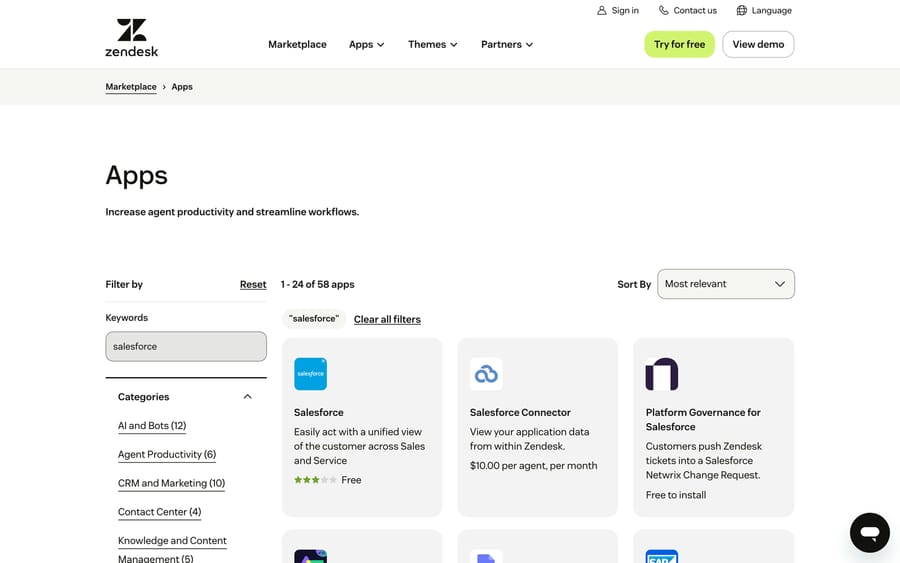
To be clear about what you're looking at: the screenshot above is the Zendesk Apps and integrations → My Apps page, where installed Zendesk apps and integrations are managed. The Salesforce data sync and ticket sync configuration screens live deeper inside the Salesforce integration's own settings (the Data sync and Support app tabs), and the ticket view managed package and record-type screens live in Salesforce. Those are described from Zendesk's documentation below rather than shown here.
Step 2: How do you connect and authenticate to Salesforce?
With the prerequisites met, the connection itself is quick:
- On the Salesforce integration page, click Add connection.
- Choose your Salesforce instance type: Production or Sandbox. (Rehearse in a sandbox first if you have one.)
- Tick the box to accept the Built by Zendesk Terms of Use.
- Click Connect Salesforce. You'll be redirected to a standard Salesforce OAuth login.
- Sign in with your Salesforce admin credentials and approve access.
- You're returned to Admin Center, and the new connection appears in your list.
- Click the options (⋯) menu next to the connection and choose Configure to start turning on the individual features.
Because a Salesforce admin has to authorize this, loop them in early if you don't hold both roles yourself. The OAuth token is tied to that user, which is why the API-only-user, role-downgrade and IP-lock rules above matter. Get them wrong and the token dies without much warning.
Step 3: How do you configure data sync from Salesforce to Zendesk?
This is the piece that gives agents CRM context. Data sync is one-way, Salesforce → Zendesk, and Salesforce is treated as the source of truth for mapped fields.
What syncs:
- Salesforce accounts → Zendesk organizations
- Salesforce contacts and leads → Zendesk users
To set it up, open the Data sync tab of the Salesforce integration and configure each object pair:
- Enable the relevant Salesforce API and streaming permissions (data sync relies on Salesforce's streaming API to catch changes, and it consumes that API's governor limits, so very large data volumes can stop records syncing).
- Configure Accounts → Organizations: set the field mapping (the defaults map Account Name → Organization Name), add sync filters, and pick a matching criterion.
- Configure Contacts/Leads → Users the same way (default Email → Email).
- Save.
Three things to get right in the mapping, per Configuring data sync from Salesforce to Zendesk:
- Sync filters decide which records qualify. You're limited to three ALL and three ANY conditions because of Salesforce PushTopic limits, so keep filters tight. A common pattern is syncing only accounts of a certain type or region rather than the whole CRM. Formula, lookup, long text area and currency fields can't be used as filters.
- Matching criteria decide whether a sync creates a new record or updates an existing one by comparing a field (e.g. email). Only one matching criterion per sync type is supported, and if a record matches more than one Zendesk record the sync fails and logs it. The Salesforce Phone field can't be a matching criterion.
- Field-type limits: text areas (long, rich and encrypted), lookup fields and the record type ID can't be mapped. For Tags, Email, and Phone, Salesforce values are appended on sync rather than overwriting.
The payoff: once an account syncs, an agent opening any ticket from that customer sees the matching Zendesk organization populated with Salesforce-sourced details, with no alt-tabbing into the CRM.
Step 4: How do you sync Zendesk tickets to Salesforce cases?
Ticket sync runs the other direction: Zendesk tickets → Salesforce cases, also one-way. It's how sales and operations report on support volume inside Salesforce. It's the most involved piece because part of it happens in Salesforce.
The sequence, from Setting up ticket sync from Zendesk to Salesforce:
- Confirm the connection from Step 2 is live.
- In Salesforce, create a Case Record Type dedicated to synced tickets. Zendesk recommends labeling it "Zendesk Ticket Sync" so synced cases stay separate from your other case processes.
- Find the Record Type ID. In Salesforce, go to Setup → Object Manager → Case → Record Types, open the record type, and copy the ID from the URL.
- Install the ticket sync package from the Salesforce integration in Admin Center. On install, Zendesk creates and maps most standard ticket fields to their Salesforce case equivalents automatically.
- Enter the Record Type ID in the ticket sync configuration and finish the field mappings.
- Check the trigger. Zendesk auto-creates a webhook and a trigger named "(Salesforce Integration) Sync tickets to Salesforce". Its JSON body carries the ticket ID placeholder (
{{ticket.id}}) and your Salesforce org ID; leave that body as it is, and adjust only the conditions for which tickets should sync.
Watch-outs that trip people up:
- The package can only create case fields if the authenticated user has Metadata API modify permission (see prerequisites).
- Closed tickets don't sync. If a ticket closed before it synced, Zendesk says you'll need another route, such as the Salesforce API, to create its case.
- Don't map multi-select fields: Zendesk warns this "will cause errors whenever that field has a value." Unsupported Zendesk field types also include multi-line text, credit card, regex, and lookup relationship fields, and on the Salesforce side EncryptedString, ID, MultiPicklist, Percent, Reference, TextArea and URL.
- All required Salesforce case fields must be mapped, or the sync fails outright.
This is why the docs (and we) push you to test in a Salesforce sandbox before pointing it at production. A bad record type or a required-field gap fails quietly until you go looking, and the Salesforce integration log in Admin Center is where those failures show up.
Step 5: How do you show Salesforce data inside a Zendesk ticket?
Data sync populates organizations and users, but the Salesforce app for Zendesk Support goes further: it shows live Salesforce objects and fields in a sidebar panel on the open ticket, so an agent sees the account, contact, or opportunity record right there.
To enable it:
- In the Salesforce integration, open the Support app tab.
- Turn the app on for agents.
- Configure what appears: choose which Salesforce objects to show (the app shows nothing until you add some), match fields between systems, filter results, and set the data caching duration. Data refreshes every 60 minutes by default to reduce API load.
Agents then click the Apps button on a ticket to reveal the panel. Zendesk warns that adding more than five fields may slow retrieval and cause timeouts, so pick the handful an agent needs. For larger orgs, the app supports connecting multiple Salesforce organizations to one Zendesk instance, though that multi-org support covers the sidebar only.
For support teams day to day, this is the piece that matters most: every ticket becomes an account-aware conversation without anyone learning Salesforce.
Step 6: How do you turn on ticket view in Salesforce?
The mirror image of Step 5: ticket view in Salesforce lets your sales team view, create, and edit Zendesk tickets from inside Salesforce. (These Salesforce-side steps are described from Zendesk's docs; your exact Salesforce screens will vary.)
- In Zendesk's Salesforce connection page, click the options (⋯) menu next to the org and choose Install managed package. This adds a Lightning component and a Visualforce component to Salesforce; Zendesk recommends "Install for All Users."
- Back in the integration settings, select "Turn on Zendesk ticket view for Salesforce."
- In the Map fields section, set the matching criteria that decide which tickets show on a given record.
- Add the ticket view component to your Account, Opportunity, Contact, and Lead page layouts in Salesforce.
- Confirm PKCE is enabled in the integration's Connected App settings, so users other than the admin can load ticket view.
Once live, a Salesforce user can view, create, and edit Zendesk tickets and add internal and public comments directly from those CRM pages. One per-user requirement: to create or update tickets from Salesforce, each Salesforce user must authenticate with their Zendesk agent credentials in the ticket view personal settings (otherwise they can read but not write).
Step 7: How do you test the integration, and what limits remain?
Before you announce it internally, run a full loop in a sandbox or with test records:
- Create/update a Salesforce account that matches your filters and confirm the Zendesk organization appears or updates.
- Open a Zendesk ticket for a synced customer and confirm the Salesforce app sidebar shows the right record.
- Create a Zendesk ticket and confirm a Salesforce case is created under the correct record type.
- From a Salesforce Contact/Account, view and create a Zendesk ticket via ticket view, then confirm it lands in Zendesk.
Keep these limitations in mind as you scale:
- Both syncs are one-way. Decide your source of truth deliberately: Salesforce owns account/contact data; Zendesk owns the ticket.
- Sync isn't instant for everything. The Support app refresh defaults to 60 minutes, and filter and matching limits cap how granular you can get.
- Field-type restrictions (long text, lookup, multi-select) mean some data won't map; plan around it.
- Closed tickets don't sync into Salesforce.
- If your Salesforce session settings re-lock to IP, PKCE gets switched off, or the connecting admin loses admin rights, the connection breaks. Tell whoever manages Salesforce security.
Where does an AI agent fit once the two are connected?
Connecting Zendesk and Salesforce solves a context problem for humans: the agent can finally see the account, and the rep can finally see the tickets. That's real value. But notice the ceiling: all that connected context still waits for a person to read it and act. The integration surfaces the renewal date and the open opportunity; it doesn't answer the customer's account-specific question.
That last step is where an AI agent like Macha fits. Macha isn't a help desk and it doesn't replace Zendesk or Salesforce. It runs on top of your existing help desk (Zendesk, Freshdesk, Gorgias, Front, HubSpot or Intercom), and on Zendesk it can use the organization and user data that sync brings in. When a customer asks "when does my plan renew?" or "why was I charged twice?", an agent that can read the relevant records can answer inside the ticket, drafting the reply, tagging and routing, instead of leaving it for a human to look up. When it isn't confident, it escalates to a person with the context attached. (For the underlying ticket model it works against, see our explainer on the Zendesk ticketing system.)
It's one more integration to configure, and it's only as good as the data you connect to it: a half-synced CRM gives a half-informed agent, human or AI. On cost, Macha bills per ticket, one conversation charged once however many steps it takes, never per "resolution." Pricing starts at $299 a month for 750 tickets, with setup and monitoring by the Macha team included, and you can try it on your connected Zendesk with $50 of free usage and no credit card. The product details live on Macha for Zendesk.
Frequently asked questions
Is the Zendesk Salesforce integration free, and what plan do I need? The integration is built by Zendesk and included with the supported plans rather than sold separately. It's available on Zendesk Suite Team, Growth, Professional, Enterprise, and Enterprise Plus, and on Support Team, Professional, and Enterprise, so it's not Enterprise-only. On the Salesforce side you need an edition with API access (Performance, Unlimited, Enterprise, Developer, or another edition with API rights such as Professional with the API add-on).
Does the integration sync data both ways? Each piece is one-way. Data sync runs Salesforce → Zendesk (accounts → organizations, contacts/leads → users). Ticket sync runs Zendesk → Salesforce (tickets → cases). There's no native two-way merge of the same object, so choose a clear system of record for each data type.
How do I connect Zendesk to Salesforce? In Zendesk Admin Center → Apps and integrations → Integrations → Integrations → Salesforce, click Add connection, choose Production or Sandbox, accept the terms, click Connect Salesforce, and sign in with your Salesforce admin credentials. You must be both a Zendesk admin and a Salesforce admin, and you can't use an API-only Salesforce user.
Why does ticket sync need a Salesforce record type and ID? Ticket sync creates Salesforce cases from Zendesk tickets. A dedicated Case Record Type (e.g. "Zendesk Ticket Sync") keeps synced tickets separate from your other case processes, and you enter its Record Type ID (from Setup → Object Manager → Case → Record Types) so Zendesk knows where to file them.
Can Salesforce users create Zendesk tickets without opening Zendesk? Yes. With ticket view in Salesforce (installed via the managed package), Salesforce users can view, create, and edit Zendesk tickets and add comments from Account, Opportunity, Contact, and Lead pages. Each user must authenticate with their Zendesk agent credentials to create or update tickets.
Why does my Salesforce connection keep dropping? The usual culprits are Salesforce session settings locked to an IP address and a downgraded role for the admin who connected the integration. If only ticket view fails for non-admin users, check that PKCE is enabled in the integration's Connected App settings, which Zendesk's current docs require.
Should PKCE be on or off for the Zendesk Salesforce integration? On. Zendesk's connection article says to enable "Require Proof Key for Code Exchange (PKCE)" in the Salesforce Connected App settings so ticket view displays for all assigned Salesforce users. Guides that tell you to disable it are out of date.
What's the full setup sequence in one paragraph?
Integrating Zendesk with Salesforce is a four-part sequence: connect the two over OAuth in Admin Center → Apps and integrations → Integrations → Salesforce; turn on data sync so Salesforce accounts and contacts populate Zendesk organizations and users; set up ticket sync so Zendesk tickets become Salesforce cases (mind the record type, the Metadata API permission and the unsupported field types); and enable the two view surfaces, the Salesforce app inside Zendesk for agents and ticket view in Salesforce for sales. Get the prerequisites right first (plan, Salesforce edition, admin roles, IP lock off, PKCE on), rehearse in a sandbox, and remember every sync is one-way. The result is support and sales looking at the same customer, and a connected record an AI agent can act on rather than just display.
Setup steps checked against Zendesk's official Salesforce integration documentation on 24 September 2026. Salesforce-side screens are described from Zendesk's docs; confirm exact labels in your own Zendesk and Salesforce accounts before relying on them.
Add AI agents to your Zendesk
Macha reads the ticket, drafts the reply and takes the action, inside the Zendesk you already run.





