



 Intercom
 Shopify
 Stripe
 Slack
Slack Notion
 Google Workspace
 Confluence

How Do You Integrate Zendesk with Jira in 2026? Setup, Field Sync and the v2 Reversal


The official Zendesk Support for Jira app is free, and the install starts in Jira: you add it from the Atlassian Marketplace, authorize it against your Zendesk subdomain over OAuth, and manage access from Zendesk's Admin Center. Zendesk pulled the v2 replacement on April 28, 2026, so the original app is the one to install.
Key takeaways
- The Zendesk Support for Jira app is free and installs from the Atlassian Marketplace inside Jira, then authorizes against the Zendesk subdomain over OAuth.
- Zendesk reversed its Jira app migration on April 28, 2026, removing the v2 migration path and re-listing the original Zendesk Support for Jira app.
- Jira field syncing writes every mapped field for a ticket in a single API call, so one misconfigured mapping stops all fields updating.
- The Zendesk Priority field cannot sync to the Jira Priority field, so teams map it to a Jira text field or select list instead.
- The Zendesk Support for Jira app supports Jira Cloud and Data Center; installs on Jira Server keep working but are unsupported.

To integrate Zendesk with Jira, install the free Zendesk Support for Jira app from the Atlassian Marketplace inside Jira, authorize it against your Zendesk subdomain over OAuth, then restrict agents and projects in Zendesk's Admin Center. It runs on Support Team, Professional and Enterprise and every Suite plan, with Jira Cloud or Data Center.
| Option | What it does | Cost | Best for |
|---|---|---|---|
| Zendesk Support for Jira app (original, re-listed April 2026) | Link or create issues from the ticket sidebar, one-way field sync per field, ticket update on issue status change | Free | Agents escalating bugs to engineering by hand |
| Jira v2 app | Delisted; existing v2 customers stay on it for now | Not available to new installs | Nobody new |
| Direct Jira REST API call (custom tool) | Live issue lookups, specific JQL queries, custom issue payloads inside the reply | Depends on the layer that calls it | Teams answering "is my bug fixed?" many times a day |
Every requirement, path and limit below was checked against Zendesk's current documentation on September 20, 2026, and the plan list, Jira version support and v2 announcement were rechecked on September 24, 2026.
Is the Zendesk Jira app being replaced by v2?
If you have read that the Jira integration is being replaced, that was true and then it was not.
Zendesk published a new app (v2) and a migration path to it, and then reversed course. Its announcement of April 28, 2026 says, in its own bullets: "No action is required from customers", "Customers currently using the existing integration will continue to use it as normal", "The current migration path to the new integration has been removed", "We will be delisting the new app and re-listing the original version", and "Customers already on V2 should remain on V2 and will be supported by Zendesk for now."
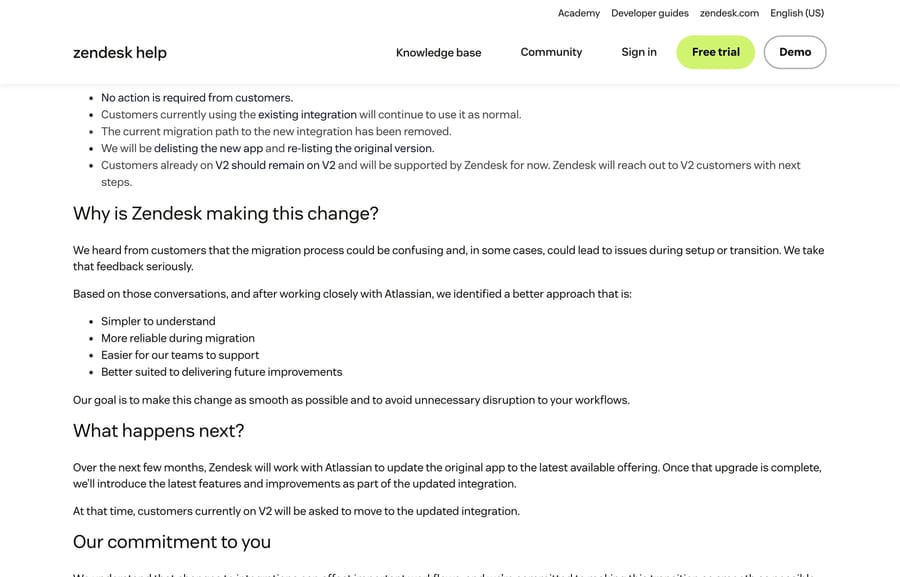
So the current state is: the original Zendesk Support for Jira app is the one to install, Zendesk is working with Atlassian to upgrade that app rather than replace it, and anyone already on v2 stays there until Zendesk contacts them. The re-listing has happened. We searched the Zendesk Marketplace for "jira" on September 20, 2026: 44 apps, and exactly one published by Zendesk — the original JIRA app (listing 24475), free, carrying a NEW badge over 9,500-plus installs and 4,100 reviews. A NEW badge on an app with that history is a re-listing, not a new product, and there is no v2 listing beside it. On the Atlassian side, Zendesk Support for Jira is still the only Zendesk-published app, at version 4.1.6 released September 7, 2026. Zendesk's stated reason is customer feedback that the migration "could be confusing and, in some cases, could lead to issues during setup or transition".
We checked this because our own earlier version of this page, and the r/Zendesk threads from March and August 2026 asking whether people are on the legacy integration, all assumed the replacement was going ahead. Zendesk still maintains a v2 resources page for the customers who got there first. The migration guide those threads link to, "Migrating from the legacy Jira integration", is gone: its URL now redirects to the Zendesk sign-in page and it no longer appears in the help center's search results. If you were following it, that is why it stopped working.
The incentive worth naming: an integration that two vendors co-own gets roadmap decisions neither of them makes alone, which is why a marketplace app's direction can reverse in a quarter. That is an argument for keeping your critical Jira logic somewhere you control, which the last section covers.
What does the Zendesk Jira integration do?
Three things, and it helps to be precise because teams routinely expect a fourth:
- Link or create a Jira issue from a ticket. The Jira app appears in the ticket sidebar in the agent interface.
- Sync mapped fields between ticket and issue in near real time, in one direction per field.
- Notify the ticket when the issue's status changes, so support knows the fix shipped.
What it does not do is give you arbitrary two-way sync of everything. Field syncing has hard rules, and they are below.
If Zendesk's ticket model is new to you, the Zendesk ticketing system explained is the right primer before wiring in a second system.
What do you need before installing the Jira app?
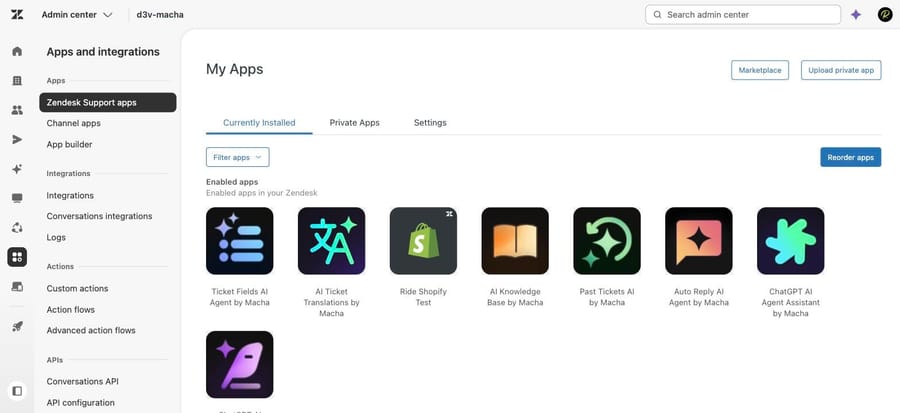
More installs die here than anywhere else, and most of the requirements live on the Jira side. The Zendesk half is ordinary: the app lands in Admin Center under Apps and integrations, Apps, Zendesk Support apps, alongside everything else you have installed.
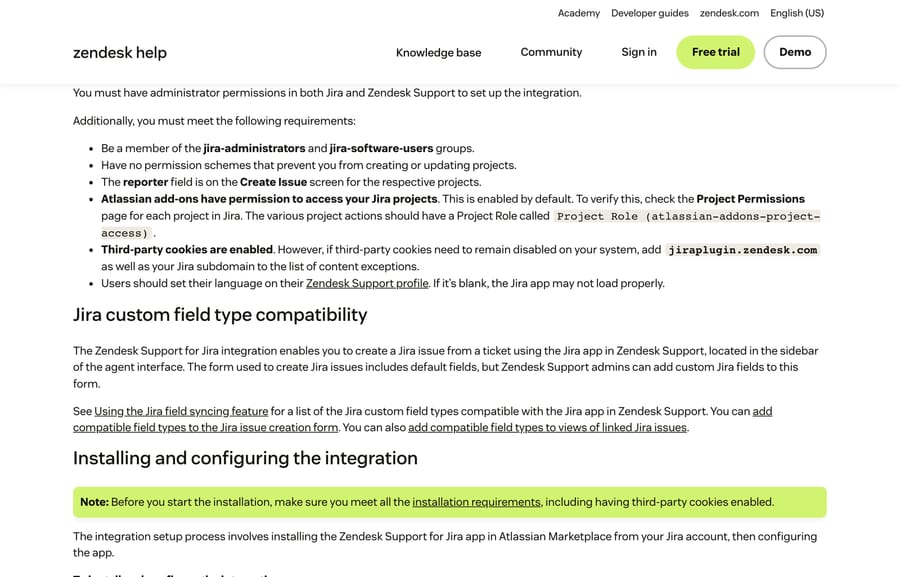
- Admin in both systems. This is not something an agent can self-serve.
- Membership of
jira-administratorsandjira-software-users. - No permission scheme that stops you creating or updating projects.
- The
reporterfield present on the Create Issue screen for each project you will file into. Without it, issue creation fails. - Atlassian add-ons able to reach your projects. Check each project's Project Permissions page for a role named
Project Role (atlassian-addons-project-access). It is on by default. - Third-party cookies enabled, or
jiraplugin.zendesk.comand your Jira subdomain added as content exceptions. Cookie blocking is the usual silent cause of a panel that never loads. - A language set on each user's Zendesk Support profile. If it is blank, Zendesk says the Jira app may not load properly, which is a genuinely obscure failure mode.
Plans: Support Team, Professional or Enterprise, or any Suite plan (Team, Growth, Professional, Enterprise or Enterprise Plus). Jira versions: Cloud and Data Center are supported. Installs on Jira Server keep working but are unsupported, because Atlassian ended support for that product. The Jira Cloud mobile app is not supported.
How do you set up the Zendesk Jira integration?
1. Install from the Atlassian Marketplace, in Jira
In Jira, click Apps in the top navigation, then Explore more apps. Search for Zendesk, open Zendesk Support for Jira, click Get app, then Get it now. When the success modal appears, click Configure.
2. Authorize against Zendesk over OAuth
Enter your Zendesk subdomain. Leave Create a new dedicated Zendesk user for this integration selected; it is on by default and Zendesk recommends it, because it means escalations from Jira arrive attributed to the integration rather than to whichever admin happened to set it up. In Jira Cloud this creates a free admin user called Zendesk Support for Jira.
Click Authenticate, then Allow. A second browser page opens; sign in to Zendesk. Choose which details to show on linked issues, then Save.
To confirm it worked, check that the Zendesk Support for Jira user appears in a user drop-down in Jira.
3. Restrict who can use it, in Zendesk
In Admin Center, click Apps and integrations, then Apps, then Zendesk Support apps. Under Currently Installed, open the JIRA app. Tick Enable role restrictions? and Enable group restrictions? to limit the sidebar app to the agents who actually escalate to engineering.
4. Restrict which projects agents can file into
Left alone, agents can create issues in any project they can see, which is how a customer bug ends up on the finance team's board. Zendesk gives you two controls: an allowed projects list, or a restricted projects exclusion list. Use whichever is less maintenance for your project layout, and set it before you roll the app out, not after the cleanup.
Why does Jira field syncing break?
Field syncing maps a Jira issue field to a Zendesk ticket field and keeps them aligned in near real time. It is the most useful part of the integration and the part with the sharpest edges.
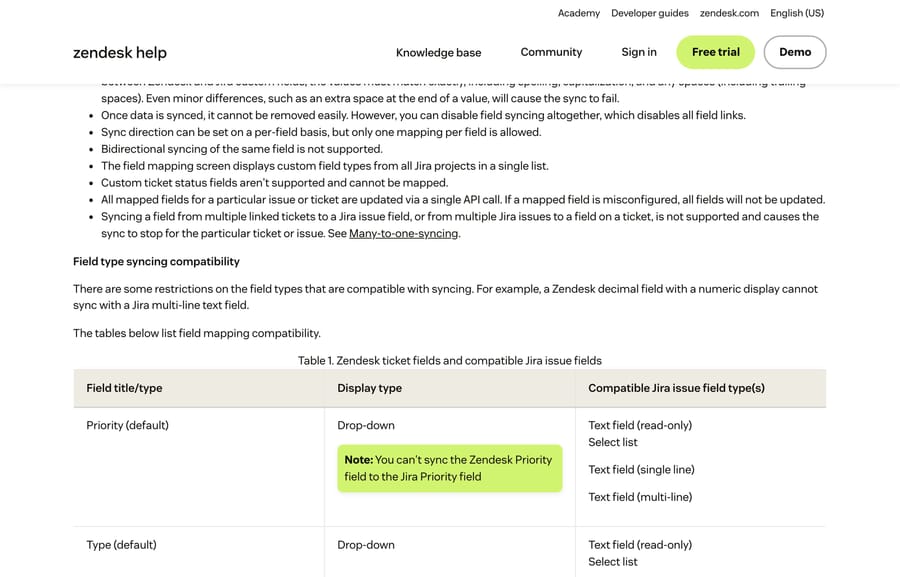
- Values must match exactly. Syncing is case-sensitive, and Zendesk spells out that spelling, capitalization and spaces all count, "including trailing spaces". One stray space at the end of a dropdown value fails the sync.
- One mapping per field, one direction. You set direction per field, and you cannot point two sources at the same field.
- The same field cannot sync both ways. Bidirectional syncing of one field is unsupported, so pick which system owns each value.
- Custom ticket status fields cannot be mapped at all.
- All mapped fields for a ticket or issue write in a single API call. If one mapping is misconfigured, none of the fields update. A single bad row silently breaks the whole sync for that object.
- Many-to-one is unsupported. Syncing from several linked tickets into one Jira field, or from several issues into one ticket field, stops the sync for that ticket or issue.
One specific gotcha worth reading twice: Zendesk's compatibility table notes that you cannot sync the Zendesk Priority field to the Jira Priority field. The Zendesk priority drop-down maps to Jira text fields and select lists instead. That is the first mapping most teams try.
For status, the separate mechanism is Zendesk's ticket update on Jira status change, which fires a ticket update when a linked issue moves. Pair it with a trigger if you want the customer notified automatically.
What if the native Jira app is not enough?
The app is built for a human clicking "link issue" or "create issue". Two limits push teams past it, and both show up in the r/Zendesk thread asking for a Zendesk to Jira integration that is easy to use:
- It is collaboration, not autonomy. Nothing in it checks an issue's status mid-conversation and answers the customer.
- It is fixed. You get the link and create flow the app exposes, not the specific JQL query or the issue payload your workflow needs.
The durable alternative is to call Jira's REST API directly from whatever layer sits on your tickets. Jira's API takes an API token or OAuth 2.0, and a single read endpoint covers most support questions: fetch an issue by key and return its status, priority and fix version.
That is how Macha on Zendesk does it. You define a custom tool once, pointing at the Jira endpoint with a parameter placeholder for the issue key, mark it Read for lookups or Write for creating issues and posting comments, and the agent decides when to call it. A customer asks whether the crash they reported is fixed, the agent queries the live issue and answers with the fix version, and the whole exchange stays a normal Zendesk ticket.
Building the Jira lookup as a custom tool
Three steps, no marketplace app and no code.
- Point the tool at Jira's REST API. Jira authenticates with an API token or OAuth 2.0; you supply the endpoint and the credentials once, and they live in the tool rather than in the conversation.
- Define the action. Give it a label and a description the agent reads to decide when to call it ("get the status, priority and fix version of a Jira issue by key"), then set the method and URL (a GET against the issue endpoint with an
{{issue_key}}placeholder), and mark it Read or Write. - Let the agent call it mid-ticket. It passes the issue key, gets live JSON back, and reasons over it in the reply. Nothing is cached into a synced field, so there is no stale-value problem to debug.
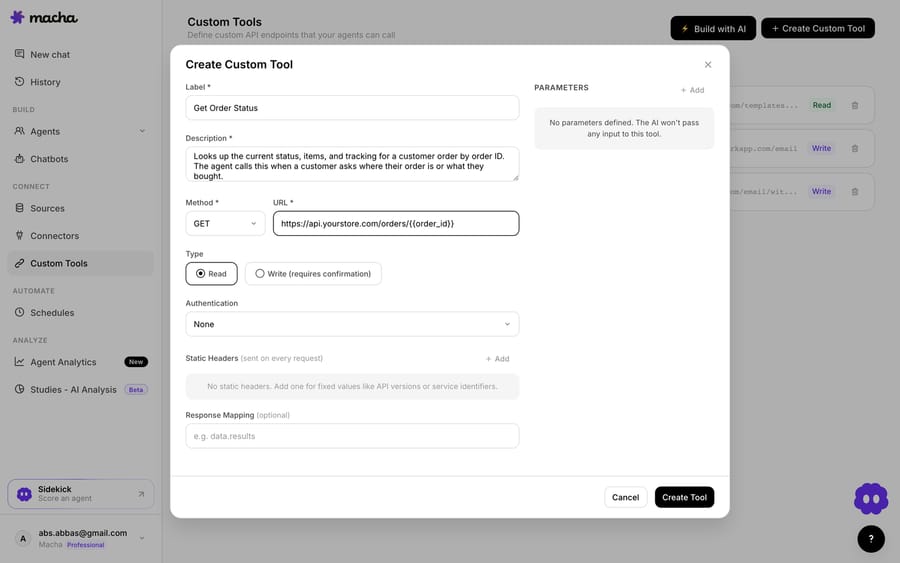
Read and write, and the guardrails
The split matters once a tool can reach into Jira. Read tools (issue lookups, JQL counts) run freely, because the worst case is a wrong answer. Write tools, meaning creating an issue, posting a comment or transitioning a status, require a confirmation step before they fire. Each tool is scoped to one action, permissioned per agent, and every call is logged, so "who filed that ticket" has an answer.
Most teams end up with three: a status lookup, a bug filer, and a comment writer, grouped alongside the tools for their other systems.
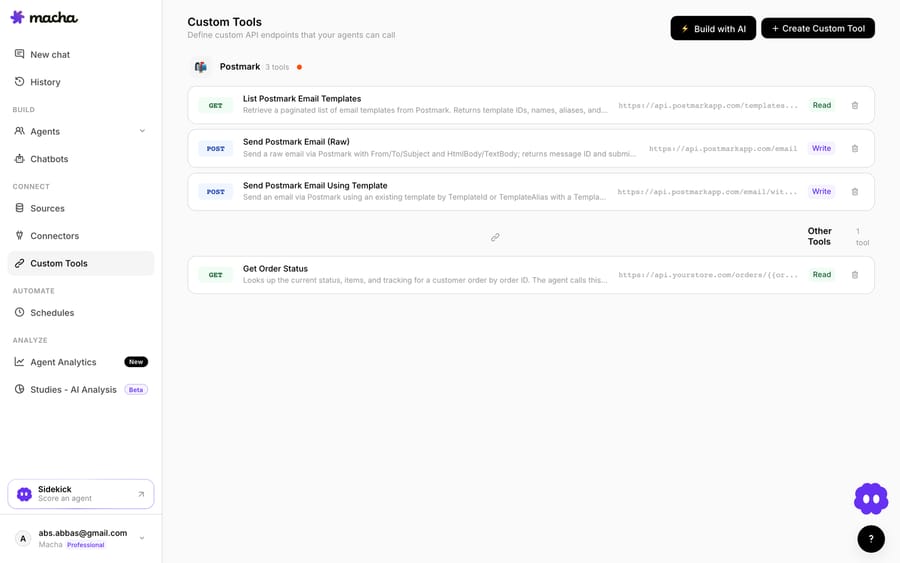
Once the agent can reach Jira, the same tool pattern covers more than the status question: checking whether a reported bug is already fixed before replying, counting open issues linked to an account to gauge churn risk, filing a bug pre-filled with the customer's plan and environment, posting the customer's repro steps onto the existing issue, or reading the fix version to give an honest ETA. It is not Jira-specific either. The same approach reaches a CRM, a billing system or an internal API, which is what the custom tools directory and the wider guide to building custom Zendesk integrations cover.
Should you use the app or a custom tool?
- The native Zendesk Support for Jira app if human agents just need to link and create issues from the ticket panel, and mapped-field sync plus a status notification is enough.
- A direct API call, as a custom tool, if you want a live lookup answered inside the reply, a specific JQL query, or an issue payload the app's fixed create screen won't produce.
They coexist. The app keeps the link on the ticket for the humans; the tool answers the question for everyone else.
It suits teams already running Zendesk whose agents answer "any update on that bug?" several times a day, and it is the wrong fit if your escalation volume is a handful of issues a month, where the free app and a human clicking a button is the correct amount of machinery.
On cost, Macha bills per ticket: one thread with one person is one charge however many replies it takes, from $299 a month for 750 tickets on published pricing, with setup and monitoring by our team included and $50 of free usage to start.
How we researched this
We checked every requirement, path and limit against Zendesk's current documentation on September 20, 2026: the setup article (edited April 30, 2026), the usage article (June 4, 2026), the field syncing article (May 4, 2026), the project restriction article, the status-update article, the April 28, 2026 announcement and the v2 resources page (June 18, 2026). Three of the four screenshots are of those pages, captured the same day. The fourth, the Zendesk Support apps page, comes from our own Zendesk sandbox, d3v-macha, on September 20, 2026. We didn't install the app, because we have no paired Jira instance, so nothing here is presented as a first-hand install. The two custom-tool screenshots are of our own product, and the section they sit in absorbed our older Jira post, which now redirects here.
Frequently asked questions
Is the Zendesk Jira integration free? Yes. The Zendesk Support for Jira app is free from the Atlassian Marketplace, and the integration is available on Support Team, Professional and Enterprise, and on every Suite plan. The cost is setup time, not license fees.
Was the legacy Zendesk Jira app deprecated in 2026? No, and this is the most common misconception. Zendesk built a v2 app and a migration path, then reversed the plan on April 28, 2026: the migration path was removed, the new app is being delisted, the original app is being re-listed, and customers already on v2 stay on v2 until Zendesk contacts them.
Where do I install the Zendesk Jira integration? In Jira, not Zendesk. Go to Apps, Explore more apps, search for Zendesk, and install Zendesk Support for Jira, then click Configure and authorize it against your Zendesk subdomain. You manage access afterwards from Zendesk's Admin Center under Apps and integrations.
Why won't the Jira panel load in my Zendesk ticket? Three usual causes: third-party cookies are blocked (add jiraplugin.zendesk.com and your Jira subdomain as exceptions), the user has no language set on their Zendesk Support profile, or the app's role or group restrictions exclude that agent.
Why is my Jira field sync failing? Almost always an exact-match problem. Values are case-sensitive and whitespace-sensitive on both sides, including trailing spaces. The other frequent cause is a single misconfigured mapping, because all mapped fields for an object are written in one API call, so one bad row stops every field updating.
Can I sync Zendesk priority to Jira priority? No. Zendesk's compatibility table says the Zendesk Priority field cannot sync to the Jira Priority field. Map it to a Jira text field or select list instead, or drive Jira priority from a separate rule.
Does the integration support two-way sync? Per field, in one direction. You choose the direction for each field, only one mapping per field is allowed, and bidirectional syncing of the same field is unsupported. Teams that expect full two-way parity usually end up calling the Jira API directly.
Does it work with Jira Server? Existing installs keep functioning, but the configuration is unsupported because Atlassian ended support for Jira Server. Jira Cloud and Jira Data Center are the supported platforms, and the Jira Cloud mobile app is not supported.
Does Zendesk have a native Jira integration? Yes. The free Zendesk Support for Jira app lets a human agent link and create Jira issues from the ticket sidebar, syncs mapped fields in one direction each, and notifies the ticket when the issue's status changes. What it does not do is answer a customer's question about an issue on its own.
Do I need an engineer to connect Jira to Zendesk? Not for the app: the install is an admin clicking through the Atlassian Marketplace and an OAuth screen. Calling the Jira REST API from a custom tool is a form too (endpoint, auth, a parameter placeholder), though someone who knows your Jira project layout should decide which fields the tool reads and writes.
Can an AI agent create Jira issues, or only read them? Both, if you build both tools. Reads (issue lookups, JQL counts) run freely; writes, meaning creating a bug, commenting or transitioning a status, sit behind a confirmation step, and you choose which agents are allowed to use them.
Is it safe to let an agent reach into Jira? Each tool is scoped to a single action rather than to the whole API, credentials sit in the tool rather than in the conversation, authentication is Jira's own API token or OAuth, and every call is logged. Keep the destructive verbs on Write tools so they can't fire without a confirmation.
Sources: Setting up the Zendesk Support for Jira integration · Using the Zendesk Support for Jira integration · Using the Jira field syncing feature · Restricting access to projects in your Jira integration · Updating a ticket when the status of a Jira issue changes · Announcing an important update on the Zendesk Jira integration · Zendesk Jira integration v2 resources · Troubleshooting Jira integration (Legacy) issues
Add AI agents to your Zendesk
Macha reads the ticket, drafts the reply and takes the action, inside the Zendesk you already run.





