Intercom
 Shopify
 Stripe
 Slack
Slack Notion
 Google Workspace
 Confluence

How Do You Integrate Zendesk with Microsoft Teams? Step-by-Step Setup (2026)


To connect Zendesk to Microsoft Teams, install the free Zendesk for Microsoft Teams app, have a Microsoft admin grant its permissions, link your Zendesk subdomain, and set up notifications with @Zendesk in a channel. Teams is not a native Zendesk messaging channel, so letting people open tickets from Teams runs through the same app or a custom Sunshine Conversations build.
Key takeaways
- The Zendesk for Microsoft Teams app is free to install and posts ticket notifications into Teams channels or DMs, filtered by status, priority, type and field updates.
- Installing the Zendesk for Microsoft Teams app creates triggers prefixed [Microsoft Teams Integration] plus a webhook, and disabling any of them breaks the notifications.
- The Zendesk for Microsoft Teams app runs on every Zendesk Suite plan and on Support Team, Professional and Enterprise, but not on Support Essential.
- Microsoft Teams is not on Zendesk's native Messaging and social channel list, so a customer-facing Teams chat channel needs a custom Sunshine Conversations build.
- Microsoft now allows bots in Teams private channels only when an app declares support in manifest v1.25 or later, so test the Zendesk app in a standard channel first.

To integrate Zendesk with Microsoft Teams, install the free Zendesk for Microsoft Teams app from the Teams app store, have a Microsoft admin grant its permissions, connect your Zendesk subdomain with an admin login, then type @Zendesk in a channel to set up ticket notifications. The app works on every Zendesk Suite plan and on Support Team, Professional and Enterprise, but not on Support Essential. One catch: "connect Zendesk to Teams" covers two different things, and mixing them up is the most common source of confusion. The steps below were checked against Zendesk's own documentation and Microsoft's app guidance on 24 September 2026; both vendors revise their UI, so confirm labels in your own account.
What are the two ways to connect Zendesk and Microsoft Teams?
Before you touch a setting, get clear on which integration you actually want:
| (a) Zendesk for Microsoft Teams app | (b) Teams as an inbound channel | |
|---|---|---|
| What it does | Posts ticket notifications into Teams channels/DMs and lets people create, view, comment on, and update tickets from Teams | Lets customers or employees message your support through Teams and have it become a Zendesk ticket |
| Who it's for | Agents, and internal staff who raise IT tickets | Internal IT / employee helpdesk where Teams is the front door |
| How you set it up | Install the official app from the Teams app store / Zendesk Marketplace + OAuth | Mostly delivered by the same app, or a custom Sunshine Conversations build; not a one-click native channel |
| Native, supported, free? | Yes: official, free to install | Partial: see the caveats below |
Most people searching for a "zendesk teams integration" want (a): notifications plus ticket actions inside Teams. That is the main, fully supported product, so we cover it step by step first. We then cover (b) honestly, because Microsoft Teams is not a native Zendesk messaging channel and you deserve the real picture.
What do you need before you start?
A few prerequisites save you a mid-setup detour:
- A supported Zendesk plan. The Zendesk for Microsoft Teams integration is available on all Zendesk Suite tiers (Team, Growth, Professional, Enterprise, Enterprise Plus) and on Support Team, Professional, and Enterprise. It is not available on the entry-level Support Essential plan.
- Admin access on both sides. You need a Zendesk admin role and a Microsoft 365 / Teams admin who can approve the app's permissions in Microsoft Entra ID (formerly Azure AD). End users cannot self-install it, so this almost always requires a quick handoff to whoever owns your Microsoft tenant.
- A decision on which Team and channels should receive notifications. You can add more later, but knowing your first target (say, an
#urgent-supportchannel) makes the trigger step quick.
How do you install and set up the Zendesk for Microsoft Teams app?
This is the integration that does the heavy lifting: ticket notifications into Teams, plus creating, viewing, commenting on, and updating tickets without leaving the chat client. According to Zendesk's documentation, the app lets you "create, view, and update Support tickets," "add internal notes and public replies to tickets within Teams," "get notifications on tickets based on status, priority, type, and updates within any Team channel or DM," and "answer commonly asked questions with article recommendations in Microsoft Teams."
Step 1: Install the app
You can install from either side; they connect the same underlying integration:
- From Microsoft Teams: open Apps in the left rail, search for Zendesk, and click Add.
- From the Zendesk side: find the listing in the Zendesk Marketplace and follow the install prompt.
The Zendesk Marketplace is the integrations ecosystem where you discover and install the Teams app (alongside hundreds of others). It's worth a look so you know where the listing lives:
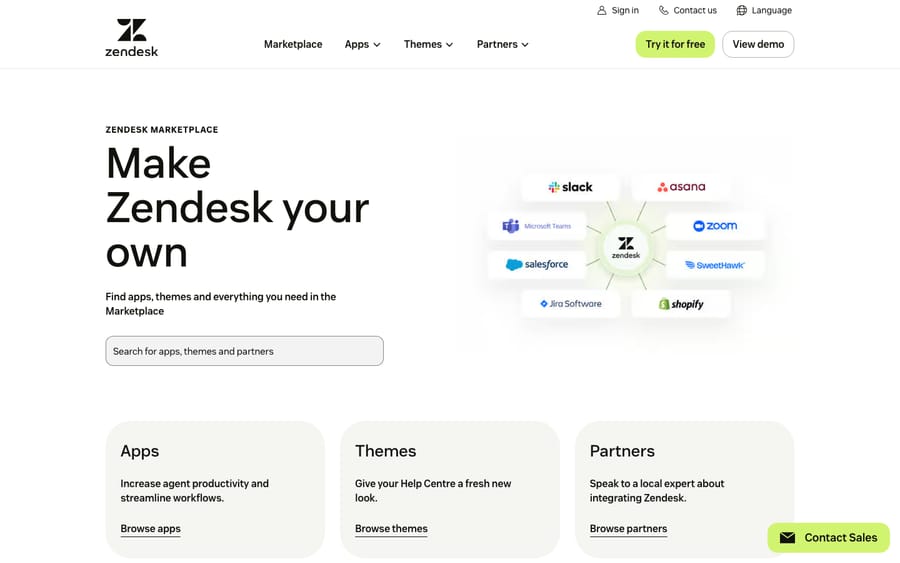
To be precise about what you're seeing: the screenshot above is the public Zendesk Marketplace homepage, the catalog where you find and install the Microsoft Teams app. The actual OAuth authorization and the channel/notification configuration happen afterward, inside the app's settings and inside Microsoft Teams itself (described below from the official docs; we don't fabricate Teams-side screenshots here).
Step 2: Grant permissions (Microsoft admin consent)
After you add the app, Teams shows a welcome message with a Grant permissions action. Clicking it redirects you to Microsoft Entra ID (Azure AD) to accept the consent request for the app's permissions.
This is the step that catches teams out: depending on your tenant's policy, a Microsoft 365 / Teams admin may have to approve that consent; a regular agent can't push it through. If you hit a "your administrator must approve this app" wall, that's expected; loop in your IT/tenant admin to authorize it once for the organization.
Step 3: Connect your Zendesk account (OAuth)
Next you link the app to your specific Zendesk instance:
- Enter your Zendesk subdomain: the part before
.zendesk.comin your URL (e.g.acmeforacme.zendesk.com). - Authenticate with your Zendesk admin credentials to authorize the connection.
Behind the scenes, this OAuth handshake is what gives the app permission to read and write tickets in your account. Because it writes triggers and a webhook (next step), you must authorize it as an admin, not an agent.
Step 4: Let Zendesk create its triggers and webhook
Here's the part you don't have to do manually but should understand. Once the app is installed and connected, Zendesk automatically creates a set of triggers and a webhook in your account. All of these triggers are named with the prefix [Microsoft Teams Integration], and all of them, plus the webhook, are required to support both personal notifications and notifications coming into channels.
Practical implications:
- Don't delete or rename them. If notifications mysteriously stop later, the first thing to check is whether someone cleaned up these triggers or disabled the webhook (Admin Center → Apps and integrations → Webhooks, and Objects and rules → Business rules → Triggers).
- They sit alongside any triggers you've already built. If you're new to how triggers fire on ticket events, our Zendesk ticketing system explainer covers the underlying model.
Step 5: Add the app to a Team and set up channel notifications
Now you decide where ticket activity shows up. The app has to be added to the relevant Team/channel first, by the team owner or a Zendesk admin, and then notifications are configured inside Teams:
- In the target channel, type
@Zendeskin the message/command box to bring up the app's command menu. - Choose the notifications command (you can also just type
notifications). - Configure which events post to that channel. You can filter by ticket status, priority, type, and field updates, and direct different events to different channels or DMs.
A common, effective pattern: route high-priority ticket events to a dedicated #urgent-support channel for immediate visibility, while routine updates only ping the assigned agent as a personal notification. Note that only admins and agents can manage notifications in a channel; end users can't reconfigure them.
Step 6: Create and manage tickets from Teams
With the app live, your team can work tickets without switching apps. From Teams you (and internal requesters) can:
- Create a ticket from a Teams message or via the app's compose action.
- View open and closed personal tickets in a single list.
- Add internal notes and public replies, and update ticket fields like status or priority.
- Import Zendesk ticket views as tabs in a Teams workspace to list tickets by different criteria (this one is agents only).
This is exactly what makes the integration double as an internal IT helpdesk front end: an employee pings a request, an agent turns it into a tracked ticket, and the whole thread stays visible in Teams.
Step 7: Turn on article recommendations for self-service (optional)
The app can answer common questions with article recommendations from your help center (older Zendesk docs called this "Answer Bot for Microsoft Teams"), so a self-service answer appears in the channel before an agent is pulled in. Zendesk's current overview lists the capability but does not say it is on by default, so check that article recommendations are switched on in Admin Center and pointed at the right help center before you rely on them. If your help center is thin, the recommendations will be too.
Step 8: Test the full loop
Before you announce it, run the round trip yourself:
- Trigger a notification. Create or update a ticket that matches a condition you configured (e.g. set priority to Urgent) and confirm it posts to the right channel.
- Create a ticket from Teams and verify it appears in Zendesk with the right requester.
- Reply from Teams and confirm the public reply/internal note lands on the ticket.
- Test article recommendations (if enabled) by asking a question your knowledge base should answer.
If a notification never arrives, the usual causes are the auto-created triggers/webhook being disabled, the app not added to that channel, or the event not matching your notification filter.
Can people open Zendesk tickets by messaging in Teams?
Now the second meaning of "integrate Zendesk with Teams": letting people message your support through Teams and have it land as a ticket: the internal IT/employee-helpdesk scenario, where Teams is the front door instead of a web widget.
The short answer: Microsoft Teams is not a native Zendesk messaging channel. In Admin Center, native conversational channels live under Channels → Messaging and social, and the supported social messaging options are things like WhatsApp, Facebook Messenger, Instagram, Apple Messages for Business, LINE, Telegram, Viber, and WeChat (delivered via Sunshine Conversations). Microsoft Teams is not on that list; there's no one-click "Add Teams" channel toggle. (If you're new to setting up those native channels, our guide to setting up Zendesk messaging walks through the Messaging and social path.)
So how do teams actually get a "Teams → ticket" experience? Two real options:
- Use the Zendesk for Teams app from Part 1. For internal IT/employee support, this is the practical channel: employees raise and track tickets directly in Teams, get article recommendations, and agents work them as normal tickets. For most internal helpdesks, this is the right and supported answer, with no custom build required.
- Build a custom channel with Sunshine Conversations. If you need true conversational messaging where a Teams chat becomes a live ticket thread, that requires a custom integration via Sunshine Conversations (Zendesk's messaging platform / API), or a third-party connector. This is a developer project, not a setting; budget for it accordingly.
Being straight about it: if a vendor or blog implies you can flip Teams on as a customer-facing messaging channel in two clicks like WhatsApp, that's not accurate today. For internal IT, the app covers it; for a custom conversational channel, you're in Sunshine Conversations territory.
How do side conversations work in Microsoft Teams?
There's a third, separate connection worth knowing about because it's easy to confuse with the above. Agents can loop in colleagues over Teams from inside a ticket using side conversations. A reply in the Teams thread is automatically recorded back on the ticket, and "anyone in the Microsoft Teams channel can view your message and reply to the thread directly, without logging into Zendesk Support."
This is agent-to-agent collaboration, not a customer channel. It requires Suite Professional or above (or the Collaboration add-on on Support Professional+), plus the latest Zendesk for Teams app installed by an admin. Side conversations can't go to Teams direct messages; Zendesk's workaround is a channel with limited membership. You enable it in Admin Center → Workspaces → Agent tools → Side conversations → Turn on side conversations in Microsoft Teams.
What permissions and limitations should you know about?
Worth setting expectations before you roll it out:
- Admin permissions on both platforms. You need a Zendesk admin and a Microsoft 365/Teams admin to consent. End users can't self-install.
- Private channels need app opt-in. Microsoft now lets bots run in private and shared channels only when the app declares support in its manifest (
supportsChannelFeatures, manifest v1.25 and later), and each app must be added to each private channel. Zendesk's docs don't say whether its app has opted in, so set up notifications in a standard channel and test a private one before relying on it. - Side conversations don't go to direct messages. Notifications can reach a channel or a DM, but side conversations need a channel; use a channel with limited membership for a "DM-like" thread.
- Article recommendations need a help center. Check they're switched on in Admin Center and pointed at your knowledge base.
- The auto-created triggers/webhook are load-bearing. Don't delete the
[Microsoft Teams Integration]triggers or the webhook, or notifications break. - Plan floor: Suite (any tier) or Support Team and above, not Support Essential.
Where does an AI agent fit in a Teams helpdesk?
If your reason for connecting Teams to Zendesk is an internal IT or employee helpdesk, here's the pattern worth noticing: the questions employees ask over Teams are extremely repetitive: "how do I reset my VPN," "request a license for X," "I'm locked out of my account." The Zendesk for Teams app plus article recommendations can suggest an article, but suggesting an article isn't the same as resolving the request.
That's the layer an AI agent like Macha adds. Macha isn't a help desk and it's not a Zendesk replacement; it runs on top of your existing help desk (Zendesk, Freshdesk, Gorgias, Front, HubSpot or Intercom). For the repetitive internal questions, it reads what the employee actually asked, pulls from your connected knowledge base and past tickets, and resolves the common ones before a human is pinged, escalating with full context when it isn't confident. You can read how that works on Macha for Zendesk.
The honest framing: it's another integration to configure, and it's only as good as the knowledge you connect to it. On cost, Macha bills per ticket: one conversation, charged once, however many steps it takes to finish (drafting a reply, tagging, resolving), and never per "resolution." Plans start at $299 a month for up to 750 tickets, with setup and monitoring by the Macha team included. If your Teams helpdesk volume is mostly questions your knowledge base could answer, that's the line where article suggestions stop scaling. You can try it free with $50 of usage, no credit card required.
Frequently asked questions
What does the Zendesk Microsoft Teams integration actually do? The official Zendesk for Microsoft Teams app posts ticket notifications into Teams channels or DMs (filtered by status, priority, type, and updates) and lets people create, view, comment on, and update Zendesk tickets directly from Teams. It can also answer common questions with article recommendations from your help center.
How do I install the Zendesk app in Microsoft Teams? In Teams, open Apps, search for Zendesk, and click Add (or install it from the Zendesk Marketplace). Then click Grant permissions to approve it in Microsoft Entra ID (Azure AD), where a Microsoft admin may need to consent, enter your Zendesk subdomain, and authenticate with your Zendesk admin credentials.
Do I need admin access to set it up? Yes, on both sides. You need a Zendesk admin and a Microsoft 365/Teams admin (for the permission consent). End users cannot self-install the app.
How do I set up Zendesk ticket notifications in a Teams channel? After the app is added to the channel, type @Zendesk to open its command menu, choose the notifications command, and pick which ticket events (by status, priority, type, or field updates) post to that channel. Only admins and agents can manage these notifications.
Can customers message my support through Microsoft Teams and create tickets? Not as a native messaging channel. Microsoft Teams isn't in Zendesk's native Messaging and social channel list (WhatsApp, Messenger, Instagram, etc.). For an internal IT/employee helpdesk, the Zendesk for Teams app already lets staff raise and track tickets in Teams. For a true custom conversational channel, you'd build one via Sunshine Conversations.
Which Zendesk plans support the Teams integration? All Zendesk Suite tiers (Team, Growth, Professional, Enterprise, Enterprise Plus) and Support Team, Professional, and Enterprise. It is not available on Support Essential.
Why did my Teams notifications suddenly stop? Most often because the integration's auto-created triggers (named [Microsoft Teams Integration]) or its webhook were disabled or deleted in Zendesk, the app was removed from the channel, or the ticket event no longer matches your notification filter. In a private channel, the app also has to be added to that channel, and Teams only allows it there if the app supports private channels.
Does the Zendesk for Microsoft Teams app cost anything? No. The app is free to install; you only need a Zendesk plan that includes it (any Suite plan, or Support Team and above) and a Microsoft 365 tenant where an admin can approve it.
Setup steps checked against Zendesk's and Microsoft's official documentation on 24 September 2026. Both products update periodically, so confirm labels in your own account before relying on them.
Add AI agents to your Zendesk
Macha reads the ticket, drafts the reply and takes the action, inside the Zendesk you already run.