



 Intercom
 Shopify
 Stripe
 Slack
Slack Notion
 Google Workspace
 Confluence

How Do You Integrate Zendesk with Shopify? 7 Steps (2026)


Connecting Zendesk to Shopify takes an install from the Shopify App Store, a named connection in Zendesk Admin Center and one Sidebar app checkbox, after which each ticket shows the requester's Shopify orders. Refunds, cancellations, extra stores and the storefront Web Widget are optional steps on top.
Key takeaways
- Zendesk connects to Shopify through Zendesk's own app: install it from the Shopify App Store, enter your subdomain, name the connection, then tick Sidebar app.
- The Shopify sidebar matches a ticket requester's email or phone to Shopify orders, and it only shows data once the ticket is saved with that requester.
- Refunds and cancellations are off by default; refunds work on fulfilled and unfulfilled orders and add a shopify_refund tag, while only unfulfilled orders can be cancelled.
- The Shopify integration runs on all Zendesk Suite plans or on Support plans with Chat, and the app listing shows Suite Team from $55 per agent per month.
- The Shopify storefront gets only the default brand's Zendesk Web Widget, with messaging on by default and the Classic widget installed only when messaging is off.

To integrate Zendesk with Shopify, install the Zendesk app from the Shopify App Store, enter your Zendesk subdomain, name the connection in Admin Center, then tick the Sidebar app checkbox so each ticket shows the requester's Shopify orders. The app is built by Zendesk and has no separate charge; you pay only for your Zendesk plan. Refunds and cancellations are a second checkbox, off by default.
| Step | Where | What you do |
|---|---|---|
| 1. Install and connect | Shopify App Store, then Admin Center | Install, enter subdomain, name the connection |
| 2. Turn on the sidebar app | Admin Center → Shopify → Configure → Sidebar app | Tick Sidebar app on the Support and Chat cards |
| 3. Understand matching | Ticket sidebar | Orders match on requester email or phone, saved tickets only |
| 4. Refunds and cancellations (optional) | Sidebar app, Support card | Tick Refunds and cancellations |
| 5. More stores (optional) | Admin Center → Shopify → New connection | Repeat the install per storefront |
| 6. Web Widget (optional) | Admin Center, then Shopify theme App embeds | Enable the widget and activate it in the theme |
| 7. Test | A real customer's ticket | Check orders, details, and a test refund |
One thing to settle up front, because there are several Shopify apps in the Zendesk Marketplace: this guide covers the official "Shopify for Zendesk" app, made by Zendesk itself. Third parties (Zenplates, helphouse.io, agnoStack and others) publish their own, often paid, Shopify connectors with extra features, and Zendesk also lists a separate "Shopify Premium" app. The first-party one covers what most stores need. Every label below is taken from Zendesk's current docs (checked 24 September 2026); Zendesk and Shopify both revise their UI periodically, so confirm the exact wording in your own account.
What do you get from connecting Shopify to Zendesk?
Before the steps, it's worth being clear on what you actually get — because "integrate Zendesk with Shopify" can mean several things.
- Order context in the ticket. The headline benefit. When a customer emails "where's my order?", the agent sees that customer's recent Shopify orders inside the ticket — order number, date and value, payment status, fulfillment status, and tracking numbers — instead of copy-pasting an email into the Shopify admin to search. Zendesk's own framing is that the app lets agents view order information "without leaving Zendesk," reducing context switching.
- Refund and cancel actions. With one checkbox enabled, agents can process refunds and cancellations on a Shopify order from inside the ticket — full or partial, with restock and shipping options.
- Multi-store support. If you run more than one Shopify storefront (separate brands, regions, or markets), you can connect each one and agents see the right store's data per customer.
- Optional storefront Web Widget. The same integration can drop the Zendesk Web Widget onto your Shopify theme (with messaging on by default, or the Classic widget if messaging is off), so shoppers can start a conversation from the store itself.
If you're new to how tickets work in the first place, our explainer on the Zendesk ticketing system covers the object this order data attaches to. The Shopify data shows up as a panel alongside the normal ticket — it doesn't change how the ticket itself behaves.
What do you need before you start?
A few prerequisites save you a mid-setup detour. Per Zendesk's setup docs:
- A supported Zendesk plan. The integration is available on all Zendesk Suite plans (Team, Growth, Professional, Enterprise, and Enterprise Plus) or on Support (Team, Professional, Enterprise). If you're on a Support plan, you also need Chat to use it.
- Admin access on both sides. You need a Zendesk admin role to create the connection in Admin Center, and a Shopify account with rights to install apps on the storefront, because installation touches settings on each side.
- No Shopify plan requirement in the docs. Zendesk's setup article doesn't name a Shopify plan tier, so standard Shopify stores aren't excluded. Check the compatibility note on the Shopify App Store listing for your own store before you start.
- No separate charge for the app. The connector has no fee of its own; you pay for your underlying Zendesk plan. The Shopify App Store listing shows those Zendesk prices, from $55 per agent per month billed annually for Suite Team, with a 14-day free trial, and the app holds 3.5 stars from 92 reviews there.
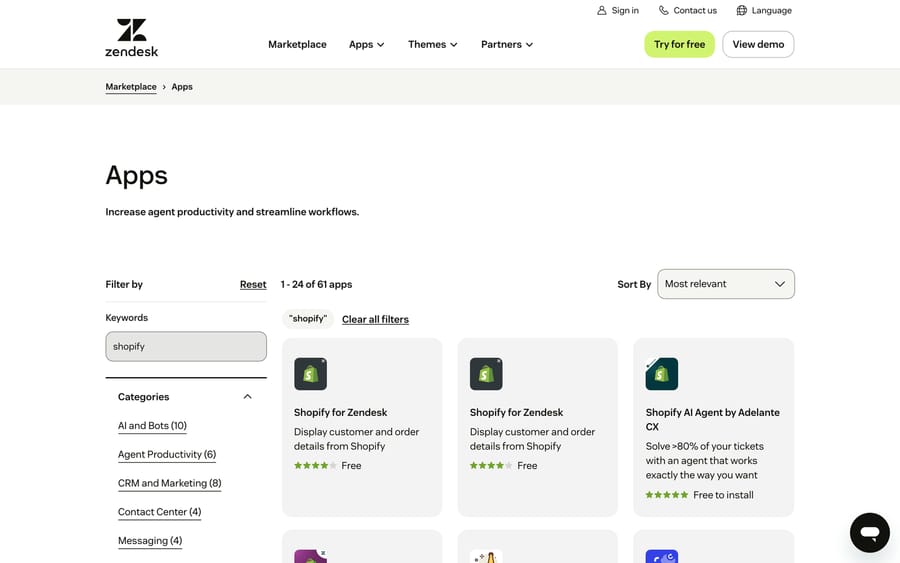
Once connected, the Shopify integration shows up in Admin Center → Apps and integrations, where you manage it alongside your other Zendesk apps and integrations. The screenshot below is that real admin screen (note the Shopify app listed among the installed apps); the install itself begins on the Shopify App Store side, after which you authorize and name the connection inside this Admin Center area — that's also where the context-panel and refunds settings live.
Step 1: Install the app and connect your Shopify store
For the official integration, installation starts on the Shopify side and finishes in Zendesk. Following Zendesk's documented flow:
- Open the Zendesk app in the Shopify App Store (apps.shopify.com/zendesk) and click Install.
- Select the storefront you want to install it on, and confirm the installation.
- Enter your Zendesk subdomain (the
yourcompanypart ofyourcompany.zendesk.com) and Submit. - You're redirected into Zendesk Admin Center. Enter a Connection name for this integration — pick something recognizable if you'll connect more than one store (e.g. "US Store") — and click Connect.
That's it for the handshake. The Zendesk app is automatically installed into your Shopify storefront, and you land back in Admin Center ready to configure what agents see. Because authorization happens through Shopify's own install flow, you're not pasting API keys by hand — Shopify grants the app access during installation.
Step 2: Turn on the sidebar app (the order context panel)
Connecting the store doesn't automatically show order data in tickets — you enable the sidebar app that renders it. In Admin Center:
- Go to Apps and integrations → Integrations → Integrations.
- Click Shopify.
- On your storefront's card, click Configure.
- In the left sidebar, choose Sidebar app.
- Click Configure on the relevant card — there's one for Support and one for Chat.
- Check the Sidebar app checkbox to display it, and Save.
Once saved, the Shopify panel appears in the ticket interface (the Agent Workspace) and in Chat. This is the panel agents will actually live in, so it's worth opening a real ticket afterward to confirm it renders — which we'll do in the final step.
Step 3: What order data do agents see, and how does matching work?
There's no long list of toggles for individual fields — the app shows a consistent, useful set of order data, and the important thing to understand is how it finds the right orders.
How customer matching works. The integration matches the ticket requester's email address or phone number to the email or phone on Shopify orders and accounts. There's one catch that trips people up: Shopify data only displays on a saved ticket. The ticket has to be saved with a requester first so the app has an identity to look up — on a brand-new unsaved ticket, the panel will be empty. (In Chat, the visitor's provided contact details are matched the same way.)
What the panel shows. Per Zendesk's usage docs, the sidebar shows an order summary and a list of orders by order number. Expanding an order reveals:
- Order date and value
- Customer notes
- Payment status
- Fulfillment status
- Shipment tracking numbers
Click Order details on any order for more — line items, order notes, and a payment breakdown. That's enough for an agent to answer the overwhelming majority of "where's my order / did it ship / what did I pay" questions without leaving the ticket.
Step 4: Optionally enable refunds and cancellations
This is the difference between a read-only lookup and an action panel. Refunds and cancellations are off by default and must be explicitly enabled — and only for Support (this is a write action, so treat it deliberately).
In the same Sidebar app configuration for the Support card, check the Refunds and cancellations checkbox, then Save. Once on, agents can act on orders directly:
- Refunds work on both unfulfilled and fulfilled orders. For unfulfilled orders, agents can refund specific line items. They can issue a full refund (selects all items and shipping, and returns stock), or a partial refund (choose quantities per line item), with checkboxes to restock items and refund shipping. Completing a refund automatically adds a
shopify_refundtag to the ticket. - Cancellations are more limited: only unfulfilled orders can be cancelled. The agent picks a refund reason and confirms, and the app adds a
shopify_cancelledtag.
Those auto-applied tags are genuinely handy — you can build Zendesk views or reporting around shopify_refund and shopify_cancelled to track how much money agents are moving from the support desk.
Step 5: How do you connect more than one store?
Running more than one Shopify storefront is common — separate brands, or a US and an EU store. The official app supports it; you just repeat the connection per store. The one easy-to-miss detail: log into the additional Shopify storefront first before you start, so the install targets the right one.
- Make sure you're logged into the additional Shopify storefront.
- In Admin Center, go to Apps and integrations → Integrations → Integrations → Shopify.
- Click New connection and follow the same install flow from Step 1 (install, subdomain, connection name).
Each connected store appears as its own configuration, and the sidebar surfaces the matching store's orders for a given customer. Name each connection clearly during setup — "Connection name" is the only thing distinguishing them later.
Step 6: (Optional) Add the Zendesk Web Widget to your storefront
If you also want shoppers to start conversations from the store itself, the same integration can place the Zendesk Web Widget on your Shopify theme. This is optional and separate from the order-lookup panel:
- In Admin Center, go to Apps and integrations → Integrations → Integrations → Shopify → Configure.
- Choose Web Widget in the left sidebar and turn on Enable Web Widget.
- Click Go to Shopify Theme Apps Editor.
- In Shopify's App embeds menu, activate the Web Widget, and save your theme changes.
Two details from Zendesk's docs: messaging is enabled for the Web Widget by default, and the Web Widget (Classic) is installed only if messaging is turned off. And the integration adds only the default brand's Web Widget to each Shopify store; for more widgets you paste the code into the theme by hand.
A note on honesty here: that last part happens on the Shopify side, in the theme editor's App embeds panel — these are described from Zendesk's documentation rather than shown, since they live in your Shopify admin, not Zendesk. If you want a deeper walkthrough of the widget itself, see our guide to adding the Zendesk Web Widget.
Step 7: How do you test the integration?
Before you rely on it, run the loop end to end:
- Open a ticket from a known customer — someone whose email (or phone) matches a real Shopify order. Remember: the ticket must be saved with that requester before the Shopify panel populates, so save it if it's new.
- Check the sidebar. Confirm the Shopify panel lists their orders, and expand one to verify order date, value, payment and fulfillment status, and tracking appear.
- Open Order details on an order and confirm line items and the payment breakdown load.
- If you enabled refunds, test a small partial refund on a test order and confirm the
shopify_refundtag lands on the ticket. Test a cancellation only on an unfulfilled order. - Multi-store check (if applicable): open tickets from customers of each store and confirm the right storefront's data shows.
If the panel is blank, the usual culprits are: the ticket isn't saved yet, the requester's email/phone doesn't match any Shopify account or order, or the sidebar app checkbox wasn't ticked in Step 2. Retrace the matching step.
What are the limitations and watch-outs?
No integration is all upside. The ones worth knowing before you commit:
- It's read-rich but write-limited. Out of the box you get order visibility; the only write actions are refunds and cancellations, and cancellations only on unfulfilled orders. You can't, say, edit an order or change a shipping address from the panel.
- Matching is by email or phone. If a customer emails from a different address than they used to check out — a personal Gmail vs. a work address — the app won't find their order. This is the single most common "it's not working" cause, and it's inherent to how matching works, not a bug.
- Saved tickets only. Data won't appear on an unsaved ticket; the requester must be saved first.
- Admin on both sides. You can't complete setup without a Zendesk admin role and install rights on the Shopify store — line that up before you start.
- First-party scope vs. third-party apps. The official app is free and solid, but if you need richer e-commerce actions (subscriptions, complex multi-system order views, deeper write-backs), the paid third-party Shopify apps in the marketplace exist for a reason. Start with the free one and only reach for those if you hit a wall.
Where does AI fit in once order data is connected?
Here's the honest reason this integration matters more than it looks. "Where's my order?" is the single most common e-commerce support ticket — and once order data is connected to Zendesk, most of those questions are answerable from data the system already has. An agent can glance at the sidebar and reply in thirty seconds. But it's still thirty seconds, times hundreds of tickets a week, on a question that's almost always the same.
That's the seam where an AI agent earns its keep. Macha is an AI agent layer that runs on top of your existing Zendesk — it is not a help desk and not a Zendesk replacement. With Shopify order data flowing into the ticket, an AI agent can read the customer's question, pull the matching order's fulfillment and tracking status, and answer the order-status question automatically inside the ticket — escalating to a human, with full context attached, the moment something needs judgment (a lost package, a refund dispute, an angry tone). The repetitive "where's my order?" volume gets handled; your agents see the tickets that actually need a person. You can read more about how it plugs in on Macha on Zendesk.
The honest framing: it's another layer to configure, and it's only as good as the data and knowledge you connect to it. On cost, Macha bills per ticket (one conversation, charged once however many order lookups, drafts and tags it takes), from $299 a month for 750 tickets, not per resolution, so the bill never hangs on an outcome definition you don't control. If your store's inbox is mostly the same order-status questions, that's exactly the volume a connected AI agent absorbs. You can try it with a free trial ($50 of usage, no credit card required).
Frequently asked questions
Is the Zendesk Shopify integration free? Yes. The official "Shopify for Zendesk" app, built by Zendesk, has no separate charge. You only pay for your underlying Zendesk plan (the Shopify App Store listing shows Suite Team from $55 per agent per month billed annually) — the integration is available on all Suite plans and on Support plans (with Chat). There's no separate charge for the connector itself.
How does Zendesk match a customer to their Shopify order? By email address or phone number. The app matches the ticket requester's email or phone to the email/phone on Shopify accounts and orders. One catch: the ticket must be saved with a requester first — the Shopify panel stays empty on an unsaved ticket. If a customer contacts you from a different email than they ordered with, the order won't be found.
Can agents issue refunds in Shopify from Zendesk? Yes, if you enable it. Tick the Refunds and cancellations checkbox in the Support sidebar app configuration. Agents can then refund unfulfilled and fulfilled orders (full or partial, with restock and shipping options) and cancel unfulfilled orders, all from inside the ticket. Completed actions auto-tag the ticket shopify_refund or shopify_cancelled.
Can I connect more than one Shopify store? Yes. Log into the additional storefront first, then in Admin Center go to Apps and integrations → Integrations → Integrations → Shopify → New connection and repeat the install flow. Give each connection a clear name; each store's orders surface for the matching customers.
What order information shows in the Zendesk sidebar? A list of orders by order number, each expandable to show order date and value, customer notes, payment status, fulfillment status, and shipment tracking numbers. Clicking Order details reveals line items, order notes, and the payment breakdown.
Do I need Shopify Plus? Zendesk's setup documentation doesn't name any Shopify plan requirement, so the Plus tier isn't listed as a prerequisite. Check the compatibility note on the Zendesk listing in the Shopify App Store for your own store before installing.
What is the whole setup sequence in short?
Integrating Zendesk with Shopify is a short, well-defined sequence: install the official app from the Shopify App Store and authorize it with your Zendesk subdomain and a connection name, turn on the sidebar app so order data appears in tickets, understand that matching is by email/phone on saved tickets, optionally enable refunds and cancellations, connect additional stores if you run them, and test with a real customer's ticket before you rely on it. The payoff is that your agents stop alt-tabbing into the Shopify admin to answer "where's my order?" — the order's status, fulfillment, and tracking are right there in the ticket. And once that data is connected, it's the natural foundation for letting an AI agent handle the repetitive order-status volume automatically. For how Zendesk tickets themselves work, see our Zendesk ticketing system explainer.
Setup steps checked against Zendesk's official documentation on 24 September 2026. Zendesk and Shopify update their products periodically, so confirm labels in your own account before relying on them.
Add AI agents to your Zendesk
Macha reads the ticket, drafts the reply and takes the action, inside the Zendesk you already run.





