Intercom
 Shopify
 Stripe
 Slack
Slack Notion
 Google Workspace
 Confluence

How to Add the Zendesk Web Widget to Your Website (2026 Steps)


To add the Zendesk Web Widget, copy the JavaScript snippet from the widget's Installation section in Admin Center and paste it just before the closing body tag on every page. New accounts already have messaging on and a default widget named Zendesk, so older accounts on live chat or the Classic widget are the only ones that need to switch messaging on first.
Key takeaways
- Adding the Zendesk Web Widget means copying the snippet from the widget's Installation section and pasting it before the closing body tag on every page where it should appear.
- New Zendesk accounts have messaging on automatically and come with a default Web Widget named Zendesk, so only older live chat or Classic accounts must turn messaging on.
- Checking Automatically embed Web Widget in your Help Center adds the widget to every Help Center page without code, provided the Help Center is already created and activated.
- Zendesk says the Web Widget (Classic) is only available on accounts created before June 5, 2023, and it uses the same snippet as the messaging Web Widget.
- In Google Tag Manager, the Zendesk widget snippet goes in a Custom HTML tag triggered on All Pages, keeping the script's extra attributes such as its id.

To add the Zendesk Web Widget to your website, open Admin Center → Channels → Messaging and social → Messaging, click your widget, expand its Installation section, copy the JavaScript snippet, and paste it just before the closing </body> tag on every page where the widget should appear. On Zendesk accounts created today, messaging is already on and a default Web Widget named "Zendesk" already exists, so there's nothing to create first. Older accounts still running live chat or the Web Widget (Classic) turn messaging on themselves (steps below). Every step here is checked against Zendesk's own installation article; for the background on Classic versus messaging, see the Zendesk Web Widget explained.
| Where the widget goes | Where to paste the snippet | Covers every page? |
|---|---|---|
| Any website | Shared template or footer, just before </body> | Yes, if the template wraps every page |
| WordPress | Header/footer code plugin, or footer.php | Yes; the plugin survives theme updates |
| Shopify | theme.liquid, before </body> | Yes, one edit |
| Google Tag Manager | Custom HTML tag, trigger All Pages | Yes |
| Zendesk Help Center | No code: check "Automatically embed Web Widget in your Help Center" | Yes, all Help Center pages |
The messaging Web Widget is available on every Zendesk Suite plan: Team, Growth, Professional, Enterprise and Enterprise Plus.
Do you need to turn on messaging first?
On a new account, no. Zendesk's getting-started article says messaging "is automatically on in your account," and the account "comes with a default Web Widget, named Zendesk, already created for you." On modern Zendesk accounts, the Web Widget is the front end of messaging. There's no separate "create a Web Widget" switch; the widget comes with messaging.
If your account predates messaging and still runs live chat or the Web Widget (Classic), you turn it on yourself:
- Open the Admin Center (click the Zendesk Products grid icon → Admin Center).
- In the sidebar, click Channels.
- Choose Messaging and social → Messaging.
- Click Manage settings, then click Turn on messaging for your account.
- Select Turn on messaging for Web Widget (Classic), choose the brands it applies to, and click Save Settings.
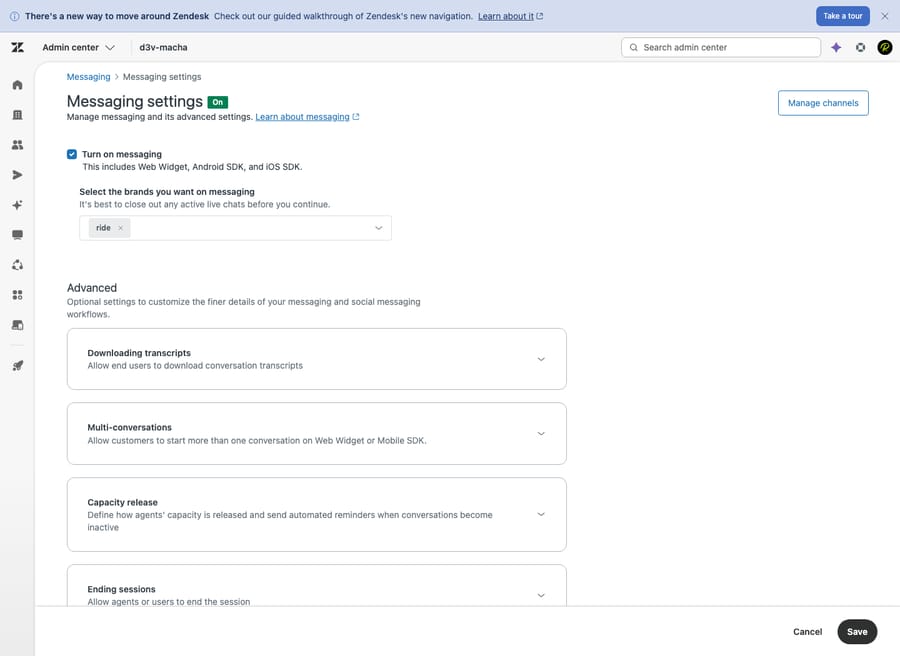
Either way, you end up with a Web Widget listed on the Messaging page, ready to configure.
Moving from live chat or the Web Widget (Classic)? Zendesk says the messaging Web Widget and the Classic widget "use the same snippet, so there's no need to update it in order for messaging to work." Switching rarely means touching your site's code. The wider trade-offs are in Zendesk messaging vs. live chat. The rest of this guide assumes the messaging Web Widget, since that's what Zendesk provisions by default.
How do you open the Web Widget settings?
On the Messaging page (Admin Center → Channels → Messaging and social → Messaging), click the widget's name to open its configuration screen. You'll style it, set up responses and copy the install snippet from this one screen, so keep it open.
You don't have to finish the configuration before installing. The snippet you copy in the next steps is a pointer to your widget; any setting you change in Zendesk later updates the live widget without a re-paste. Set the basics now anyway, so the first visitors see something sensible.
Which widget settings should you configure before launch?
The configuration is grouped into sections. Three matter up front:
- Basics: the widget's name and core identity. The name is internal (how you'll recognize it in Admin Center), so make it clear if you'll run more than one.
- Style: the launcher color and shape, the widget's position, and the company name and logo in the header. Match it to your brand, and keep enough contrast that the launcher stays visible against your footer.
- Responses: the behavior. Here you set the greeting visitors see, turn on the AI agent (Zendesk's bot that answers questions and deflects common tickets), and apply business hours so the widget sets the right expectation when your team is offline. The AI agent pairs well with a self-service setup, because it answers from the same knowledge.
A name, on-brand styling, a greeting and business hours are enough for a first launch. You can refine the AI agent and routing once real conversations come in.
Where do you find the installation snippet?
On the same widget configuration screen:
- Scroll down to the Installation section and click to expand it.
- You'll see a block of JavaScript: your install snippet.
- Click the Copy icon at the bottom of the code frame to copy all of it.
The snippet is short and looks roughly like this (your key will differ):
<script id="ze-snippet" src="https://static.zdassets.com/ekr/snippet.js?key=YOUR-WIDGET-KEY"></script>The key ties the script to your widget and your configuration. Don't edit it. If a developer is doing the install, the expanded Installation section also lets you email the snippet to them.
Where exactly do you paste the Zendesk widget code?
Zendesk's rule: paste the snippet just before the closing </body> tag, on every page where you want the widget to appear.
Both halves of that rule matter:
- Before
</body>, not in the<head>. The widget loads asynchronously, and placing it at the end of the body keeps it from holding up your page's main content. - Every page. The widget only appears on pages that contain the snippet. The most common install mistake is pasting it on the homepage and assuming it's site-wide. Add it to a shared template or footer that every page includes rather than going page by page.
Save, deploy, reload your site, and the launcher should appear in the corner.
How do you add the widget on WordPress, Shopify or Google Tag Manager?
Most platforms give you one shared place to drop the snippet so it loads on every page:
- WordPress: paste the snippet into your theme's footer (Appearance → Theme File Editor →
footer.php, just before</body>), or use a header-and-footer code plugin and add it to the footer scripts box. The plugin route survives theme updates; editingfooter.phpdirectly doesn't. - Shopify: open Online Store → Themes → Edit code and add the snippet to
theme.liquidimmediately before</body>.theme.liquidwraps every storefront page, so one edit covers the store. - Google Tag Manager: create a new Custom HTML tag, paste the snippet, and set the trigger to All Pages. Zendesk's GTM documentation says both the Classic and messaging widgets support GTM, and asks you to preserve the script's extra attributes (such as its
id) because GTM support depends on them. GTM is the cleanest option when you can't edit site code or want to manage the tag without a developer.
If your platform isn't listed, the principle is the same: find the global template or "custom code / footer scripts" setting and paste the snippet before </body>.
How do you add the widget to your Zendesk Help Center?
If you run a Zendesk Help Center (Guide), you don't touch its code at all:
- In the widget's Installation section, check Automatically embed Web Widget in your Help Center.
- Click Save.
The widget then appears on every Help Center page. The one prerequisite, per Zendesk: your Help Center must already be created and activated. Paired with a self-service portal, the widget surfaces answers right next to your knowledge base.
How do you check the widget is working?
Don't trust "I pasted it." Verify:
- Open your site in a fresh incognito window (to skip the cache) and confirm the launcher appears in the corner.
- Click it open, check the greeting and styling, and send a test message.
- Confirm the conversation lands where you expect in Zendesk (Agent Workspace, messaging).
- Spot-check several pages, not only the homepage, to confirm the snippet sits on the shared template.
If it doesn't show, the usual causes are a snippet on one page only, a page builder that ignored code pasted in the <head>, an aggressive cache or CDN, or an ad or script blocker in your test browser.
Does the Web Widget (Classic) install the same way?
If you're on an older account, you may have the Web Widget (Classic): the legacy, component-based widget (Chat, Talk, Help Center contact form). Zendesk's widget comparison states that Classic "is only available on Zendesk accounts created before June 5, 2023." The install concept is the same, with a different menu: Admin Center → Channels → Classic → Web Widget → Installation tab, copy the code, paste it before </body>, or check Add to help center to embed it in the Help Center. If you're choosing today, go with messaging; the deeper Classic-versus-messaging breakdown is in the Web Widget explained.
What are the most common Web Widget install mistakes?
A few habits separate a widget that works everywhere from one that's half-installed:
- Put it on a shared template, once. The top mistake is the snippet missing from most pages. The global footer or template makes coverage automatic.
- Keep it before
</body>. Moving it into the<head>to "load it sooner" gains nothing, since the script loads async anyway. - Style it before you launch, tune behavior after. Get the launcher visible and on-brand with a greeting in place; tune the AI agent, routing and business hours once real conversations flow.
- Set business hours honestly. A widget that implies instant replies when nobody's online frustrates visitors.
- Re-test after theme updates. A theme update can wipe a snippet pasted into
footer.phportheme.liquid. A code plugin or GTM avoids that. - Check page speed. The widget adds JavaScript to every page. Loading it before
</body>keeps the impact modest, but run a before-and-after speed check on a busy landing page.
Can an AI agent answer through the Web Widget?
Yes. Turn on Zendesk's AI agent in the Responses section and it answers common questions right in the widget from your Help Center content. For many teams that deflection is enough.
The limit shows up when you want answers from more than one knowledge base, or want the agent to act after it answers. An AI agent layer like Macha runs on top of your existing help desk; it isn't a help desk and doesn't replace Zendesk. It reads the visitor's actual question, pulls from your knowledge base and past tickets, drafts a context-aware reply, then handles the follow-on work (tagging, routing, looking something up in another system) or hands off to a human with full context when it isn't confident. Macha fits teams already running Zendesk, Freshdesk, Gorgias, Front, HubSpot or Intercom who want agents acting inside the ticket.
It's another integration to configure, and it's only as good as the knowledge you connect to it. On cost, Macha bills per ticket: one conversation, charged once however much drafting, tagging, routing or resolving it takes. It never bills per "resolution," because a resolution is an outcome definition the vendor controls and a ticket is something you can count. Pricing starts at $299 a month for up to 750 tickets, with setup and monitoring by the Macha team included, and you can try it with $50 of free usage and no credit card.
Frequently asked questions
How do I turn on the Zendesk Web Widget? On new accounts it's already on: messaging is on by default and a Web Widget named "Zendesk" is created for you. On older accounts running live chat or the Classic widget, go to Admin Center → Channels → Messaging and social → Messaging → Manage settings, click Turn on messaging for your account, pick your brands and click Save Settings.
Where do I find the Web Widget installation code? Open your widget on the Messaging page (Admin Center → Channels → Messaging and social → Messaging → click the widget name), scroll to the Installation section, expand it, and click the Copy icon on the JavaScript snippet.
Where do I paste the Zendesk widget snippet? Just before the closing </body> tag on every page where you want the widget. To cover the whole site, add it to a shared template or footer: the WordPress theme footer, Shopify's theme.liquid, or a Google Tag Manager Custom HTML tag set to All Pages.
Why isn't my Zendesk Web Widget showing up? Most often the snippet sits on one page instead of a shared template, a builder ignored it in the <head>, a cache or CDN is serving an old page, or a browser blocker hides it. Test in a fresh incognito window and check several pages.
Do I need to add code to my Zendesk Help Center? No. In the widget's Installation section, check Automatically embed Web Widget in your Help Center and click Save. The widget appears on all Help Center pages, provided your Help Center is already created and activated.
What's the difference between this and the Web Widget (Classic)? The messaging Web Widget is the conversational widget Zendesk provisions today; Classic is the older component-based one, available only on accounts created before June 5, 2023. Both use the same embed snippet. See the Web Widget explained for the full comparison.
Which Zendesk plans include the messaging Web Widget? Every Suite plan: Team, Growth, Professional, Enterprise and Enterprise Plus.
Installation steps checked against Zendesk's documentation on 24 September 2026. Zendesk updates its admin screens periodically, so confirm labels in your own account.
Add AI agents to your Zendesk
Macha reads the ticket, drafts the reply and takes the action, inside the Zendesk you already run.