





 Shopify
 Stripe
 Slack
Slack Notion
 Google Workspace
 Confluence

How Do You Merge and Unmerge Tickets in Freshdesk? (2026)


Freshdesk merges duplicate tickets into one primary ticket, closes the secondaries and adds a private note linking them, but the merge can never be undone. For repeat emails from the same customer, the free Auto Ticket Merger app merges them automatically inside a time window you set in minutes.
Key takeaways
- Freshdesk merges tickets through Merge, a chosen primary ticket, Continue and a final Merge click, and Freshworks states the merge action is irreversible, with no unmerge button.
- After a Freshdesk merge, secondary tickets are closed rather than deleted, and each gets a private note linking to the primary unless an agent switches it to public.
- The Freshdesk merge dialog finds candidate tickets by contact, ticket ID or subject, but each secondary must still be added by hand with the + icon.
- The free Auto Ticket Merger app from Freshworks matches only on the contact's email ID inside a window set in minutes, so Facebook and Phone tickets are never merged.
- Any Freshdesk default role can merge tickets, while custom roles, available on Pro and Enterprise, need the Merge/split a ticket permission under Admin, Team, Roles.
To merge tickets in Freshdesk, select them in the ticket list, click Merge, mark one as the primary, click Continue, review the note and click Merge; to unmerge, you can't, because Freshworks states that "the merge action is irreversible." The secondary tickets are closed and their conversations move into the primary in date order (Freshdesk: Perform ticket actions, checked 24 September 2026).
| Task | How it works in Freshdesk | Who or what can do it |
|---|---|---|
| Merge manually | Merge from the action bar, pick a primary, Continue, Merge | Any default role; custom roles need the "Merge/split a ticket" permission |
| Unmerge | Not possible. Reopening a secondary is the closest workaround | Nobody |
| Auto-merge duplicates | Free Auto Ticket Merger app, same email address inside a window set in minutes | Admin installs it from Admin → Support Operations → Apps |
| Auto-merge phone or Facebook tickets | Not supported by the app | Manual merge only |
What happens when you merge tickets in Freshdesk?
When you merge tickets in Freshdesk, one ticket you nominate becomes the primary and the rest become secondary. All conversations from the secondary tickets move into the primary ticket and are sorted chronologically, so the primary ends up holding the full, time-ordered history of the issue.
A few things happen automatically the moment you confirm:
- The secondary tickets are closed and removed from the ticket list view. They aren't deleted.
- A private note is added to each secondary ticket with a link to the primary, so anyone landing on a secondary later can follow the trail. You can edit that note and switch it to public, but Freshdesk warns that a public note may email the requesters about the merge.
- You can keep the secondary requesters and CC'd people in the loop on the primary by ticking "Add secondary ticket recipients to CC."
That CC option matters more than it looks. If three separate customers reported the same bug and you merge their tickets, leaving the box unchecked means only the primary requester hears the eventual resolution. The others go silent. Tick it when the duplicates come from different people; leave it unchecked when they're all the same person emailing twice.
How do you merge tickets step by step?
Both routes start from the Tickets tab.
- In the ticket list, use the checkboxes to select the tickets you want to fold together, then click Merge in the action bar. (Or open one ticket and click Merge from inside it, then pull the others in.)
- In the merge dialog, search for more candidates by contact, ticket ID or subject, and click the + icon next to each ticket you want to add.
- Decide whether to tick "Add secondary ticket recipients to CC."
- Click Continue.
- Review which ticket is marked Primary, edit the merge note if you need to, and choose its visibility (private by default).
- Click Merge to confirm.
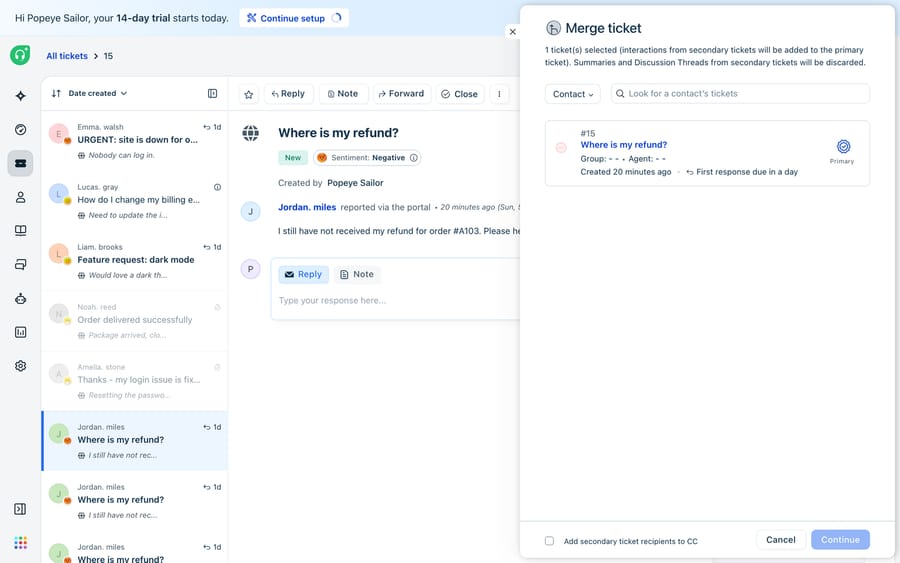
In the modal above, the candidate list starts scoped to the contact. You can widen the search by ticket ID or subject, but nothing gets merged until you add it with the + icon. Three tickets all titled "Where is my refund?" don't select each other automatically. That's deliberate: merging is permanent, so Freshdesk makes you point at each ticket on purpose.
Which ticket should be the primary?
The primary ticket is the one that survives as the living record, so choose it with intent rather than grabbing whichever is on top:
| Choose as primary the ticket that... | Because... |
|---|---|
| Has the correct, most specific requester | The primary's requester owns the resolution email |
| Is already assigned to the right agent/group | Merging won't re-route it for you |
| Carries the accurate priority, type, and custom fields | Secondary field values don't overwrite the primary's |
| Was created first (usually) | It anchors the chronological history cleanly |
The trap teams fall into: merging into the newest ticket because it's the one open on screen, then discovering the primary has the wrong priority or a blank custom field. Set the primary's fields correctly before you merge, because the secondaries won't fix them for you.
Who can merge tickets in Freshdesk?
Freshdesk's documentation says "any of the default roles can merge tickets": Account Administrator, Administrator, Supervisor and Agent all see the option. Teams on custom roles (a Pro and Enterprise feature) need the "Merge/split a ticket" permission enabled for that role under Admin → Team → Roles. If a teammate says the Merge button is missing, that permission is almost always why.
Can you unmerge tickets in Freshdesk?
No. Freshworks is blunt about it in How to undo ticket merging: "Merging is an irreversible process. Once two tickets are merged it cannot be split." There is no unmerge button, and the conversations that moved into the primary don't split back out. Freshworks offers no official workaround.
What you can do gets you part of the way. Because the secondary tickets were closed, not deleted, they still exist. If you merged in error, you can:
- Find the secondary ticket (follow the merge note's link, or search by its ID).
- Reopen it by changing its status back to Open. It returns to the active queue as its own thread.
- Optionally delete the merge note on both tickets to reduce confusion.
This doesn't un-move the replies that went into the primary. Reopening the secondary gives you a working ticket again, but the two histories won't separate back to their original state. Treat merging as a one-way door: get the primary right the first time, and use the CC option rather than expecting to reverse a mistake later.
How do you auto-merge duplicate tickets in Freshdesk?
Merging one duplicate at a time is fine; merging fifty is not. Freshworks publishes a free Auto Ticket Merger app in its marketplace (about 1.7k installs) that merges tickets from the same customer automatically. Per the Auto Ticket Merger setup guide, an admin installs it from Admin → Support Operations → Apps, supplies an API key and domain, then sets a few rules:
- Window Duration: the time period, in minutes, during which tickets from the same contact get merged. A 30-minute window catches the customer who emails twice in a panic but leaves next week's separate issue alone.
- Exclude Emails and Domains: contacts whose tickets should never be auto-merged (use the
@domain.comsyntax to exclude a whole domain). - Include Emails and Domains: contacts whose tickets should be merged regardless of the time window.
The matching rule is the part to understand: per the guide, "the primary connector is email ID." The app merges tickets from the same email address inside your window. It does not read subject lines or ticket bodies to judge whether two tickets are about the same thing.
What can't the Auto Ticket Merger do, and where does an AI layer fit?
For the common case (one customer, two emails, a few minutes apart) the app does the job. Its limits are documented:
- Email only. The app matches on email ID, so it will not merge tickets raised via Facebook or Phone. A customer who emails and calls creates two threads it can't connect.
- No mandatory fields. The app cannot merge tickets that have mandatory fields. If your ticket form requires a category or reason, auto-merge stops working until that requirement is relaxed.
- Same person, same window, nothing smarter. It merges by who and when, not by what. Two customers reporting the identical outage from different addresses won't be merged, and one customer with two different problems in the same window might be merged when they shouldn't.
Those gaps are where an AI agent layer helps, and it's worth weighing the build-versus-buy tradeoff before you reach for one. Macha is one such layer: it runs on top of the Freshdesk you already use as a native connector, and it does not replace your help desk or its merge feature. Instead of matching duplicates by email address, an agent reads each ticket for intent, so a refund question that arrives twice can be recognised as the same issue and answered consistently. A duplicate you never have to merge is one where the first ticket already got a good answer: Macha can draft or post a grounded first reply (backed by a canned response or a live lookup) fast enough that the customer never emails a second time. When the answer needs account data, a custom tool lets the agent pull an order or refund status through your own API. Macha bills per ticket, one conversation charged once however many messages it takes, never per resolution; plans start at $299 a month for up to 750 tickets (see pricing).
The division of labour: keep Freshdesk's merge feature and the Auto Ticket Merger for the housekeeping they're built for, and put an agent on top to answer fast enough that fewer duplicates get created in the first place.
FAQ
How do I merge tickets in Freshdesk? From the Tickets tab, select the tickets with their checkboxes and click Merge (or open a ticket and click Merge inside it). Add any other candidates by searching contact, ticket ID or subject, decide whether to tick "Add secondary ticket recipients to CC," click Continue, check which ticket is Primary, and click Merge. The secondary tickets are closed and their conversations move into the primary in chronological order.
Can I unmerge tickets in Freshdesk? No. Freshdesk states that merging is irreversible and cannot be split. The practical workaround is to reopen the secondary tickets, which were closed, not deleted, but this won't separate the conversation history already moved into the primary.
Will customers be emailed when I merge their tickets? Not by default. The merge note added to each secondary ticket is private unless you switch it to public, and Freshdesk warns that a public note may send the requesters an email about the merge.
What is the Auto Ticket Merger app? A free app published by Freshworks, installed from Admin → Support Operations → Apps, that automatically merges tickets from the same contact within a Window Duration you set in minutes. It matches by the contact's email ID and supports exclude/include lists by email or domain.
Why won't the Auto Ticket Merger merge some of my tickets? Because it matches on email ID, it won't merge tickets from Facebook or Phone, and it cannot merge tickets that have mandatory fields. If a merge you expected didn't happen, one of those two limits is usually the reason.
Who is allowed to merge tickets in Freshdesk? Any default role (Account Administrator, Administrator, Supervisor or Agent) can merge. Custom roles need the "Merge/split a ticket" permission, set under Admin → Team → Roles.
Want fewer duplicates to merge in the first place? Start a free trial of Macha and connect it to your Freshdesk in minutes.






