





 Shopify
 Stripe
 Slack
Slack Notion
 Google Workspace
 Confluence

How to Set Up Canned Responses in Freshdesk: Folders, Placeholders, Short Codes and Sharing


Freshdesk canned responses live under Admin, Agent Productivity, Canned Responses, and agents insert them from the reply editor by typing a slash or clicking the canned responses icon. Set them up folder-first, give the daily ones short codes, and remember that a template inserts text but never changes the ticket.
Key takeaways
- Freshdesk canned responses are created under Admin, Agent Productivity, Canned Responses: make a folder, click New Canned Response, add a title, message, placeholders and short code, then save.
- A Freshdesk canned response only inserts text into a reply and cannot change status, priority or tags; that job belongs to a Scenario Automation, which can include the template.
- Agents insert a canned response by typing a slash then c to search, typing a slash plus the short code, or clicking the toolbar icon and choosing Insert or Replace.
- Each canned response has an Available for setting of Myself, All agents, or Agents in group, which controls who in the Freshdesk account can use it.
- Freshworks lists canned responses on Free, Growth, Pro and Enterprise, where Free means the Free program for up to 2 agents for 6 months.

To set up a canned response in Freshdesk, go to Admin → Agent Productivity → Canned Responses, create a folder, click New Canned Response, then give it a title, a message, any placeholders, a short code and an Available for setting before you click Save. Agents then insert it from the reply editor by typing / or clicking the canned responses icon. The one boundary to remember: a canned response inserts text and nothing else.
| Step | Where | What you set |
|---|---|---|
| 1. Folder | Admin → Agent Productivity → Canned Responses → New Folder | A folder name (Billing, Onboarding, Returns) |
| 2. Response | New Canned Response inside the folder | Title, message, attachments, placeholders, short code |
| 3. Visibility | Available for | Myself, All agents, or Agents in group |
| 4. Use it | Reply editor in any ticket | / then c to search, /shortcode, or the canned responses icon |
What is a canned response in Freshdesk?
A canned response in Freshdesk is a reusable reply template, stored centrally and available from inside any ticket. Each one has a title (how agents find it), a message body in rich text, an optional short code for keyboard access, and a visibility setting that decides who can use it. Templates live inside folders, so you can group them by team or topic rather than scrolling one flat list.
Four things make it more than a plain text macro:
- Rich formatting. Bold, bullet lists, embedded images and screenshots, links: the same editor you'd use writing a reply by hand.
- Attachments. A template can carry files with it: a PDF setup guide, a returns form, a troubleshooting checklist. Freshworks' developer docs list
attachment_idsandshared_attachmentson the canned response object. Agents stop hunting for the right document every time, and everyone sends the same version of it. - Dynamic placeholders. Tokens like
{{ticket.requester.name}}or{{ticket.id}}resolve to real values the moment an agent inserts the response into a live ticket. One saved template greets Priya by her first name on ticket #4471 and Marcus on #4472, without either agent touching the wording. - Sharing scope. A response can be personal, shared with the whole account, or scoped to specific groups, so a team standardizes on approved wording.
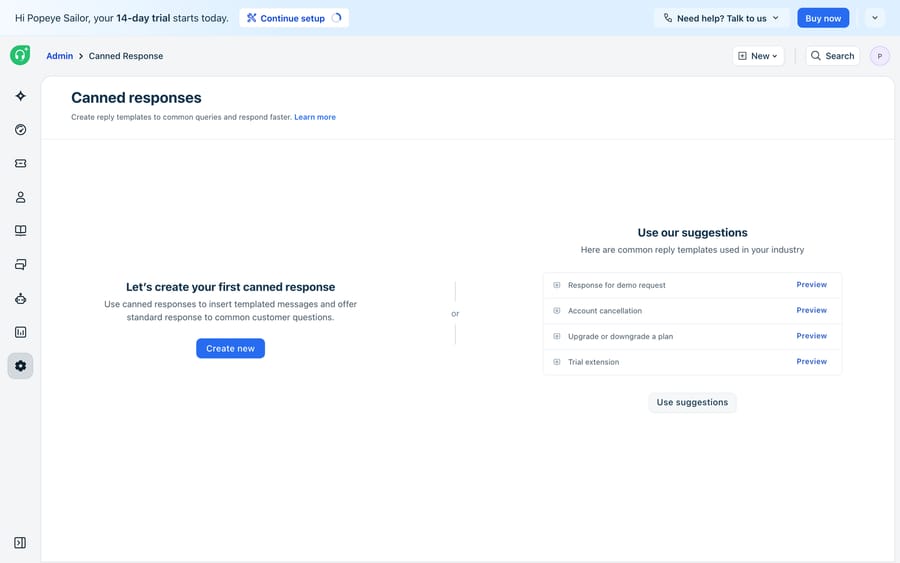
What a canned response is not
This is the boundary people get wrong: a canned response only ever inserts content into a reply. It doesn't change the ticket's status, reassign it, set a priority, add a tag, or fire a workflow.
Those are Scenario Automations, a separate feature where an agent applies a bundle of ticket actions in one click, and which usually includes inserting a canned response as one of its steps. The two are designed to be used together: the scenario does the ticket housekeeping, the canned response does the words. If what you actually want is "reply and set status to Pending and tag it refund," you want a scenario that uses your template, not a bigger template. Freshdesk automations explained covers scenarios and the rest of the rules engine.
How do you create a canned response folder?
Freshdesk organizes canned responses folder-first, so you make the container before the template. Per Freshworks' Creating common reply templates with Canned Responses article (updated 16 July 2026), you need admin access:
- Go to Admin → Agent Productivity → Canned Responses.
- Click New Folder.
- Give it a name that matches how your team thinks (Billing, Onboarding, Shipping & Returns) and save it.
Folders are cheap; make a handful up front. A team that files templates under sensible headings finds the right one in seconds, while a single un-foldered pile gets hard to scan once it passes a couple of dozen entries. You can move responses between folders later, so early mistakes aren't permanent. The default folders Freshdesk ships with can't be modified.
How do you write a canned response with placeholders?
With a folder open, click New Canned Response inside it, then:
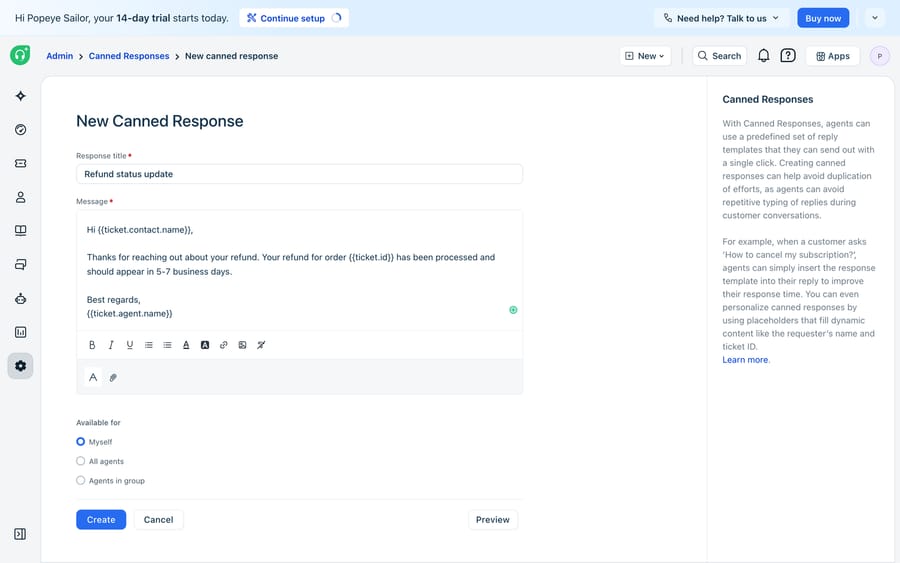
- Enter a clear title. This is what agents search for, so make it descriptive: Refund status update, not Reply 3.
- Compose the message in the rich-text editor, using the formatting toolbar for structure, links and images just as you would in a normal reply.
- Attach any supporting files the answer always needs.
- Drop in placeholders with the plus icon above the editor. Freshworks' dynamic content and placeholders reference lists the full set; these five cover most templates:
| Placeholder | Resolves to |
|---|---|
{{ticket.requester.name}} | Full name of the requester |
{{ticket.requester.firstname}} | Requester's first name (good for greetings) |
{{ticket.id}} | The ticket's unique ID |
{{ticket.subject}} | The ticket subject line |
{{ticket.agent.name}} | The assigned agent's name (for sign-offs) |
- Add a short code, such as refundstatus, so agents can pull the template up by typing
/refundstatusin a reply. - Set the visibility (next section), pick the destination folder, and click Save.
There are many more placeholders, including company, group and time-tracking fields; Freshdesk placeholders and dynamic content is the full reference. Freshworks notes that some of them, such as billable hours and total time spent, are plan or feature dependent.
One thing to internalize: placeholders only resolve inside a live ticket. In the template editor they stay as literal tokens, and that's expected. They fill in with real data only when an agent inserts the response into an actual reply, so always sanity-check a new template by inserting it into a real ticket rather than trusting how it looks in the editor.
For ready-made wording to paste in, see our 62 canned responses examples by situation.
Who can use a canned response?
Before you save, Freshdesk asks who the response is Available for. There are three levels, and choosing the right one keeps your library both useful and uncluttered:
- Myself: saved to your personal folder, invisible to everyone else. Good for the phrasings you lean on that aren't team standards.
- All agents: visible to everyone in the account. Use this for canonical, on-brand answers you want the whole team giving identically.
- Agents in group: scoped to one or more specific groups (Billing, Tier 2, EU Support). This suits most teams: the right templates surface for the right desks without cluttering everyone else's list.
A practical rule: default team-wide answers to All agents, keep department-specific ones on Agents in group, and reserve Myself for personal drafts. That way the shared library stays curated instead of ballooning with everyone's private variations.
How do agents insert a canned response into a reply?
Saved templates are only worth it if they're fast to reach mid-ticket. Inside any ticket:
- Open the Reply editor.
- Type
/thencand press Enter to search the list, type/plus a short code to drop a specific template in directly, or click the canned responses icon in the editor toolbar to browse folders. - From the panel you can search, preview, and choose Insert (adds the template below what you've written) or Replace (swaps out your draft). Placeholders resolve to that ticket's real values.
- Edit anything ticket-specific, then send. Nothing sends automatically; the agent stays in control of the final message.
Good libraries get built from real replies, not a big up-front documentation project. When you catch yourself typing an answer that should be reusable, copy it into a new canned response once you've sent it.
What to write first: look at your most repetitive ticket subjects and start there. If you've typed roughly the same answer three times this week, it should be a canned response. Resist the urge to template the long tail; the templates that earn their keep are the ten you'd use daily.
Which Freshdesk plans include canned responses?
Freshworks lists canned responses on Freshdesk Free, Growth, Pro and Enterprise, and on Freshdesk Omni Growth, Pro and Enterprise. The pricing page no longer shows a free plan; "Free" here means the Freshdesk Free program, which covers up to 2 agents for 6 months. In practice every paying Freshdesk account has the feature, so plan choice shouldn't hold you back.
Where do canned responses stop, and where does an AI layer pick up?
Canned responses are a good feature and there's no reason not to use them. But be clear about the shape of the tool. A canned response is a static template an agent chooses, and that design carries four real limits.
Someone still has to pick the right one. The feature doesn't read the ticket and decide which template fits. An agent parses the question, remembers the library, and selects. On a busy queue that's cognitive load, and newer agents often don't know the perfect template exists. Pick the wrong one and you've sent a confidently irrelevant reply.
Placeholders personalize the wrapper, not the answer. {{ticket.requester.name}} fills in a name, but it can't fill in "your order shipped this morning and arrives Thursday." The moment a reply needs a real fact from your order system or knowledge base, a template can only leave a blank for the agent to research and type.
Libraries go stale. Product changes, the docs move, a policy updates, and every affected template has to be found and hand-edited. Nothing tells you which ones are now wrong.
Anything non-standard falls straight through. Templates cover the predictable FAQs well and do nothing for the long tail of one-off questions, which is often where the most time goes.
That's the seam an AI agent layer fills, and the broader category of AI agents for customer service exists to do the reasoning a template can't: understanding the question, retrieving the actual answer, and drafting a reply grounded in your real data.

Macha is one such layer. It runs on top of the Freshdesk you already use as a native connector, and it does not replace your help desk or your canned responses. You connect it with your subdomain and API key, and it reads and writes the same tickets your templates already serve: drafting grounded replies for the tickets no template fits, and looking up order or account status through a custom tool that turns one of your REST APIs into an action the agent can call. That's how the fact the placeholder couldn't supply gets filled in too. Every run is logged, and you can batch-grade an agent against your real historical tickets before it touches a live queue. The connector is for Freshdesk specifically, not Freshchat, Freshservice or Freshcaller. Pricing is one plan on monthly ticket volume, from $299 a month for 750 tickets (about $0.40 a ticket at every tier), with setup and monitoring by the Macha team included and $50 of free usage to try it. How to automate Freshdesk with AI walks through the setup.
The clean division of labor: keep canned responses as your team's library of on-brand, high-frequency replies where you want a human hand on the send button, and layer an agent on top for the two things a template can't do: decide which answer a ticket needs, and supply the facts that make the answer true.
Frequently asked questions
What is a canned response in Freshdesk? A saved reply template an agent inserts into a ticket instead of typing the same answer from scratch. It supports rich text, images, attachments, a short code and dynamic placeholders that auto-fill ticket details such as the requester's or agent's name, and templates are grouped into folders so a big library stays searchable.
Where do I set up canned responses in Freshdesk? Go to Admin → Agent Productivity → Canned Responses. Create a New Folder first, then add a New Canned Response inside it with a title, a message body, an optional short code and a visibility setting.
How do I add a customer's name to a canned response? Use a dynamic placeholder: {{ticket.requester.firstname}} for a first-name greeting, or {{ticket.requester.name}} for the full name, inserted with the plus icon above the editor. It resolves to the real value when an agent inserts the response into a live ticket.
Why do my placeholders show as raw text? Because you're looking at the template editor. Placeholders stay as literal tokens there and only resolve when the response is inserted into an actual ticket. Test a new template by inserting it into a real ticket rather than judging it in the editor.
Can a canned response include an attachment? Yes. A template can carry files with it (a setup guide, a returns form, a troubleshooting checklist) so agents don't hunt for the document each time and everyone sends the same version.
Can I share canned responses with the whole team? Yes. Each response has an Available for setting: Myself (private personal folder), All agents (account-wide), or Agents in group (scoped to specific groups). Use All agents for canonical answers and Agents in group for department-specific ones.
How do I insert a canned response into a reply? In the Reply editor, type / then c to search, type / plus the response's short code, or click the canned responses icon and choose Insert or Replace. Placeholders resolve on insert, and you can edit before sending. Nothing sends automatically.
Are canned responses the same as Scenario Automations? No. A canned response only inserts text into a reply. A Scenario Automation bundles multiple ticket actions (change status, set priority, add a tag, insert a reply) that an agent triggers in one click. They're often used together, and if you want a reply and ticket changes in one action, it's a scenario you want.
Are canned responses available on every Freshdesk plan? Yes. Freshworks lists them on Free, Growth, Pro and Enterprise, and on the Omni Growth, Pro and Enterprise plans. The Free program covers up to 2 agents for 6 months rather than being a permanent free plan. A few advanced placeholders, such as time-tracking fields, depend on plan or feature availability.
Can I add AI on top of canned responses without replacing Freshdesk? Yes. An AI agent layer like Macha connects to Freshdesk as a native connector and runs on top of your existing help desk and its canned responses without replacing them. It drafts grounded replies for the tickets no template fits and retrieves real facts through custom tools, while your canned-response library stays the source of your standard, on-brand answers.
What should a new Freshdesk admin do first?
Build the folders before the templates, write titles agents will actually search for, give the daily templates short codes, use placeholders for the greeting and the sign-off rather than trying to make one template do everything, and put attachments on the responses that always need the same document. Scope each one with Available for so the shared library stays curated. Remember the boundary: a canned response inserts words, and anything that has to change the ticket is a Scenario Automation. For the tickets no template was ever going to cover, the ones that need a lookup or a judgment call, start a trial of an agent layer that reads the question and drafts the answer.
Admin paths, short codes, insert options, placeholder behavior and plan availability verified against Freshdesk support articles 37577 and 52630, the Freshworks developer docs and the Freshworks pricing page, 24 September 2026.
Sources: Creating common reply templates with Canned Responses, Understanding dynamic content and placeholders, Freshworks canned response object, Freshdesk pricing.






