





 Shopify
 Stripe
 Slack
Slack Notion
 Google Workspace
 Confluence

How Do Freshdesk Placeholders Work? The ticket.* Library Explained (2026)


Freshdesk placeholders are double-brace variables that Freshdesk swaps for the real ticket, requester or company value when an email notification, canned response or automation reply is sent. They personalise one template for every customer, but they only read values already stored in Freshdesk.
Key takeaways
- Freshdesk placeholders are variables in double curly braces that Freshdesk replaces with live ticket, requester, company or help desk values when a message is sent.
- Freshdesk placeholders work in exactly three places: Email Notifications, Canned Responses, and the reply templates inside Automations under Admin, Workflows.
- Freshworks flags the billable hours and total time spent placeholders as plan and feature dependent, so they stay blank unless time tracking is enabled on your plan.
- The comment body and commenter name placeholders are hidden from the Insert Placeholders picker because they only work where a specific comment is known, such as a new-comment notification.
- Freshdesk documents Liquid if/else logic for support portal customization, while its placeholder documentation for notifications and canned responses covers inserting stored values only.

Freshdesk placeholders are variables in double curly braces, such as {{ticket.requester.firstname}} or {{ticket.id}}, that Freshdesk replaces with the live value from the ticket, requester, company or help desk settings at the moment an email notification, canned response or automation reply goes out. They work in exactly three places, they only read values already stored in Freshdesk, and a few of them (time tracking, comment fields) depend on your plan or on the context the message fires in.
| Surface | Where to find it | How you insert placeholders |
|---|---|---|
| Email Notifications | Admin → Workflows → Email Notifications | Insert Placeholders button above the editor |
| Canned Responses | Admin → Agent Productivity → Canned Responses | Insert Placeholders button above the editor |
| Automation reply actions | Admin → Workflows → Automations | Green plus icon in the action's text editor |
What is a Freshdesk placeholder?
Placeholders are dynamic variables that insert ticket-specific or user-specific information into your outbound messages. Per Freshworks' Understanding dynamic content and placeholders documentation, they're written in double curly braces and resolved at send time: you type {{ticket.requester.firstname}} once, and every recipient sees their own first name.
The mental model worth holding onto: a placeholder is a read against the ticket (or the requester, the company, or your help desk settings) at the instant the message fires. It doesn't compute anything and it doesn't fetch data from outside Freshdesk. It looks up a value that already exists on the record and drops it into the text. Freshdesk does support Liquid if/else logic, but its Liquid documentation describes it for support portal customization; the placeholder documentation for notifications and canned responses describes value lookups, not branching. That simplicity is why placeholders are reliable, and, as we'll see later, where they run out of road.
Where can you use placeholders in Freshdesk?
The same {{ticket.*}} syntax works in three surfaces, and knowing which is which saves a lot of confusion about why a placeholder "isn't showing up." Freshworks names all three: Email Notifications (when enabled), Canned Responses, and pre-formatted reply templates in Automations.
- Email Notifications: the automatic emails Freshdesk sends customers and agents on events like ticket creation, reply, or resolution. Configured under Admin → Workflows → Email Notifications, these templates are the most placeholder-heavy thing in the product because every notification has to speak to a different ticket.
- Canned Responses: reusable reply snippets agents insert by hand. Managed under Admin → Agent Productivity → Canned Responses (and inserted inline from the reply editor). A canned response with {{ticket.requester.firstname}} and {{ticket.id}} reads as a personal reply even though it's boilerplate. We cover the wider workflow in Freshdesk canned responses.
- Automations: the rules engine at Admin → Workflows → Automations. When a rule sends a reply or a notification as its action, that action body can carry placeholders too, so a "ticket created" rule can auto-acknowledge with the customer's name and the ticket number filled in. If automations are new to you, start with Freshdesk automations explained.
How does the Insert Placeholders picker work?
You don't have to memorise the syntax. Above the editor in email notifications and canned responses, Freshdesk shows an Insert Placeholders button; inside an automation's text editor, a green plus icon does the same job. Click it and a panel opens listing the available variables grouped into categories: Helpdesk, Tickets, Ticket Fields, Requester, and Company. Pick an entry and the correctly formatted placeholder drops into your template at the cursor. It's the difference between guessing whether the token is ticket.requestor or ticket.requester and picking it from a list.
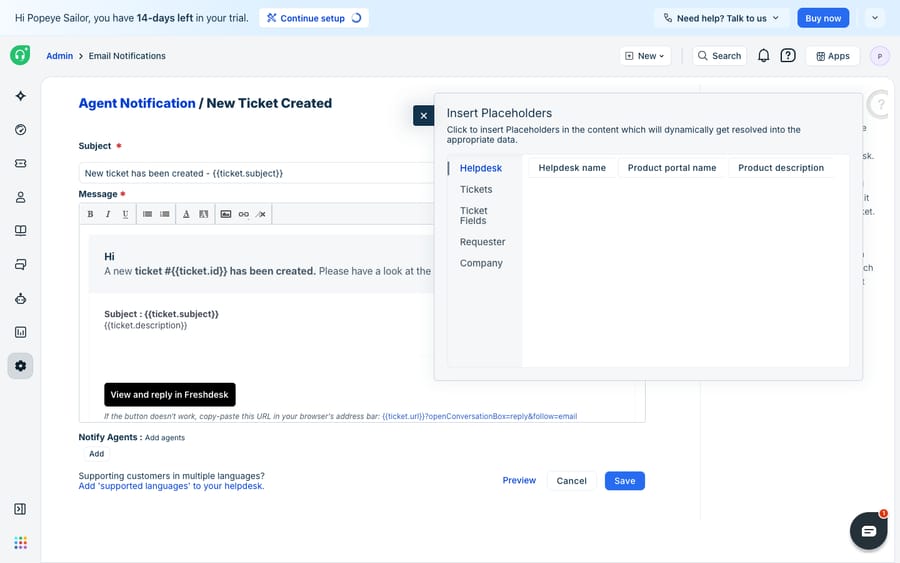
The grouping is a useful map of what's readable. Helpdesk covers portal-level values like {{helpdesk_name}}. Tickets holds the core fields: id, subject, status, priority, url. Ticket Fields is where any custom fields you've built show up. Requester and Company reach into who filed the ticket and which account they belong to.
Which {{ticket.*}} placeholders do you need most?
Most day-to-day templates are built from a small, dependable set of ticket placeholders. Here's the working shortlist, drawn from the Freshdesk documentation:
| Placeholder | Inserts |
|---|---|
{{ticket.id}} | The unique ticket number |
{{ticket.subject}} | The ticket's subject line |
{{ticket.description}} | The original ticket body |
{{ticket.url}} | A link to the ticket for a logged-in user |
{{ticket.status}} | The current status |
{{ticket.priority}} | The priority level (Urgent/High/Medium/Low) |
{{ticket.requester.firstname}} | The customer's first name |
{{ticket.requester.name}} | The customer's full name |
{{ticket.agent.name}} | The assigned agent's name |
{{ticket.portal_name}} | The name of the support portal |
{{ticket.latest_public_comment}} | The most recent public comment on the ticket |
Custom fields join the library automatically. This is the part people underuse: Freshworks says custom ticket fields and contact or company fields generate their own placeholders once they're saved to the form. So if you add an "Order Number" ticket field, {{ticket.order_number}} (or the equivalent generated token) becomes insertable with no extra configuration. If your status placeholders read as numbers rather than words, that's expected behaviour tied to how statuses are stored, which we unpack in Freshdesk ticket statuses explained.
Why do some placeholders come out blank or go missing?
Not every placeholder is available everywhere, and two rules explain most of the surprises.
Some placeholders depend on a feature or plan. Freshworks flags {{ticket.billable_hours}} and {{ticket.total_time_spent}} as "plan/feature dependant": they only resolve if time tracking is enabled and available on your plan. Reference them without the underlying feature and they won't populate. If you're modelling a template around a niche field, confirm your plan surfaces it before you rely on it.
Some placeholders are context-dependent and are deliberately hidden from the picker. Per Freshworks' note on why some placeholders are unavailable in the popup, {{comment.body}} and {{comment.commenter.name}} need to reference a specific comment, so they only work where that comment is already known: for example, inside the email notification that fires because an agent or requester just added a comment. They'd have nothing to reference in a general canned response, so they're excluded from the standard Insert Placeholders panel. Freshworks' suggested alternative is {{ticket.latest_public_comment}}, which pulls the most recent public comment and works more broadly.
The practical takeaway: match the placeholder to the surface. A comment placeholder in a canned response is a blank; the same placeholder in the "new comment" notification is exactly right.
What can't placeholders do, and where does an AI layer pick up?
Placeholders are excellent at what they are: a fast, deterministic, zero-cost way to personalize outbound text. They never hallucinate, they render instantly, and once a template is right it stays right. For acknowledgements, signatures, and consistent formatting, dynamic content is the correct tool and you don't need anything cleverer.
But be clear about the ceiling. A placeholder can only insert a value that already exists on the ticket. It can drop in {{ticket.subject}}, but it can't read that subject, understand that the customer is asking about a delayed refund, and write the paragraph that resolves it. It can print {{ticket.id}}, but it can't fetch the order status behind that ticket from your commerce backend, because placeholders don't reach outside Freshdesk. And a canned response full of placeholders is still a template a human chose and sent; the judgement about which template even applies stays with the agent.
This is where an AI agent layer fits, and it's worth understanding the broader category of AI agents for customer service before reaching for one. Macha is one such layer: it runs on top of the Freshdesk you already use as a native connector, and it does not replace Freshdesk, its notifications, or its canned responses. You connect Macha to Freshdesk with your subdomain and API key, and it reads and writes the same tickets your templates already personalize. It drafts a grounded, ticket-specific reply rather than a fill-in-the-blank one, and where a placeholder would only print an order number, it uses a custom tool to call your REST API and fetch the live order status to answer with. To see how that stacks alongside native dynamic content, how to automate Freshdesk with AI walks through it. Macha's connector is for Freshdesk specifically, not Freshchat, Freshservice, or Freshcaller, and Macha runs on Zendesk, Freshdesk, Gorgias, Front, HubSpot or Intercom. It is one plan priced by ticket volume, from $299 a month for up to 750 tickets, billed per ticket rather than per message, with setup and monitoring by the Macha team included; see the pricing breakdown.
The clean division of labour: keep placeholders doing the deterministic personalization they're good at (names, IDs, links, formatting) and layer an agent on top for the part a {{ticket.*}} token can never do, which is understanding the ticket and composing the answer.
FAQ
Where do I find the list of placeholders in Freshdesk? Click the Insert Placeholders button above the editor in an Email Notification template or a Canned Response, or the green plus icon in an Automation's reply editor. The picker groups placeholders under Helpdesk, Tickets, Ticket Fields, Requester, and Company, and inserts the correctly formatted token.
What are the most common ticket placeholders? The everyday set includes {{ticket.id}}, {{ticket.subject}}, {{ticket.description}}, {{ticket.url}}, {{ticket.status}}, {{ticket.priority}}, {{ticket.requester.firstname}}, and {{ticket.agent.name}}. Custom fields you create under Ticket Fields or Customer Fields also generate their own placeholders automatically.
Why is a placeholder I expected missing from the popup? Usually because it's context-dependent. Placeholders like {{comment.body}} and {{comment.commenter.name}} only make sense when a specific comment is known, so they're deliberately excluded from the general picker and only work in comment-triggered notifications. Others, like time-tracking fields, depend on a feature or plan being enabled.
Can I use placeholders in automations and canned responses, not just emails? Yes. The same {{ticket.*}} syntax works across Email Notifications, Canned Responses, and Automation reply/notification actions. The only caveat is context: a placeholder still needs the underlying value to exist on the ticket in that surface.
Can Freshdesk placeholders use if/else logic? Freshdesk documents Liquid if/else statements for support portal customization. Its placeholder documentation for notifications, canned responses and automations covers inserting stored values, so plan templates around straight lookups rather than branching.
Can I add AI to Freshdesk without replacing my templates? Yes. An AI agent layer like Macha connects to Freshdesk as a native connector and runs on top of your existing notifications and canned responses. It handles the reasoning placeholders can't, like understanding a ticket and drafting a grounded reply, or fetching live data through a custom tool, while your dynamic content keeps doing the deterministic personalization it's good at.
Ready to go beyond fill-in-the-blank templates? Start a free trial of Macha and connect it to your Freshdesk in minutes.






