



 Intercom
 Shopify
 Stripe
 Slack
Slack Notion
 Google Workspace
 Confluence

How Do You Migrate from Freshdesk? A 10-Step Plan for 2026


A Freshdesk migration succeeds or fails on getting the data out cleanly: tickets need a service or import API, while automations and SLAs are rebuilt by hand. Plan the export, the demo run and the freeze before you touch the destination.
Key takeaways
- A Freshdesk migration starts with the admin account export, because the REST API list endpoint returns at most 300 pages (30,000 tickets) and only the past 30 days by default.
- Freshdesk's API reference lists rate limits of 50 calls a minute on a trial, 100 on Growth, 400 on Pro and 700 on Enterprise, enforced per account rather than per key.
- The Freshdesk Solutions CSV export carries only the article list, so full knowledge base article content comes from the account data export as XML or from a migration service.
- Native CSV importers on most destinations move users and organizations but not tickets, so ticket history needs the destination's import API or a paid migration service.
- Triggers, SLA policies, business hours and routing do not transfer on any migration method, so teams should document them in Freshdesk as a rebuild spec before cutover.

To migrate from Freshdesk, take a full admin account export first (Admin → Account exports), move tickets with the destination's import API or a paid migration service, seed users and knowledge base with native importers, and rebuild automations, SLAs and macros by hand, because no method transfers them. The Freshdesk REST API returns at most 300 pages (30,000 tickets) from its list endpoint and, by default, only tickets created in the past 30 days, so the admin export is the safer source for full history. The steps below apply whether you're heading to Zendesk, Zoho Desk, Help Scout, Gorgias or anywhere else. Freshdesk capabilities were checked against Freshdesk's own docs in September 2026; limits change, so confirm them in your own account.
| What you're moving | How it usually moves | Watch out for |
|---|---|---|
| Tickets, notes, attachments | Migration service or destination import API | Native CSV importers rarely move tickets |
| Contacts and companies | Admin export (CSV/Excel) into a native importer | Companies often become "organizations" |
| Knowledge base (Solutions) | Account data export (XML) or a service | The Solutions CSV has no article body |
| CSAT history | Migration service | Only kept if tied to migrated tickets |
| Automations, SLAs, canned responses | Rebuilt by hand | Some services move macros and scenarios only |
Why do teams leave Freshdesk?
Freshdesk is a solid helpdesk, affordable to start and quick to set up. But a few recurring, fair reasons push teams to move:
- AI economics at scale. Freshdesk's core ticketing is cheap, but Freddy AI is priced on top: the 500 Freddy AI Agent sessions are a one-time allowance per account, then $49 per 100 sessions, so AI on every conversation adds up. (If this is your only reason, read the "AI layer" section below before you migrate anything. Switching helpdesks is a lot of work to solve an add-on problem.)
- Features gated in higher tiers. Advanced reporting, deeper customization and richer workflows tend to live in Pro and Enterprise, so teams upgrade for capability rather than agent count.
- Reporting and customization ceilings. Reviewers consistently note that granular custom reports and deep configuration feel capped relative to heavier platforms.
- A channel or ecosystem mismatch. Ecommerce-heavy teams want order data in the ticket; teams standardizing on another stack (Zoho, HubSpot, Shopify) want their helpdesk to live there.
Pin down your real reason. It determines both your destination and whether a migration is even the right fix. If you're still shortlisting where to go, our roundup of the best Freshdesk alternatives compares the main destinations with honest pricing and ratings.
What data should you migrate from Freshdesk?
Before touching a tool, inventory what you're carrying. A migration is really three separate jobs under one name: records (data that can move), configuration (logic you rebuild) and the cutover (the operational switch). Most of the pain lives in the second and third.
Here's what to account for:
- Tickets and conversations: subject, description, status, priority, type, requester, assignee, threaded public replies, and private/internal notes.
- Contacts and companies: your end users and the organizations they belong to.
- Agents and groups: who needs a seat and which teams tickets route to. On most destinations, agents and groups must exist before tickets import so assignments land correctly.
- Custom fields: every custom ticket/contact/company field, its type, and its dropdown values. Recreate the field definitions in the destination first, then map values in.
- Knowledge base (Solutions): categories, folders, articles, and which are published vs. draft.
- Attachments and inline images: often the slowest, most error-prone part of any migration.
- CSAT history: satisfaction ratings tied to their tickets, if you want to keep historical performance data.
- Canned responses, automations and SLAs: treat these as a rebuild spec, not as data that transfers (more on that below).
A migration is the cheapest moment you'll ever get to prune. Leave behind dead custom fields, unused canned responses and ancient closed tickets you don't legally need. Don't faithfully reproduce a mess.
How do you export your data from Freshdesk?
Whether you feed a CSV into a native importer or let a service pull via API, you need to know how Freshdesk lets data out. There are two routes.
Route A: the admin data export (no code)
Freshdesk has a built-in export for admins. You need an Admin or Supervisor role, and from a centralized area you can export tickets, contacts, companies or account data to CSV or Excel, choosing exactly which fields to include (Freshdesk: how to export tickets, import/export customer data).
- Tickets export from the Tickets tab: apply filters (created time, agents, groups, type, status), then Export from the top-right. Your custom fields can be included.
- Contacts and companies export from the Contacts tab with field selection.
- Past exports live at Admin → Account exports, where you can re-download recent files.
- You can also schedule exports (daily, weekly, hourly) delivered as CSV by email, which is useful for keeping a rolling backup during a phased migration (exporting your data in Analytics).
For the knowledge base, note a quirk: you can export the list of Solutions articles and their properties (title, status, category, folder, tags) to CSV from Solutions → All articles, but the full article body isn't in that file. To get article content, you run the full helpdesk account data export, which delivers Solutions as XML, or you use a migration service that pulls articles via API (is it possible to export Solution Articles, bulk export/update Solutions API).
Route B: the Freshdesk API (for bulk and automation)
If you need a programmatic pull, or your dataset is large, the Freshdesk REST API v2 is the other route. A few real limits to plan around, all from the Freshdesk API reference:
- Pagination. List endpoints return 30 objects per page by default, up to 100 with
per_page. The "list all tickets" endpoint returns a maximum of 300 pages (30,000 tickets), and by default only tickets created in the past 30 days; older tickets need theupdated_sincefilter. The filter (search) endpoint stops at 10 pages. For a complete historical pull, the admin account data export is the safer source (Freshworks community: loading 30,000+ tickets). - Rate limits. Enforced per account, not per key. Freshdesk's reference lists 50 calls a minute on a trial, 100 on Growth, 400 on Pro and 700 on Enterprise, with lower per-endpoint caps (ticket list calls, for example, are capped at 40 a minute on Growth). Accounts can buy more calls. Watch the
X-Ratelimit-Total/X-Ratelimit-Remainingheaders and respect theRetry-Aftervalue when you're throttled. - Attachments. Ticket attachments are referenced by URL in the API response and downloaded separately, so a bulk attachment export means iterating every ticket and pulling each file. It's fiddly, and a common place migrations slow down or drop data. Verify a sample.
If you're scripting your own export, our guide to the Freshdesk API covers auth, endpoints, pagination and rate limits with copy-paste examples. For most teams, though, the API is something the migration service handles for you, which is the point of method 3 below.
Which help desk should you move to?
Where you land should follow your reason for leaving, not the other way around. The common Freshdesk destinations:
- Zendesk: the heavyweight upgrade, with deeper reporting, a large app marketplace and more configurability. Pricier, and its AI agents are billed per automated resolution on top of seats. Best for teams outgrowing Freshdesk on depth.
- Zoho Desk: a near like-for-like swap, often cheaper at the top end, strongest if you're already in the Zoho stack.
- Help Scout: simpler and more human-first; best for small/mid teams who found Freshdesk heavy.
- Gorgias: the ecommerce specialist; best if your support is mostly Shopify/DTC order questions.
- HubSpot Service Hub, Front, Hiver, LiveAgent and others fit narrower profiles (CRM-unified, collaborative inbox, Gmail-native, budget multichannel).
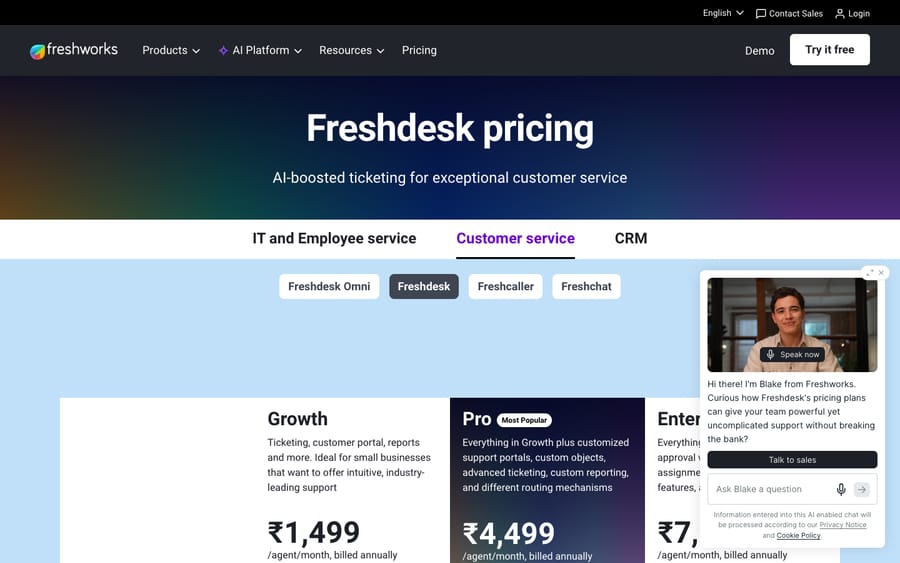
Model the total cost at your real volume (base seats plus AI plus any channel fees), not the sticker price. Freshdesk's own pricing taught everyone that the per-seat number is rarely the final bill, and the same is true of every destination.
For a side-by-side of the destinations with ratings and honest watch-outs, see the best Freshdesk alternatives. If you've already settled on Zendesk specifically, we have a deeper, Zendesk-specific walkthrough: how to migrate to Zendesk from Freshdesk.
What are the three ways to migrate Freshdesk data?
However you export, the data gets into your destination one of three ways:
- Native importers (CSV). Most destinations offer a free importer for users, organizations and sometimes KB. These are great for seeding people and accounts, but most native importers do not move tickets or full ticket history. Good for part of the job, rarely the whole job.
- The API. Destinations like Zendesk have a dedicated ticket-import API that preserves historical timestamps and won't fire automations on import. It moves everything, but it's engineering effort, and imported tickets often won't carry valid SLA/metric data. Worth it only if you have developer time and unusual requirements.
- A third-party migration service. Tools like Help Desk Migration (Relokia) connect to Freshdesk and your destination via API and move the heavy stuff for you. Relokia lists support for tickets, contacts, users, companies, attachments, notes, tags, custom fields, side conversations, call recordings, knowledge base (with authors, timestamps and translations) and CSAT ratings, with a free demo run. The honest caveats: they're paid (priced by record volume), and the heavy business logic still largely rebuilds by hand. Some services now migrate canned responses (macros) and scenario automations for compatible destinations, while triggers, SLAs, business hours and routing still rebuild manually. Forums/community posts aren't supported.
The short version: native tools move your people and KB; a service (or the API) moves your tickets. Almost every real migration combines them, with the heavy lifting on method 3.
What are the steps in a Freshdesk migration plan?
- Audit and prune (in Freshdesk). Build the inventory from the section above. Count tickets (open vs. resolved/closed), list custom fields and their values, note your automations/SLAs/canned responses as a rebuild spec, and drop anything dead.
- Pick your destination and method. Match the destination to your real reason for leaving, then choose native importer + API, or a third-party service. For most teams it's a service for tickets plus a native importer for users/orgs.
- Set up the destination's foundations. Create agents and groups, recreate custom field definitions and their dropdown values, and stand up the basic ticket forms before you import records that reference them.
- Export and prep from Freshdesk. Run the admin export (or let the service pull via API) for tickets, contacts and companies; export your KB; and keep a CSV/XML copy as your reference of truth to verify against later.
- Map your fields. Account for vocabulary differences: Freshdesk's Resolved status and Medium priority have different names elsewhere, and companies often become organizations. Build the mapping in a spreadsheet if you're doing it by hand; a service does this in a guided wizard.
- Run a demo/sample migration first. Move a small batch (~20 tickets) and inspect them in the destination: requester/assignee correct? Full thread including private notes? Attachments and inline images present? Status/priority mapped right? Custom values populated? Timestamps preserved? Fix mapping and re-run until the sample is clean.
- Freeze, then run the full migration. Set a data-freeze timestamp in Freshdesk, communicate it to agents, then launch the full run (hours to days by volume). Afterward, run a delta migration to catch anything created or changed since the freeze.
- Rebuild what doesn't transfer. Recreate triggers/automations, SLA policies, macros (from your exported canned responses), business hours, routing and apps natively. This is the most underestimated step. Block real time for it, and treat it as a chance to improve, not just copy.
- Redirect channels and retrain. Point email forwarding/MX, the web widget and any chat/social channels at the new tool; send a real test message and confirm it creates a ticket. Give agents a short orientation and a one-page cheat sheet.
- Verify, then keep Freshdesk read-only. Spot-check ticket counts (Freshdesk export total vs. destination), watch the first day of live tickets closely, and keep Freshdesk accessible read-only for a few weeks as a safety net before you decommission.
What goes wrong in Freshdesk migrations?
- ID mapping. Ticket numbers won't match. Your destination assigns its own IDs, so any external references to old Freshdesk ticket numbers break. If you need traceability, store the original Freshdesk ID in a custom field during migration and keep your export as a lookup.
- Ticket threading and notes. Public replies are easy; private/internal notes, inline images and attachment ordering are where threads get mangled. This is exactly what the demo run is for.
- Downtime and the freeze. The most common failure is agents quietly working tickets in Freshdesk after cutover, stranding those updates. Enforce the freeze and rely on the delta pass.
- SLAs and metrics. Imported tickets usually won't carry valid SLA/metric history, so your reporting effectively restarts at go-live. Tag imported tickets and exclude them from dashboards.
- Assuming logic transfers. Triggers, SLAs, business hours and routing do not migrate on any method. Budget to rebuild them.
- API ceilings. If you're scripting an export, the 30-day default window and the 300-page (30,000-ticket) ceiling will silently truncate large pulls. Use
updated_sincewindows or the admin account export for full history.
Do you need to migrate just to get better AI?
A quick disclosure, because we make this: if your only reason to migrate was Freshdesk's AI cost or deflection, switching helpdesks is a lot of pain to solve the wrong problem.
Macha isn't a Freshdesk alternative and isn't a helpdesk. It's an AI agent layer that runs on top of your helpdesk. The relevant point for a migration is that it connects to Zendesk, Freshdesk, Gorgias, Front, HubSpot and Intercom, so the AI layer is never the thing forcing a move: you can add it to Freshdesk today, or to your destination after you land. It reads the customer's actual question, pulls from your connected data and help center, resolves routine tickets in-thread, and hands off to a human with context when it's not confident.
The honest watch-out: it's one more integration to configure, and it's only as good as the knowledge you point it at, which is one more reason to get the KB step of your migration right. It bills per ticket: one conversation, charged once however many steps the agent takes along the way (drafting, looking up an order, tagging, routing), never per resolution, so the bill never hangs on an outcome definition you don't control. Plans start at $299 a month for up to 750 tickets. You can see how the layer works on a helpdesk, or start with $50 of free usage, no credit card required.
What should a Freshdesk migration checklist include?
Before you start
- [ ] Real reason for leaving named (and confirmed a migration is the right fix)
- [ ] Destination chosen and total cost modeled at real volume
- [ ] Full data inventory built; dead fields/records pruned
- [ ] Agents, groups and custom field definitions created in the destination
- [ ] Field mapping documented (statuses, priorities, companies → organizations)
- [ ] Automations, SLAs and canned responses documented as a rebuild spec
- [ ] Freshdesk export taken as a reference copy
After the migration
- [ ] Demo verified, then full run + delta completed
- [ ] Ticket counts reconciled (Freshdesk export vs. destination)
- [ ] Threads, notes, attachments, timestamps and custom values spot-checked
- [ ] Triggers, automations, SLAs, macros, business hours and apps rebuilt and tested
- [ ] Channels (email/MX, widget, chat/social) redirected and tested live
- [ ] Agents retrained; first day of live tickets monitored
- [ ] Freshdesk kept read-only for a grace period before decommissioning
Frequently asked questions
How do I export my data from Freshdesk? With an Admin or Supervisor role, use Freshdesk's built-in export to pull tickets, contacts, companies or account data to CSV/Excel, with field selection and filters; past exports live at Admin → Account exports, and you can schedule recurring exports by email. For programmatic pulls use the REST API v2, but note that its list endpoint returns at most 300 pages (30,000 tickets) and defaults to the past 30 days. For full history, use the admin account export (Freshdesk docs).
Can I migrate from Freshdesk for free? Partially. Native CSV importers on most destinations move users and organizations for free, but they generally don't move tickets or ticket history. Full ticket migration means either building against the destination's import API (engineering effort) or paying for a third-party service. For most teams the paid service is the realistic time-vs-money trade.
Will my automations, SLAs, and macros transfer? Mostly no. Plan to rebuild business logic natively in the destination. Some migration services now move canned responses (macros) and scenario automations for compatible destinations, but triggers, SLA policies, business hours, routing and apps still rebuild manually on any method. Document everything in Freshdesk first so you have a spec, and treat it as a chance to improve, not just copy.
Can I move my knowledge base and CSAT history out of Freshdesk? Yes. You can export the list of Solutions articles to CSV, but full article content comes via the helpdesk account data export (delivered as XML) or a migration service. Most third-party services move KB categories/folders/articles with authors, timestamps and translations, and can carry CSAT ratings tied to their tickets (Help Desk Migration).
Will my Freshdesk ticket numbers stay the same? No. The destination assigns its own ticket IDs, so old Freshdesk numbers won't carry over as the primary ID. If you need traceability, store the original Freshdesk ID in a custom field during migration and keep your export as a lookup.
Do I have to leave Freshdesk to get better AI? No. If your only frustration is the cost or capability of Freshdesk's native AI, you can add an AI agent layer on top of Freshdesk instead of migrating. Macha does that: it resolves routine tickets inside your existing workflow and escalates with context, and it runs on Freshdesk, Zendesk and four other help desks. If your problem is Freshdesk's ticketing or reporting itself, then a migration is the right move.
What's the right order for a Freshdesk migration?
A clean Freshdesk migration comes down to sequence: audit and prune, choose a destination that fixes your real reason for leaving, export your data (admin export for full history, API for automation, mindful of the 30-day default and 30,000-ticket ceiling), pick a method (native importers for people/KB, a service or API for tickets), run a demo before the full run, freeze and delta-migrate, then rebuild the automations, SLAs and macros no tool fully transfers. Finish by redirecting channels, retraining agents and keeping Freshdesk read-only as a safety net. Get the knowledge base step right and you've also set up the next win: an AI layer that resolves from it, whichever helpdesk you land on. Still shortlisting? Start with the best Freshdesk alternatives.
Freshdesk export and API limits checked against Freshdesk's docs and API reference, September 2026; third-party migration scopes as listed by the vendor. Limits and pricing in this category change fast, so confirm current terms in your own Freshdesk account and on each vendor's site before you rely on them.
Add AI agents to your Freshdesk
Macha reads the ticket, drafts the reply and takes the action, inside the Freshdesk you already run.





