



 Intercom
 Shopify
 Stripe
 Slack
Slack Notion
 Google Workspace
 Confluence

How Do You Migrate from Freshdesk to Zendesk? (2026 Step-by-Step Guide)


Moving from Freshdesk to Zendesk takes two kinds of tools: Zendesk's free Data importer for users and organizations, and a paid migration service or the Ticket Import API for tickets, since the Data importer never imports them. Automations, triggers and SLA policies don't transfer, so plan time to rebuild them in Zendesk.
Key takeaways
- A Freshdesk to Zendesk migration uses the Data importer for users and organizations, and a paid migration service or the Ticket Import API for tickets.
- Zendesk's Data importer accepts CSV files up to 1 GB with a recommended maximum of 500,000 rows, but it imports no tickets or ticket history.
- The legacy Zendesk bulk CSV import is capped at 2,000 rows per file, and Zendesk now recommends the Data importer for user data instead.
- The Ticket Import API accepts up to 100 tickets per create_many request and keeps original created_at, updated_at and solved_at timestamps, but imported tickets get no SLAs or metrics.
- Help Desk Migration says automations, triggers and SLA policies must be recreated in Zendesk manually, so document every Freshdesk rule before the cutover.

To migrate from Freshdesk to Zendesk, load users and organizations with Zendesk's free Data importer (CSV files up to 1 GB), move tickets and their full history with a paid migration service or the Ticket Import API (up to 100 tickets per call), then rebuild automations, SLA policies and macros by hand, because no tool carries business logic across reliably. The Data importer never imports tickets, which is the detail most first attempts miss. The sequence below is audit, choose routes, plan the freeze, export, map fields, run a demo, rebuild, go live, checked against Zendesk and Help Desk Migration documentation. If you're still deciding whether to switch at all, start with our Zendesk vs. Freshdesk comparison.
| Route | Moves | Tickets? | Cost |
|---|---|---|---|
| Zendesk Data importer | Users, organizations, custom object records, IT assets (CSV up to 1 GB, 500,000 rows recommended max) | No | Included on every Suite and Support plan |
| Legacy CSV bulk import | Users and organizations, 2,000 rows per file | No | Included |
| Ticket Import API | Tickets with comments, keeping created_at, updated_at, solved_at | Yes | Free, but you write the code |
| Third-party service (e.g. Help Desk Migration) | Tickets, threads, attachments, contacts, companies, agents, KB articles, custom field values | Yes | Paid, priced by records moved |
What does a Freshdesk to Zendesk migration actually involve?
A help desk migration is three separate jobs under one name:
- Records: tickets and their conversations, contacts and companies, agents, organizations, knowledge base articles, custom field values. The right tool moves these.
- Configuration: automations, triggers, SLA policies, macros and canned responses, business hours, routing rules, ticket forms, apps. Plan to rebuild these in Zendesk by hand, ideally better than they were.
- The cutover: freezing one system, switching email and channels, and getting agents working in the new tool without dropping live conversations.
Most of the pain lives in the second and third jobs, which is where the "export and import" framing falls down.
What should you audit in Freshdesk before migrating?
You can't map what you haven't inventoried. Open Freshdesk and write down what you're carrying over:
- Tickets: roughly how many (open vs. resolved and closed), and how far back you need history. Each ticket carries a subject, description, status, priority, type, requester, assignee, threaded replies, private notes and attachments.
- Contacts and companies: your end users and the organizations they belong to (companies in Freshdesk become organizations in Zendesk).
- Agents and groups: who needs a seat, and the groups tickets are assigned to. Agents and groups should exist in Zendesk before tickets import so assignments land correctly.
- Custom fields: every custom ticket, contact and company field, its type and its dropdown values. Recreate these in Zendesk before their values can be populated.
- Canned responses: Freshdesk exports these to CSV. Treat them as a rebuild list for Zendesk macros unless your migration tool's demo shows them arriving intact.
- Knowledge base: your Freshdesk Solutions categories, folders and articles, and which are published vs. draft.
- Automations and SLAs: Dispatch'r, Supervisor and Observer rules, SLA policies, scenario automations, business hours. Treat this as a requirements document for what you'll reconstruct in Zendesk.
Two ordering rules shape every later decision: agents have to exist in the target before tickets can be assigned to them, and custom fields and groups must exist before the records that use them are imported (eesel, ClonePartner checklist).
Tip: Use the audit to prune. A migration is the cheapest moment you'll get to leave behind dead custom fields, unused canned responses and ancient closed tickets you don't legally need. Don't reproduce a mess.
Which migration route should you use?
Data gets into Zendesk three ways. Knowing what each can't do matters more than any other part of the plan.
Can Zendesk's Data importer move Freshdesk tickets?
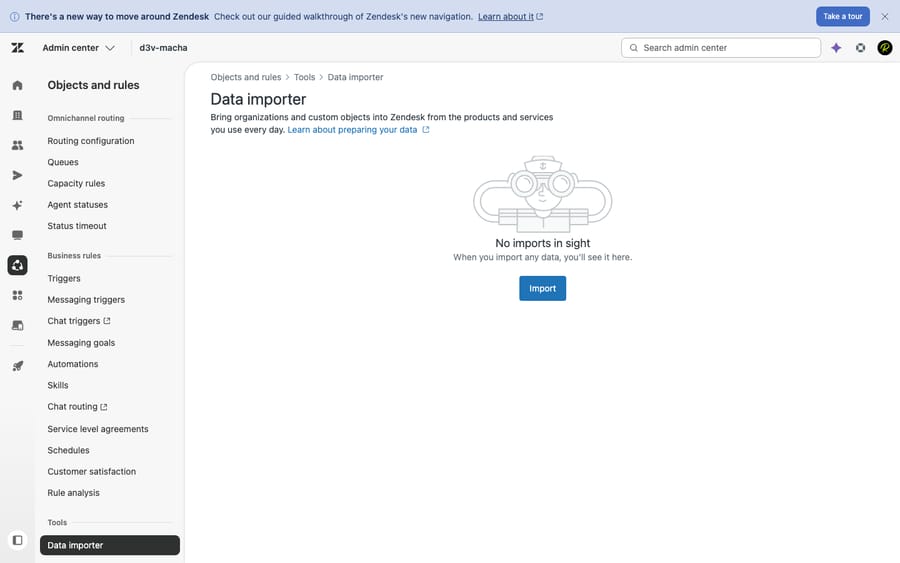
No. Zendesk's built-in tool at Admin Center → Objects and rules → Tools → Data importer bulk-loads "users, organizations, custom object records, and IT asset records" from CSV (About the data importer). A file can't exceed 1 GB, Zendesk recommends at most 500,000 rows (one header plus 499,999 data rows), and each row can't exceed 128 KB (Bulk importing user data). It's available on every Suite plan from Team up and on Support Team, Professional and Enterprise.
The Data importer does not import tickets or ticket history. It's the right tool for contacts and organizations, and a real part of most migrations, but it won't move a single conversation.
What about CSV import and the Ticket Import API?
The legacy Bulk actions CSV import is narrower still: "a maximum of 2,000 rows. That is, one header row and up to 1,999 rows of data," for users, with organizations imported separately and first (Bulk importing user data (legacy)). Zendesk now recommends the Data importer instead. Neither covers tickets (Zendesk import options explained).
Full historical tickets can move natively, but only through the Ticket Import API: POST /api/v2/imports/tickets for one ticket, or /api/v2/imports/tickets/create_many for up to 100 per request. It lets you set created_at, updated_at and solved_at, and triggers don't run on imported tickets unless they're updated afterward. Zendesk also says "metrics and SLAs are not supported for imported tickets," so tag imported tickets and keep them out of reporting. For large archives (Zendesk mentions 750,000+ tickets), the archive_immediately flag sends closed tickets straight to the archive (Ticket Import API reference). It needs engineering time, which is why most teams take the third route.
When is a third-party migration service worth paying for?
For a complete move (tickets with full conversation threads, private notes, attachments, contacts, companies, agents, knowledge base articles and custom field values) most teams use a service such as Help Desk Migration (by Relokia). These tools connect to both Freshdesk and Zendesk through their APIs, map your data and move it without you writing against the Ticket Import API.
Two caveats. These services are paid: Help Desk Migration says "you only pay for the records you move," with lower per-record prices on larger projects, and it doesn't publish a starting price. And the third-party screens described below come from the vendors' own documentation, not our hands-on use; we've used Zendesk first-hand (the screenshot above is ours), but we haven't captured every migration wizard. Verify the exact UI in the tool you choose.
Native tools move your people; a third-party service moves your tickets and KB. Almost every real migration combines them, with the heavy lifting on the service.
How do you plan the cutover and data freeze?
Decide your switchover model before you move a single record:
- Big-bang: pick a low-volume window (a weekend), freeze new ticket creation in Freshdesk, migrate, verify and flip channels to Zendesk. Cleanest, but it needs a real freeze.
- Phased or parallel: run both systems briefly, migrate history, then forward new tickets to Zendesk. Lower risk, more overhead while both are live.
Either way, set a data freeze point: from a chosen timestamp, no new edits in Freshdesk. Anything created or changed after the freeze gets caught by a delta migration at the end. Tell agents about the freeze; the most common migration failure is people quietly working tickets in Freshdesk after cutover, stranding those updates.
How do you export and prepare Freshdesk data?
Whether you're feeding a CSV route or letting a service pull through the API, get Freshdesk in order:
- Export tickets, contacts and companies. Freshdesk exports tickets, contacts or companies to CSV or Excel, with filters (created date, agents, groups, type, status) and your custom fields included (Freshdesk: how do I export my tickets).
- Export canned responses to CSV so you have the full text to rebuild as Zendesk macros (Freshworks: exporting canned responses).
- Document your automations and SLAs: screenshot or export the logic. This is your rebuild spec.
- Clean as you export. Drop the dead fields and stale records you flagged in the audit.
With a third-party service you usually don't hand over CSVs at all; it connects to Freshdesk's API directly. Keep the exports anyway as your reference copy to verify against after migration.
How do Freshdesk fields map to Zendesk fields?
Field mapping is where data gets quietly mangled if you rush it, because the two systems use different vocabularies. The defaults to confirm or adjust:
| Freshdesk | Zendesk | Notes |
|---|---|---|
| Status: Open, Pending, Resolved, Closed (+ custom) | Status: New, Open, Pending, On-hold, Solved, Closed | Map Resolved → Solved. Zendesk's New and On-hold have no native Freshdesk equivalent; decide where they apply. |
| Priority: Low, Medium, High, Urgent | Priority: Low, Normal, High, Urgent | Map Medium → Normal. |
| Contact | End user | Straightforward. |
| Company | Organization | Companies become organizations. |
| Agent / Group | Agent / Group | Must exist in Zendesk before import. |
| Custom fields | Custom fields | Recreate field + type + dropdown values in Zendesk first, then map. |
| Solutions (KB) | Guide articles | Categories and folders become categories and sections; watch internal links. |
In a third-party tool, mapping happens in a guided wizard: standard fields auto-map and you adjust the rest (Help Desk Migration). If you're doing it manually, build this table out in a spreadsheet first. For a refresher on how Zendesk models tickets, statuses and fields, see Zendesk's ticketing system explained.
Why run a demo migration before the full one?
A demo catches mapping mistakes on a handful of tickets instead of your whole archive. The sequence:
- Demo migration. Help Desk Migration says "every migration includes a Free Demo, so you can preview how your Freshdesk data will appear in Zendesk before starting the Full Migration." It moves a small sample, so you can see fields populated, threads intact and attachments attached.
- Verify the demo. Open the migrated sample tickets in Zendesk. Are requester and assignee correct? Is the full thread there, public replies and private notes? Attachments and inline images? Status and priority mapped right? Custom field values populated? Timestamps preserved? Fix the mapping and re-run the demo until it's clean.
- Run the full migration. Expect hours to days depending on volume; most tools show progress and, in the phased model, let agents keep working.
- Delta migration. After the bulk run, a delta pass imports anything created or updated since the freeze point. Help Desk Migration describes it as re-syncing "new or updated records in Freshdesk" without repeating the whole run.
Ticket numbers won't match between systems (Zendesk assigns its own IDs), so external references to old Freshdesk ticket IDs won't resolve. Keep the Freshdesk export as a lookup, and store the old ID in a custom field if you need traceability. In a big-bang cutover, plan for a short window where neither system is the source of truth while you verify.
What do you have to rebuild by hand in Zendesk?
Your business logic. Help Desk Migration's own page says "automations, triggers, and SLA policies are system-level features and must be recreated in Zendesk manually." Block real time to rebuild:
- Triggers and automations: Freshdesk's Dispatch'r, Supervisor and Observer rules map conceptually to Zendesk triggers (run on ticket events) and automations (run on time). Rebuild them from your documentation; don't assume parity.
- SLA policies: recreate from scratch. Imported tickets don't carry valid SLA or metric data, so your SLA reporting starts at go-live.
- Macros: rebuild from your exported Freshdesk canned responses. Help Desk Migration lists macros among the records it can carry, so check your demo; if they arrive, review each one against Zendesk's actions rather than trusting the conversion.
- Business hours and schedules, routing, ticket forms, and apps: all reconfigured natively in Zendesk.
Doing this by hand lets you drop the cruft instead of porting it. Build the triggers you wish you'd had, then test each one with a sample ticket before agents rely on it; a misfiring trigger on day one erodes trust in the whole project.
How do you go live after the migration?
The final mile is operational:
- Redirect your channels. Point support email forwarding, the web widget and any social or chat channels at Zendesk. Send a real test email and confirm it creates a Zendesk ticket.
- Retrain agents. Freshdesk veterans still need a short orientation on the Zendesk Agent Workspace, macros and views. A 30-minute walkthrough and a one-page cheat sheet prevent a week of "where's the…?"
- Verify once more. Compare ticket counts (Freshdesk export total vs. Zendesk), confirm a sample of customers can log into the new help center, and watch the first day's live tickets closely.
- Keep Freshdesk read-only for a grace period. Don't cancel immediately. Keep it accessible for a few weeks as a safety net, then decommission.
When the first day of live tickets flows through Zendesk (created, routed, replied, solved) you've migrated. For the reverse direction, getting data out of Zendesk for backups or audits, see how to export data from Zendesk.
What transfers and what doesn't?
| Item | Transfers (with the right tool)? | How |
|---|---|---|
| Tickets + conversation threads | ✅ | Third-party service (or Ticket Import API) |
| Private notes & attachments | ✅ | Third-party service |
| Contacts (end users) | ✅ | Data importer / CSV / service |
| Companies → organizations | ✅ | Data importer / CSV / service |
| Agents & groups | ⚠️ Create first | Manual setup, then map |
| Custom fields (definitions) | ⚠️ Create first | Manual, then values map |
| Knowledge base articles | ✅ | Third-party service |
| Triggers / automations | ❌ | Rebuild in Zendesk |
| SLA policies | ❌ | Rebuild in Zendesk |
| Macros (from canned responses) | ⚠️ Check your tool's demo | Rebuild or review in Zendesk |
| Business hours, routing, forms, apps | ❌ | Reconfigure in Zendesk |
Where does AI fit in after you move to Zendesk?
A migration is a good moment to rethink how much of your support a human needs to touch, because you're already moving the two things an AI agent needs: your ticket history and your knowledge base.
Once you're settled on Zendesk, an AI agent like Macha can sit on top of your new setup and resolve repetitive questions from that migrated knowledge, answering the "where's my order / how do I reset this" volume in-thread and escalating to a human with full context when it isn't confident. Macha is not a help desk and not a Zendesk replacement; it's an AI agent layer that runs on your existing help desk. It connects to Zendesk and to the other desks it supports (Zendesk, Freshdesk, Gorgias, Front, HubSpot or Intercom), Freshdesk included, so the AI layer is never the thing forcing a migration. If AI was your only reason to switch, you may not need to.
It's one more integration to configure, and it's only as good as the knowledge you point it at, which is why doing the migration's KB step well pays off twice. On cost, Macha bills per ticket: one conversation, charged once however many steps it takes (drafting a reply, tagging, routing, resolving). It never bills per resolution, because most automation is work done along the way rather than a tidy one-to-one "resolution." Pricing starts at $299 a month for up to 750 tickets, with setup and monitoring by the Macha team included, and you can try it with $50 of free usage and no credit card.
Frequently asked questions
Can I migrate from Freshdesk to Zendesk for free? Partly. Zendesk's Data importer and legacy CSV import are included and will move your users and organizations, but neither imports tickets or ticket history. Full ticket migration means building against Zendesk's Ticket Import API (engineering time) or paying a service like Help Desk Migration, which charges for the records you move.
Does the Zendesk Data importer move my Freshdesk tickets? No. The Data importer (Admin Center → Objects and rules → Tools → Data importer) imports users, organizations, custom object records and IT assets from CSV files up to 1 GB, not tickets or ticket history (Zendesk docs). For tickets, use a migration service or the Ticket Import API.
Will my automations, SLAs, and macros transfer? Automations, triggers and SLA policies don't; even Help Desk Migration says they "must be recreated in Zendesk manually." Business hours, routing and apps are reconfigured natively too. Macros depend on your tool, so check the demo. Document everything in Freshdesk first so you have a rebuild spec.
How long does a Freshdesk to Zendesk migration take? The data transfer runs from a few hours to a couple of days depending on ticket volume. The project (audit, field mapping, demo and verification, rebuilding automations and SLAs, retraining) is usually one to a few weeks of part-time work. The demo migration is the best predictor of how the full run will go.
Will my Freshdesk ticket numbers stay the same in Zendesk? No. Zendesk assigns its own ticket IDs, so old Freshdesk numbers won't carry over as the primary ID. If you need traceability, store the original Freshdesk ID in a custom field during migration and keep your Freshdesk export as a lookup.
Should I delete my Freshdesk account right after migrating? No. Keep Freshdesk accessible (read-only) for a few weeks after go-live as a safety net, verify everything in Zendesk, then decommission once you're confident nothing was missed.
Do imported tickets count toward Zendesk SLA and metric reports? They shouldn't. Zendesk states that "metrics and SLAs are not supported for imported tickets," so tag imported tickets and exclude them from reporting.
Native tool scopes and limits checked against Zendesk help and developer docs, and Help Desk Migration's Freshdesk page, on 24 September 2026. Third-party migration UIs are described from vendor documentation, not first-hand captures. Confirm labels and current pricing in your own accounts.
Add AI agents to your Zendesk
Macha reads the ticket, drafts the reply and takes the action, inside the Zendesk you already run.





