



 Intercom
 Shopify
 Stripe
 Slack
Slack Notion
 Google Workspace
 Confluence

How Do You Migrate Away From Zendesk? A 6-Step Guide for 2026


Migrating off Zendesk takes six steps: export, map, pick a tool, run a sample, cut over and rebuild your workflows. Records such as tickets and contacts move, but triggers, SLAs, views and routing have to be rebuilt by hand, so first check that the help desk is really the problem.
Key takeaways
- Migrating away from Zendesk starts with a full account export from Admin Center, in JSON for accounts above 200,000 tickets, after the account owner asks Zendesk Support to enable exports.
- Tickets, contacts, custom fields, attachments and knowledge base articles migrate, but Zendesk triggers, automations, SLA policies, views and routing rules must be rebuilt by hand in the new tool.
- Zendesk's pricing page lists Suite Team at $55 and Suite Professional at $115 per agent per month billed annually, with the Copilot add-on at $50 per agent per month.
- Help Desk Migration by Relokia offers a free demo that moves 20 records, so a team can check comments, attachments and custom-field mapping before paying for the full run.
- Keeping the old Zendesk account readable for about two weeks after cutover lets agents look up old tickets while email forwarding and DNS changes settle.

To migrate away from Zendesk, export everything first (Admin Center > Account > Tools > Reports, in JSON if you have more than 200,000 tickets), map which records move and which rules you must rebuild, test a free 20-record sample migration, then cut over email forwarding and DNS while the old account stays readable for about two weeks. Exports are off by default, and only the account owner can ask Zendesk Support to turn them on, so start there.
| Step | What you do | Typical snag |
|---|---|---|
| 1. Export | Full account export (JSON, CSV or XML) plus the knowledge base | Exports disabled until Zendesk Support enables them |
| 2. Map | List what migrates (tickets, contacts, fields) and what you rebuild (triggers, SLAs, views) | Rebuild work is larger than the import |
| 3. Pick a tool | Native importer, Help Desk Migration, or a custom API job | CSV importers drop comment history and attachments |
| 4. Sample run | Free demo of about 20 records | Custom fields mapped to the wrong target |
| 5. Cutover | Final delta sync, email forwarding, DNS, channel swap | Stray tickets while DNS propagates |
| 6. Rebuild | Workflows, SLAs, macros, reports in the new tool | Porting dead rules one to one |
A quick, honest note. We build Macha, an AI agent layer that runs on top of Zendesk, Freshdesk, Gorgias, Front, HubSpot or Intercom. So we're not a "Zendesk replacement" and this isn't a pitch to switch to us. There's nothing to switch to, which lets us stay neutral about the platforms below. We'll flag the one place an AI layer is relevant and otherwise stay out of the way.
Is the help desk actually the problem?
Switching help desks is the support equivalent of moving house. It's worth it sometimes — but a surprising number of "we need to leave Zendesk" projects are really "we need to fix three things in Zendesk." Before you commit a quarter of an engineer's time and a five-figure budget, pressure-test the reason:
- "It's too expensive." Often true (see below), but check why. Are you paying for seats that sit idle? Light agents who only need to view tickets may not need full paid seats. Are you on a higher tier for one feature you could live without? A re-pack or right-sizing can cut a Zendesk bill 20–40% with zero migration risk.
- "The AI / bot isn't good enough." This is the single most common driver in 2026, and it's the one least likely to be solved by switching. Most help desks' built-in AI deflects with help-center articles and escalates the rest. If that's your pain, you'll likely hit the same ceiling on the next tool — the bottleneck is the AI, not the ticketing system underneath it.
- "It's too complex / nobody can configure it." Sometimes the fix is a cleanup (prune dead triggers, simplify forms, retire unused automations), not a platform change. You'll have to rebuild all that configuration on the new tool anyway — so if config is the problem, you're not escaping it by leaving.
- "Support / reliability is poor." A legitimate reason to leave, and not something configuration fixes.
The honest test: if you migrated tomorrow and rebuilt every workflow identically on a new platform, would your problem be gone? If the answer is "no, we'd still have the same AI gap / the same messy config," the platform isn't your problem and migrating won't fix it. If the answer is "yes" — read on.
Why do teams leave Zendesk?
Zendesk is a capable, mature platform; plenty of teams stay on it for a decade happily. But the recurring reasons people look elsewhere are real:
- Per-agent pricing adds up. Zendesk is seat-based. Zendesk's pricing page lists Suite Team at $55 and Suite Professional at $115 per agent per month billed annually, with "Suite Enterprise + Copilot" on contact-sales (checked 24 September 2026; the old $89 Growth tier no longer appears there). For a 30-agent team on Professional, that's a real number before any add-ons.
- Add-ons and AI cost extra. The Copilot add-on is $50 per agent per month on Suite Professional and above. AI agents are included but bill per automated (verified) resolution, and Zendesk's pricing page lists $1.50 per committed resolution and $2.00 pay-as-you-go. Its plan table includes 5 automated resolutions per agent a month on Support Team and Suite Team and 10 on Suite Professional; Zendesk's help center describes the same allowance as a small monthly dollar amount per seat ($2, $5 or $10 by plan since 18 May 2026, capped at $5,000 a year). Teams with high automated-resolution volume can see this line grow unpredictably.
- Complexity at scale. Triggers, automations, SLAs, skills-based routing, and multi-brand setups are powerful but can sprawl into something only one person understands.
- Resolution / deflection economics. If most of your volume is repetitive and your per-resolution AI bill is climbing, the unit economics can feel upside down — you're paying more the better automation works.
Worth saying plainly: reasons one, two, and four are about AI and pricing, not about ticketing. Hold that thought — it matters for whether a migration is even the right project.
Where should you migrate to?
There's no universal "best Zendesk alternative" — only the right fit for your channels, budget, and team size. A neutral shortlist of where Zendesk leavers most often land (we cover these in depth in our best Zendesk alternatives guide):
- Freshdesk — closest like-for-like, generally cheaper per agent, strong ticketing and automation. Common landing spot for teams that want "Zendesk but leaner."
- Intercom — messaging-first and AI-forward; great for product-led and in-app support, less of a classic ticketing tool.
- HubSpot Service Hub — natural if you already live in HubSpot CRM; support and sales/marketing share one record.
- Help Scout — simple, email-centric, fast to set up; loved by small teams that find Zendesk overkill.
- Gorgias — purpose-built for e-commerce (deep Shopify/BigCommerce integration); the default for many DTC brands.
- Front — shared-inbox model that feels like email; good for teams that collaborate on threads rather than work a ticket queue.
Update (September 2026): Salesforce completed its acquisition of Fin, the company behind Intercom, on 10 September 2026, in a deal worth about $3.6 billion (Salesforce press release). Worth weighing in any long-term Intercom or Fin decision.
Whatever you pick, judge it on the things migration won't carry over (workflow builder, SLA model, routing, reporting) — not just the ticket-import feature. Those rebuilt pieces are where you'll actually live.
How do you migrate off Zendesk, step by step?
Step 1: Export your Zendesk data first (always)
Before you touch the new tool, get a complete, independent copy of your Zendesk data. Even if your migration vendor pulls data via API, a full export is your insurance policy and your audit trail.
- Run the full account export. In Admin Center → Account → Tools > Reports, open the Export tab. You can export tickets, users, and organizations to JSON, CSV, or XML. Use JSON (Zendesk delivers it as newline-delimited NDJSON) for the most complete copy including full comment history — it's the recommended format above ~200,000 tickets. CSV is convenient but drops some fields (multi-line text, multi-select, and custom date fields) that JSON and XML keep, and it leaves out comments and descriptions. (Per Zendesk's data export docs.)
- Know the two gotchas. Data exports are disabled by default — the account owner must contact Zendesk Customer Support to turn them on — so start this early; it's a frequent cause of last-minute delays. The export runs asynchronously and Zendesk emails a download link that's valid for at least three days. (Per Where is the data export option.)
- For large or automated pulls, use the API. The Incremental Exports endpoint (
GET /api/v2/incremental/tickets.json?start_time=...) is available on all plans, including Team, and is Zendesk's recommended method for regularly pulling ticket data. - Export your knowledge base. Your Guide articles, categories, and sections aren't in the account export — pull them via the Help Center API or let your migration tool fetch them (most do, with folders, tags, and inline images intact).
For the full mechanics — every format's limits, view-level CSV exports, Explore reports, and GDPR single-user exports — see our dedicated guide, how to export your data from Zendesk.
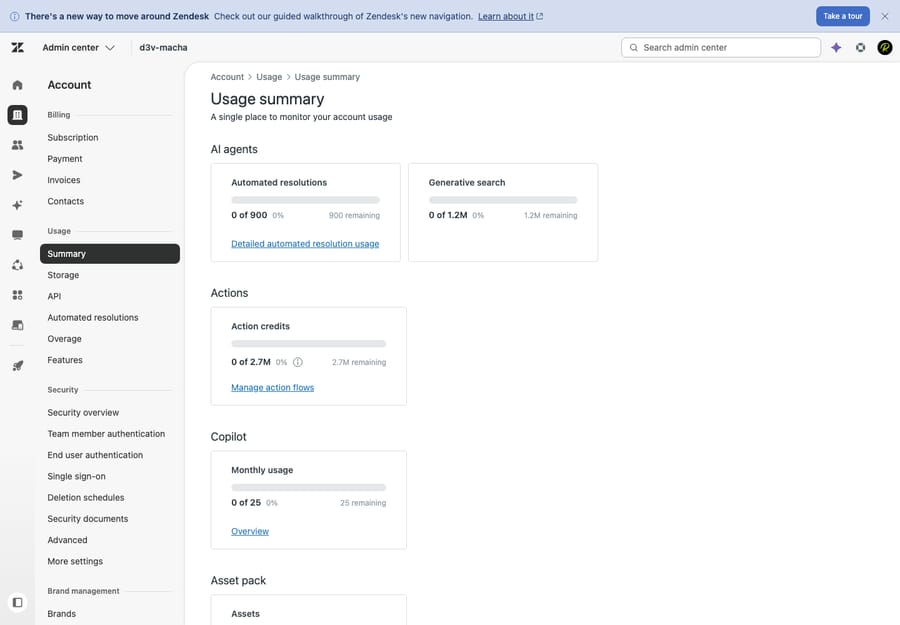
A note on this screenshot: it's a real, first-hand capture of the Admin Center → Account area (the Usage view) on our Zendesk test instance — the part of the product where account-level tools live. The dedicated full-export page wasn't provisioned on our test account (exports are off by default), so the export steps above are described from Zendesk's official documentation rather than a captured screen.
Step 2: Map what moves vs. what you'll rebuild
This is the step teams underestimate, and it's where migrations go sideways. Records move reasonably well; logic does not.
| Generally migrates | You will rebuild from scratch |
|---|---|
| Tickets (with public + private notes, tags, timestamps) | Triggers and automations |
| Contacts, companies/organizations | SLA policies |
| Ticket / contact / org custom fields | Macros / canned responses (often need rework) |
| Attachments and inline images | Views and queues |
| CC'd users on tickets | Routing rules (omnichannel / skills-based) |
| Knowledge base articles, categories, sections, tags | Dashboards / reports |
| Created / updated / closed dates | Apps, integrations, and webhooks |
The hard truth: triggers, automations, macros, SLAs, views, and routing are platform-specific and do not transfer — they have to be recreated by hand in the new tool's workflow builder. (Confirmed by Help Desk Migration and independent migration guides.) For most teams this is the largest chunk of work, not the data import. Many treat it as a chance to delete years of dead rules rather than rebuild 1:1. For a record-by-record breakdown, see Zendesk data migration: what actually moves.
Step 3: Choose native vs. third-party migration tools
You have three broad paths:
- The destination's native importer. Most help desks (Freshdesk, Help Scout, HubSpot, etc.) offer a CSV/API importer. Fine for contacts and simple ticket data; usually weak on attachments, comment history, and custom-field mapping. Cheapest, most manual, best for small or simple instances.
- A third-party migration service — most commonly Help Desk Migration by Relokia. It's an automated, mapping-driven tool that moves tickets, contacts, organizations, custom fields, attachments, public/private notes, CCs, timestamps, and knowledge base content between dozens of platforms. Pricing is volume- and complexity-based (you get a quote from a demo run), not a flat fee, and Relokia says a Zendesk-to-Freshdesk move finishes in under two weeks. (Per Help Desk Migration.)
- A custom API migration. Maximum control, maximum engineering time. Only worth it for unusual data models or strict compliance requirements that off-the-shelf tools can't meet.
For most teams above a few thousand tickets, a third-party service is the pragmatic middle: far more faithful than CSV imports, far cheaper than building it yourself.
Step 4: Run a sample migration first
Never do a full migration as your first migration. Help Desk Migration (and most serious tools) offer a free demo migration that moves a small sample — 20 records of your choice (a custom demo can take 20 tickets plus 20 knowledge base articles), so you can verify the result before paying for or committing to the full run. (Per Help Desk Migration.)
On the sample, check carefully:
- Did ticket comments (public and private) come across in the right order, attributed to the right agents?
- Are attachments and inline images present and openable?
- Did custom fields map to the correct destination fields (this is the most common failure)?
- Are timestamps preserved, so reporting on historical volume still makes sense?
- Did CC'd users and requesters resolve to the right contacts?
Fix the field mappings, re-run the sample, and only proceed to full migration when a sample looks clean. Budget for the full run to take hours to days depending on volume — large instances import slowly.
Step 5: Plan the cutover (forwarding, DNS, downtime, parallel run)
The cutover is where customers can actually feel the move. Plan it like a release:
- Freeze and final-sync. Pick a low-volume window. Do a final delta migration of tickets created since your last run so nothing falls in the gap.
- Redirect inbound email. This is the real switch. Update email forwarding so support@ mail flows to the new help desk, and update any DNS records (e.g. MX/CNAME or the verification records the new tool requires for your support address). DNS changes propagate gradually — schedule this and expect a tail.
- Repoint channels. Swap the web widget/chat snippet, reconnect social and messaging channels, and update any contact-form or API integrations that created Zendesk tickets.
- Run parallel briefly if you can. Keep Zendesk readable (you can downgrade to a cheap/legacy seat or keep it read-only) for a couple of weeks so agents can reference old tickets while the new tool becomes the system of record. A short parallel run beats a hard cutover for catching surprises.
- Plan for near-zero downtime, not zero. With forwarding and a final delta, customer-facing downtime is usually minutes, not hours — but there's always a tail as DNS propagates and a stray ticket lands in the old system. Monitor both inboxes for the first few days.
Step 6: Rebuild workflows, automations, and SLAs
Because logic doesn't transfer (Step 2), this is effectively a fresh build of your operational layer:
- Recreate triggers/automations in the new tool's workflow builder — start with the handful that matter (assignment, acknowledgements, escalations) rather than porting everything.
- Rebuild SLA policies from scratch in the destination's model (they rarely map 1:1).
- Recreate views/queues, routing, macros, and business hours.
- Reconnect integrations and apps, and rebuild any webhooks.
- Rebuild dashboards/reports — historical data is migrated, but the report definitions are not.
Test the rebuilt workflows against real tickets before you announce the move to your team.
What should be done before you leave Zendesk?
- [ ] Confirmed the help desk — not AI/pricing/config — is the actual problem.
- [ ] Chosen a destination based on what you'll rebuild, not just ticket import.
- [ ] Account owner has asked Zendesk Support to enable data exports (do this first — it's off by default).
- [ ] Run a full account export (JSON for completeness) and stored it safely.
- [ ] Exported the knowledge base (Guide articles/categories).
- [ ] Inventoried triggers, automations, SLAs, views, macros, routing, apps to rebuild.
- [ ] Picked a migration path (native importer / Help Desk Migration / custom API).
- [ ] Ran and verified a sample/demo migration (comments, attachments, custom fields, timestamps).
- [ ] Cutover plan written: final delta sync, email forwarding, DNS, channel repointing.
- [ ] Old Zendesk kept read-only / parallel for ~2 weeks for reference.
- [ ] Rebuilt and tested workflows, SLAs, and reports on the new tool.
- [ ] Notified agents and customers, updated help-center links and email signatures.
Can an AI layer fix the problem without a migration?
Here's the part we'd be remiss not to mention, because it's the most common real reason teams start a migration: "the bot isn't good enough" or "our AI/resolution costs are out of control."
If that's your driver, a full platform migration is an expensive, risky way to fix an AI problem — and there's a decent chance you'll hit the same ceiling on the next tool, since most built-in help-desk AI behaves the same way (deflect with an article, escalate the rest). An AI agent layer that sits on top of your existing help desk can sometimes close that gap without moving anything. That's the category Macha is in: it runs on top of Zendesk, Freshdesk, Gorgias, Front, HubSpot or Intercom, reads the customer's actual question, pulls from your connected knowledge and past tickets, and resolves issues in-thread, handing off to a human with context when it isn't confident.
Two honest caveats, because this is a guide, not a sales page:
- This only helps if your reason for leaving is AI/deflection/resolution cost. If you're leaving because per-seat pricing is too high, the platform is unreliable, or you've outgrown the data model, an AI layer doesn't change any of that — migrate.
- It's another integration to configure and it's only as good as the knowledge you connect to it. On cost, Macha bills per ticket — one conversation, charged once however many replies, tags and lookups it takes — not per resolution, so the bill never hangs on an outcome definition you don't control.
And the genuinely neutral bit: because the layer is helpdesk-agnostic, it works whether you stay on Zendesk or move to Freshdesk , so it's not a reason to delay a migration you've decided is right. If the AI gap is your only real pain, it's worth a look before you commit to the move. Pricing starts at $299 a month for up to 750 tickets, with setup and monitoring by the Macha team included, and the trial gives $50 of free usage with no credit card.
Frequently asked questions
How do I export all my data from Zendesk before migrating? Use the full account export in Admin Center → Account → Tools > Reports → Export, choosing JSON (most complete), CSV, or XML. Exports are disabled by default, so the account owner must first contact Zendesk Support to enable them; Zendesk then emails a download link valid for at least three days. Export your knowledge base separately via the Help Center API or your migration tool. Full walkthrough: how to export data from Zendesk.
What data does NOT transfer when you migrate off Zendesk? Tickets, contacts, organizations, custom fields, attachments, notes, and knowledge base articles generally migrate. Triggers, automations, macros, SLA policies, views, and routing rules do not — they're platform-specific and must be rebuilt by hand in the new tool. See what actually moves.
Should I use a native importer or a tool like Help Desk Migration? Native CSV importers are fine for small, simple instances but weak on attachments, comment history, and custom-field mapping. For anything beyond a few thousand tickets, a third-party service like Help Desk Migration (Relokia) is usually more faithful and far cheaper than a custom build. It offers a free demo migration of 20 records so you can verify results first.
How long does a Zendesk migration take, and how much does it cost? It varies with data volume and how much workflow rebuilding you need. The data import itself can run from hours to a few days; rebuilding triggers, SLAs, and routing is often the longer task. Third-party migration tools price by volume and complexity (quote via demo), so get an estimate from a sample run rather than assuming a flat fee.
Can I avoid migrating if my real problem is the AI/bot? Possibly. If you're leaving because built-in AI deflects but doesn't resolve, an AI agent layer on top of your current help desk may close that gap without a migration — and it works whether you stay on Zendesk or move to Freshdesk. If your reason is pricing, reliability, or the data model, migrating is the right call.
Will my reporting history survive a migration? Your historical tickets and timestamps migrate, so the underlying data is preserved. But report and dashboard definitions don't transfer — you'll rebuild those in the destination's analytics tool.
So is migrating off Zendesk worth it?
It can be, if you treat it as a project, not a button: first confirm the platform is actually your problem (if it's AI or pricing, a migration may not fix it); choose a destination by what you'll rebuild, not just what imports; export everything from Zendesk first (JSON full account export, plus your knowledge base, and remember exports are off by default); know that records move but logic doesn't; validate with a sample migration; cut over with email forwarding, DNS, and a short parallel run; then rebuild your workflows, SLAs, and reports on the new tool. Do those steps in order and you'll switch once, cleanly, with your history intact. And if the only thing pushing you out is that the AI isn't good enough, it's worth checking whether an AI layer fixes that before you take on the move.
Export paths, migration behavior and Suite prices re-checked against Zendesk and Help Desk Migration pages on 24 September 2026. Per-resolution AI rates come from Zendesk's pricing page (checked 25 September 2026); confirm them against your own contract. Vendors update products and pricing periodically; verify in your own account before relying on specifics.
Add AI agents to your Zendesk
Macha reads the ticket, drafts the reply and takes the action, inside the Zendesk you already run.





