



 Intercom
 Shopify
 Stripe
 Slack
Slack Notion
 Google Workspace
 Confluence

What Moves in a Zendesk Data Migration, and What Doesn't? (2026)


A Zendesk migration is two jobs: moving data such as tickets, customers and articles, and rebuilding configuration such as triggers, automations, views and SLAs, which almost never transfers. Here is what each method moves, the caveats that break migrations, and a checklist for before, during and after.
Key takeaways
- Zendesk's native Data importer moves users, organizations, custom object records and IT asset records, but it does not import tickets or conversation history.
- Zendesk's Data importer caps a CSV file at 1 GB, with a recommended maximum of 500,000 rows and 200 columns per file.
- Triggers, automations, macros, SLA policies, views, groups, dashboards and bot flows do not migrate across platforms and must be rebuilt by hand in Zendesk.
- Zendesk assigns its own ticket IDs, so teams map the original ticket number into the External ID or a custom text field to keep it searchable.
- Help Desk Migration's free demo moves 20 tickets and 20 help center articles, and its delta migration runs on the Premium support package.

In a Zendesk migration, your data moves and your configuration doesn't: tickets, users, organizations, attachments, tags and help center articles can be carried across by the API or a third-party service, while triggers, automations, macros, SLA policies, views and dashboards must be rebuilt by hand. Zendesk's own Data importer handles users, organizations, custom object records and IT asset records only; it does not import tickets.
| Method | Moves tickets? | Best for |
|---|---|---|
| Native Data importer | No | Users, organizations, custom objects, IT assets (CSV up to 1 GB) |
| CSV import | No | Users and organizations with custom field values |
| Zendesk API | Yes | Unusual data shapes, strict compliance, in-house engineering |
| Third-party service (e.g. Help Desk Migration) | Yes | Full history: tickets, comments, attachments, knowledge base |
Below: the four methods, a what-moves-vs-what-doesn't breakdown, the caveats that quietly break migrations (ticket IDs, timestamps, agent matching), and a pre/during/post checklist. For the step-by-step on a specific source platform, see migrating to Zendesk from Freshdesk and migrating to Zendesk from Intercom.
Update (September 2026): Salesforce completed its acquisition of Fin — the company that had already renamed itself from Intercom on May 12, 2026, before any deal was signed — on September 10, 2026, in a deal worth ~$3.6 billion, and plans to fold it into Salesforce's Agentforce. Worth weighing in any long-term Intercom/Fin decision.
What are the four ways to move data into Zendesk?
There is no single "import everything" button. The method depends on what you're moving and how much history you care about.
1. The native Data importer (organizations, users, custom objects — not tickets)
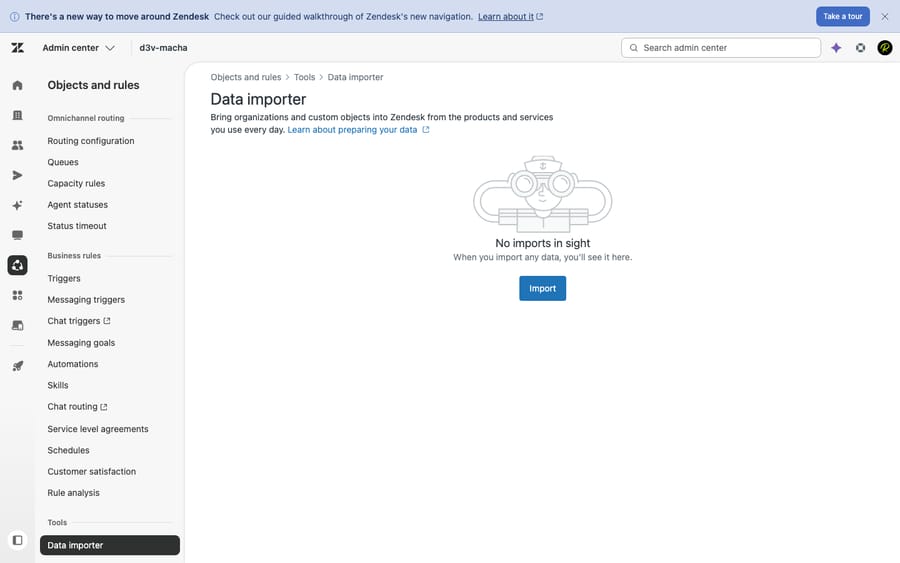
Zendesk ships a built-in data importer, found in Admin Center → Objects and rules → Tools → Data importer. It's CSV-based and useful, but its scope is narrow. Per Zendesk's own documentation, it imports users, organizations, custom object records, and IT asset records, and that's the whole list. It's available on every Suite plan from Team up and on Support Team, Professional and Enterprise. Tickets are explicitly not supported. Files can't exceed 1 GB, with a recommended maximum of 500,000 rows and 200 columns per file (Zendesk: bulk importing user data).
So the native importer is the right tool for seeding your customer base and account structure — your organizations and users, before you go live. It is the wrong tool if your goal is to bring years of conversation history with you. For that, you need option 4.
2. CSV import (users and organizations)
Closely related: plain CSV imports for users and organizations, including their custom field values (Zendesk: importing and exporting custom fields and values). This overlaps heavily with the data importer and suits teams starting fresh who only need contacts and accounts in place. Again, no tickets.
3. The Zendesk API
The REST API can create essentially anything, tickets included, and it's how every third-party migration tool actually does its work under the hood. Building your own API-based migration gives you total control, but it's an engineering project: you'll handle pagination, rate limits, attachment downloads/re-uploads, ID remapping, retries, and error handling yourself. Worth it for unusual data shapes or strict compliance requirements; overkill for a standard help-desk move.
4. Third-party migration services (full history)
For an actual full migration — tickets, conversations, attachments, knowledge base, and the rest — most teams use a dedicated service like Help Desk Migration (Relokia) or a similar provider. These tools call the API for you, map your old fields to Zendesk's, and move the bulk of your historical data with far less risk than a hand-rolled script. This is the standard route, and it's the assumption behind the "what moves" table below.
For exporting your data out of Zendesk first (or auditing what you have before a move), see our guide on how to export data from Zendesk.
What moves in a Zendesk migration, and what doesn't?
The left column is your data (the things a third-party tool can carry across). The right column is your configuration (platform-specific, rebuilt in Zendesk by hand). Treat this as a planning checklist, not a guarantee. Exact coverage varies by tool, plan, and source platform, so confirm specifics for your setup.
| Usually MOVES (via a third-party tool) | Usually does NOT move — must be REBUILT in Zendesk |
|---|---|
| Tickets / conversations + comments and internal notes | Triggers |
| Requesters / end users (contacts) | Automations |
| Organizations (companies) | Macros (don't port across platforms) |
| Agents (imported as users; mapped during setup) | SLA policies |
| Attachments | Views |
| Knowledge base / Help Center articles (with categories, sections, translations, images) | Groups, roles & permission config |
| Tags | Brand / theme / Help Center customization |
| Many custom field values | Integrations & marketplace apps |
| CSAT ratings (tool-dependent) | Dashboards & historical Explore reports |
| Side conversations & call recordings (tool-dependent) | Bot / AI agent flows |
| Inline images (tool-dependent — often as attachments) | Business hours / schedules |
Objects move, behavior doesn't. A ticket is a record, so it travels. A trigger is logic that lives inside one platform's rules engine, so it doesn't. As one migration provider puts it, Zendesk triggers, macros, and automations are platform-specific and don't port to a different tool, so they have to be recreated (eesel: how to migrate from Zendesk).
What does a third-party tool carry across?
A mature third-party migration moves a lot. Help Desk Migration, for example, transfers tickets with their comments (author, privacy, body) and attachments, plus contacts, organizations, agents, tags, custom fields, and side conversations; call recordings arrive as attachments. Your knowledge base moves with categories, sections, articles, translations and redirects (Help Desk Migration: Zendesk). Custom fields are mapped field by field rather than dumped as raw text.
One nuance worth knowing for Zendesk-to-Zendesk moves (consolidating two instances): macros can be migrated via a dedicated Business Rules Migration feature, and Help Desk Migration notes that automations are disabled during the migration and re-enabled manually afterward (Help Desk Migration: business rules in Zendesk). Across different platforms, though, treat all business rules as rebuild work.
What has to be rebuilt by hand?
The right column is the work. Before you cut over, budget time to rebuild your triggers and automations, recreate your views, redefine SLA policies, set up groups and roles, reconnect every integration, rebuild any bot or AI flows, and re-theme your Help Center. Industry migration guides consistently list macros, triggers, automations, SLA policies, Explore dashboards, and app-dependent workflows as rebuild-not-migrate items (Gravity: Zendesk migration strategy). Historical Explore reporting is the one people mourn most — your past dashboards don't come with you, so export any reports you need to keep before you switch.
What goes wrong even when the data moves?
Even when data "moves," it doesn't always arrive looking identical. These are the gotchas that generate post-migration support tickets of their own.
- Ticket IDs change. Zendesk assigns its own ticket IDs and they can't be overwritten, so your source numbers don't survive as the Zendesk ID (Help Desk Migration: Zendesk). The workaround is to map your old ID into Zendesk's External ID or a custom text field during field mapping, so "ticket #44213" from your old system is still searchable after the move. Plan for this if any external links, internal docs, or customers reference old ticket numbers.
- Timestamps can shift. Don't assume every created/updated date survives. Notably, when knowledge base articles are imported, Zendesk replaces the original creation and update dates with the migration date (Help Desk Migration: Zendesk data migration checklist). Ticket dates are typically preserved by good tools, but check them in your demo.
- Agent assignments depend on mapping. Agents come over as users, and during setup you map each source agent to a Zendesk agent so historical tickets stay assigned to the right person (Help Desk Migration: Zendesk). You can also map several source agents to one Zendesk agent. Matching usually keys off email addresses, so make sure agent emails line up on both sides, or assignments scatter.
- Plan for downtime and a delta migration. Your old system keeps receiving tickets while the big migration runs. The clean pattern is a full migration of everything up to a cutoff, then a Delta Migration that sweeps up records created or changed since, available on Help Desk Migration's Premium support package (Help Desk Migration checklist). That avoids a hard freeze on incoming support.
- Always run a demo/sandbox migration first. Help Desk Migration's Free Demo moves 20 random tickets and 20 help center articles, with no credit card, so you can inspect the result before committing. As their checklist warns, if data is missing or wrong in the demo, the same issue will appear in the full migration (Help Desk Migration checklist). Test into a Zendesk sandbox where possible, eyeball a handful of tickets end-to-end, and only then run the real thing.
What should a Zendesk migration checklist include?
A condensed, phase-by-phase checklist. Pair it with the platform-specific guide for your source (Freshdesk, Intercom).
Before migration
- Audit what you have. Count tickets, users, organizations, articles, and custom fields in the source system. This sizes the job and the cost.
- Decide your history cutoff. Moving five years of closed tickets is expensive and rarely useful. Many teams move open tickets + the last 12–24 months and archive the rest.
- Inventory your configuration (the "doesn't move" column): list every trigger, automation, macro, SLA, view, group, integration, and bot flow you'll need to rebuild.
- Export reports you want to keep, since historical Explore data won't migrate.
- Map your fields and agents ahead of time, and add a custom field to hold old ticket IDs if you need them.
- Stand up Zendesk basics first — brands, groups, custom fields, and an initial set of business rules — so imported data lands somewhere sensible.
During migration
- Run the free demo/sample migration and inspect 10–20 records by hand (comments, attachments, requester, assignee, dates, custom fields).
- Disable automations and triggers in the target so imported tickets don't fire notifications or actions at customers (Help Desk Migration checklist).
- Run the full migration against your cutoff. Don't touch the source config during the run.
- Keep the old system live for incoming tickets until cutover is confirmed.
After migration
- Run a delta migration to pull in anything created or updated since the full run.
- Spot-check thoroughly: ticket counts match, attachments open, requesters and agents are correct, articles render, custom field values populated.
- Re-enable and rebuild business rules — triggers, automations, SLAs, views — and reconnect integrations and apps.
- Verify timestamps and IDs, especially the old-ID custom field and KB article dates.
- Redirect or update links that referenced old ticket numbers or article URLs.
- Tell your team what changed (new IDs, where history lives) before you flip the switch for customers.
Where does AI fit once your data has landed?
The two things you worked hardest to bring across — your knowledge base articles and your historical tickets — are exactly what an AI agent learns from to resolve future tickets. Once it's all sitting in Zendesk, you have the corpus an agent needs.
That's the layer Macha adds. To be clear about what it is and isn't: Macha is not a help desk and not a Zendesk replacement. It's an AI agent layer that runs on top of your existing Zendesk. It reads a customer's actual question, pulls from your connected knowledge base and past conversations, and resolves the issue inside the Zendesk ticket, while handling the housekeeping (tagging, routing, status) and escalating to a human, with full context, when it isn't confident. It also runs on Zendesk, Freshdesk, Gorgias, Front, HubSpot or Intercom, so the agent setup survives if you ever move desks again.
It's another integration to configure, and it's only as good as the knowledge you connect it to, which is why doing it after a clean migration makes sense. On cost, Macha bills per ticket: one conversation, charged once, however many steps it takes to draft, tag, route or resolve. Per-resolution pricing earns the vendor more under an outcome definition it controls; per-ticket pricing doesn't. The one plan starts at $299 a month for 750 tickets, with setup and monitoring by the Macha team included. If you've just gone to the trouble of moving years of tickets and articles into Zendesk, connecting an AI agent is how you make that history actively pay off. You can try it with $50 of free usage, no credit card required.
Frequently asked questions
Does the native Zendesk data importer move tickets? No. The built-in data importer (Admin Center → Objects and rules → Tools → Data importer) supports users, organizations, custom object records, and IT asset records only — tickets are not supported. To migrate tickets and conversation history, use the Zendesk API or a third-party service like Help Desk Migration.
What actually transfers to Zendesk in a migration? With a third-party tool, you can typically move tickets and their comments, attachments, requesters/users, organizations, agents (as users), tags, knowledge base articles, many custom field values, and — tool-dependent — CSAT ratings and inline images. Your configuration (triggers, automations, macros, SLAs, views, groups, integrations, dashboards, bot flows, business hours) does not transfer and must be rebuilt in Zendesk.
Will my ticket IDs stay the same? No. Zendesk assigns its own ticket IDs and they can't be overwritten, so old IDs change. The fix is to map your original ID into the External ID or a custom text field during setup, keeping the old number searchable.
Do creation dates and timestamps survive? Mostly, but verify. Good tools preserve ticket dates, but knowledge base articles take on the migration date rather than their original creation/update date when imported (Help Desk Migration checklist). Always confirm in a demo run.
Should I run a test migration first? Yes, always. Help Desk Migration offers a free demo of 20 tickets and 20 articles; whatever's wrong in the demo will be wrong in the full migration, so inspect it carefully and use a Zendesk sandbox where you can.
How do I avoid downtime during migration? Run a full migration up to a cutoff while keeping your old system live for new tickets, then run a delta migration (Help Desk Migration's Premium support package) to sweep up everything created or changed since. This avoids freezing support during the move.
For what to pull out of your old system first, see how to export data from Zendesk.
Migration scope and tool behavior verified against Zendesk and Help Desk Migration documentation, September 2026. Coverage varies by tool, plan, and source platform — confirm specifics for your own migration before relying on them.
Add AI agents to your Zendesk
Macha reads the ticket, drafts the reply and takes the action, inside the Zendesk you already run.





