Intercom
 Shopify
 Stripe
 Slack
Slack Notion
 Google Workspace
 Confluence

How Do You Migrate from Intercom to Zendesk? 3 Routes, Attachments and a 20-Ticket Test


An Intercom to Zendesk migration runs through Zendesk's data importer for people, the Ticket Import API for conversation history, or a migration service that moves both. Map Intercom conversations, contacts and companies to Zendesk tickets, end users and organizations first, and fetch attachments before Intercom's CDN links expire.
Key takeaways
- An Intercom to Zendesk migration takes one of three routes: Zendesk's data importer for users and organizations, the Ticket Import API for conversations, or a migration service.
- Zendesk's Ticket Import API accepts up to 100 tickets per create_many request, keeps original timestamps, and suggests archive_immediately for loads of 750,000 tickets and up.
- Zendesk triggers don't run on imported tickets with a status other than closed until the ticket is updated, and Zendesk metrics and SLAs are not supported on imported tickets.
- Intercom's CDN attachment links usually expire in under an hour, so a migration must download each file through the Intercom API and upload it to Zendesk.
- Help Desk Migration's Intercom to Zendesk pricing starts at $100 for 1,000 records, and its free demo moves 20 real tickets and 20 articles with no card.

An Intercom to Zendesk migration takes one of three routes: Zendesk's data importer for users and organizations, the Ticket Import API for conversation history (up to 100 tickets per request, with original timestamps), or a migration service such as Help Desk Migration, which starts at $100 for 1,000 records. Whichever you pick, map the objects first and test on 20 real tickets before you move the archive.
If the decision itself is still open, our Zendesk vs Intercom comparison weighs the platforms feature by feature. One fact worth carrying into that decision: Salesforce completed its acquisition of Fin, the company formerly called Intercom, on September 10, 2026. The company renamed itself Fin in May 2026, before the deal; Intercom is now the name of the help desk product.
How do Intercom objects map to Zendesk?
Most migration pain traces back to one thing, and it isn't the tooling.
| Intercom object | Zendesk equivalent | What changes |
|---|---|---|
| Conversation | Ticket | The big one. A rolling multi-topic thread becomes one structured ticket. |
| Contact (user or lead) | End user | Intercom splits people into users and leads; Zendesk has one end-user object. |
| Company | Organization | Direct match, and linked contacts are preserved. |
| Saved reply / macro | Macro | Same idea, different name, and it doesn't migrate. You rebuild it. |
| Article | Guide article | Collections and sections map to Zendesk categories and sections. |
| Custom data attribute | Custom field | Create the Zendesk field first, then map to it. |
| Inbox | Agent Workspace and Views | Same job, different surface. |
| Fin, Workflows, Series | No direct equivalent | Automation and bot logic is rebuilt natively. |
The caveat that decides your sample-migration plan: a long Intercom conversation that drifted across three topics over two months becomes a single Zendesk ticket. That's usually acceptable, and it's exactly what you want to look at on 20 real records before you look at it on 20,000. If you want the Zendesk side of this vocabulary first, the Zendesk ticketing system explained covers how tickets, fields and statuses fit together.
Which migration route should you use?
| Zendesk data importer | Ticket Import API | A migration service | |
|---|---|---|---|
| Moves conversations | No | Yes | Yes |
| Moves users and organizations | Yes | Indirectly | Yes |
| Keeps original timestamps | n/a | Yes, explicitly | Yes |
| Attachments | n/a | You fetch and re-upload | Handled, with an inline-image option |
| Articles | No | No | Yes, into Guide |
| Effort | Minutes | Days of engineering | A free 20-ticket demo plus a mapping pass |
| Cost | Included | Engineering time | From $100 per 1,000 records |
Route 1: Zendesk's data importer, for people and accounts
It lives in Admin Center > Objects and rules > Tools > Data importer, and Zendesk's own description is precise about scope: it imports new and updated users, organizations, custom object records, and IT asset records. It's available on all Suite plans from Team up, and on Support Team, Professional and Enterprise.
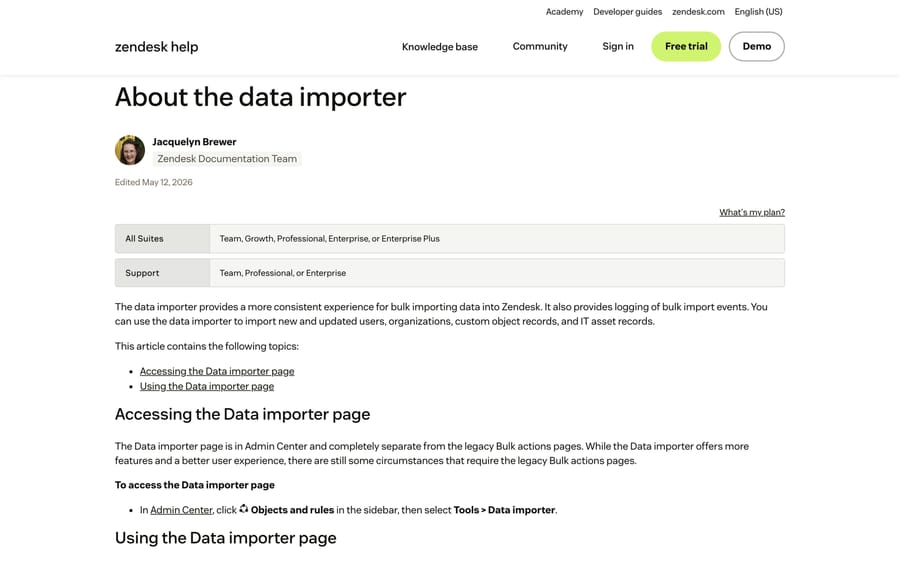
Read the scope line again, because it's the single most common surprise in this migration: tickets and conversation history are outside it. The importer is excellent for contacts and companies and it will not move a single Intercom conversation. Plan the two separately.
Route 2: The Ticket Import API, for history with real dates
This is the route the old guides skip, and it's the one that makes a self-built migration viable. Zendesk exposes POST /api/v2/imports/tickets for a single ticket and POST /api/v2/imports/tickets/create_many for up to 100 tickets per request, restricted to admins.
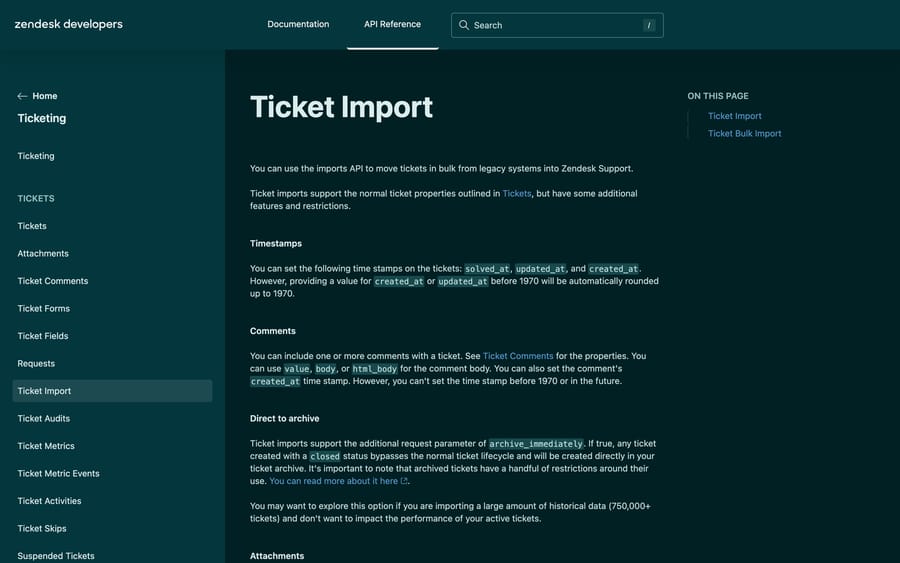
What it lets you do that ordinary ticket creation doesn't:
- Set
created_at,updated_atandsolved_aton the ticket, so your Zendesk reporting reflects when things actually happened. Values before 1970 are rounded up to 1970. - Include multiple comments, each with its own
created_at, which is how an Intercom thread survives as a readable Zendesk conversation. Comment timestamps can't be set before 1970 or in the future. - Send closed tickets straight to the archive with
archive_immediately, which Zendesk suggests for large historical loads, mentioning imports of 750,000 tickets and up.
Three behaviors to design around, all documented. Triggers won't run on an imported ticket whose status is anything other than closed, but they resume as soon as that ticket is updated after import, so an open ticket you touch later behaves like any other. Zendesk metrics and SLAs are not supported for imported tickets, so first-reply-time reporting on your migrated set will be empty however careful you are with timestamps. And no notifications go to users cc'd on imported tickets, which is the one piece of good news in that list.
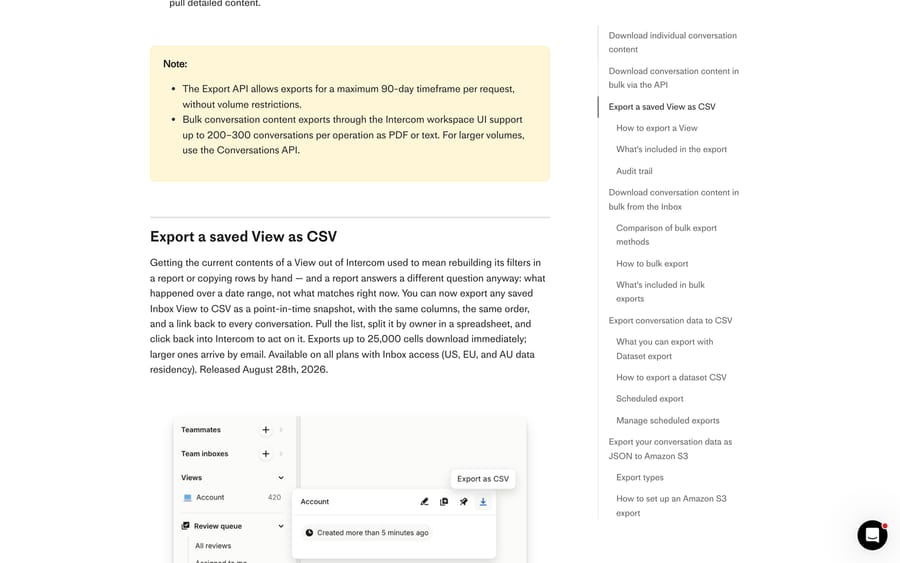
On the Intercom side you're reading with the Conversations API. Intercom's Export API allows a maximum 90-day timeframe per request without volume restrictions, so two years of history is eight or nine windowed jobs. The workspace UI will bulk-export 200 to 300 conversations per operation as PDF or text, and Intercom's own documentation points at the API above that. Internal notes are excluded from transcript exports, so pull those through the API if you want them.
Route 3: A migration service, for everything at once
Help Desk Migration (by Relokia) is the established option and publishes enough detail to plan against. Its Intercom to Zendesk pricing starts at $100 for 1,000 records and is tiered, with the per-record cost dropping as volume grows; the exact figure is calculated after the free demo, with no card required. Most migrations complete in 24 to 48 hours; the page puts 10,000 tickets at about 14 hours and 100,000 records at about 36, and datasets above 500,000 tickets take longer. A vendor-published customer quote on that page puts a real shape on it: 80,000 tickets and around 500 knowledge base articles, finished in 34 hours.
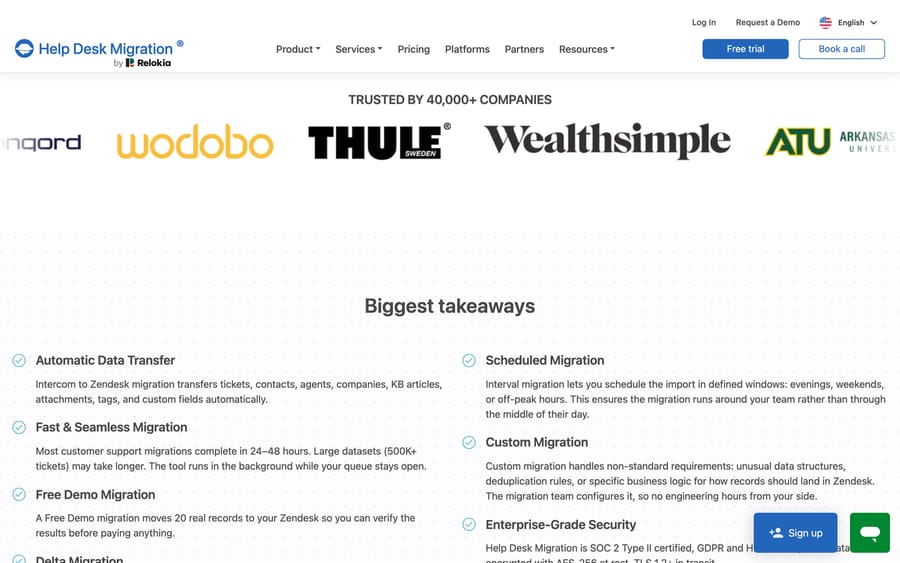
What it carries that the API route makes you build: Intercom articles into the Zendesk Help Center with collections and sections mapped to categories and sections, side conversations and private notes, tags, custom fields, and agent assignments. What it states plainly that it doesn't carry: workflow bots, Series automations and product tours, because Zendesk uses a different data model, and macros, which you recreate on the Zendesk side.
Why do Intercom attachments break after migration?
This is the part that surfaces two weeks after a migration, when someone opens an old ticket and every screenshot is a broken icon.
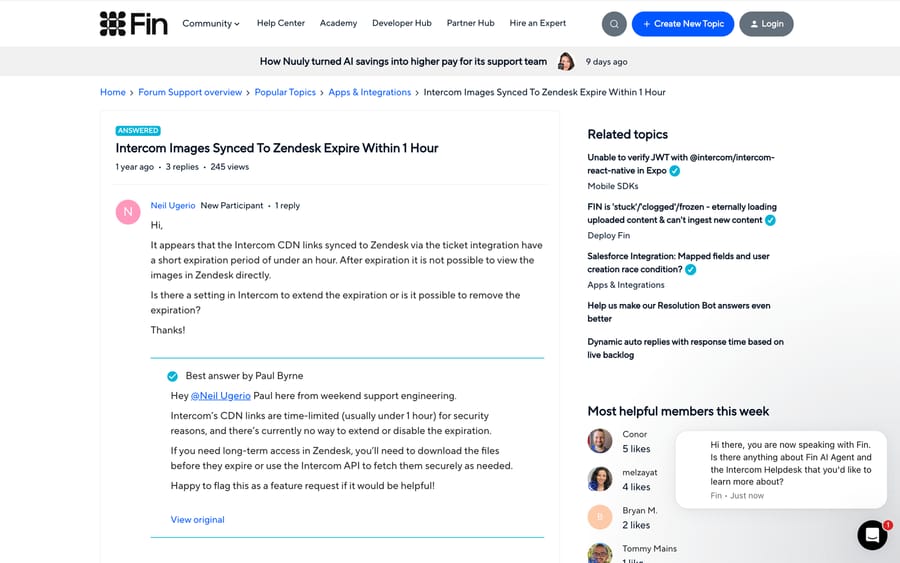
Intercom serves attachments and inline images from CDN links that expire. In a May 2025 community thread, Neil Ugerio reported that Intercom CDN links synced into Zendesk stopped working within an hour, and asked whether the expiry could be extended. Intercom's Paul Byrne answered directly: the CDN links are time-limited, usually under an hour, for security reasons, and there's currently no way to extend or disable that expiration. His recommendation was to download the files before they expire, or use the Intercom API to fetch them as needed.
What that means per route:
- Building it yourself: your script has to fetch each attachment through the Intercom API and upload the bytes to Zendesk as part of the ticket import. A migration that copies the URL into the ticket body produces links that die the same day.
- Using a service: check the inline-image option. Help Desk Migration offers converting embedded images into linked attachments specifically to avoid broken image icons, and it's worth turning on before you look at the demo.
- Either way: put "open five migrated tickets with screenshots" in your post-migration checklist, and do it a day later, not five minutes later.
How do you test the migration before committing?
Every route supports this, and skipping it is the most expensive shortcut in the project.
With a service: the free demo moves 20 real tickets and 20 real knowledge base articles from your live Intercom into your Zendesk, with no card and no limit on how many times you run it. You can pick which 20 rather than taking a random draw, which is the setting you want: choose your two longest multi-topic conversations, one with several attachments, one with an inline screenshot, one from a deleted agent, and one with custom field values you care about.
With the API: import 20 tickets into a Zendesk sandbox first, and check four things in the result. Do the comments appear in order with the right authors and dates? Did attachments come through as real Zendesk attachments rather than links? Do your triggers behave as expected when an agent updates an imported open ticket, since that is the moment they start running on it? Are the custom fields populated with the right values, not just present?
Then read the tickets as an agent would, not as a spreadsheet. Fix the mapping, re-run, and only then commit the archive.
What order should the migration steps run in?
- Audit and decide your cutoff. Count conversations, contacts, companies and articles in Intercom. You rarely need five-year-old closed conversations, and every route costs less with less data.
- Build Zendesk first. Brands, groups, agents, ticket fields, Guide. Historical ownership maps to agents that already exist.
- Map the objects using the table above, and create the Zendesk custom fields before you map anything to them.
- Export or authorize. A service reads Intercom over the API; a self-built migration pulls conversations in 90-day windows.
- Run the sample. Twenty records, read properly.
- Run the full migration, then a delta for anything created during the window. Intercom's periodic S3 export exists for that, though note it carries no transcript, so the delta content still comes from the API.
- Verify counts and spot-check tickets, old and new, simple and multi-topic, including attachments.
- Rebuild what doesn't transfer. Saved replies to macros, Workflows to Zendesk triggers and automations, Fin logic to whatever answers customers on the Zendesk side.
- Cut over. Repoint email, swap the widget, redirect help center URLs, and keep Intercom read-only for a grace period.
How did we research this?
Every path, limit and quote above was read on September 20, 2026 and rechecked on September 24, 2026, from Zendesk's help center and developer reference, Intercom's help center, Help Desk Migration's Intercom-to-Zendesk page, and one public thread on community.intercom.com. We did not run this migration, and no workspace of ours appears in a screenshot. Where a vendor states a hard limit, such as 100 tickets per bulk import request, we quote it.
What transfers and what do you rebuild?
| Category | Transfers | You rebuild |
|---|---|---|
| Conversations to tickets | Yes, via the Ticket Import API or a service | |
| Contacts and companies | Yes, including the data importer for users and orgs | |
| Articles to Guide | Via a service | |
| Attachments and inline images | Yes, if fetched before the CDN link expires | |
| Tags, internal notes, custom fields | Yes | |
| Agents and historical ownership | Yes | |
| Saved replies | As Zendesk macros | |
| Workflows and Series | As triggers, automations and routing | |
| Fin and bot logic | Natively, or with an AI agent layer | |
| Product tours and Messenger config | Channels and widget reconfigured | |
| SLA and first-response metrics on migrated tickets | Not supported on imported tickets |
If you want the object-level reference across any pair of desks, what moves in a Zendesk data migration covers it, and how to build a Zendesk knowledge base covers the Guide structure you're importing into.
Where does an AI agent fit once you're on Zendesk?
Step 8 is where the project overruns, because Fin logic doesn't port and Zendesk's own AI is a separate build.
Cost is often part of why teams move, so the honest comparison: Fin bills $0.99 per outcome on top of Intercom seats: Essential at $29 a seat billed annually (Intercom has also shown $19 in a pricing test), Advanced at $85 and Expert at $132, also billed annually. The 50-outcome monthly minimum applies only when Fin runs on a help desk other than Intercom, which is exactly the setup you would have if you kept Fin after moving to Zendesk. Per-outcome pricing earns the vendor more the more tickets your self-service fails to prevent, which is a strange incentive to hand a supplier. Our Intercom pricing guide has the full breakdown.
Macha is an AI agent layer that runs on top of the help desk you already use. It isn't a help desk and it doesn't replace Zendesk. It runs on Zendesk, Freshdesk, Gorgias, Front, HubSpot or Intercom, and fits teams who want agents resolving inside the ticket, reading the Guide articles and past tickets you just migrated, and escalating with full context when they aren't confident. On billing, the pricing is published: one plan priced on monthly ticket volume, from $299 a month for 750 tickets, about $0.40 a ticket at every tier, billed monthly, with setup and monitoring by the Macha team included. One thread with one person is one charge however many replies it takes. A trial is $50 of free usage with no credit card, and how it works on Zendesk is on its own page.
Frequently asked questions
Can Zendesk's data importer move my Intercom conversations? No. The data importer at Admin Center > Objects and rules > Tools > Data importer covers users, organizations, custom object records and IT asset records. Conversation history needs either the Ticket Import API or a migration service. Plan the two as separate jobs rather than expecting one tool to do both.
How do I keep the original dates on migrated Intercom conversations? Use Zendesk's Ticket Import API rather than normal ticket creation. It accepts created_at, updated_at and solved_at on the ticket, and a created_at on each individual comment, which is what makes an imported thread read correctly. Dates before 1970 are rounded up, and comment timestamps can't be in the future.
Why do my migrated Intercom images break in Zendesk? Because Intercom's CDN links are time-limited. Intercom's support engineering confirmed in its community that those links usually expire in under an hour and that there's currently no setting to extend or disable the expiry. The fix is to download each file through the Intercom API and upload the bytes into Zendesk during the migration, which is what a migration service does for you.
How many tickets can I import at once with the Zendesk API? Up to 100 per request using POST /api/v2/imports/tickets/create_many, and the endpoint is restricted to admins. For very large historical loads Zendesk suggests archive_immediately, which sends closed tickets straight to the archive and bypasses the normal ticket lifecycle, mentioning imports of 750,000 tickets and above.
Will my Zendesk triggers fire on imported tickets? Not at import time for tickets imported with a status other than closed. Zendesk's documentation states triggers won't run on those imported tickets, then resume once the ticket is updated after import. Zendesk metrics and SLAs are not supported for imported tickets at all, so expect your migrated set to carry no first-reply-time or resolution-time metrics.
How much does an Intercom to Zendesk migration cost? Zendesk's data importer is included with your plan, and the API route costs engineering time. Migration services price by record count: Help Desk Migration's Intercom to Zendesk pricing starts at $100 for 1,000 records and drops per record as volume grows, with the exact figure calculated after a free demo and no credit card required.
How long does the migration take? The automated run is usually the short part. Help Desk Migration says most migrations complete in 24 to 48 hours, and 10,000 tickets in about 14 hours, with datasets above 500,000 tickets taking longer; one customer quote on its page describes 80,000 tickets and around 500 articles finishing in 34 hours. The longer costs are the mapping decisions before and the rebuild of saved replies, automations and bot logic after.
What doesn't transfer from Intercom to Zendesk? Your operational layer. Saved replies become Zendesk macros by hand, Workflows and Series become triggers and automations, Fin logic is rebuilt, and product tours have no equivalent. Migration services state the same limits: workflow bots, Series automations and product tours don't migrate because Zendesk uses a different data model, and macros are recreated.
Sources: Zendesk: Ticket Import API · Zendesk: about the data importer · Zendesk Tickets API · Intercom: export your conversations data · Intercom: historical data migration · Community: Intercom images synced to Zendesk expire within 1 hour · Help Desk Migration: Intercom to Zendesk · Fin pricing · Intercom pricing
Add AI agents to your Zendesk
Macha reads the ticket, drafts the reply and takes the action, inside the Zendesk you already run.