



 Intercom
 Shopify
 Stripe
 Slack
Slack Notion
 Google Workspace
 Confluence

How Do You Build a Zendesk Knowledge Base (and Keep It Tidy)?


A Zendesk knowledge base lives in Guide, and the account owner has to switch Guide on before anyone can build it. The build takes nine steps and an afternoon, while keeping it accurate takes bulk actions, verification rules, archiving and a named owner.
Key takeaways
- Building a Zendesk knowledge base takes nine steps, from the account owner turning on Guide to a Support administrator clicking Activate to make the help center public.
- Only Knowledge admins can add categories and sections in Zendesk, and sections can nest up to five levels deep with up to 200 sections in a section.
- Zendesk bulk actions in Knowledge admin work on 30 articles at a time, and changing owner, assigning, verifying and bulk publishing are Enterprise only.
- Zendesk article verification and Team Publishing are both limited to Enterprise and Enterprise Plus; lower plans need a saved article list and a recurring review.
- Archiving a Zendesk article takes its inline images, attachments and translations with it, and deleting is only possible after archiving and cannot be undone.

You build a Zendesk knowledge base in nine steps: the account owner turns on Guide, a Knowledge admin creates categories, sections and articles, and a Support administrator clicks Activate to make the help center public. Keeping it accurate afterwards depends on four tools: bulk actions (30 articles at a time), article verification rules, archiving, and a named owner. Every path, permission and plan gate below was checked against Zendesk's current documentation on September 24, 2026.
| Task | Who or which plan | Where |
|---|---|---|
| Turn on Guide | Account owner | Zendesk Products icon, Guide, Get started |
| Add categories and sections | Knowledge admins only | Add menu in Knowledge admin |
| Make the help center public | Support administrator | Knowledge admin, Settings, Activate |
| Bulk-edit articles | 30 at a time; some actions Enterprise only | Knowledge admin, Manage articles |
| Team Publishing review workflow | Enterprise and Enterprise Plus | Article editor |
| Article verification rules | Enterprise and Enterprise Plus | Knowledge admin, Settings, Article verification |
For the concepts rather than the build, read what Zendesk Guide is and the help center explained first. This post assumes you want to click things.
Who can build and change a Zendesk knowledge base?
Three roles, and they are rarely the same person:
- The account owner is the only one who can enable Guide the first time.
- A Support administrator activates the help center to make it public.
- Knowledge admins are the only people who can add, edit or delete categories and sections. Regular agents can write and edit articles when permitted; they cannot restructure the tree.
How do you build a Zendesk knowledge base, step by step?
1. Turn Guide on
Sign in as the account owner, click the Zendesk Products icon in the top bar, choose Guide, then Get started. Your help center opens in setup mode, private to your team, and stays that way until step 9.
2. Plan the structure before you write anything
Zendesk's knowledge base is a three-level tree: categories hold sections, and sections hold articles. Sketch four to seven top-level categories on paper first, because retrofitting structure later means moving every article.
One quirk to know now: the help center must have at least one category, and if you have exactly one, Zendesk hides it from end users and shows only its sections. Small knowledge bases therefore look flat until you add a second category.
3. Add your categories
In the help center or Knowledge admin, click Add in the top menu bar and choose Category. Give it a name, an optional description, confirm the source language, and click Add.
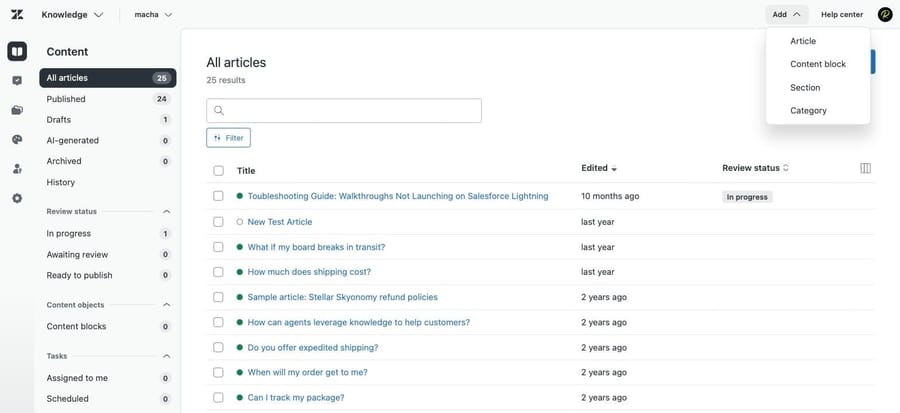
4. Add sections inside them
Same menu, choose Section. Set the name, the source language, how articles sort inside it under Order articles by, and the parent under Hierarchy. That last field is what places the section in the tree. Sections can nest inside other sections up to five levels deep, with up to 200 sections in a section.
5. Write single-purpose articles
Click Add, then Article. Three habits that matter more than the editor:
- Title the article as the question a customer types. "How do I reset my password?" beats "Credential recovery". Search matches that phrasing, and so does any AI agent reading your content.
- One article, one task. Three short articles beat one sprawling one, and they stay current more easily.
- Use content blocks for anything repeated. If your refund window appears in 20 articles, a content block means one edit rather than 20.
On Enterprise and Enterprise Plus, Team Publishing adds a review workflow: writers submit, reviewers approve, and nothing reaches customers unreviewed.
6. Set viewing permissions per article
Every article is either Visible to everyone or Only visible to selected user segments, with up to 10 segments. Decide before you publish. The classic failure is an internal runbook with refund-approval thresholds left on "everyone".
Separately, management permissions decide which agents can edit and publish: Administrators (Knowledge admins only, the default on new articles) or Agents and admins.
7. Control what is visible and in what order
Articles, sections and categories appear on the live site only once published, so drafts are safe. Within a section, ordering follows your Order articles by choice or a manual drag order. Put your highest-traffic answers at the top; readers and crawlers both work downward.
8. Theme it and check search
The default Copenhagen theme works out of the box; add your logo and colors, or go further with help center themes. Search is on by default, which is exactly why step 5's titling advice matters.
9. Go live
In Knowledge admin, click Settings, then under Help center settings click Activate, and confirm. You need to be a Support administrator. Ship your top 10 to 15 ticket-driven answers and grow from real demand rather than waiting for 100 articles.
How do you keep a Zendesk knowledge base tidy?
A knowledge base rots at a predictable rate: product changes, nobody updates the article, and two years later the AI agent and the customer are both reading something false. Zendesk ships four mechanisms for this. Most teams use none of them.
Bulk actions: the tool for a cluttered knowledge base
This is the answer to the recurring r/Zendesk question about reorganizing every article in a cluttered knowledge base. In Knowledge admin, click Manage articles, filter the list (by review status, publication status, author, owner, assigned or created date), select articles, and use the bulk actions menu at the bottom.
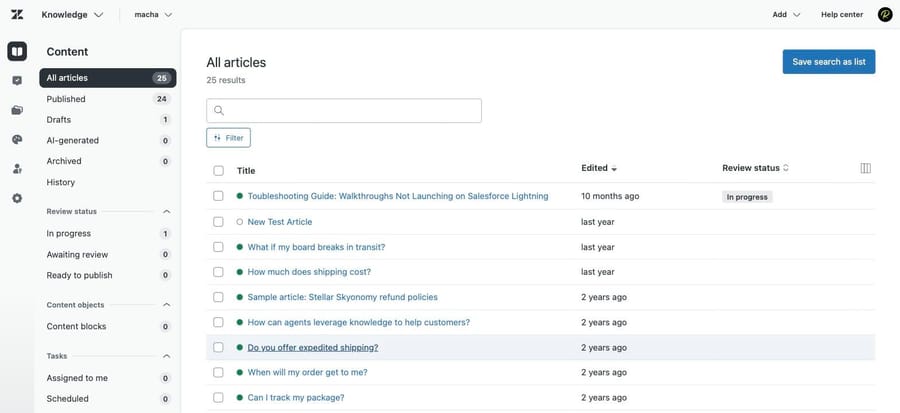
Two constraints shape how you work:
- You can select 30 articles at a time. A 600-article cleanup is 20 passes, so filter well rather than scrolling.
- The available actions depend on your plan. Open or close comments, archive or restore, delete and change author are broadly available. Changing user permissions and labels is not available on Suite Team. Changing the owner, assigning, submitting for review or approval, verifying and unverifying, scheduling, and publishing or unpublishing in bulk are Enterprise only.
Article verification: the mechanism that stops rot
On Enterprise and Enterprise Plus, Knowledge admin, Settings, Article verification gives you two modes. You can manually unverify articles, which immediately prompts their owners to review them, and you can create rules that automatically unverify articles on filter plus interval criteria, so every article in a category gets re-checked on a schedule.
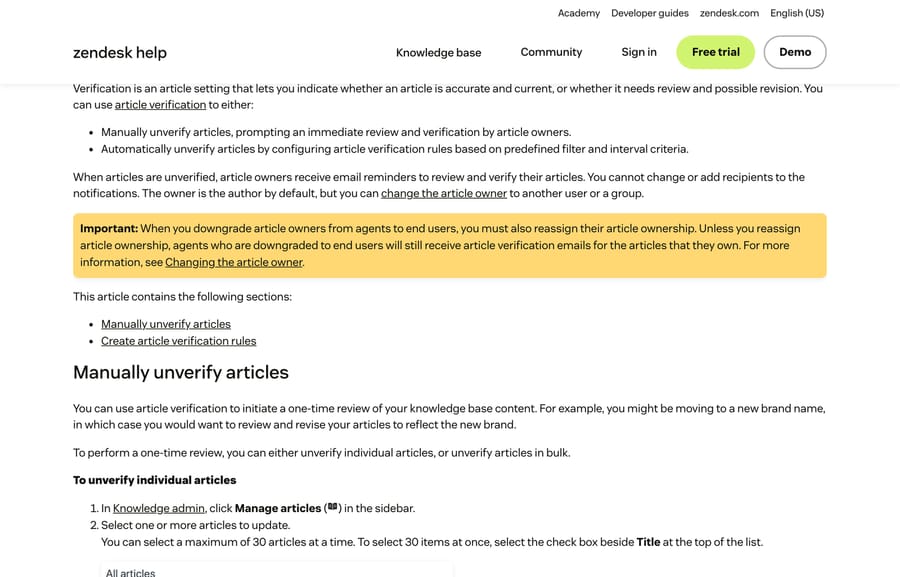
Unverified articles generate email reminders to their owners. The owner defaults to the author, and you can reassign to another person or a group. One trap in Zendesk's own Important box: if you downgrade an agent to an end user without reassigning their articles, they keep receiving verification emails for content they can no longer edit.
If you are not on Enterprise, the manual equivalent is a recurring calendar entry and a saved article list filtered by last edited date. Less elegant, same outcome.
Archiving versus unpublishing versus deleting
Open any article, click Edit article, and the arrow next to Save offers Schedule article, Unpublish and Archive article. They are three different things:
- Unpublish takes the article off the live site and keeps it in your knowledge base as a draft.
- Archive removes it from the knowledge base entirely and moves it to the archived articles list, taking its inline images, attachments and translations with it. Archived articles are visible to Knowledge admins only, who can restore or permanently delete them.
- Delete is only possible after archiving, and it is permanent.
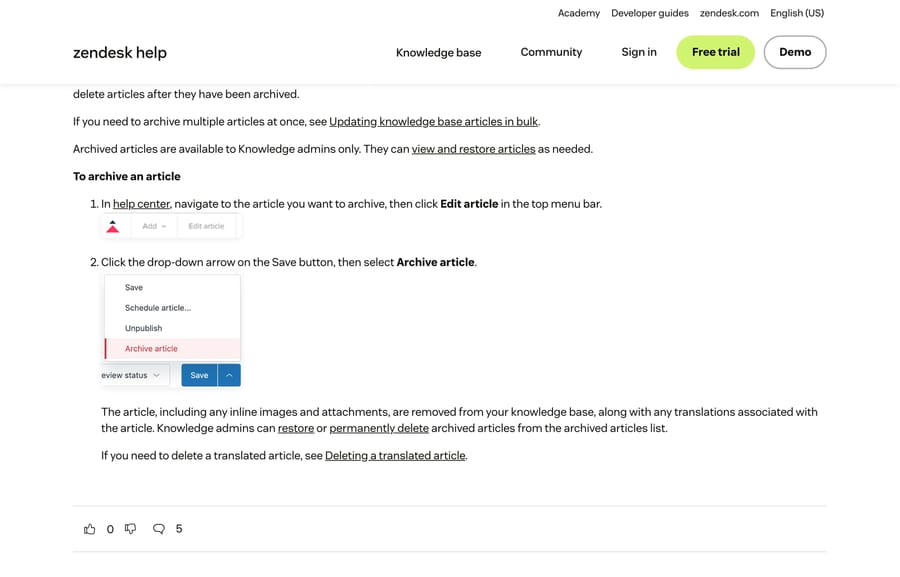
The practical rule: unpublish anything seasonal or temporarily wrong, archive anything superseded, and delete almost nothing. An archived article can come back; a deleted one cannot, and its images and translations go with it.
For a full pass over an existing knowledge base, our Zendesk knowledge base audit walks through what to count before you start deleting.
Give it an owner and a flagging route
Zendesk's own content best practices put this first, and it is the least technical and most reliable fix on the page: one named person owns the knowledge base, and agents have a standard way to flag tickets that need documentation. Zendesk's own support team uses a tag for this; other teams add a custom ticket field with a yes/no for KB updates. Either way the owner works a view rather than remembering.
What does an AI agent need from your knowledge base?
A knowledge base built for humans and a knowledge base built for an AI agent are mostly the same artifact, with three differences that matter.
Titles are retrieval keys. An agent matches a customer's phrasing against your articles. "Credential recovery" is a worse title than "How do I reset my password?" for exactly the same reason it is worse for search.
Stale content is worse than missing content. A human skims an out-of-date article and notices the screenshot is wrong. An agent quotes it with confidence. This is why article verification stops being a nice-to-have once an agent is reading your content, and it is the question behind the r/Zendesk thread on how Zendesk AI users handle knowledge that changes.
Permissions carry through. An agent that can read restricted articles can repeat them to the wrong customer, so step 6 is a security control once AI is in the loop, not just a tidiness one.
Macha on Zendesk reads the knowledge base you just built, answers from it inside the ticket, and escalates with the thread attached when it is not confident. It suits teams already running Zendesk, Freshdesk, Gorgias, Front, HubSpot or Intercom with a real corpus of articles and a queue of repeat questions; it is the wrong fit if you have 12 articles, because an agent cannot answer from content that does not exist. Build the knowledge base first.
Worth naming the incentive: a vendor billing per resolved conversation earns more the more questions your knowledge base fails to answer up front, which is a strange thing to pay for. Macha bills per ticket, one thread with one person as one charge however many replies it takes, from $299 a month for 750 tickets on published pricing, with setup and monitoring by our team included and $50 of free usage to start.
Which mistakes cost a knowledge base the most?
- Too few articles. A knowledge base with five articles deflects nothing. Cover your real ticket distribution.
- No owner. Content with no accountable person rots within months.
- Everything public, or everything locked. Match each article's permission to its audience.
- No review schedule. This is the one that kills knowledge bases silently, and the one verification rules exist to fix.
How we researched this
We checked every step, path and plan gate against Zendesk's current documentation on September 20, 2026, and re-checked the plan gates and limits on September 24, 2026: the organizing article (edited August 12, 2026), the bulk update article, the article verification article, the archiving and restoring articles, and the content best practices article (edited September 1, 2026). Two of the four screenshots are of those documentation pages. The other two come from our own Zendesk sandbox, d3v-macha, captured on September 20, 2026: the Knowledge admin article list and the Add menu it opens. An earlier version dropped the section nesting limits because we could not find them; Zendesk's organizing article does state them (five levels, 200 sections in a section), so they are back in step 4. The same check moved Team Publishing from "Professional and Enterprise" to Enterprise only, which is what Zendesk's Team Publishing article now says.
Frequently asked questions
How do I create a knowledge base in Zendesk? The account owner enables Guide from the Zendesk Products icon, which opens the help center in private setup mode. Then plan a Category, Section, Article structure, create categories and sections from the Add menu, write articles, set each article's viewing permissions, theme the site, and click Activate under Knowledge admin, Settings, Help center settings to go public.
What is the difference between Guide, the knowledge base and the help center? Guide is the product you write and manage content in. The knowledge base is the content itself: categories, sections and articles. The help center is the customer-facing website that displays it.
How do I reorganize a messy Zendesk knowledge base? Work from Knowledge admin, Manage articles. Filter by publication status, review status, author or last edited date, then use bulk actions on up to 30 articles at a time to change labels, permissions, owners or publication state. Archive what is superseded rather than deleting it, and fix the category tree before moving individual articles.
How do I stop Zendesk articles going out of date? On Enterprise, use article verification: unverify articles manually for a one-off review, or create rules that unverify automatically on filter and interval criteria. Owners get email reminders. On lower plans, run a saved article list sorted by last edited date on a fixed cadence and assign a named owner.
What is the difference between archiving and deleting an article? Archiving removes the article from your knowledge base and puts it in the archived list, along with its inline images, attachments and translations; Knowledge admins can restore it. Deleting is permanent and is only available after an article has been archived. Unpublishing is a third option that keeps the article in your knowledge base as a draft.
Do I have to make my knowledge base public right away? No. Guide opens in setup mode, visible only to your team, and goes public only when a Support administrator clicks Activate.
How many articles do I need before launching? Enough to cover your most common questions. Ten to 15 answers drawn from your top ticket subjects is a reasonable launch, then expand from real search and ticket demand.
What makes a knowledge base good enough for an AI agent? Titles that match how customers phrase questions, articles scoped to one task each, permissions set deliberately per article, and a verification schedule so the agent is never quoting something that stopped being true two releases ago.
Sources: Organizing knowledge base content in categories and sections · Updating knowledge base articles in bulk · Setting reminders to review and verify articles · Archiving an article to move it out of your knowledge base · Viewing and restoring archived articles · Best practices: Developing content for your knowledge base · Reviewing, approving, and publishing articles with Team Publishing
Add AI agents to your Zendesk
Macha reads the ticket, drafts the reply and takes the action, inside the Zendesk you already run.





