Intercom
 Shopify
 Stripe
 Slack
Slack Notion
 Google Workspace
 Confluence

What Are Content Blocks in Zendesk and Which Plans Include Them? (2026)


Zendesk content blocks let you write shared help-center text once, such as a return-policy disclaimer or contact steps, and update every article that uses it with a single edit. They are an Enterprise-tier feature, so check your plan before building a reuse strategy around them.
Key takeaways
- A Zendesk content block is reusable content created once and inserted into many help-center articles, and editing the block updates every article that uses it without changing article status.
- Zendesk content blocks are available only on Suite Enterprise, Suite Enterprise Plus, or Support with the Knowledge Enterprise add-on, and not on Suite Team, Growth or Professional.
- A Zendesk account can have up to 5,000 content blocks, a single block can be used in up to 500 articles, and each block can hold up to 50 images.
- Zendesk's March 2026 expansion brought generative AI writing, AI translation, federated search and other Knowledge tools to all Suite and Knowledge plans, but did not include content blocks.
- Restoring an old article revision or round-tripping an article body through the Help Center API replaces Zendesk content block links with flat text, breaking the sync.

A Zendesk content block is a piece of reusable content (a paragraph, table, list or disclaimer) that you write once, insert into many help-center articles, and edit in one place, with every article updating automatically. Content blocks are available only on Suite Enterprise and Enterprise Plus, or on Support with the Knowledge Enterprise add-on, and an account can hold up to 5,000 of them. The mechanics here are checked against Zendesk's own documentation, and the topic sits within our wider guide to the Zendesk Guide knowledge base.
| Question | Answer (Zendesk docs, checked 24 Sept 2026) |
|---|---|
| Which plans? | Suite Enterprise, Suite Enterprise Plus, or Support with Knowledge Enterprise |
| Blocks per account | Up to 5,000 |
| Articles per block | Up to 500 |
| Images per block | Up to 50 |
| Where you manage them | Knowledge admin (formerly Guide admin), content blocks list |
| Main editing limits | Can't go inside a bulleted or numbered list; no h5 or h6 headings |
What problem do content blocks solve?
Knowledge bases grow by copy-paste. It feels efficient in the moment: you've already written the perfect disclaimer, so you paste it into the next article and move on. The cost shows up later, as content drift: the same boilerplate scattered across the help center, slowly falling out of sync because there's no single source of truth.
The usual culprits are exactly the bits of text that should be identical everywhere:
- Legal and policy language: return/refund terms, privacy notices, warranty wording, compliance disclaimers.
- Contact and escalation steps: "to reach support, do X," hours of operation, the link to your status page.
- Warnings and prerequisites: "back up your data before proceeding," "this requires admin access."
- Repeated procedures: a multi-step login or setup flow referenced from many articles.
- Brand details: the exact product name, a tagline, a current price or plan name.
When any of those changes, the manual approach means hunting through the whole knowledge base and hoping you find every instance. Content blocks turn that scavenger hunt into a single edit.
How do content blocks work?
The model is simple: define once, insert many, edit centrally.
- Create the block. You write the reusable content in the content blocks library and give it a meaningful name (e.g. "Return policy, 30 days"). You can also create one on the fly from inside an article by selecting existing content (a paragraph, section heading, table, code block or bulleted list; the smallest unit is a paragraph or section heading) and clicking the content block icon in the editor toolbar.
- Insert it into articles. While editing any article, you place your cursor where the content should go, open the content block tool, search the library by name, preview, and insert. In the editor the inserted block appears with a shaded background so you can tell reusable content apart from text that's unique to that article.
- Edit centrally, propagate everywhere. When you change the block, Zendesk automatically updates every article that uses it, and it does so without changing each article's status. You're not republishing 40 articles; you're editing one block and the change flows through.
That last point is the whole value proposition. Update the contact-steps block once, and every one of your articles that references it is instantly correct.
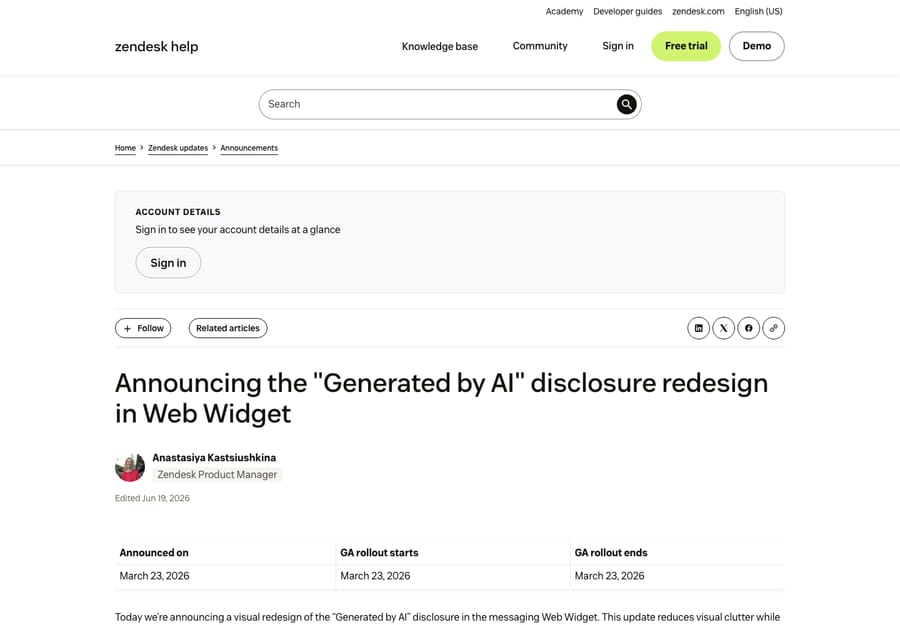
The screenshot above shows a published Zendesk help-center article, the kind of page a content block is inserted into. The content blocks library and editor themselves live in Guide admin (Zendesk's knowledge-management back end, now branded "Knowledge admin"), which is administrator-gated; we describe it here rather than show it.
Where do you manage content blocks?
Content blocks are a feature of Guide / Knowledge admin, the same place you manage articles, categories, sections, and your help center theme. From the help center, opening the content blocks list shows you every block in the account: its name, when it was last edited, and how many articles currently use it. You can sort the list by edited date, created date or name, and pick a language where localized versions exist. That usage count is genuinely useful: before you change or delete a block, you can see its blast radius.
You can create blocks in two ways:
- From the library directly: choose Add > Content block, name it, format the content with the standard editor toolbar, and save.
- From within an article: highlight a paragraph (or more), click the content block icon, name it, and Zendesk converts that selection into a reusable block in place.
Who can edit content blocks, and how does versioning work?
A content block has one canonical version. There aren't per-article copies that can quietly diverge; every article points at the same source block, which is what makes central editing possible. Edit the block and all references reflect the new version; the articles' own publish states are left untouched. One trap: if you restore an older revision of an article that contained a content block, Zendesk unlinks the block and inlines its text in that article.
Permissions are worth understanding because they affect who can touch shared content:
- Knowledge admins can create, insert, edit, and delete content blocks across the account.
- Agents can create and insert blocks into articles they have permission to edit, but they can only edit existing blocks if an admin has granted them the dedicated "update content blocks" permission. This guardrail matters: because one edit propagates everywhere, you generally don't want every agent able to rewrite your legal disclaimer.
Which Zendesk plans include content blocks?
This is the part that trips people up, so it's worth being precise. Content blocks are not in every Zendesk plan; they're an Enterprise-tier knowledge feature. Per Zendesk's current documentation, content blocks are available on:
- Suite Enterprise and Suite Enterprise Plus, or
- Support with the Knowledge Enterprise add-on.
If you're on Suite Team, Growth, or Professional, you won't see content blocks. And note a recent nuance: in a rollout from 17 to 27 March 2026, Zendesk expanded several Knowledge tools (generative AI writing tools, AI translation, federated search, flexible hierarchies, and article multiplacement) down to all Suite and Knowledge plans, but that expansion did not include content blocks. Content blocks remain Enterprise-only as of September 2026.
Plan packaging is exactly the kind of thing Zendesk adjusts over time, so confirm availability against your own account and Zendesk's pricing page before you plan a migration around it.
What limits and gotchas should you know?
Content blocks scale comfortably for almost any knowledge base, but there are documented ceilings, plus a handful of editing and API quirks, worth knowing before you build a reuse strategy around them. These are the details third-party explainers usually skip.
The hard limits (Zendesk's knowledge product limits):
- Up to 5,000 content blocks per account.
- A single content block can be used in up to 500 articles.
- Up to 50 images per content block.
Formatting gotchas:
- You can't insert a content block into a bulleted or numbered list. Zendesk states plainly that you can't insert content blocks into bulleted or numbered lists, so if a reusable step needs to live inside a list, you'll have to rethink the structure.
- No h5 or h6 headings inside a block. Content blocks don't support the two smallest heading levels; keep any headings within a block at h1–h4.
- Cross-brand reuse works. A single block can be reused across articles in one help center and across different help-center brands in the same account, useful for multi-brand operations that share boilerplate disclaimers.
Unlink vs. remove vs. delete: three different things people conflate.
- Unlinking converts a block's text into ordinary article text in that one article. The content stays in the article, but it stops syncing; future edits to the block no longer reach this article. (Any images in the block are dropped when you unlink, so you'd need to re-add them.)
- Removing takes the block out of that article only; the block itself survives and keeps working everywhere else it's used.
- Deleting removes the block from your account entirely, and Zendesk only lets you delete a block once it's no longer linked in any article.
Help Center API caveats. If you manage articles programmatically, content blocks behave in non-obvious ways (Zendesk's API limitations): the Show Article and List Articles endpoints return a block's content flattened to inline text rather than as a reusable reference, and the Update Article / Update Translation body field doesn't support content blocks at all. The practical trap: if you GET an article body and PUT it back, the links to its content blocks are silently replaced with flat text, breaking the sync. Updating any other article property leaves the blocks intact, so the safe move is to avoid round-tripping article bodies through the API on content-block articles.
For most teams the ceilings are non-issues. But if you run a very large or multi-brand help center, or you sync articles via the API, these are the details that bite later (for instance, don't try to make one mega-block that every article on earth references).
What should you turn into a content block?
Content blocks pay off most where text is identical, repeated, and prone to change. The strongest candidates:
- Legal and policy disclaimers. Returns, refunds, warranties, privacy. One block, edited by the people who own that language, used everywhere it's quoted.
- Contact and escalation steps. "How to reach support," hours, the status-page link, the snippet that appears at the bottom of half your articles.
- Recurring procedures. A standard login, verification, or setup sequence that many troubleshooting articles reference.
- Product names and brand terms. Lock the official spelling/capitalization in a block so a rename is a single edit, not a find-and-replace across the help center.
- Safety warnings and prerequisites. "Back up before you begin," "requires admin access": consistency here is a quality-and-liability win.
A good rule of thumb: if you've copy-pasted the same paragraph into three or more articles, it should probably be a content block.
What mistakes do teams make with content blocks?
- Blocking everything. Not all repeated text deserves a block. Reserve them for content that's truly shared and changes over time. Over-blocking makes articles harder to edit for marginal benefit.
- Vague block names. "Block 1" tells future-you nothing. Name blocks by their content and scope ("Refund policy, EU") so the library stays searchable.
- Ignoring the usage count. Before editing or deleting a block, check how many articles use it. A careless edit to a 200-article block is a 200-article change.
- Loose edit permissions. Don't hand the "update content blocks" permission to everyone. Shared content needs fewer cooks, not more.
- Forgetting the plan gate. Building a reuse strategy and then discovering your plan doesn't include content blocks is an avoidable surprise, so verify the tier first.
Why do content blocks matter for AI agents?
There's a second payoff to clean, single-source content that's easy to miss. Increasingly, your knowledge base isn't just read by humans; it's the source an AI agent draws on to answer customers. And AI answers are only as good and as consistent as the content behind them. If three articles state three different refund windows, a human reader shrugs and picks one; an AI agent might confidently quote the wrong one.
Keeping shared facts in content blocks means there's a single correct version for the AI to surface, not a field of contradictory copies. This is why an AI agent layer like Macha, which sits on top of Zendesk rather than replacing it and reads from your existing knowledge base, does better work when that knowledge base is consistent. (More on wiring a knowledge base into an AI agent in connecting your knowledge base to an AI agent.) It's not a substitute for content blocks; it's a downstream beneficiary of them. If you want to see how a layer like that reads your KB, you can try it free with $50 of free usage, no credit card and no time limit.
Frequently asked questions
What are content blocks in Zendesk? A content block is a reusable piece of content, such as a paragraph, a disclaimer or a set of contact steps, that you create once in the knowledge base and insert into multiple help-center articles. When you edit the block, every article that uses it updates automatically, so shared content stays consistent without manual copy-paste.
Which Zendesk plans include content blocks? Content blocks are an Enterprise-tier feature: they're available on Suite Enterprise and Enterprise Plus, or on Support with the Knowledge Enterprise add-on. They are not included in Suite Team, Growth, or Professional, and they were not part of Zendesk's March 2026 expansion of Knowledge tools to lower plans. Always confirm against your own account, since packaging changes.
Where do I manage content blocks? In Guide / Knowledge admin (Zendesk's knowledge-management back end). The content blocks list shows every block in the account, when each was last edited, and how many articles use it. You can also create a block on the fly from inside an article by selecting a paragraph and clicking the content block icon.
Does editing a content block change my article statuses? No. When you edit a block, Zendesk updates the content everywhere it's used without changing each article's publish status. You're editing one block, not republishing every article that references it.
Are there limits on content blocks? Yes. An account can have up to 5,000 content blocks, a single block can be used in up to 500 articles, and each block can hold up to 50 images. There are also a few editing quirks worth knowing: you can't insert a content block into a bulleted or numbered list, blocks don't support h5/h6 headings, and the Help Center API flattens content blocks to inline text, so avoid round-tripping article bodies through the Update Article endpoint, which breaks the block sync.
Does restoring an old article revision keep its content blocks? No. When you restore a previous version of an article that contained a content block, Zendesk unlinks the block and inlines its content in the article, so you'd need to re-insert the block to get syncing back.
What's the difference between unlinking and removing a content block? Unlinking turns the block's text into ordinary article text in that one article; the content stays but stops syncing with the source block. Removing takes the block out of that single article while leaving it intact everywhere else. Deleting removes the block from your account entirely, and is only possible once the block isn't linked in any article.
Can agents edit content blocks, or only admins? Knowledge admins can create, insert, and edit blocks freely. Agents can create and insert blocks into articles they're allowed to edit, but they can only edit existing blocks if an admin grants them the dedicated "update content blocks" permission, a sensible guardrail, since one edit propagates everywhere.
Is it worth using content blocks?
Yes, if you're on an Enterprise knowledge plan and you have text that is shared across articles and changes over time. Write the disclaimer, the contact steps or the product name once, insert it wherever it's needed, and edit it in one place. Stay within the ceilings (5,000 blocks per account, 500 articles per block) and keep edit rights narrow. From here, see the broader Zendesk Guide knowledge base guide and how the Zendesk help center works.
Content-block behavior, limits and plan gating checked against Zendesk's documentation on 24 September 2026. Zendesk updates its packaging periodically, so confirm specifics in your own account.
Add AI agents to your Zendesk
Macha reads the ticket, drafts the reply and takes the action, inside the Zendesk you already run.