Intercom
 Shopify
 Stripe
 Slack
Slack Notion
 Google Workspace
 Confluence

Zendesk Help Center Explained: Sections, Categories & Structure


If you've opened Zendesk Guide for the first time and felt unsure where the "website" your customers actually see comes from — or why your articles need a category and a section and a what-now before they'll publish — you're in the right place. The Zendesk Help Center is the public, customer-facing self-service site that Zendesk Guide produces. It's where your knowledge base lives, where customers search for answers, and (often) where they file and track their tickets. Get its structure right and customers find answers on their own; get it wrong and they email you anyway.
Key takeaways
- The Zendesk Help Center organizes content in a strict Category, Section, Article hierarchy, and articles can only live inside a section, never directly inside a category.
- Zendesk Help Center sections can nest as subsections up to five levels deep, with up to 200 subsections allowed inside a single section.
- A Zendesk Help Center with only one category hides that category from end users, showing its sections directly on the home page instead.
- On Suite Enterprise or Enterprise Plus, a Zendesk account can run up to 300 brands and 300 Help Centers, while Support Enterprise with Guide Professional allows only 1 Help Center across 5 brands.
- The default Copenhagen theme's logo slot in a Zendesk Help Center recommends roughly 200 by 50 pixels, and its built-in language switcher only appears automatically on that theme.

This guide is the plain-English tour of the Help Center: the three things it's actually made of, the Category → Section → Article hierarchy at its core, how themes, search, and languages work, what changes when you run more than one brand, and the information-architecture mistakes that quietly tank deflection. Everything here is verified against Zendesk's own documentation. It's part of our deeper Zendesk Guide knowledge base series.
What the Zendesk Help Center actually is
First, a naming knot worth untangling, because it confuses almost everyone. Guide is the product (the engine and the admin tools). The Help Center is the output — the live, branded site your customers visit. Knowledge base is one part of that site (the articles). People use all three words interchangeably, but they're not the same thing; we pull them apart in knowledge base vs. Help Center vs. Guide.
So: the Help Center is a user-facing, self-service interface. According to Zendesk, it can contain three components — a knowledge base, a community, and a customer portal — and you can search across them at once. Let's take each in turn.
The three components of a Help Center
1. The knowledge base
This is the heart of the Help Center and the part most teams mean when they say "Help Center." It's your library of help articles — how-tos, troubleshooting, policies, FAQs — organized into the Category → Section → Article hierarchy we'll dissect in a moment. It's the content your customers (and increasingly your AI) read to solve problems without contacting an agent.
2. The community
The community is an optional set of user forums — topics that contain posts, where customers ask questions, share tips, and answer each other. It's useful for product-led companies where power users help newer ones. One gotcha to plan around: the community is gated by plan. Per Zendesk, it's available on Suite Professional and above and is not available for legacy Support + Guide customers. If you don't see community options, that's usually why.
3. The customer portal (My Activities)
The customer portal is where customers submit requests (the support form) and track the tickets they've already filed — the "My Activities" / "Requests" area you reach once signed in. It's the bridge between self-service content and human support: a customer reads an article, and if it didn't help, the same site lets them open a ticket and watch its status. Note that ticket management in the portal isn't available on Suite Team. The portal is a big enough topic that we give it its own deep dive in the Zendesk self-service portal guide.
A clean way to hold it in your head: the knowledge base is the answers, the community is the conversation, and the customer portal is the front desk.
The content hierarchy: Category → Section → Article
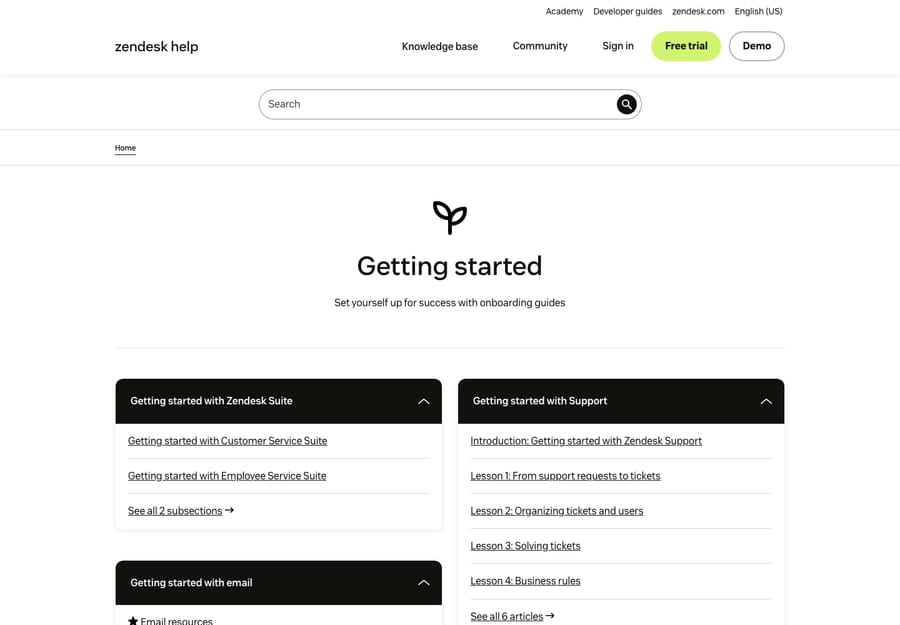
This is the part that trips up new admins, so it's worth being precise. Every Help Center knowledge base follows a strict three-level structure:
Home → Categories → Sections → Articles.
- A Category is the top-level container — the broad buckets on your Help Center home page (e.g. "Getting started," "Billing," "Account & security").
- A Section lives inside a category and groups related articles (e.g. inside "Billing": "Invoices," "Refunds," "Payment methods").
- An Article is the actual content — the page a customer reads.
The rule people miss: articles can only live inside a section (or subsection) — never directly inside a category. If you try to write a how-to and "attach" it straight to a category, Zendesk won't let you; it needs a section first. Categories hold sections; sections hold articles. (Zendesk confirms this directly.)
Subsections and nesting
You're not limited to two levels of grouping. Sections can be nested inside other sections as subsections — up to a maximum of five section levels deep, with up to 200 subsections in a single section. Subsections are handy for large, layered topics (e.g. "API → Authentication → OAuth"), but they're also where most IA goes wrong, which we'll get to.
The one-category quirk
Here's a subtle behavior worth knowing: your Help Center must have at least one category, but if you have only one category, Zendesk hides it from end users — customers see the sections directly on the home page instead of clicking through an almost-empty category level. Once you add a second category, the category level reappears for everyone. So a brand-new Help Center can look "flat" until your content grows.
Ordering and the Arrange Articles page
Order matters for findability, and you control it. From the Arrange Articles page in Guide, you can see the whole hierarchy at a glance and reorder everything — categories on the home page, sections within a category, and articles within a section. Articles can be ordered manually (drag to promote your most-used guides) or sorted automatically by date or alphabetically. The same area lets you move sections and articles between parents when you restructure.
How it's built and managed in Guide admin
Behind the public site sits Guide admin (and the newer Knowledge admin experience in Agent Workspace), where you create categories and sections, write and publish articles, manage the theme, and configure settings.
A note on first-hand screenshots: the live category page above is a real, public Zendesk Guide Help Center, so you can see the Category → Section → Article structure exactly as a customer would. Our own dev-instance Guide admin screens, however, sit behind a bot-verification wall that blocks automated capture, so we're describing the admin flow rather than showing staged shots of it. The public-facing structure is what matters most here, and that's what's pictured.
In practice the admin workflow is: create your categories, add sections inside them, write articles inside the sections, set visibility (who can see what), then publish. Drafts stay private until you publish; you can also restrict articles to signed-in users or specific user segments — important if you mix public help with customer-only or internal content.
Themes and branding
Your Help Center ships with Zendesk's standard Copenhagen theme — a clean, mobile-responsive, accessibility-minded design you can brand without touching code. From the theme Settings panel you can swap the logo, colors, fonts, and images so the site matches your brand. (For reference, Copenhagen's logo slot recommends roughly 200×50px.)
If you stay on Copenhagen, Zendesk keeps it supported and auto-updates it with new features. If you need more, you can build or install a custom theme and edit the underlying code (HTML/CSS/JavaScript via the templating system) — but the moment you edit the code, it's no longer the "standard" theme, so updates and some built-in behaviors become your responsibility. One concrete example: the integrated language switcher only appears automatically on the default Copenhagen theme; remove the relevant footer code or move to a custom theme and you'll have to wire it back in. Themes are a whole craft of their own — see our dedicated guide to Zendesk Help Center themes.
Search
Search is the feature your customers actually use most, often before they ever browse a category. Help Center search spans both the knowledge base and the community at once, so a single query surfaces official articles and peer answers together. It's also the layer that determines whether your carefully structured content gets found — which is exactly why content quality and tagging matter as much as hierarchy. If you run multiple Help Centers (next section), you can configure search to span several of them, and choose whether to include community content in the results.
Multilingual and localization
If you support customers in more than one language, the Help Center can host translated versions of every article, category, and section. You enable the languages you need, and the site serves the right version based on the locale code in the page URL. Standard interface text (labels like "Search" and "Comments") is automatically displayed in supported languages. You can translate everything, or publish certain articles in only specific languages — useful when some content is region-specific. As noted above, the built-in language switcher rides on the Copenhagen theme, so factor that in if you go custom.
Multiple Help Centers and multibrand
If your company runs more than one brand, you can give each brand its own Help Center — but this is gated by plan, so verify against your account before promising it internally. Per Zendesk:
- Suite Enterprise / Enterprise Plus: up to 300 brands and 300 help centers.
- Support Enterprise + Guide Professional: up to 5 brands, but only 1 help center.
- Support Enterprise + Guide Enterprise: up to 5 brands and 5 help centers.
In short, if you're not on a Suite plan, supporting multiple Help Centers requires Guide Enterprise and Support Enterprise. One behavior to plan for: with multiple Help Centers, you can't lock a user to a single brand's site — all of them are reachable by all end users (though you can restrict access to signed-in users). And as mentioned, search can be configured to span the Help Centers you choose.
Information-architecture best practices
A good Help Center isn't the one with the most articles — it's the one where customers find the right answer in two clicks. A few principles that hold up:
- Mirror how customers think, not your org chart. Categories should match the jobs customers are trying to do ("Set up my account," "Fix a payment issue"), not your internal team names.
- Keep categories few and clear. A handful of obvious top-level categories beats a dozen overlapping ones. If a customer can't guess which category holds their answer, search has to do all the work.
- Don't over-nest. Yes, you can go five section levels deep — but every extra level is another click and another chance to lose someone. Most Help Centers are best served by Category → Section → Article and little or no subsectioning.
- Use sections to group, not to hide. A section with one article usually shouldn't be a section. A section with forty articles probably needs splitting or sorting.
- Order with intent. Put the most-used and "start here" articles at the top of each section rather than relying on alphabetical or date order.
- Plan languages and brands before you scale. Restructuring a 500-article, three-language Help Center is painful; deciding the hierarchy early is cheap.
Common mistakes
- Articles with no logical home, dumped into a vague "General" or "Misc" section that becomes a junk drawer.
- Duplicate content across sections instead of placing one article and, where needed, surfacing it in multiple spots.
- Over-engineering the hierarchy with deep subsections nobody browses, when search and a flat structure would serve better.
- Letting it go stale — an out-of-date Help Center erodes trust faster than no Help Center, and it's the content AI will confidently repeat.
Where AI fits on top of the Help Center
Here's the uncomfortable truth about even a beautifully structured Help Center: customers still have to find and read the right article. Many won't. They'll skim, give up, and open a ticket anyway — which is why "we have a great knowledge base" and "our deflection rate is low" so often coexist.
This is the gap an AI agent layer like Macha is built to close. Macha isn't a help desk and isn't a replacement for Zendesk — it sits on top of your existing Guide content. Connected to your Help Center, it can understand a customer's actual question, surface (or directly answer from) the right article instead of making them browse categories, and resolve routine questions in the conversation — while anything it can't handle becomes a normal Zendesk ticket with full context. The same well-structured, well-maintained content that helps human readers is exactly what makes the AI accurate, so the IA work above pays off twice.
On cost, a fair note: Macha bills per ticket — one conversation, charged once, however many steps it takes to finish: searching your Help Center, drafting a reply, looking something up, resolving. That's deliberate: a thread that needs five lookups costs the same as one that needs none, and the model you choose doesn't change the price. Pricing starts at $299 a month for 750 tickets, about $0.40 each. If you want to walk through it, see how to automate Zendesk with AI, or just try it free — $50 of free usage, no credit card required.
Frequently asked questions
What is the Zendesk Help Center? It's the public, customer-facing self-service site that Zendesk Guide produces. It can contain three components — a knowledge base (help articles), a community (user forums), and a customer portal (where customers submit and track tickets) — and customers can search across them.
What's the difference between Zendesk Guide and the Help Center? Guide is the product and the admin tooling you use to build and manage content. The Help Center is the live, branded site customers actually see. The knowledge base is one part of that site — the articles. See our knowledge base vs. Help Center vs. Guide breakdown.
What is the Category, Section, and Article hierarchy? Help Center content is organized as Home → Categories → Sections → Articles. Categories are the top-level buckets, sections group related articles inside a category, and articles are the content. Articles must live inside a section (or subsection) — they can't be placed directly in a category.
How many levels deep can Zendesk sections go? You can nest sections as subsections up to a maximum of five section levels, with up to 200 subsections in a single section. Most Help Centers are better off staying shallow, though — deep nesting adds clicks and hurts findability.
Can I have multiple Help Centers in Zendesk? Yes, if you run multiple brands and are on the right plan. Suite Enterprise/Enterprise Plus supports up to 300 brands and 300 help centers; Support Enterprise with Guide Enterprise supports 5 brands and 5 help centers; Support Enterprise with Guide Professional gives you 5 brands but only 1 help center. Confirm the limits for your specific plan.
Can the Help Center support multiple languages? Yes. You can add translated versions of articles, sections, and categories, and the site serves the correct language based on the locale code in the URL. The built-in language switcher appears on the standard Copenhagen theme.
The bottom line
The Zendesk Help Center is one site with three jobs: a knowledge base that answers questions, a community where customers help each other, and a customer portal where they file and track tickets. The whole thing runs on a simple, strict hierarchy — Categories hold Sections, Sections hold Articles — and most of the value comes from keeping that structure shallow, clear, and matched to how customers think, then branding it, translating it, and (if you have multiple brands) splitting it per plan limits. Build the IA well and self-service starts working; layer AI on top of that content and customers get answers without having to dig for them. From here, go deeper on the knowledge base hub, the self-service portal, themes, and how the names actually differ.
Help Center structure verified against Zendesk's official documentation, June 2026. Zendesk updates its product and plan packaging periodically — confirm specifics, especially multibrand limits, in your own account before relying on them.
Add AI agents to your Zendesk
Macha reads the ticket, drafts the reply and takes the action, inside the Zendesk you already run.