Intercom
 Shopify
 Stripe
 Slack
Slack Notion
 Google Workspace
 Confluence

Zendesk Help Center Themes & Theming Explained


Your Zendesk Help Center is often the first thing a customer sees before they ever open a ticket — the search bar they try, the article they read, the page that either looks like your brand or looks like a generic support portal. What controls all of that is the theme: the package of templates, styles, and settings that decides how your knowledge base looks and behaves.
Key takeaways
- Every Zendesk Help Center ships with Copenhagen, the default theme that is responsive, accessibility-focused, and automatically updated by Zendesk as long as you edit it only through the Settings panel.
- The moment you edit Copenhagen's underlying code, it becomes a custom theme, and Zendesk stops auto-updating and supporting it the same way.
- Zendesk's Templating API has had four versions: v1 in 2014, v2 in 2020, v3 in 2023, and v4 released in July 2024, which removed the request_form and follow_up helpers.
- Editing theme code or using custom and marketplace themes requires Suite Growth or higher; custom themes are not available on Suite Team, Zendesk's entry-level tier.
- On Enterprise plans, Guide lets you create up to 100 additional page templates each for articles, sections, and categories.

This guide explains how Zendesk Help Center theming actually works, from the no-code basics to editing the underlying code. We'll cover the default Copenhagen theme, how to rebrand without touching code, how deeper customization works with Zendesk's Curlybars templating language, where marketplace themes fit, how to juggle multiple themes and set one live, multibrand theming, and the guardrails and best practices that keep a customization project from going sideways. It's a companion to our broader Zendesk Guide knowledge base guide and the Zendesk Help Center explainer; here we go deep on the look-and-feel layer specifically. Everything is verified against Zendesk's own documentation.
What a Zendesk Help Center theme actually is
A theme in Zendesk Guide is a bundle of files that together render your customer-facing help center. It contains:
- Page templates — the HTML structure for each type of page: the home page, category page, section page, article page, search results, the request (new ticket) form, and more. Each page type has its own template.
- A stylesheet (
style.css) that controls colors, typography, spacing, and layout. - JavaScript (
script.js) for interactive behavior. - A manifest and settings that expose certain values (brand color, fonts, logo) as editable options so you don't have to dig into code for simple changes.
The page templates aren't plain HTML — they're written with Curlybars, Zendesk's templating language, which lets the markup pull in live help-center data (article titles, breadcrumbs, category lists, the search box, and so on). More on that below.
Copenhagen: the default theme
Every Zendesk Help Center ships with Copenhagen, the standard theme. It's deliberately a strong starting point: built around accessibility and support best practices, fully responsive on mobile, and — importantly — maintained by Zendesk. Because it's the standard theme, Zendesk supports it and automatically updates it when new theme features ship, so you inherit improvements without lifting a finger.
The key thing to understand about Copenhagen is the line between configuring it and editing it:
- As long as you only change Copenhagen through the Settings panel (branding and advanced settings), it stays the "standard" theme — supported and auto-updated.
- The moment you edit its code, it's no longer considered standard. Your copy becomes a custom theme: Zendesk no longer auto-updates it (an update would overwrite your changes) and no longer supports it the same way.
That trade-off — convenience and automatic updates versus full control — is the single most important decision in any theming project. Most teams should stay on Copenhagen-via-settings for as long as it meets their needs.
No-code customization (Customize design)
For the majority of branding work, you never touch code. In Guide admin (the Knowledge/Guide admin sidebar), open Customize design. From there you can adjust a theme's Settings panel, which typically exposes:
- Brand color(s) — the primary accent used across buttons, links, and highlights.
- Logo — your help center logo, plus a favicon and brand imagery.
- Fonts — heading and body typefaces.
- Background, text, and link colors and other "advanced settings" the theme author chose to surface.
Change a value, see it reflected in the preview, and publish. This covers what most companies actually need: make the help center match the brand, swap the logo, set the corporate color, pick a font. No HTML, no CSS, no deployment.
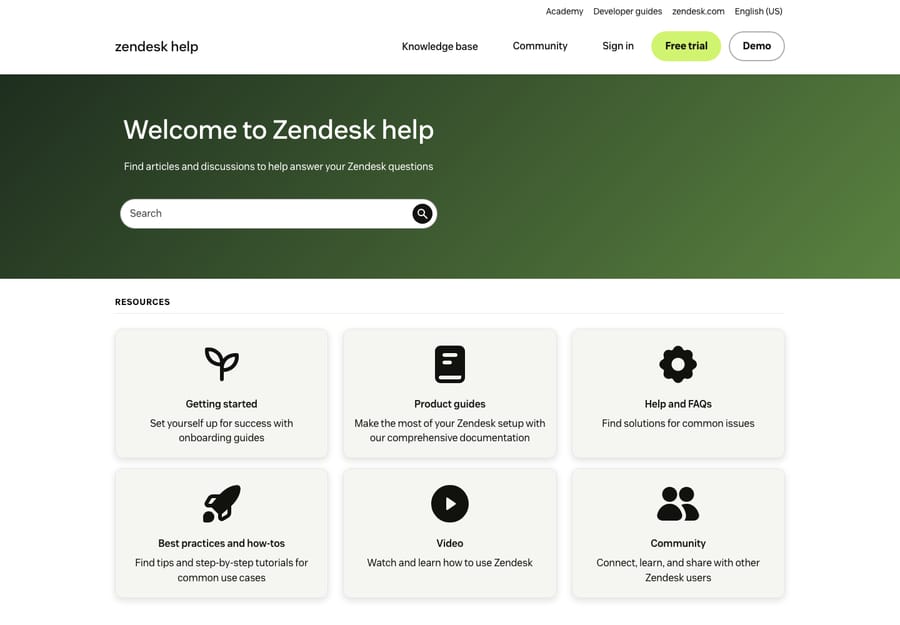
The theme editor and the Customize design screens live inside Guide admin. On our own developer instance that area sits behind a bot-verification wall, so we're describing the flow rather than screenshotting it — the public help center above is a real example of the branded result theming produces.
Deeper customization with code
When the Settings panel can't get you there — you need a different layout, an extra page element, custom navigation, or to hide a component — you move into the code. In Customize design, click Customize on the theme, then Edit code. You'll see the theme's files grouped into Templates, Styles (CSS), JavaScript, Settings, and Assets.
Curlybars and page templates
The HTML templates use Curlybars, a Handlebars-style templating language Zendesk built for the help center. Unlike Handlebars, Curlybars renders server-side. Its expressions (the {{ ... }}-style placeholders) let the template pull in real data and render it — looping over a category's sections, printing an article body, dropping in the search bar, or showing breadcrumbs. You can also use Curlybars conditionally — for example, to selectively hide a specific article, section, or category by targeting its ID.
There's a template per page type — home page, category, section, article, search results, new request form, and others — so you can tailor each surface independently. On Guide Enterprise, you can go further and create additional page templates (multiple article, section, or category templates) when one layout isn't enough for all your content.
Templating API versions
Curlybars and the theme structure together make up Zendesk's Templating API, which is versioned — your theme declares which version it targets via the api_version field in its manifest.json. There have been four versions to date: v1 (2014), v2 (2020), v3 (2023), and v4 (released July 2024), the current version. The version determines which helpers and features your theme can use, and newer versions bring performance and accessibility improvements — but they also deprecate some older helpers (v4, for instance, removed the {{request_form}} and {{follow_up}} helpers from the new-request template). Copenhagen tracks the latest version automatically; a custom theme stays on whatever version its manifest declares until you upgrade it yourself — you download the theme, bump api_version in manifest.json, preview locally to catch deprecation warnings, and replace anything unsupported. It's one more reason custom themes are a maintenance commitment: compatibility doesn't update on its own.
Editing, downloading, and importing themes
The code editor lets you make changes live, but you can also work outside Zendesk:
- Download a theme as a ZIP to version-control it, edit it locally, or back it up before a big change.
- Import a theme ZIP back into Guide — this is how you bring in a third-party theme or deploy a locally developed one.
- Use the CSS and JavaScript files for site-wide appearance and behavior changes, and Curlybars in the templates for structural content changes.
A sensible workflow for anything non-trivial: download the current theme as a backup, build/import a copy, preview it, and only then set it live.
Third-party and marketplace themes
You don't have to start from a blank page or from Copenhagen. The Zendesk Marketplace offers Guide themes — both free and paid — built by Zendesk partners. You can browse them, and import a theme into your help center, then customize it like any other custom theme. It's a fast way to get a more distinctive design than Copenhagen without commissioning one from scratch. Note that a marketplace/custom theme behaves like any custom theme: you own its maintenance, and it won't receive Copenhagen's automatic updates.
Managing multiple themes and setting the live theme
Your help center can hold more than one theme at a time, but only one is live (the one customers actually see). This is what makes safe iteration possible: keep your current live theme untouched, work on a draft copy, and swap when ready.
To switch, open the theme's options menu and choose Set as live theme. The newly live theme moves to the top and is immediately applied to your help center. Because the old theme is still sitting there, rolling back is just setting it live again — which is exactly why you keep the previous version around rather than editing the live theme in place.
Multibrand theming
If you run multiple brands in Zendesk, each brand gets its own help center, and therefore its own theme and live-theme selection. That lets a parent company give each brand a distinct look — different logo, colors, even layout — while managing everything from one Zendesk account. Multibrand and the number of brands you can run are plan-dependent, so confirm what your subscription includes before planning a multi-brand rollout.
Which approach should you pick?
The three theming paths trade off control against maintenance. Here's how they compare:
| Approach | Who maintains it | Auto-updates? | Plan required | Pick it when… |
|---|---|---|---|---|
| Standard theme via Settings panel | Zendesk | Yes — Copenhagen tracks the latest Templating API automatically | Any plan (incl. Suite Team) | You need on-brand colors, logo, and fonts and nothing structural |
| Custom theme (edit code) | You | No — frozen at your manifest's api_version until you upgrade it | Suite Growth or higher (not Suite Team) | You need custom layout, navigation, components, or to hide elements |
| Marketplace theme (import) | You (after import) | No — behaves like any custom theme | Suite Growth or higher (not Suite Team) | You want a distinctive design fast without building from scratch |
Multiple/additional article, section, and category templates layer on top of the custom-theme path and require Enterprise.
Plan gating (verify in your account)
Theming is tiered, and the line that catches teams out is code access:
- Standard Copenhagen + Settings-panel branding is available broadly — you can rebrand colors, fonts, and logo without a premium tier.
- Editing theme code / using custom themes is available from Suite Growth upward — that's Growth, Professional, Enterprise, and Enterprise Plus (plus the legacy Guide Professional/Enterprise and Knowledge Professional/Enterprise plans). Per Zendesk, custom themes are not available on Suite Team — on the entry tier you're limited to configuring the standard theme, not editing its code or importing custom/marketplace themes. The common misconception is that you need Professional; in reality Suite Growth is the lowest qualifying tier.
- Multiple/additional page templates (several article, section, or category layouts) is an Enterprise-only capability — on Enterprise you can add up to 100 extra templates each for articles, sections, and categories.
- Multibrand (multiple help centers, each themed) is gated to higher tiers.
Zendesk renames and repackages plans periodically, so treat this as the shape of the gating and confirm the exact tier names and limits in your own account before you commit to a customization plan.
Guardrails and best practices
A help center is customer-facing and high-traffic, so theming mistakes are visible mistakes. A few rules keep you safe:
- Back up before you change. Download the current theme as a ZIP first. It's your instant rollback.
- Work on a copy, preview, then publish. Never edit the live theme directly. Use a draft theme, preview it, and only
Set as live themeonce it's right. - Keep custom code minimal. Every line you add is a line you maintain — and the more you diverge from Copenhagen, the more you give up its automatic updates and support. Prefer the Settings panel; drop to code only when you must.
- Design mobile-first. A large share of help-center traffic is mobile. Copenhagen is responsive out of the box; preserve that when you customize, and test on real screen sizes.
- Protect accessibility. Maintain color contrast, keep text resizable, preserve focus states and semantic headings, and write meaningful alt text. Copenhagen is built with accessibility in mind — don't undo it with a low-contrast brand palette.
- Stay brand-consistent. Logo, colors, and fonts should match your main site so the help center feels like part of the product, not a bolt-on.
Common mistakes to avoid: editing the live theme with no backup; over-customizing Copenhagen and then losing months of Zendesk updates; pasting heavy third-party scripts that slow page loads; assuming code edits are available on an entry plan (they're not); and shipping a beautiful theme whose search returns nothing useful — which brings us to the part design can't fix.
A note on what the theme can't do
A polished theme makes your help center look trustworthy. It doesn't make the right answer show up when a customer types their question. The best-branded help center in the world still fails the customer if search returns three loosely related articles and none of them resolve the issue — and that gap is exactly where customers give up and open a ticket.
This is the layer an AI agent addresses, and it's worth separating from theming. Macha is not a help desk and not a Zendesk replacement — it's an AI agent layer that sits on top of the Zendesk you already run. Pointed at your help center content (and your past tickets), it can actually answer a customer's question in the words they asked it, on the same branded help center your theme produces, and hand off to a human with full context when it can't. The theme controls the experience; the AI controls whether the experience ends in an answer. Macha bills per ticket (one conversation, charged once however many answers, lookups and hand-offs it takes — not per "deflection"), so the bill never hangs on an outcome definition you don't control. If your help center looks great but still leaks tickets, that's the gap to close — you can start with $50 of free usage, no credit card required.
Frequently asked questions
What is the default Zendesk Help Center theme? It's Copenhagen, the standard theme that ships with every help center. It's responsive, built around accessibility and support best practices, supported by Zendesk, and automatically updated when new theme features are released — as long as you customize it through the Settings panel rather than editing its code.
Can I customize my Zendesk Help Center without coding? Yes. In Guide admin under Customize design, the theme's Settings panel lets you change brand color, logo, fonts, and other exposed options with no code. That covers most branding needs. You only need code for structural or layout changes the settings don't expose.
What is Curlybars in Zendesk? Curlybars is Zendesk's Handlebars-style templating language for help center themes. It's used in the HTML page templates to pull in live help-center data — article content, category and section lists, breadcrumbs, the search bar — and to conditionally show or hide components. Custom themes combine Curlybars templates with CSS and JavaScript.
What Zendesk plan do I need to edit my theme's code? Settings-panel branding is broadly available, but editing theme code and using custom themes requires Suite Growth or higher (Growth, Professional, Enterprise, Enterprise Plus — or legacy Guide/Knowledge Professional and Enterprise). Custom themes are not available on Suite Team, but you do not need Professional — Suite Growth qualifies. Creating multiple/additional page templates is an Enterprise-only feature. Plan names change, so verify the current tiers in your account.
Can I use a third-party theme? Yes. You can browse Guide themes in the Zendesk Marketplace (free and paid) and import one into your help center, or import a theme ZIP you've built or downloaded. Imported/custom themes are yours to maintain and don't receive Copenhagen's automatic updates.
How do I switch which theme is live? Your help center can store multiple themes, but only one is live. Open the theme's options menu and choose Set as live theme — it's applied immediately. Keep your previous theme in place so you can roll back by simply setting it live again.
The bottom line
Zendesk Help Center theming runs on a spectrum. At one end, Copenhagen plus the Settings panel gives you a supported, auto-updated, mobile-ready help center you can rebrand without code — where most teams should stay. At the other end, custom themes built with Curlybars, CSS, and JavaScript give you full control, at the cost of maintenance and the loss of automatic updates, and gated from Suite Growth upward (with multiple page templates reserved for Enterprise). In between sit marketplace themes, multiple stored themes with a single live one, and per-brand theming for multibrand accounts. Back up before you change, work on a copy, keep custom code lean, and protect accessibility and mobile — and remember that a great-looking help center still needs the right answers to surface. Go deeper on the surrounding pieces in our Zendesk Guide knowledge base guide and the Zendesk Help Center explainer.
Theming mechanics verified against Zendesk's official documentation, June 2026. Zendesk updates its product and plan names periodically — confirm specifics, especially plan gating, in your own account before relying on them.
Add AI agents to your Zendesk
Macha reads the ticket, drafts the reply and takes the action, inside the Zendesk you already run.