





 Shopify
 Stripe
 Slack
Slack Notion
 Google Workspace
 Confluence

How Do You Schedule and Export Reports in Freshdesk? (2026 Guide)


Freshdesk schedules reports from the Export menu in Analytics: pick Export report, then Schedule email, and set a Daily, Weekly or Monthly recurrence. It needs the Pro or Enterprise plan, full reports only go out as PDF, and CSV or XLSX output comes from scheduling individual widgets.
Key takeaways
- Freshdesk schedules a report from Analytics through Export report then Schedule email, with a Daily, Weekly, or Monthly recurrence, recipients, and a timezone.
- Freshdesk report scheduling requires the Pro plan at $55 per agent per month or Enterprise at $89, both billed annually; the Growth plan cannot export or schedule.
- A full Freshdesk report exports and schedules as PDF only, so CSV or XLSX output requires exporting or scheduling an individual widget.
- A Freshdesk scheduled report's end date defaults to one year from the start date, so an untouched schedule stops sending after twelve months.
- Freshdesk Data Exports send Tickets, Surveys and other modules as CSV by email or API link, and each generated file stays available for 30 days.

To schedule a report in Freshdesk, open it in Analytics, click the Export icon, choose Export report → Schedule email, and set the recipients and a Daily, Weekly, or Monthly recurrence. Scheduling needs Freshdesk Pro ($55/agent/month billed annually) or Enterprise, and a full report always arrives as a PDF; for CSV or XLSX you schedule an individual widget instead.
| Task | Where | Formats |
|---|---|---|
| Export a full report once | Report → Export icon → Export report | PDF only |
| Export a widget once | Widget → three dots → Export to Email / Download | CSV (graph or underlying data), PDF |
| Schedule a full report | Export report → Schedule email | PDF only |
| Schedule a widget | The widget's options menu | CSV, XLSX, or PDF (no PDF+CSV) |
| Raw data for a warehouse | Analytics → Settings → Data Exports | CSV by email or API link, kept 30 days |
What's the difference between exporting and scheduling?
Exporting is a one-time pull. You open a report, hit export, and Freshdesk generates a file and emails it to you (or lets you download it) right now. It's the move for an ad-hoc question, like "what did last quarter's SLA look like?", where you don't need it again.
Scheduling is a standing order. You configure a recurrence once and Freshdesk regenerates the report and emails it to your chosen recipients on that cadence without anyone opening the app. It's the move for a report someone needs every week, like a Monday-morning volume-and-SLA summary for the ops channel.
Which Freshdesk plans can export and schedule reports?
Both live inside Freshdesk Analytics, and the plan lists differ slightly. Per Freshworks' documentation on exporting report data, export works on Freshdesk Pro and Enterprise, Freshdesk Omni Pro and Enterprise, and every classic Omnichannel plan (Estate, Forest, Growth, Pro, Enterprise). The scheduling guide is narrower: Freshdesk Pro and Enterprise, plus classic Pro Omnichannel and Enterprise Omnichannel. On today's price list that means Pro at $55/agent/month or Enterprise at $89/agent/month, both billed annually. Growth ($19/agent/month) doesn't get either option, and Freshdesk no longer lists a free plan on its pricing page.
How do you export a Freshdesk report on demand?
Start with the simplest case: you want the report as a file, once.
- Open Analytics and select the report you want.
- Click the Export icon below the search bar.
- Choose Export report from the dropdown.
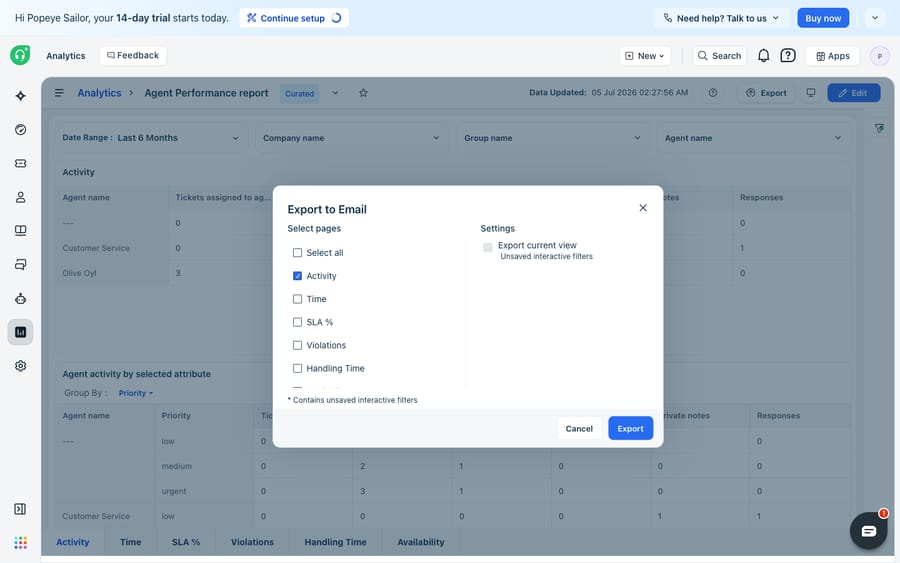
- Select the pages you want to include (you don't have to send the whole report) and click Export.
Freshdesk then generates the report and sends it as a PDF to your registered email address. On a big dataset that can take several minutes. Full-report export is PDF only, with no CSV option at the whole-report level, which matters if your finance team wants numbers they can pivot rather than a formatted document.
The Export to Email dialog, reached from the same Export menu, lets you pick exactly which report pages go into that one email before sending. It's the on-demand twin of a schedule: same page-selection control, one send instead of a recurrence.
How do you get CSV or XLSX data out of Freshdesk?
If a PDF isn't enough and you want the raw rows, go one level deeper, to the individual widget rather than the whole report.
- Open the report and expand the widget you care about.
- Click the three horizontal dots (widget options).
- Choose Export to Email or Download, then pick your format.
At the widget level you can export the graph data (the summarized values behind the chart) or the underlying data (the original ticket-level rows), each as CSV, or the widget as a PDF. When you edit the underlying-data export you can pick up to 20 fields as columns, per Freshworks' export documentation. Scheduled widgets add XLSX as a format. That's why teams that need spreadsheet-ready output work at the widget level, not the report level.
How do you schedule a recurring report email?
Now the useful part: set it once, receive it every week. Per Freshworks' guide to scheduling reports in Analytics, the path is the same Export menu.
- Open the report, click Export report, then choose Schedule email.
- Enter your recipients and a schedule name.
- Choose a recurrence:
- Daily: set the time of day.
- Weekly: set the day of the week and a time.
- Monthly: either a specific date (e.g. the 19th of every month) or a day-based pattern (e.g. the first or last Thursday of every month), plus the time.
- Set the start date, time, end date, and timezone. The end date defaults to one year from the start date, so a schedule nobody touches stops after twelve months.
- Enter an email subject and description so recipients know what landed in their inbox.
- Confirm the file type and click Schedule email.
One format quirk to internalize: scheduled full reports go out as PDF only. For a scheduled CSV or XLSX, schedule an individual widget and pick the format there. The combined PDF+CSV option isn't available for schedules. So "send finance the raw SLA numbers as a spreadsheet every Monday" means scheduling the specific widget, not the report.
To find and edit everything you've set up, go to Analytics → Settings → Schedules, where Freshdesk lists all scheduled widgets and reports in one place. Put a reminder in your calendar for eleven months out, or the Monday report quietly stops.
How do you automate raw data exports for a warehouse?
If your goal is feeding a BI tool or data warehouse rather than emailing a PDF, use the separate mechanism under Analytics → Settings → Data Exports. Per Freshworks' Data Exports guide, administrators and supervisors can schedule recurring exports of whole modules (Tickets, Timesheet, Surveys, Survey results, Articles, and Triage) on a Daily, Weekly, or Monthly cadence. Ticket exports can carry associated contact and company fields.
These arrive as CSV, either as an email attachment or through an API link you can pull programmatically, and each file stays available for 30 days. If your pipeline misses a pull for a month, that file is gone. This is the route to choose when you want the data out of Freshdesk and into your own stack.
What can't Freshdesk's native reporting do?
Freshdesk's reporting does the job it's built for: it turns ticket history into scheduled, shareable documents, reliably. The edges are worth knowing.
Formats are fragmented. Full reports schedule as PDF only; spreadsheet output means dropping to the widget level and scheduling widgets one at a time; PDF+CSV can't be scheduled at all. Assembling one clean weekly deliverable often means stitching several exports together.
Plan gating is strict. Growth customers can't export or schedule at all, so a team of ten moving from Growth to Pro for reporting pays 10 × ($55 − $19) = $360 more a month. The Freshworks marketplace and community connectors fill some gaps, and for warehouse pipelines they're a reasonable option.
And a report looks backward. It tells you that first-response time slipped last week or that a big share of tickets were the same three password-reset questions, but the report does nothing about it. Closing that loop is still a human opening tickets and typing.
That last gap is where an AI agent layer fits, and it's worth weighing the build-versus-buy tradeoff before reaching for one. The category of AI agents for customer service exists to act on the patterns your reports expose. Macha is one such layer: it runs on top of the Freshdesk you already use (and on Zendesk, Freshdesk, Gorgias, Front, HubSpot or Intercom) and doesn't replace your help desk, your Analytics, or your schedules. You connect Macha to Freshdesk with your subdomain and API key, and it works the same tickets your reports measure: drafting and sending grounded replies, triaging by intent so priority is right the first time, and pulling live order or account status through a custom tool that turns a REST API into something the agent can call. If your weekly export keeps surfacing the same repetitive volume, that's the seam to automate Freshdesk with AI so next week's report shows less of it. (Macha's connector is for Freshdesk specifically, not Freshchat, Freshservice, or Freshcaller. Billing is per ticket, not per resolution: one conversation is charged once however many steps it takes, starting at $299/mo for up to 750 tickets. The pricing page has the breakdown.)
Keep Freshdesk Analytics as the record of what happened and who needs to see it, and put an agent on top for the part a report can't do: reducing the numbers you report on.
FAQ
Where do I schedule a report in Freshdesk? Open the report in Analytics, click the Export icon below the search bar, choose Export report → Schedule email, then set recipients, recurrence (Daily, Weekly, or Monthly), timezone, subject, and description. Manage every schedule afterward at Analytics → Settings → Schedules.
What file formats can Freshdesk export reports in? A full report exports and schedules as PDF only. For CSV, export a widget, where both graph data and underlying (raw) data are available; scheduled widgets can also go out as XLSX. The PDF+CSV combination can't be scheduled.
Do I need a specific plan to schedule reports? Yes. Scheduling in Analytics is available on Freshdesk Pro and Enterprise and on classic Pro and Enterprise Omnichannel. Export also works on Freshdesk Omni Pro and Enterprise and on classic Omnichannel plans. On Growth, the export and schedule options don't appear.
How long does a Freshdesk scheduled report keep sending? Until its end date, which defaults to one year from the start date. Edit the schedule in Analytics → Settings → Schedules to extend it.
How do I export raw ticket data for a data warehouse? Use Analytics → Settings → Data Exports to schedule module-level exports (Tickets, Surveys, Triage, and more) as CSV, delivered by email or an API link, with files available for 30 days. It's the route for feeding a BI tool rather than emailing a PDF.
Can I add AI to Freshdesk reporting without replacing Freshdesk? Yes. An AI agent layer like Macha connects to Freshdesk and runs on top of your existing help desk and Analytics without replacing them. Instead of only reporting on repetitive volume, it acts on it by drafting replies and triaging tickets by intent, while Freshdesk stays the system of record for your metrics and schedules.
Want next week's report to show fewer repetitive tickets, not just measure them? Start a free trial of Macha and connect it to your Freshdesk in minutes.






