





 Shopify
 Stripe
 Slack
Slack Notion
 Google Workspace
 Confluence

How Do You Set Up Business Hours in Freshdesk? (2026)


Freshdesk business hours are set at Admin, Team, Business Hours and decide which minutes count toward every SLA timer. A calendar combines a working schedule, a timezone and a holiday list, and each group gets its own calendar on the Pro and Enterprise plans.
Key takeaways
- Freshdesk business hours are set at Admin, Team, Business Hours on the Growth, Pro and Enterprise plans, then attached to a group under Admin, Team, Groups.
- On a Monday to Friday 8 to 5 Freshdesk calendar, a 4-hour business-hours SLA ticket arriving at 4:30 PM Friday is due at 11:30 AM the next working day.
- Every holiday added to a Freshdesk business-hours calendar is created as a recurring annual holiday, and admins can import a country's holiday list instead of typing dates.
- Creating multiple Freshdesk business-hours calendars for different timezones is limited to the Pro and Enterprise plans, while Growth accounts get one default calendar.
- Freshdesk allows up to 5 breaks per day inside a business-hours calendar to keep lunch or shift gaps off the SLA clock.
To set up business hours in Freshdesk, go to Admin → Team → Business Hours, set the working days, hours, breaks and timezone on the default calendar, add a holiday list, then attach the calendar to a group under Admin → Team → Groups. The feature is on the Growth, Pro and Enterprise plans; creating more than one calendar (one per timezone or region) needs Pro or Enterprise.
| Step | Where | Plan |
|---|---|---|
| 1. Working schedule, breaks, timezone | Admin → Team → Business Hours | Growth, Pro, Enterprise |
| 2. Holiday list (manual or imported by country) | Holidays tab inside the calendar | Growth, Pro, Enterprise |
| 3. Extra calendars per timezone | Admin → Team → Business Hours → New business hours | Pro, Enterprise |
| 4. Attach a calendar to a group | Admin → Team → Groups | Growth, Pro, Enterprise |
What do business hours control in Freshdesk?
A business-hours calendar in Freshdesk is three things bundled together: a working schedule (which days and which hours your team is on), a timezone, and a holiday list. Together they define the only clock your SLA policies are allowed to tick against.
The distinction that matters most is business hours versus calendar hours. When an SLA is measured in business hours, the timer only advances during the working windows you've defined; evenings, weekends, and holidays aren't counted. When it's measured in calendar hours, the timer runs around the clock, ignoring your schedule. Freshworks gives an example in What are business hours and calendar hours?: a ticket due in six hours on a Friday evening can wait until Monday morning if the SLA runs on business hours, but on calendar hours you'd need to resolve it immediately. Get this choice right per SLA policy and your targets become fair to agents and honest to customers.
How do I set the default working schedule?
Every Freshdesk account on a plan with business hours ships with one default calendar. Start there.
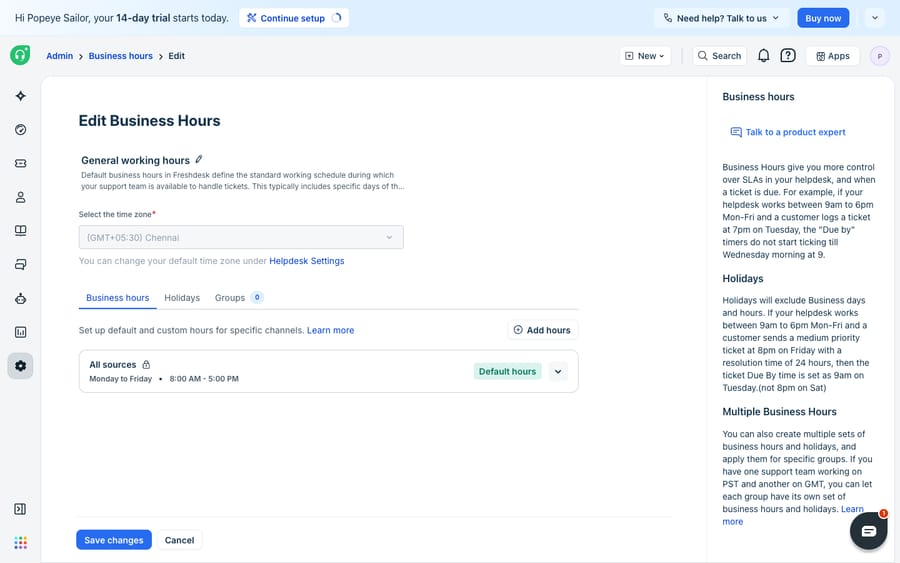
- Go to Admin → Team → Business Hours.
- Open the default calendar (often named "General working hours") to edit it.
- Choose your working days; for most teams, Monday to Friday.
- Enter the working hours for each day, for example 8:00 AM to 5:00 PM.
- Add break slots if you want lunch or shift gaps excluded from the SLA clock. The gap between two working slots on the same day is treated as a break, and Freshworks allows up to 5 breaks per day.
- Set the Time Zone for this calendar. This is the anchor Freshdesk uses to interpret every hour above.
That last point is the one people skip. "8:00 AM to 5:00 PM" is meaningless until Freshdesk knows whose 8:00 AM, so the timezone field is what makes the schedule real.
How do I add holidays so SLAs pause?
Holidays are where business hours earn their keep. Without them, SLA timers keep counting straight through New Year's Day and your team gets penalized for a day the office was closed.
Inside a business-hours calendar, open the Holidays tab and add each date. A few things worth knowing:
- Every holiday you add is created as a recurring annual holiday. Set New Year's Day once and it repeats every January 1.
- You can build the list manually, or import a country's holiday list so you don't hand-enter a dozen national holidays.
- Holidays are excluded from SLA calculations. The clock doesn't advance on those days, exactly like it doesn't advance overnight.
For a team spread across regions, this is the difference between a holiday calendar that reflects your London office and one that reflects your Bangalore office, which is why you often need more than one calendar.
How do I create business hours for multiple timezones?
A single calendar works if your whole team shares one clock. Once you run support out of two regions, say a Chennai team and a New York team, one calendar starts lying to someone. A ticket that arrives at 9:00 AM New York time lands at 6:30 PM in Chennai (7:30 PM when New York is off daylight saving), and if both teams share one calendar, one of them is timed against hours they don't work.
Freshdesk handles this with multiple business hours: separate calendars, each with its own working schedule, timezone, and holiday list. Per Freshworks' Configuring Multiple Business Hours in Freshdesk, you go to Admin → Team → Business Hours and click New business hours.
Plan gating. Business hours themselves are listed for the Growth, Pro and Enterprise plans (and Freshdesk Omni on the same tiers). Creating multiple calendars is limited to Pro and Enterprise; on the classic Omnichannel plan names that was Estate and Forest. Freshworks labels its current business-hours article as the version "after December 2025", so older screenshots may show a different layout. If you're on Growth and need per-region SLAs, Pro is the upgrade that unlocks it.
| Single calendar (Growth and up) | Multiple calendars (Pro / Enterprise) | |
|---|---|---|
| Timezones supported | One | One per calendar |
| Regional holiday lists | One shared list | Independent per region |
| SLA fairness across regions | Approximate | Accurate per group |
| Best for | Single-region teams | Follow-the-sun / multi-office support |
How do I assign a calendar to a group?
Creating a calendar doesn't do anything on its own. Freshdesk applies business hours per group, not per ticket, so the final step is wiring each calendar to its team.
- Go to Admin → Team → Groups.
- Open the group you want to schedule (for example, "NA Support" or "APAC Support").
- In the group's settings, find the Business Hours dropdown and select the calendar for that region.
- Save.
From then on, Freshworks says, "all incoming tickets assigned to that group will have SLAs executed based on the Business Hours" you picked. This is what makes follow-the-sun support fair: the Chennai group's tickets are timed on Chennai hours, the New York group's on New York hours, and neither team is penalized for the other's overnight.
How do business hours change an SLA due time?
The whole chain in one line: an SLA policy sets a target ("first response within 4 hours"), the target is measured against a group's business-hours calendar, and that calendar decides which minutes count.
Walk a real ticket through it. An "Urgent" ticket lands in your APAC group at 4:30 PM on a Friday, with a 4-hour first-response SLA measured in business hours, on a Mon–Fri 8–5 calendar. The clock runs 4:30 to 5:00 (30 minutes), then pauses: evenings, the weekend, and any Monday holiday don't count. It resumes at 8:00 AM on the next working day and the remaining 3.5 hours tick from there, giving a due time of 11:30 AM that morning. Switch the SLA to calendar hours and the same ticket is due at 8:30 PM Friday night. Same policy, very different deadline, decided by the calendar behind it.
What can't business hours do, and where does an AI layer help?
Freshdesk's business-hours feature covers most support operations well: recurring holidays, importable country lists, per-group timezone calendars, and clean SLA integration. For scheduling and SLA accounting, you rarely need more.
What business hours can't do is anything about the ticket itself. They decide when the clock ticks and do nothing to help you hit the target once it's ticking. A calendar won't draft a first response, deflect a repeat question, or route a ticket by what the customer meant rather than which group inbox it landed in. If your APAC queue breaches SLAs, it's usually not because the hours are wrong; there aren't enough hands in the working window. And multiple calendars sit behind the Pro upgrade, so smaller teams working across timezones can't always get per-region fairness without paying for it.
This is where an AI agent layer helps, not by replacing any of this, but by covering the windows your team can't. Be clear-eyed about the build-versus-buy tradeoff before you commit, and about what AI agents for customer service realistically do. Macha is one such layer: it runs on top of the Freshdesk you already use as a native connector. It doesn't replace your help desk, and it doesn't touch your business-hours or SLA configuration. You connect Macha to Freshdesk with your subdomain and API key, and it reads and writes the same tickets your calendars and SLA policies already govern.
The division of labor is clean. Keep Freshdesk business hours doing what they're good at: fair SLA accounting, holiday exclusions, and per-region scheduling. Put an agent on top for the after-hours gap: deflecting repeat questions grounded in your help center at 2:00 AM, drafting first replies for an agent to approve when the working window opens, and looking up order or account status through a custom tool that turns a REST API into something the agent can call. Because agents are non-deterministic, Macha lets you test a candidate against your real historical Freshdesk tickets before it touches a live queue. Pricing is one plan by ticket volume, starting at $299 a month for 750 tickets, and the Macha team builds and monitors the agents. For the wider picture on wiring automation into Freshdesk, see how to automate Freshdesk with AI and the native rules in Freshdesk automations explained.
FAQ
Where do I set business hours in Freshdesk? Go to Admin → Team → Business Hours. Accounts on Growth, Pro and Enterprise have one default calendar you can edit there, and on Pro and Enterprise you can click New business hours to create more. You then apply a calendar to a team under Admin → Team → Groups.
Can I have different business hours for different timezones? Yes, that's what multiple business hours are for. You create a separate calendar per region, each with its own timezone, working schedule, and holiday list, then assign each calendar to the relevant group. Multiple calendars are limited to the Pro and Enterprise plans (Estate and Forest on the classic Omnichannel plans).
Do holidays affect SLA timers in Freshdesk? Yes. Holidays added to a business-hours calendar are excluded from SLA calculations; the timer doesn't advance on those dates, the same way it pauses overnight and on weekends. Every holiday you add is treated as a recurring annual holiday, and you can import a country's list rather than entering them by hand.
What's the difference between business hours and calendar hours? Business hours only count time during your defined working windows, pausing evenings, weekends, and holidays. Calendar hours run 24/7 regardless of your schedule. You choose which one applies on each SLA policy, so urgent tickets can run on calendar hours while standard ones run on business hours.
How many breaks can I add per day? Up to 5 breaks per day, per Freshworks. A break is the gap between two working slots on the same day, and the SLA clock doesn't run during it.
Can I add AI to Freshdesk to cover hours my team isn't working? Yes, without changing your help desk. An AI agent layer like Macha connects to Freshdesk as a native connector and works the same tickets your SLA policies govern, deflecting and drafting inside and outside working windows, grounded in your knowledge base rather than keyword rules. It runs on top of Freshdesk, not as a replacement; see Macha's pricing and the Freshdesk connector for details.
Want the window your business-hours calendar can't cover handled? Start a free trial with $50 of usage and no credit card, and connect Macha to your Freshdesk.






