





 Shopify
 Stripe
 Slack
Slack Notion
 Google Workspace
 Confluence

How Do You Set Up CSAT Surveys in Freshdesk?


To set up a CSAT survey in Freshdesk, go to Admin, Workflows, Customer Satisfaction, create a new survey, pick its scale and trigger, and set it to Active. The feature is available on the Pro and Enterprise plans, and survey frequency caps are Enterprise only.
Key takeaways
- Freshdesk CSAT surveys are set up under Admin, Workflows, Customer Satisfaction, and the feature is available on the Pro and Enterprise plans at $55 and $89 per agent a month billed annually.
- Freshdesk's new CSAT module can run several surveys at once, while legacy CSAT allows up to 10 surveys with only one Active at a time.
- Freshdesk legacy CSAT offers 2, 3, 5 and 7-point scales, and the new CSAT module lets admins choose up to a 10-point scale with custom labels.
- Freshdesk sends CSAT surveys on ticket resolution, via automation or manually, over email plus Web Chat, WhatsApp, Instagram and Facebook Messenger on Freshdesk Omni.
- Freshdesk's survey frequency cap, which sends one survey every n requests per day, week or month, is available only on the Enterprise plan.

To set up a CSAT survey in Freshdesk, go to Admin → Workflows → Customer Satisfaction, click New Survey, build the question and point scale, choose a trigger under Collect Responses, and set the survey to Active. CSAT surveys are available on the Pro and Enterprise plans ($55 and $89 per agent a month billed annually, per the Freshdesk pricing page, checked 24 September 2026), and survey frequency caps are Enterprise only.
| Step | Where | What you decide |
|---|---|---|
| 1. Enable | Admin → Workflows → Customer Satisfaction → New Survey | Template, name, description |
| 2. Build | Build survey tab | Question, rating type, scale up to 10 points |
| 3. Trigger | Collect Responses tab | On resolution, via automation, or manually; channels |
| 4. Go live | Survey status | Frequency cap (Enterprise), then Active |
| 5. Report | Analytics | Filter by agent, group, channel and time |
What does a CSAT survey actually measure?
Customer Satisfaction (CSAT) is the percentage of customers who picked a positive answer to the survey question you attach at the end of a support interaction. Freshdesk sends the question when a ticket reaches a resolved or closed state, collects the response, and rolls the answers up into a score you can slice by the agent who handled the ticket, the channel it came in on, or the time period.
The important thing to understand up front is that CSAT measures the last mile — the customer's reaction to the resolution — not the whole journey. It's a lagging signal that tells you whether the answer landed, not whether it was fast or whether it was the right answer. That's exactly why it pairs so well with the harder operational metrics, and why teams that already track response and resolution time reach for CSAT next. For the conceptual background on scores, scales, and benchmarks, we go deeper in Freshdesk CSAT surveys explained; this piece is the hands-on setup.
Step 1: How do I enable a CSAT survey in Freshdesk?
Everything lives in one module. Per Freshworks' upgraded CSAT module documentation, you configure surveys under Admin → Workflows → Customer Satisfaction. (On Freshdesk Omni the same settings sit under Admin → Configuration and Workflows → Ticket Customer Satisfaction.)
- Go to Admin → Workflows → Customer Satisfaction. You'll see any existing surveys listed with their channels, languages, and status.
- Click New Survey. Freshdesk offers a set of pre-built templates — pick the one closest to what you want and apply it.
- Give the survey a name and an internal description so your team can tell it apart from the others.
- Note the plan gating before you invest much time: CSAT surveys are available on the Pro and Enterprise plans (Freshdesk and Freshdesk Omni), with advanced controls like survey frequency reserved for Enterprise. Confirm the exact behaviour against your own plan.
Which CSAT module you're on changes one limit. The legacy CSAT lets an account create up to 10 surveys with only one Active at a time. The new CSAT module runs several surveys concurrently, so you can keep separate surveys for different teams, use cases or channels. Existing legacy surveys migrate across without reconfiguration.
Step 2: How do I customise the question and the point scale?
This is where the "Build survey" tab earns its keep. The default question — "How satisfied are you with your support experience today?" — is a fine start, but you'll want to tune both the wording and the shape of the answer.
Choose a rating type. Freshdesk supports several visual styles for the answer: smiley faces, emoticons, stars, numbered scales, and plain text boxes. Smileys and stars read faster on mobile; numbered scales give you cleaner data to average.
Choose a point scale. This is the decision that shapes your data. Legacy CSAT offers 2, 3, 5, and 7-point scales (3 is the default), and the new module lets you choose up to a 10-point scale with customisable labels. A 2-point scale is a blunt thumbs-up / thumbs-down; a 5-point scale is the classic "very dissatisfied → satisfied" spread that most teams settle on because it balances nuance against completion rate.
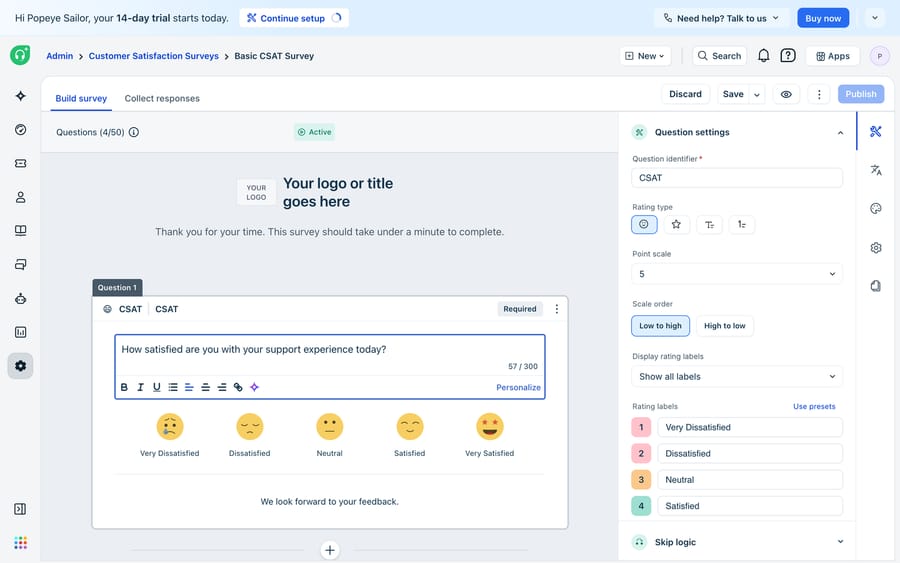
Label the ratings. Map each point to a word — Very Dissatisfied, Dissatisfied, Neutral, Somewhat Satisfied, Satisfied — and set the scale order (low-to-high or high-to-low). And you're not limited to one question: you can add follow-up questions of different types (multichoice, yes/no, short or long text) so a customer who rates you poorly can tell you why in their own words. Keep it short, though — every extra question shaves points off your completion rate.
Step 3: When should the survey be sent?
A great survey that never fires measures nothing. Under the Collect Responses tab, Freshdesk gives you three ways to send it, and the choice determines who gets surveyed and when.
| Trigger method | When it fires | Best for |
|---|---|---|
| Send on Ticket Resolution | Automatically when a ticket is marked resolved or closed | Most teams — the default, hands-off approach |
| Send via Automation | On an event you define, filtered by conditions (priority, source, group) | Surveying only certain segments, e.g. paid-tier customers |
| Send Manually | An agent attaches the survey to a reply | High-touch tickets where the agent judges the moment |
For most teams, Send on Ticket Resolution is the right default. When you enable it, you also pick the channels the survey goes out on: Email, plus Web Chat, WhatsApp, Instagram and Facebook Messenger on Freshdesk Omni. Then per channel you can set a minimum-messages threshold (don't survey a one-line ticket), a time interval after the last message, and a survey expiry window so stale links stop counting.
If you want to survey only a slice of tickets — say, only High-priority tickets, or only a specific product line — use Send via Automation instead, where you can gate the survey behind conditions. This is also the natural on-ramp if you're already thinking about how to automate Freshdesk with AI, since the same automation engine drives both.
Step 4: How do I limit survey fatigue and go live?
Before you flip the survey to Active, think about fatigue. A customer who opens five tickets in a week and gets five survey requests will start ignoring all of them.
On the Enterprise plan, Freshdesk exposes a survey frequency control: "send one survey every n requests per day / week / month." When a contact hits the limit, Freshdesk suppresses the extra request — either sending the resolution message without a survey, or skipping the message entirely. If you're on a lower plan, you approximate this by scoping the survey through automation conditions instead.
Then flip the status. A survey has three states: Draft (editable, private), Active (live and collecting), and Paused (no new sends, but pending responses still land). Set it Active and the clock starts.
Step 5: How do I read the CSAT report?
Responses from the new module flow into the Advanced CSAT Performance report (legacy responses stay in Satisfaction Survey Reports), where they're sorted into positive, neutral, and negative buckets and rolled into an overall CSAT percentage. The report is where the setup pays off:
- Filter by agent to see individual performance — since results are tied to the agent who handled the ticket, this is your per-person satisfaction read.
- Filter by channel or time to spot a dip after a process change or a spike in volume.
- Read the free-text comments, not just the score. The number tells you that something's wrong; the comments tell you what.
The discipline here is to treat CSAT as a trend, not a verdict on any single ticket. A handful of angry responses in a week of hundreds is noise; a two-week slide across a whole group is a signal worth acting on.
Where does Freshdesk's native CSAT stop, and where does an AI layer fit?
Freshdesk's CSAT module is genuinely capable: it's flexible on question design, generous on channels, and its reporting is clean and agent-attributed. For measuring satisfaction, it does the job well and you shouldn't reach for a third-party survey tool unless you have a specific reason.
But notice what a survey fundamentally is: a measurement, taken after the interaction is over. It tells you a customer was dissatisfied; it can't go back and make the reply faster, clearer, or more accurate. Response rates are also stubbornly low — most customers simply don't answer — so your score is built on a self-selecting minority, often the delighted and the furious, with the quiet majority unheard. And CSAT measures the outcome the agent produced; it can't improve that outcome on its own.
This is the seam where an AI agent layer fits, and it's worth being clear-eyed about the build-versus-buy tradeoff before you reach for one. The broader category of AI agents for customer service exists to improve the interaction itself — the thing CSAT can only score. Macha is one such layer: it runs on top of the Freshdesk you already use as a native connector — it does not replace your help desk or its CSAT surveys. You connect Macha to Freshdesk with your subdomain and API key, and it reads and writes the same tickets your surveys score: drafting grounded replies fast, triaging by intent so the ticket reaches the right agent, and looking up order or account status through a custom tool that turns a REST API into something the agent can call — all before the ticket resolves and the survey ever fires. (Macha's connector is for Freshdesk specifically — not Freshchat, Freshservice, or Freshcaller. And billing is per ticket — one conversation, charged once however many messages it takes — never per resolution; see the pricing breakdown.)
The clean division of labour: keep Freshdesk's CSAT surveys as the source of truth for how customers felt, and layer an agent on top to raise the odds that they felt good in the first place. Measurement and improvement are two different jobs — Freshdesk owns the first, and an AI layer can help with the second.
FAQ
Where do I set up CSAT surveys in Freshdesk? Go to Admin → Workflows → Customer Satisfaction, then click New Survey. On Freshdesk Omni the same settings live under Admin → Configuration and Workflows → Ticket Customer Satisfaction. CSAT is available on the Pro and Enterprise plans.
What point scales can I use? Legacy CSAT supports 2, 3, 5, and 7-point scales, and the new CSAT module lets you choose up to a 10-point scale with customisable labels. You can render the scale as smileys, emoticons, stars, numbers, or text. The 5-point scale is the most common choice.
When is the survey sent to the customer? Under the Collect Responses tab you choose one of three triggers: automatically on ticket resolution/closure, via automation (filtered by conditions like priority or source), or manually by an agent in a reply. On resolution, you also pick channels: Email, plus Web Chat, WhatsApp, Instagram and Facebook Messenger on Freshdesk Omni.
Can I run more than one survey at a time? On the new CSAT module, yes: it runs several surveys concurrently. Legacy CSAT allows up to 10 surveys with only one Active at any moment, the rest in Draft or Paused. Survey frequency controls (to avoid surveying the same contact too often) are available on the Enterprise plan.
Can I add AI to Freshdesk CSAT without replacing Freshdesk? Yes. An AI agent layer like Macha connects to Freshdesk as a native connector and runs on top of your existing help desk and its CSAT surveys — it doesn't replace them. It works upstream of the survey by drafting grounded replies and triaging tickets by intent, so more interactions reach the satisfied end of the scale before the survey ever fires.
Ready to lift the score instead of just measuring it? Start a free trial of Macha and connect it to your Freshdesk in minutes.






