



 Intercom
 Shopify
 Stripe
 Slack
Slack Notion
 Google Workspace
 Confluence

How Do You Set Up CSAT Surveys in Zendesk? (Step by Step, 2026)


Zendesk CSAT is set up in Admin Center under Objects and rules, Business rules, Customer satisfaction, where an admin clicks Get started, edits the survey and activates a channel. Email surveys go out one day after a ticket is solved, messaging surveys appear in the conversation right away, and results land in Explore.
Key takeaways
- Zendesk CSAT setup lives at Admin Center, Objects and rules, Business rules, Customer satisfaction, where an admin clicks Get started, edits the survey, then activates at least one channel.
- The new Zendesk CSAT experience is available on Suite Growth, Professional, Enterprise and Enterprise Plus, and on Support Professional or Enterprise, but not on Suite Team or Support Team.
- Zendesk lets admins pick a 1 to 2, 1 to 3 or 1 to 5 rating scale shown as numbers, emoji or custom text, and every scale still rolls up into Good or Bad for the headline score.
- Zendesk sends email CSAT surveys 24 hours after a ticket is set to Solved with 28 days to answer, while messaging surveys appear in the conversation immediately.
- Legacy email CSAT and any custom CSAT business rules must be deactivated before the new Zendesk CSAT experience can be activated, which prevents surveying customers twice.

To set up CSAT in Zendesk, an admin opens Admin Center → Objects and rules → Business rules → Customer satisfaction, clicks Get started, edits the survey, then activates at least one channel (email or messaging). You need Suite Growth or higher, or Support Professional or higher, and email surveys go out one day after a ticket is set to Solved.
One wrinkle confuses almost everyone: Zendesk has two CSAT systems. There's the newer multichannel CSAT experience (configured under Customer satisfaction in Admin Center, works across email and messaging on web, mobile and social) and the older legacy email CSAT (the classic binary Good/Bad rating delivered by email). New accounts and most setups should use the new experience, so the steps below follow it and call out the legacy mechanics where they still matter. Every step is checked against Zendesk's own documentation; Zendesk revises its UI periodically, so confirm labels in your own account. For how the score is calculated and what a "good" CSAT is, see our companion explainer on how CSAT works in Zendesk.
| Setting | New CSAT experience | Legacy email CSAT |
|---|---|---|
| Where | Admin Center → Objects and rules → Business rules → Customer satisfaction | System automation plus the satisfaction email placeholder |
| Plans | Suite Growth, Professional, Enterprise, Enterprise Plus; Support Professional or Enterprise | Older accounts that already run it |
| Channels | Email and messaging (Web Widget, mobile SDK, social) | Email only |
| Scale | 1–2, 1–3 or 1–5, as numbers, emoji or custom text | Good or Bad |
| When it sends | Email: 24 hours after Solved, 28 days to answer. Messaging: immediately on Solved | About 24 hours after Solved |
What is CSAT in Zendesk?
CSAT (Customer Satisfaction) is a transactional metric: after you resolve a ticket, you ask the requester to rate that specific interaction, and those individual ratings roll up into a single percentage, your CSAT score. It rates this ticket, not your brand overall, which is what separates it from NPS. In Zendesk it's built in, fires automatically off solved tickets, and feeds straight into Explore for trending. For the full breakdown of scales, scoring, and benchmarks, read CSAT in Zendesk explained; this post is the hands-on setup.
Which Zendesk plans and roles can set up CSAT?
Two things determine whether you can even see the CSAT settings:
- You must be an administrator. Turning on CSAT and editing the survey happen in Admin Center, which requires an admin role. Agents can't enable it.
- You need a plan that includes CSAT. This is the part people get wrong. The new CSAT experience is available on Zendesk Suite Growth, Professional, Enterprise, and Enterprise Plus, and on Support Professional or Enterprise. It is not included on Suite Team or Support Team. If you're on an entry plan and can't find the Customer satisfaction page, that's why, and you'll need to upgrade. (Plan packaging changes over time, so confirm against Zendesk's current docs and your own billing page.)
It also helps to have your channels in order first. CSAT can survey email tickets and messaging conversations (Web Widget, mobile SDK, and social), so if you want in-conversation surveys, make sure messaging is already set up before you turn CSAT on. Zendesk's docs note the new survey does not cover legacy live chat.
Where does CSAT live in Zendesk Admin Center?
CSAT is not where most people look first. It's a business rule, so it sits with triggers and automations, not with reporting:
Admin Center → Objects and rules → Business rules → Customer satisfaction
When you open that page for the first time on a clean account, you'll see an intro screen with a survey illustration and a Get started button (assuming another admin hasn't already configured it). That single screen is the front door to the entire new CSAT experience: enabling it, editing the survey, and managing which channels send.
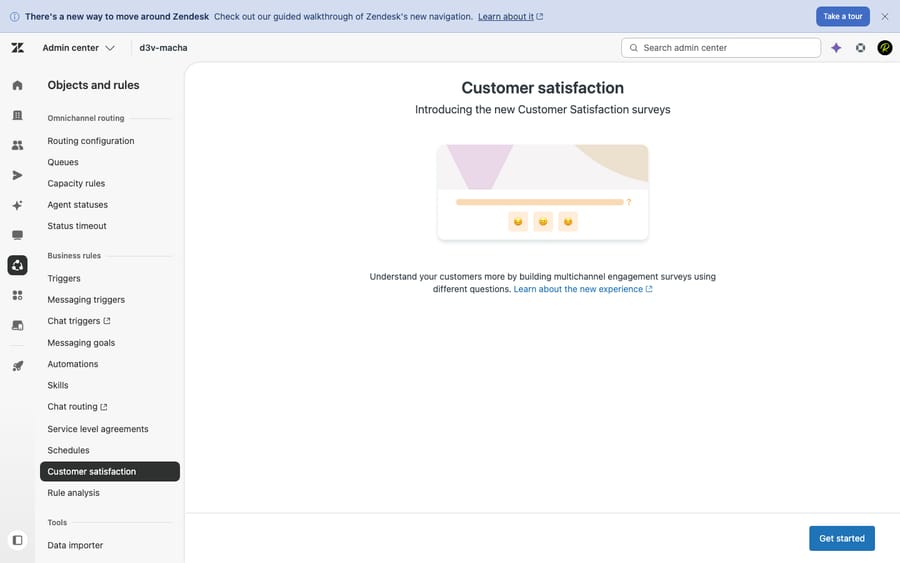
Step 1: How do you turn CSAT on?
By default, CSAT is off. To enable the new experience:
- In Admin Center, click Objects and rules in the sidebar.
- Select Business rules → Customer satisfaction.
- Click Get started.
That's the enablement step. It doesn't start sending surveys yet. It unlocks the survey editor and the channel rules, which you configure in the next steps. Nothing reaches a customer until you've edited the survey and activated at least one channel (Step 4).
One critical caveat if your account has history: if you're currently using legacy CSAT, you must deactivate legacy CSAT and any custom CSAT business rules before you can activate the updated CSAT option. Running both at once is how customers end up getting surveyed twice. The legacy side has its own section below.
Step 2: How do you edit the survey question and rating scale?
With CSAT enabled, click Edit survey to design what the customer actually sees. The new experience is far more flexible than the old Good/Bad binary. You'll configure:
- The headline. This is the question text the customer reads, for example "How would you rate the support you received?" Keep it short and unambiguous.
- The rating scale range. Choose 1–2, 1–3, or 1–5. A 1–2 scale is the classic two-button experience; 1–5 gives customers more room to express nuance.
- The scale type. Display the scale as numbers, emoji, or custom text. Emoji tends to lift response rates on messaging; plain numbers read cleanly in email.
- Per-rating labels. You can add a label and a short explanation to each rating option so "3" means something specific to your customers rather than a bare number.
A scoring detail worth knowing while you pick a scale: no matter which range you choose, Zendesk still buckets every rating into Good or Bad for the headline score. On a 1–5 scale, 4 and 5 count as Good while 1–3 count as Bad; on 1–3, only a 3 is Good; on 1–2, the 2 is Good. So a 1–5 survey collects richer feedback, but your headline CSAT percentage is still positive vs negative under the hood.
Step 3: How do you ask why a customer gave a bad rating?
A rating alone tells you that someone was unhappy. The follow-up tells you what to fix, and it's the most actionable thing CSAT produces. In the new experience, you add it in the survey editor: turn on an open-ended or drop-down follow-up question that appears after a low rating, so the customer can tell you why.
The drop-down version lets you define your own preset answer options inside the survey editor ("took too long," "didn't solve my problem," and so on), a short structured list that keeps the data clusterable instead of a pile of free text. Keep the list short and mutually exclusive so the answers stay clean and reportable. (This is distinct from the legacy satisfaction reasons feature below: in the new experience you configure these follow-up options in Edit survey, not in the end-user satisfaction picklist.)
If you're on the legacy email CSAT path, the equivalent satisfaction reasons are managed separately, under Admin Center → People → Configuration → End users → Satisfaction tab: tick Allow customers to rate tickets, then Ask a follow-up question after a bad rating, which opens the reasons picklist with "Reasons in use" and "Reasons not in use" columns. Move reasons between the columns to control what appears. On legacy, a customer who picks "Bad, I'm unsatisfied" then sees "What is the main reason you are unsatisfied?" with your drop-down.
Step 4: How do you activate CSAT channels?
This is the step that actually starts surveys flowing. After saving the survey, go back to the Customer satisfaction page and activate at least one channel. CSAT won't send anything until you do. Use the channel's actions menu to Activate, then confirm with Activate rule.
You can turn channels on independently depending on where your customers actually are:
- Email: surveys email-based tickets.
- Messaging: surveys conversations from the Web Widget, mobile SDK, and social channels in-thread. (Messaging has to be set up first for this to be available.)
Turn on only the channels you want. A common pattern is email-only to start, then add messaging once you've seen how the email survey performs.
Step 5: When does Zendesk send the CSAT survey?
CSAT delivery is governed by two standard business rules Zendesk ships with the new experience, and the timing differs by channel:
- Email: an automation. The "Request customer satisfaction rating" automation sends the survey by email 24 hours (one day) after the ticket is set to Solved. The delay is deliberate: it gives the customer a beat to confirm the fix held before they rate it. Customers have 28 days to respond, and can rate whether the ticket is still Solved or has since auto-Closed.
- Messaging: a trigger. The "Request customer satisfaction rating" trigger presents the survey immediately, in the conversation, the moment a ticket created via Web Widget, mobile SDK, or social is set to Solved. No 24-hour wait: the customer is still in the thread, so you ask right then.
Two things follow from this. First, surveys only ever go out on tickets that reach Solved. Open, Pending, and On-hold tickets are never surveyed, because there's no resolved experience to rate yet. Second, because email runs on a timer (automation) and messaging fires on an event (trigger), you get sensible defaults for each channel without configuring anything. You can edit these standard rules to adjust the email delay or add conditions that exclude certain tickets, users, or tags, but for most teams the defaults are the right starting point.
Step 6: Can you change CSAT timing and exclude tickets?
Yes. Once the basics work, the standard rules are yours to tune from the same Customer satisfaction page. Timing: lengthen the email delay for products where customers need time to confirm a fix; shorten it for fast, simple interactions. Exclusions: add conditions or tags so certain tickets never get surveyed, such as trivial auto-resolved tickets or partner and internal users. If you want a deeper workflow, say routing every Bad rating to a manager for follow-up, that's standard Zendesk trigger territory layered on top of CSAT, and it's where the metric stops being a dashboard number and starts driving a recovery process.
How is legacy email CSAT different?
If your account predates the new experience, you may be running legacy CSAT, and it's worth knowing what it is so you can decide whether to migrate. Legacy CSAT is a strictly email, strictly binary survey: one question, "How would you rate the support you received?", with two answers, Good or Bad. It's delivered by the "Request customer satisfaction rating (system automation)", which fires roughly 24 hours after a ticket is solved, and the survey is embedded in the customer's email via the {{satisfaction.rating_section}} placeholder, a real Zendesk placeholder you drop into the satisfaction email so the rating buttons render in the message.
The practical differences from the new experience:
- Legacy is email-only. No in-conversation surveys on messaging, web, or social.
- Legacy is Good/Bad only. No 1–5 scales, no emoji, no custom labels or richer follow-ups.
- Legacy uses the system automation plus placeholder. The new experience replaces that with managed channel rules, so you never hand-edit a placeholder.
To move to the new experience, deactivate legacy CSAT and any custom CSAT business rules first, then run Steps 1–4 above. Zendesk won't let you activate the updated CSAT while legacy is still on, specifically to prevent double-surveying.
Step 7: How do you measure CSAT results in Explore?
Turning CSAT on is only half the job; the value is in the trend. Individual ratings appear on tickets and on the agent-level Support dashboard for quick day-to-day visibility, but the real analysis lives in Zendesk Explore, which ships a dedicated Satisfaction dataset and a prebuilt dashboard.
From there you can break CSAT down by agent, group, channel, ticket tag, time period, or custom field, and combine it with your other metrics in custom reports. Filtering by tag shows you which topics generate unhappy customers; trending CSAT against your response and resolution times reveals whether speed and quality are moving together or pulling apart. If you're new to building these views, our walkthrough on how to build reports in Zendesk Explore covers the dataset-to-dashboard flow step by step. And because CSAT ratings attach to the underlying ticket, everything you know about how Zendesk tickets work (tags, fields, groups) becomes a dimension you can slice satisfaction by.
What mistakes make CSAT data useless?
A few habits separate teams that get useful CSAT data from teams that get noise:
- Keep the survey short. Every extra required field costs you responses. Ask for the rating first; make any comment optional.
- Always collect a reason on bad ratings. A Bad with no reason is a dead end; a Bad with "took too long" pointed at a specific tag is a fixable process problem.
- Don't run legacy and new CSAT at once. This is the classic double-survey trap. Deactivate legacy before activating the new experience.
- Don't over-survey. Sending a survey after every trivial or auto-resolved ticket trains customers to ignore them. Use exclusions to survey meaningful resolutions, not every status change.
- Read a tiny sample carefully. If only a handful of customers responded, one Bad swings the percentage wildly. Look at response volume before reacting, and don't grade an agent on five ratings.
Does CSAT measure AI-resolved tickets too?
Yes. Once CSAT is live, it becomes the most honest scorecard you have for anything touching your tickets, including automation. If an AI agent layer like Macha is resolving routine tickets on top of your Zendesk, those resolutions get surveyed exactly like a human's. Macha isn't a help desk and it isn't a Zendesk replacement. It runs on top of your existing Zendesk, so the tickets it handles reach the same Solved status and the same CSAT survey your agents' tickets do. That's a useful accountability check: you can see, in your own Explore Satisfaction dashboard, whether automated resolutions actually keep customers happy rather than taking it on faith.
Two honest angles are worth naming. First, faster, more consistent answers tend to lift CSAT, but that's a tendency, not a guarantee, and it depends on the quality of the knowledge you connect. Second, Macha can act on CSAT signals: a low rating can trigger a workflow that routes the detractor to a human for recovery with full context attached, instead of the Bad rating sitting in a report. On cost, Macha bills per ticket: one conversation, charged once however many steps it takes, whether that's drafting a reply, tagging, routing, or resolving. Plans start at $299 a month for up to 750 tickets, with setup by the Macha team included. You can try it free with $50 of free usage, no credit card required.
Frequently asked questions
Where do I set up CSAT in Zendesk? In Admin Center → Objects and rules → Business rules → Customer satisfaction. On a fresh account you'll see an intro screen with a Get started button; click it, then Edit survey to design the survey and activate your channels. CSAT is off by default, so nothing sends until you enable it and activate at least one channel.
Which Zendesk plans include CSAT? The new CSAT experience is available on Suite Growth, Professional, Enterprise, and Enterprise Plus, and on Support Professional or Enterprise. It's not included on Suite Team or Support Team. Plan packaging changes, so confirm in your own account.
When does the CSAT survey get sent? Only on tickets that reach Solved. For email, an automation sends the survey 24 hours (one day) after the ticket is solved, with a 28-day response window. For messaging (Web Widget, mobile SDK, social), a trigger presents the survey in the conversation immediately after the ticket is solved.
What rating scale can I use? The new experience supports 1–2, 1–3, or 1–5 scales, displayed as numbers, emoji, or custom text, with optional per-rating labels and a follow-up question. All scales still roll up to Good/Bad for the headline score (on 1–5, 4–5 are Good and 1–3 are Bad). Legacy email CSAT is binary Good/Bad only.
How do I collect a reason when someone gives a bad rating? In the new experience, add a drop-down or open-ended follow-up question in the survey editor. On legacy CSAT, go to Admin Center → People → Configuration → End users → Satisfaction tab, enable Allow customers to rate tickets and Ask a follow-up question after a bad rating, and manage the satisfaction reasons picklist there.
What's the difference between legacy CSAT and the new experience? Legacy CSAT is email-only and Good/Bad only, delivered by the "Request customer satisfaction rating (system automation)" using the {{satisfaction.rating_section}} placeholder. The new experience is multichannel (email plus messaging on web, mobile and social) with richer scales and follow-ups, managed under Customer satisfaction. You must deactivate legacy CSAT before activating the new one.
Where do I see CSAT results? Quick agent-level numbers appear on the Support dashboard, and full analysis lives in Zendesk Explore, which has a dedicated Satisfaction dataset and prebuilt dashboard for slicing CSAT by agent, group, channel, tag, and time.
Does the new CSAT survey work with legacy live chat? No. Zendesk's documentation says the updated survey covers email and messaging, not legacy live chat.
Setup steps checked against Zendesk's official documentation on 24 September 2026. Zendesk updates its product periodically, so confirm labels and plan availability in your own account before relying on them.
Add AI agents to your Zendesk
Macha reads the ticket, drafts the reply and takes the action, inside the Zendesk you already run.





