





 Shopify
 Stripe
 Slack
Slack Notion
 Google Workspace
 Confluence

How Do You Set Up Email Notifications in Freshdesk?


Freshdesk keeps every automatic email under Admin, Workflows, Email Notifications, where you toggle agent and requester notifications, edit each template and insert placeholders like the ticket ID. SLA reminder and violation emails only appear on the Pro plan and above.
Key takeaways
- Freshdesk manages every automatic email under Admin, Workflows, Email Notifications, split into Agent notifications, Requester notifications and CC notifications, each with its own on/off toggle.
- Freshdesk's six SLA notifications, covering first response, next response and resolution time reminders and violations, are available only on the Pro plan and above.
- Freshdesk lists six requester notifications, including the new ticket acknowledgement, agent comment, solved and closed emails, plus user activation and password reset messages.
- The Freshdesk notification editor has an Insert Placeholder button for fields like the ticket ID, subject, portal link and requester first name, which resolve per ticket at send time.
- Multi-language Freshdesk notifications need the Pro or Enterprise plan, and a source toggle in the editor switches the rich text body to raw HTML.

You set up email notifications in Freshdesk under Admin → Workflows → Email Notifications: toggle on the Agent and Requester notifications you want, click each one to edit its subject and body, and use Insert Placeholder to add fields like the ticket ID. SLA reminder and violation emails need the Pro plan or above, per Freshworks' Configuring email notifications article.
| Notification group | Who receives it | Examples | Plan |
|---|---|---|---|
| Agent notifications | Your team | New ticket created, ticket assigned to agent, requester replies | All plans |
| SLA notifications (agent) | Your team | First response, next response and resolution time reminders and violations | Pro and above |
| Requester notifications | Customers | New ticket created, agent adds comment, agent solves or closes the ticket | All plans |
| CC notifications | CC'd users | New ticket created, note added to the ticket | All plans |
| Multi-language notifications | Customers | Translated versions of each template | Pro or Enterprise |
Where do Freshdesk email notifications live?
Everything is in one module: Admin → Workflows → Email Notifications. Inside it, notifications split into groups that are worth keeping straight:
- Agent notifications: the internal emails your team receives about ticket activity (a new ticket, an assignment, a customer reply, an SLA breach, a note, a thread you're tagged in).
- Requester notifications: the customer-facing emails your end users receive (their ticket was created, an agent replied, the ticket was solved or closed).
- CC notifications: emails to CC'd users when an agent creates a ticket or adds a note.
There's also a Templates tab in the same area for the Agent Reply Template, which controls the greeting and signature agents start from when they reply. We'll come back to that.
Which agent notifications should you turn on?
Agent notifications pull your team into a ticket without anyone watching a queue. Open the Agent notifications section and you'll find a list of events, each with an on/off toggle.
- Go to Admin → Workflows → Email Notifications → Agent notifications.
- Toggle on the events your team should hear about. The core ones are New ticket created, Ticket assigned to group, Ticket assigned to agent, Requester replies to ticket and Ticket unattended in group. The list also includes Note added to ticket and three thread notifications (new threads on my tickets, new replies on my thread, threads I'm tagged in).
- On the Pro plan and above, you'll also see six SLA notifications: First response, Next response and Resolution time, each with a reminder and a violation email. These fire off your SLA policy, so they pair directly with how you set up SLA policies in Freshdesk.
- Click a notification's name to open its editor, where you can rewrite the subject and body.
A word of restraint: turning everything on is the fastest way to train agents to ignore their inbox. Pick the two or three events that genuinely need a human's attention and leave the rest off.
Which requester notifications do customers receive?
Requester notifications are the ones customers actually read, so they carry more weight for your brand than any internal alert. Freshdesk lists six under Requester notifications:
- New ticket created: the acknowledgement your customer gets when they email in.
- Agent adds comment to ticket: sent when an agent replies publicly.
- Agent solves the ticket and Agent closes the ticket: the closing-loop emails.
- User activation email and Password reset email: portal-account messages.
For each, use the toggle to enable or disable it, then click through to edit the copy. The acknowledgement email is worth rewriting first: the stock version is functional but bland, and a line that sets a realistic expectation ("Thanks, we've got your ticket and a person will reply within one business day") does real work for your first impression.
How do you edit the subject line and message body?
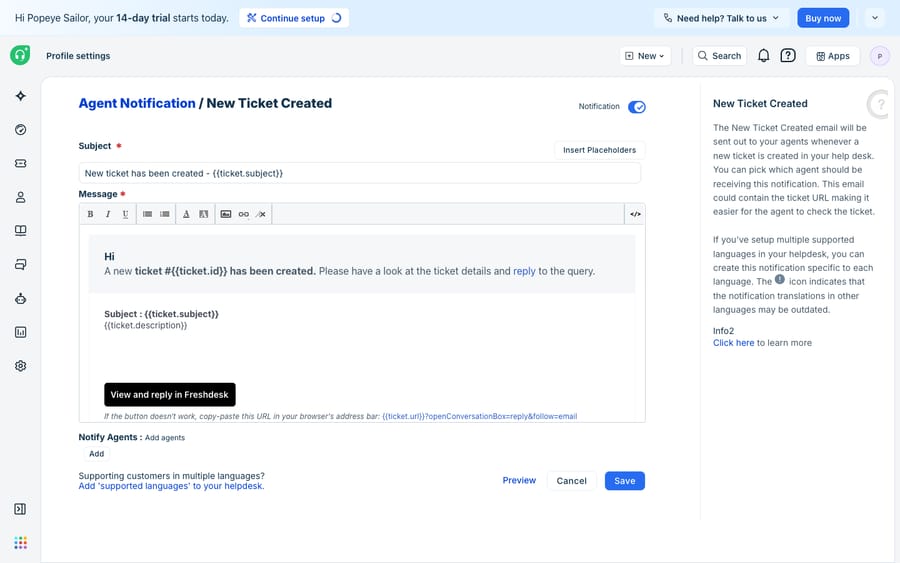
Every notification, agent- or requester-facing, opens into the same editor:
- A Subject field: a single line you can rewrite freely and fill with placeholders.
- A Message body in a rich-text editor with bold, links and formatting.
- A
</>(source) toggle to switch into raw HTML when you need precise control over layout, inline styles, or a branded template the visual editor can't produce.
Use Preview to check the result, then Save. If an edit goes wrong, Reset to last saved content rolls it back. If your marketing team hands you a designed email template, the HTML view is where it goes.
How do you insert dynamic placeholders?
A "your ticket was updated" email that doesn't say which ticket makes the customer hunt. Placeholders inject live ticket data into the subject and body at send time.
Click Insert Placeholder in the editor to open a picker of dynamic fields. Freshworks' placeholder reference lists these common ones:
| Placeholder | What it inserts |
|---|---|
{{ticket.id}} | The unique ticket ID |
{{ticket.subject}} | The ticket subject line |
{{ticket.description}} | The original request text |
{{ticket.url}} | The ticket link for logged-in users |
{{ticket.portal_url}} | The portal-specific customer link |
{{ticket.requester.name}} | The requester's full name |
{{ticket.requester.firstname}} | The requester's first name |
{{ticket.agent.name}} | The assigned agent's name |
A practical subject line for the agent "new ticket" email might read New ticket #{{ticket.id}}: {{ticket.subject}}, and a requester acknowledgement can open with Hi {{ticket.requester.firstname}},. Because placeholders resolve per ticket, one template personalizes every message.
The same Insert Placeholder picker powers the Agent Reply Template under the Templates tab, documented in Freshworks' agent reply templates guide. That template sets the standard greeting and signature, so the whole team's replies share one branded frame.
What can't Freshdesk notifications do?
Freshdesk's notification engine is good at exactly what it's for: it's deterministic, and it emails the right people the moment an event fires. Three limits are worth knowing.
It's an alerting system, not a workflow engine. A notification tells a person that something happened; it can't read the ticket, understand the problem, or draft the reply. The "new ticket created" email lands in an agent's inbox and the reasoning and writing still fall on that agent.
Some pieces are plan-gated. The SLA notifications require Pro and above, and multi-language notifications need Pro or Enterprise. On a lower tier, part of this setup won't appear in your admin console.
Placeholders are stored fields, not logic. {{ticket.id}} and {{ticket.subject}} inject stored data, but a notification can't compute anything, look a value up in another system, or vary its wording by what the ticket is about. When the question is "where's my order #4471?", the notification forwards the question. It can't answer it.
That gap is where an AI agent layer fits, and it's worth understanding the build-versus-buy tradeoff before reaching for one. The broader category of AI agents for customer service exists to do the reasoning a notification can't. Macha is one such layer: it runs on top of the Freshdesk you already use as a native connector and doesn't replace your help desk or its notifications. You connect it with your Freshdesk subdomain and API key, and it reads and writes the same tickets your notifications announce: drafting or posting a grounded first reply when a ticket arrives, triaging by intent, and looking up order or account status through a custom tool that turns a REST API into something the agent can call. We walk through the fuller pattern in how to automate Freshdesk with AI. Macha's connector is for Freshdesk specifically (not Freshchat, Freshservice or Freshcaller), and it's billed per ticket, one conversation charged once however many messages it takes, from $299 a month for up to 750 tickets (see pricing).
The clean split: keep Freshdesk's notifications as the source of truth for who gets told what, and when, and put an agent on top for the part the email can't do, which is reading the ticket and writing the response.
FAQ
Where do I set up email notifications in Freshdesk? Go to Admin → Workflows → Email Notifications. Notifications are split into Agent notifications (internal emails about ticket activity), Requester notifications (customer-facing emails) and CC notifications, each with its own on/off toggle and editable template.
How do I add the ticket number or a link to a notification? Open the notification's editor, click Insert Placeholder, and choose a field such as {{ticket.id}}, {{ticket.subject}}, {{ticket.url}} (the logged-in link) or {{ticket.portal_url}} (the portal link). The placeholder resolves per ticket when the email is sent.
Can I edit the HTML of a Freshdesk notification email? Yes. In the message-body editor, select the </> (source) toggle to switch from the rich-text view to raw HTML, which is where a designed or heavily branded template belongs.
Are all notification types available on every plan? No. The six SLA notifications (first response, next response and resolution time reminders and violations) require the Pro plan and above, and multi-language notifications are a Pro or Enterprise feature. The core ticket-activity notifications are available more broadly.
How do I stop Freshdesk sending a notification? Toggle that notification off in its group under Email Notifications. Freshdesk then stops sending the email for that event.
Can I add AI to Freshdesk notifications without replacing Freshdesk? Yes. An AI agent layer like Macha connects to Freshdesk as a native connector and runs alongside your existing notifications. Freshdesk still decides who gets emailed and when, while Macha handles what a notification can't: reading the new ticket and drafting or sending a grounded reply.
Ready to turn the "new ticket" alert into an answered ticket? Start a free trial of Macha with $50 of free usage and no credit card, and connect it to your Freshdesk.






