





 Shopify
 Stripe
 Slack
Slack Notion
 Google Workspace
 Confluence

How Do You Set Up Ticket Escalations in Freshdesk? (2026)


Freshdesk escalates tickets through SLA policies, which notify people when a response or resolution target is missed, and through Hourly Trigger Supervisor rules, which act on tickets that have aged past a threshold. Freshworks documents both for the Pro and Enterprise plans.
Key takeaways
- Freshdesk ticket escalations live in two places: the Send escalation when SLA is violated section under Admin, Workflows, SLA Policies, and Hourly Triggers under Admin, Workflows, Automations.
- Freshdesk SLA escalations can fire anywhere from immediately (5 minutes) to 1 month after a breach, and notify the assigned agent, managers or team leads by email or desktop notification.
- Freshworks says SLA-violation escalations are available from the Pro plan onwards, so the Growth plan at $19 per agent per month billed annually does not include them.
- A Freshdesk Supervisor rule bracketed with Hours since first response due greater than 1 and less than 2 escalates once instead of re-notifying every hour.
- Macha connects to Freshdesk as a native connector to read escalating tickets by intent, and bills per ticket from $299 a month for 750 tickets.

You set up ticket escalations in Freshdesk in one of two places: under Admin → Workflows → SLA Policies, in the "Send escalation when SLA is violated" section of each policy, or under Admin → Workflows → Automations → Tickets → Hourly Triggers, as a time-based Supervisor rule. Freshworks' own escalation article lists both methods for the Pro and Enterprise plans (checked 24 September 2026).
| SLA-breach escalation | Time-triggered Supervisor rule | |
|---|---|---|
| Triggers on | A missed first response, next response or resolution target | Ticket age crossing a threshold |
| Where | Admin → Workflows → SLA Policies | Admin → Workflows → Automations → Hourly Triggers |
| Escalation steps | A hierarchy of escalations per target, set in the policy | As many rules as you build |
| Timing | Immediately (5 minutes) to 1 month after the breach | Hourly sweep |
| Notification | Email or desktop notification | Any rule action, such as Send email to agent |
| Plan (per Freshworks' escalation article) | Pro and Enterprise | Pro and Enterprise |
| Best for | Protecting formal commitments | Catching stale or unowned tickets |
What are the two kinds of escalation in Freshdesk?
"Escalation" in Freshdesk isn't one feature. It's two mechanisms that solve overlapping but distinct problems.
The first is SLA-based escalation. Every SLA policy carries targets (first response, next response, resolution), and you can attach escalations to violations of each. When a target is missed, Freshdesk notifies whoever you've named. This is the tightest, most purpose-built option, because the escalation is wired directly to the promise you're breaking.
The second is time-triggered escalation via Supervisor rules. Supervisor rules, labelled Hourly Triggers (formerly Time Triggers) in the current Automations UI, don't care about SLA targets. They sweep your ticket queue on a recurring schedule and act on anything that has aged past a threshold you define. That makes them more flexible: you can escalate on conditions an SLA policy never models, like "a low-priority ticket that's been open 72 hours with no owner."
Most mature help desks use both: SLA escalations to protect the commitments they've formally made, and Supervisor rules to catch the long tail of tickets that quietly go stale. If you want the full picture of how Supervisor rules fit alongside Dispatch'r and Observer, our Freshdesk automations explainer breaks down all three by when they run.
How do you set up SLA-breach escalations?
This is the one to reach for first, because it maps escalation directly onto the targets your customers actually feel.
Where it lives. Go to Admin → Workflows → SLA Policies, open the policy you want to edit, and find the section headed "Send escalation when SLA is violated." Freshworks documents the full behaviour in Understanding SLA Policies.
How to configure it, step by step:
- Open the target SLA policy. If you run different SLAs per group or customer segment, edit each policy separately. Escalations are configured per policy.
- Locate "Send escalation when SLA is violated." You'll see rows for the response and resolution targets. Select Add new escalations.
- Add an escalation for each target you care about. Freshdesk lets you build an escalation hierarchy, so a deepening breach notifies progressively more senior people. Freshworks' article doesn't publish a fixed number of levels per target, so check what your policy editor offers.
- Choose the timing. For each escalation, set how long after the breach it fires, anywhere from immediately (5 minutes) out to 1 month.
- Choose the recipients. Escalations can go to the assigned agent and/or managers, team leads, or other named users, by email or desktop notification. This is where your hierarchy lives: first step to the agent, next step to their manager, and so on.
- Save the policy. From that moment, any ticket governed by this SLA that breaches will trip the escalation chain automatically.
Check your plan before you rely on this. Freshworks' SLA article says escalations are available from the Pro plan onwards, for both Freshdesk and Freshdesk Omni. Freshdesk's pricing page lists Growth at $19, Pro at $55 and Enterprise at $89 per agent per month, billed annually. A Growth account won't have SLA-violation escalations.
How do you build a time-triggered Supervisor rule?
Supervisor rules are the workhorse for anything time-based that an SLA policy can't express. They run on a recurring hourly sweep, evaluate your open tickets against age-based conditions, and take an action on the ones that match.
Where it lives. Go to Admin → Workflows → Automations, open the Tickets tab, and choose Hourly Triggers (the section formerly called Time Triggers). Click New Rule. Freshworks walks through a concrete example, escalating when an agent hasn't responded, in this support article, which lists this method for the Pro and Enterprise plans.
How to build an escalation rule:
- Name the rule something a future admin will understand, e.g. "Escalate unanswered urgent tickets after 2h."
- Set the match mode to Match ALL of the below so every condition must hold.
- Add your aging condition. Use a time-based field such as "Hours since first response due, Greater than 1". Bracket it with a Less than condition (e.g. Less than 2) so the rule fires only inside a specific window and doesn't re-notify every hour.
- Narrow with ticket properties. Add conditions like Priority is Urgent or Status is Open so you only escalate what genuinely warrants it.
- Set the action. Choose Send email to agent (or a manager) and write the message, using Insert Placeholder to pull in the ticket ID, subject, and requester dynamically.
- Preview and Save, then Save and enable.
The image below shows this time-triggered pattern in the rule builder. It's a Supervisor/Hourly rule keyed on an aging threshold (Hours Since Resolved > 48), with the action set to change status. That's the time-based aging backbone every escalation rule shares. Swap the status-change action for a "Send email" action and it becomes a manager escalation.
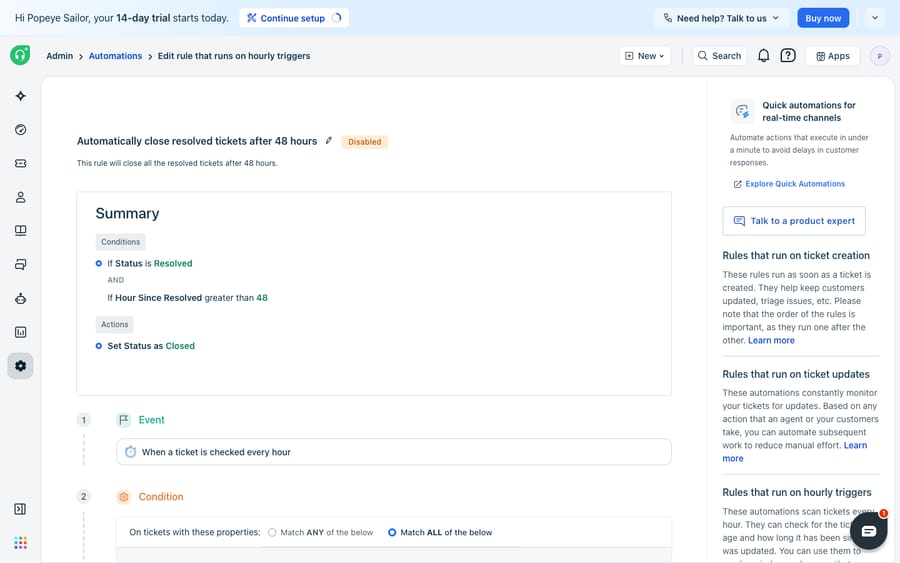
Because Supervisor rules run on a clock rather than off an SLA target, they suit the housekeeping side of escalation: nudging stale tickets, re-routing anything unassigned too long, or auto-closing resolved tickets that customers never came back to.
Should you use SLA escalation or Supervisor rules?
Use SLA escalation when a ticket is covered by a formal target and the breach itself is the event you care about. Use a Supervisor rule when the trigger is plain age or ownership (no reply in two hours, unassigned for a day, resolved but never closed) and no SLA target models it. The table at the top of this page sets the two side by side. On Pro and Enterprise you can run both, and most teams should.
Where does native escalation stop, and where does an AI layer help?
Native Freshdesk escalation is dependable, transparent, and free of surprises. But every rule here escalates on time and field values, never on meaning. A Supervisor rule knows a ticket is 48 hours old; it can't tell whether those 48 hours contained a furious customer threatening to churn or a polite "no rush." SLA escalation fires on a breached clock; it can't read the last reply and see that the issue was already resolved and the timer is escalating a non-problem. And neither can act on the escalation beyond pinging a human. They route the alert, but a person still has to read the thread, understand it, and respond.
That's where an AI agent layer fits, and it's worth being clear-eyed about the build-versus-buy tradeoff before assuming you need to code it yourself. The broader category of AI agents for customer service exists to do the reading and judging that rules structurally can't. Macha is one such layer: it runs on top of the Freshdesk you already use as a native connector and does not replace your help desk. You connect it with your subdomain and API key, and it reads and writes the same tickets your SLA policies and Supervisor rules already govern. (To be precise: Macha's connector is for Freshdesk, not Freshchat, Freshservice, or Freshcaller.)
In practice, the division of labour is clean. Keep your native rules for what they're good at: SLA timers, escalation hierarchies, and time-based housekeeping. Layer an agent on top for the judgment calls: reading the actual conversation to decide urgency by intent rather than by clock, drafting a first reply for an agent to approve before a manager ever needs paging, or checking order and account status through a custom tool that turns any REST API into something the agent can query mid-escalation. Because agents are non-deterministic, Macha lets you batch-grade a candidate agent against your real historical tickets before it touches a live queue, so an escalation gets prevented, not just forwarded.
You can see how the connector is wired on the Macha for Freshdesk page. Macha bills per ticket (one conversation, charged once however many escalation checks, lookups and replies it takes), not per resolution, from $299 a month for 750 tickets, with setup and monitoring by the Macha team included. The full breakdown is on the pricing page.
FAQ
How do I set up escalation in Freshdesk? There are two native routes. For SLA-based escalation, go to Admin → Workflows → SLA Policies, edit a policy, and configure the "Send escalation when SLA is violated" section: set the timing, the escalation steps, and the recipients. For time-based escalation, go to Admin → Workflows → Automations → Tickets → Hourly Triggers and build a rule with an aging condition like "Hours since first response due."
How many escalation levels does Freshdesk support? Freshworks' SLA article describes an escalation hierarchy that can notify the assigned agent, then managers or team leads, but it doesn't publish a fixed level count, so check the options in your own policy editor. With Supervisor (Hourly Trigger) rules you can build as many escalation rules as you like.
Is SLA escalation available on all Freshdesk plans? No. Freshworks' documentation says SLA-violation escalations are available from the Pro plan onwards, for Freshdesk and Freshdesk Omni, so Growth ($19 per agent per month billed annually) doesn't include them. Freshworks' escalation how-to lists the Supervisor-rule method for Pro and Enterprise as well, so confirm what your own plan shows under Automations.
What's the difference between an SLA escalation and a Supervisor rule? An SLA escalation fires when a specific SLA target (first response, next response or resolution) is violated, and is configured inside the SLA policy. A Supervisor rule runs on a recurring hourly sweep and acts on any ticket that has aged past a threshold you set, independent of SLA targets, which makes it the more flexible option for stale-ticket housekeeping.
Can I add AI to Freshdesk escalations without replacing Freshdesk? Yes. An AI agent layer like Macha connects to Freshdesk as a native connector and runs on top of your existing help desk. It reads and writes the same tickets your escalation rules govern but acts on the meaning of the conversation, so it can resolve or de-risk a ticket before it needs escalating rather than just forwarding an alert.
Ready to stop forwarding escalations and start resolving them? Start a free trial and connect Macha to your Freshdesk in minutes.






