



 Intercom
 Shopify
 Stripe
 Slack
Slack Notion
 Google Workspace
 Confluence

Is Freshdesk Down? How to Check Freshworks Status for Your Region (2026)


To find out if Freshdesk is down, check status.freshworks.com for the Freshdesk components in your own data center region, since an incident in one region can leave the others running. If your region shows operational, the fault is usually on your network, browser or an integration.
Key takeaways
- The official way to check if Freshdesk is down is status.freshworks.com, reading the Freshdesk components for the account's own data center region.
- Freshdesk also publishes a product status page at updates.freshdesk.com, which runs on Freshworks' own Freshstatus tool.
- Freshdesk hosts accounts in five regions, US, EEA, UAE, India and Australia, and an incident in one region does not necessarily affect the others.
- The Freshstatus legend has five states: operational, degraded performance, partial outage, major outage and maintenance, so a slowdown reads differently from a full outage.
- When Freshdesk's status page shows operational but the app is broken, test another network, an incognito window and your integrations or DNS before blaming Freshworks.

To check if Freshdesk is down, open Freshworks' official status page at status.freshworks.com, find Freshdesk, and read the components for your own data center region (US, EU, India, Australia or UAE), because an incident in one region can leave the others untouched.
How do you check if Freshdesk is down right now?
The single source of truth is Freshworks' own status page: status.freshworks.com. Don't rely on Downdetector, a tweet, or a colleague's hunch as your first move — go straight to the status page, find Freshdesk, and check the status for your region/data center, because Freshworks runs Freshdesk out of separate regional data centers and an incident can hit one region while leaving the others completely fine.
The 30-second version:
- Go to status.freshworks.com (Freshdesk also publishes a product-specific page at updates.freshdesk.com).
- Find the Freshdesk product, then the components for your region — US, EU (EEA), India (IND), Australia (AU), or UAE.
- Read the result: each component shows operational, degraded performance, partial outage, major outage or maintenance, plus any active incidents and scheduled maintenance.
- If it's all green there but broken for you, the problem is probably on your side — jump to "Freshdesk vs. your problem" below.
The sections below cover how to read that page properly and what to do next.
How do you read the Freshworks status page?
Anyone can glance at the global status page, but the useful trick — the one most "is Freshdesk down" articles skip — is checking the right product and the right region, because that's the only check that accounts for Freshworks' multi-data-center setup.
Step 1 — Go to the official Freshworks Status page
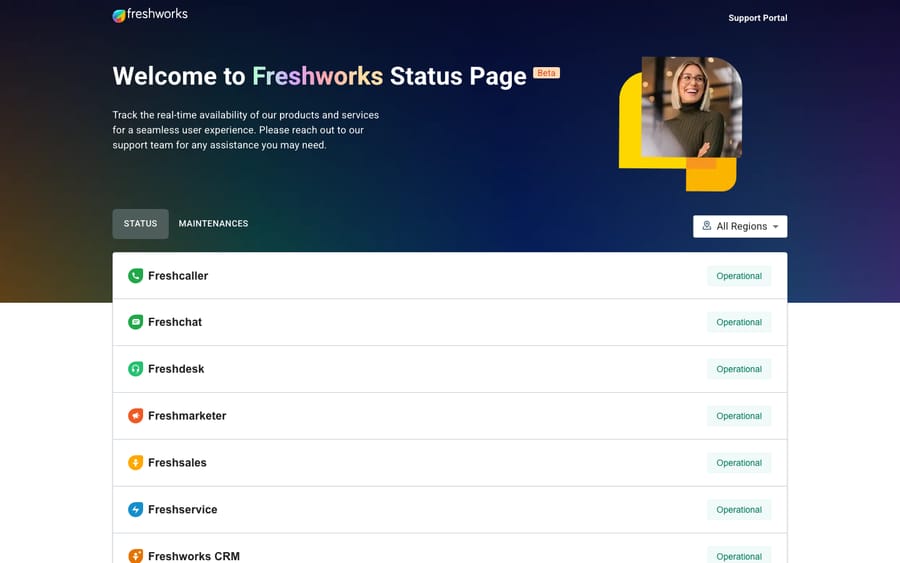
The authoritative source is status.freshworks.com, the umbrella status page for the whole Freshworks suite — Freshdesk, Freshservice, Freshchat, Freshsales / Freshworks CRM, and Freshcaller / Freshdesk Contact Center. Because the products share infrastructure, a single underlying incident can show up across several of them, and seeing the whole suite in one place tells you whether you're looking at a Freshdesk-only blip or a broader Freshworks event.
Freshdesk also maintains a product-specific status page at updates.freshdesk.com — it's "Powered by Freshstatus," Freshworks' own status-page product (the same tool Freshworks sells to customers). Either is a legitimate primary source; if one is sparse for your product, check the other.
Step 2 — Find Freshdesk and your region
This is the part most people miss. Freshdesk hosts customer data in five regions: US, EEA (EU), UAE, IND (India), and AU (Australia) — you picked one when you signed up. The status page breaks components out by region, so an incident can be live in, say, the India data center and a complete non-event for accounts in the US or EU.
So don't stop at "Freshdesk — operational." Find the components that match your region and read those. If you don't know which region your account lives in, that's a known gotcha: Freshdesk assigns your data center at signup and changing it means contacting [email protected], so it's worth confirming with your admin once and writing it down. (Your account's data residency is also part of how Freshdesk handles your data — covered in what Freshdesk is.)
Step 3 — Read the component statuses and the legend
The page lists Freshdesk's services as individual components, grouped into functional and regional groups — things like Ticketing Core, AI Agents & Bots, Analytics & Reporting, and channel/integration components, each shown per region. Freshworks adds and renames components over time, so match on the names you see in your own view.
The Freshstatus legend on updates.freshdesk.com uses five states (checked 24 September 2026):
| State | What it means |
|---|---|
| Operational | The component is performing normally. |
| Degraded Performance | Slow or intermittent, but largely working; some requests may fail. |
| Partial Outage | Part of the component is unavailable, for some features or some accounts. |
| Major Outage | The component is unavailable. |
| Maintenance | A planned maintenance window is in progress (expected, not a fault). |
The granularity is genuinely useful for triage: if AI Agents & Bots is degraded but Ticketing Core is operational, your bot/automation layer is the problem, not your tickets — and you can tell customers exactly that. The reverse — Ticketing Core down — explains why your whole Freshdesk ticketing workflow has stalled.
Step 4 — Check for scheduled maintenance
Not every disruption is an "outage." Freshworks posts scheduled maintenance to the same status page ahead of time, and it shows as its own state. If features behave oddly at an oddly specific time, check whether a maintenance window is posted before you escalate — planned maintenance is expected behavior, not a fault.
Step 5 — Subscribe so you're told next time
Rather than refreshing the page, subscribe. On the status page, choose to subscribe to updates and — this is the good part — filter by the services, regions, and components you actually use. That means you can get notified about Freshdesk in your region without drowning in alerts for Freshservice or Freshcaller in data centers you don't touch. Now incidents come to you instead of you hunting for them.
Why does your data center region change the answer?
Freshworks doesn't run Freshdesk as one global blob — it runs it out of separate regional data centers (US, EEA, UAE, IND, AU). Your account is pinned to the region you chose at signup, and incidents are scoped to infrastructure.
The line that matters during an outage: an incident in one region's data center does not necessarily affect customers in another. That's exactly why a generic "Freshdesk is operational" banner can mislead you — it might be true for the US data center while your EU instance has an active incident, or vice versa. The only reliable read is the component for your product in your region. Status aggregators surface this too: they've shown region-scoped groups (for example a Middle East and Africa group with its own Ticketing Core, AI Agents, and Analytics components), which is the visual proof that "Freshdesk status" is really "Freshdesk-in-your-region status."
Is it Freshdesk, or is it you?
Half of "is Freshdesk down" panics turn out to be local. Before you tell customers Freshdesk is broken, run this elimination ladder in order — it goes from fastest to most thorough.
- Check the status page for Freshdesk in your region (above). All operational for your region? Lean toward a problem on your end.
- Test from another network and device. Open Freshdesk on mobile data instead of office Wi-Fi, or from a phone instead of a laptop. If it works on cellular but not on the corporate network, the issue is your network/firewall, not Freshdesk.
- Try an incognito/private window — or a different browser. If incognito works, a browser extension, a corrupted cache, or a stale session is the culprit, not the platform.
- Check your integrations and DNS. If only one thing is broken — a single app won't sync, SSO fails, your custom domain (CNAME) won't resolve, email-to-ticket has gone quiet — the fault may live in that integration, in a DNS/SSL issue on your domain, or in a third-party service Freshdesk depends on. One broken feature with everything else operational usually points here, not to a platform-wide outage.
- Corroborate with third-party trackers. Sites like Downdetector, IsDown, or StatusGator aggregate user reports and mirror Freshdesk's components. A spike there alongside a degraded/down component on the official page is strong confirmation of a real outage. Treat them as corroboration only — they're crowd-sourced, not authoritative. The official Freshworks status page is the source of truth.
The pattern to internalize: everything broken + a down component in your region = Freshworks. One thing broken + all operational = you (or an integration).
What should you do during a real Freshdesk outage?
Status page confirms it — a component for your product and region is degraded or down. Now manage it. The goal is to protect the customer experience and your own sanity, not to "fix" something you can't fix.
- Subscribe to updates first. Get on the incident's notifications (filtered to your product/region) so you're not refreshing a page. Freshworks posts progress on the incident itself.
- Set customer expectations proactively. Post a banner on your help center or site, set an away message on your chat channel, and tell customers you're aware and waiting on your provider. A short, honest "we're experiencing a temporary outage with our support system" beats silence.
- Don't thrash your settings. The instinct to "fix" it by toggling automations, reinstalling apps, or changing routing during an outage usually creates a second mess to clean up once Freshdesk recovers. If the status page says it's Freshworks, leave your configuration alone.
- Capture work out-of-band. If tickets aren't loading, log incoming issues somewhere temporary (a shared doc or spreadsheet) so nothing is lost, and reconcile once service returns.
- Have a fallback channel. Know in advance where customers go if Freshdesk is unreachable — a status page of your own, a social account, or a simple email inbox. Decide this before you need it.
- Wait for "resolved," then verify. When the incident is marked resolved, do a quick end-to-end test (create a ticket, send a reply, check email-to-ticket) before announcing the all-clear.
How do you prepare for the next Freshdesk outage?
You can't prevent Freshworks outages, but you can make them boring instead of chaotic.
- Subscribe to status notifications — filtered to Freshdesk and your region — so you hear it from Freshworks before a customer tells you.
- Bookmark the Freshdesk-in-your-region status check and make it the team's first reflex, ahead of guessing.
- Write a one-page outage runbook: who posts the customer banner, where you log tickets, which fallback channel you use, who owns the all-clear. Five minutes now saves an hour later.
- Know your region (confirm with your admin which data center your account lives in) so you can read incident notes fast.
- Map your dependencies. Anything that sits on top of Freshdesk — integrations, automations, AI agents — depends on Freshdesk being up. Knowing that chain ahead of time tells you instantly what will and won't work during an incident.
Does an AI agent layer keep working when Freshdesk is down?
If you run an AI agent layer on top of Freshdesk — like Macha, which works on top of your existing helpdesk rather than replacing it — it's worth being honest about what that means during an outage. Macha is an AI agent layer that sits on top of your helpdesk (the same way Macha works on top of Zendesk); it reads and resolves tickets through the helpdesk's platform. So if Freshdesk itself is down, the dependent layer is affected too — an AI agent can't read or update tickets that Freshdesk can't serve. An AI layer makes your support faster on a normal day; it does not replace the helpdesk or keep it running when the platform is offline.
That's the honest framing. Where the AI layer helps is every other day: deflecting and resolving repetitive tickets so your queue is smaller and more manageable — which, incidentally, means less of a backlog to dig out of once an outage clears. Macha runs on Zendesk, Freshdesk, Gorgias, Front, HubSpot or Intercom, and it is one plan priced by ticket volume, from $299 a month for up to 750 tickets, with setup and monitoring by the Macha team included. If that fits how your team works, you can try it with $50 of free usage, no credit card required.
Frequently asked questions
Is Freshdesk down right now? Check the authoritative source: go to status.freshworks.com (or the product page at updates.freshdesk.com), find Freshdesk, and read the components for your region (US, EU, India, Australia, or UAE). Operational means Freshdesk is running normally for your instance; degraded performance means slow or flaky; partial or major outage means some or all of it is down. Because Freshdesk runs in separate regional data centers, always check your region rather than assuming the global banner applies to you.
What is the Freshdesk / Freshworks status page URL? status.freshworks.com is the umbrella page for all Freshworks products. Freshdesk also has a product-specific page at updates.freshdesk.com, powered by Freshstatus. Both show real-time component status, active incidents, scheduled maintenance, and incident history.
Why does Freshdesk work for other companies but not for us? Most likely a region/data-center difference or a problem on your end. Freshworks hosts Freshdesk in five separate regions, and an incident in one region's data center doesn't necessarily affect another — so an outage can hit your account and not theirs. If your region's components show all operational, test from another network, try an incognito window, and check your own integrations/DNS before concluding it's Freshdesk.
How do I get notified about Freshdesk outages? On the status page, subscribe to updates and filter by the services, regions, and components you use — so you're alerted about Freshdesk in your region without noise from products and data centers you don't touch. Email notifications are the standard channel.
What's the difference between "degraded" and "outage"? Freshstatus uses five states: operational; degraded performance, where things are slow or flaky but largely working; partial outage, where part of a component is unavailable; major outage, where the component is down; and maintenance, a planned window. So "degraded" is not the same as "down."
The status page is all operational but Freshdesk is broken for me — what now? That points to a local issue. Test from a different network and device, open Freshdesk in an incognito window or another browser, clear your cache, and check whether a specific integration, your DNS/SSL or custom domain, or a single feature is the only thing failing. A single broken feature with everything else operational usually isn't a platform-wide outage.
Can I trust Downdetector to tell me if Freshdesk is down? Use it as corroboration, not as the answer. Downdetector, IsDown, and StatusGator aggregate user reports and mirror Freshdesk's components, which helps spot a widespread problem fast — but they're crowd-sourced. Confirm against the official status.freshworks.com for your product and region.
What is the fastest routine when Freshdesk looks down?
When you're asking "is Freshdesk down?", skip the guesswork and go to status.freshworks.com — then find Freshdesk for your region, because Freshworks' multi-data-center setup means an incident can hit your account while sparing others. Read the legend (operational, degraded performance, partial outage, major outage, maintenance), check for scheduled maintenance, and subscribe — filtered to your product and region — so the next incident finds you instead of the other way around. If your region is all operational but things are still broken, work the elimination ladder — another network, an incognito window, your integrations and DNS — because half the time it's not Freshdesk at all. And during a real outage, the move is to communicate early, leave your settings alone, and wait for the official "resolved." Anything that sits on top of Freshdesk depends on Freshdesk being up — so the best outage strategy is the boring one: know your region, subscribe to status, and have a runbook ready before you need it.
Status pages and legend re-checked on 24 September 2026; regional data centers and subscription behavior verified against Freshworks' documentation in June 2026. Freshworks updates its products, components, and UI periodically — confirm exact labels and your region in your own status view.
Add AI agents to your Freshdesk
Macha reads the ticket, drafts the reply and takes the action, inside the Freshdesk you already run.





