



 Intercom
 Shopify
 Stripe
 Slack
Slack Notion
 Google Workspace
 Confluence

Is Zendesk Down? How to Check Zendesk Status for Your Account (2026)


To check whether Zendesk is down, go to status.zendesk.com, enter your own subdomain and click Check status, because Zendesk runs accounts on isolated pods and an incident can hit yours alone. Below: how to read the legend, the 90-day history and maintenance banners, how to tell a Zendesk outage from a local fault, and what to do while you wait.
Key takeaways
- To check whether Zendesk is down, go to status.zendesk.com, enter your own subdomain, and click Check status, since Zendesk runs accounts on isolated pods and an incident can hit some accounts while sparing others.
- The Zendesk status page uses a three-color legend: green means no active incidents, yellow means service degradation with intermittent or partial interruption, and red means a full service outage.
- Zendesk states that service incidents affecting one pod will not affect customers on other pods, and admins find their pod number at the bottom of Admin Center Home.
- The Zendesk services history shows a 90-day visual history for each top-level product, including Support, Knowledge, AI Agents, Chat, Talk, and Explore, even products an account has not bought.
- Zendesk status notifications come by email after subscribing on status.zendesk.com, with SMS as an option once a phone number is verified.
To check whether Zendesk is down, go to status.zendesk.com, type your subdomain (the mycompany in mycompany.zendesk.com) into the Subdomain field and click Check status: green means no active incidents, yellow means service degradation, red means an outage. Always check your own subdomain, because Zendesk hosts accounts on isolated pods and an incident on one pod does not affect the others.
| What you see | What it usually means | What to do |
|---|---|---|
| Red or yellow on your subdomain | A Zendesk incident on your pod | Subscribe to updates, tell customers, leave settings alone |
| Maintenance banner naming your pod | A planned window, not a fault | Wait it out; plan around the dates |
| All green, everything broken for you | Network, browser or firewall on your side | Try mobile data and a private window |
| All green, one feature broken | An integration, DNS/SSL or that feature's config | Check the integration before blaming Zendesk |
Two different things are called Zendesk status. If you came looking for what New, Open, Pending, On-hold, Solved and Closed mean on a ticket, that is ticket statuses, and it is covered in Zendesk ticket statuses explained. This page is about whether the Zendesk platform itself is up.
How do you check Zendesk status in under a minute?
The authoritative source is Zendesk's own status page at status.zendesk.com. Skip Downdetector and social media for the first check, and enter your own subdomain, because Zendesk runs accounts on isolated pods and an incident can hit some accounts while leaving others untouched.
- Go to status.zendesk.com.
- Type your subdomain into the Subdomain field. For
mycompany.zendesk.com, entermycompany, then click Check status. - Read the result for your instance: any active incidents, then a per-product status with a color legend.
- Check the maintenance banner above the incident box, because a planned window is not a fault.
- If your subdomain is clean and Zendesk is still broken for you, work the elimination ladder further down this page.
How do you check Zendesk status for your own account?
Anyone can read the global status page. The useful move, and the one most "is Zendesk down" articles skip, is checking your specific account, because that is the only check that accounts for pods.
Step 1: enter your subdomain
On status.zendesk.com there is a Subdomain field with a Check status button beside it. Enter the part before .zendesk.com and click through. Per Zendesk's documentation, the page then shows status for that subdomain, including a Current active incidents box that "displays all incidents currently impacting the subdomain". That box is informational, so its items aren't clickable.
Why this matters more than the generic page: Zendesk hosts accounts on pods, and entering the subdomain resolves your view to the pod your account actually sits on. A global "no incidents" banner can be true while your pod has an open one.
Step 2: read the component statuses
Below the incidents box is a Services history list of top-level Zendesk products, each with a 90-day visual history. You will see Support (ticketing), Knowledge (help center), AI Agents, Chat, Talk and Explore. Zendesk notes that the list shows every product, including ones you have not bought, and that expanding a product reveals its sub-components, so Support opens into line items such as Ticketing, Views and SLAs.
That granularity is what makes triage fast. If Talk is degraded and Support is green, your phone queue is the problem and your tickets are fine, and you can tell customers exactly that in one sentence.
Step 3: know the legend, and the two versions of it
There are three states, shown as colored bars. The wording differs slightly between Zendesk's documentation and the live page, so here is both, read on 20 September 2026:
| Color | Wording on the live page | Wording in the docs | What it means |
|---|---|---|---|
| Green | No active incidents | "No issues. The service is performing normally." | Normal operation |
| Yellow | Service degradation | "Service degradation. There is intermittent or partial service interruption." | Slow, flaky or partly broken |
| Red | Service outage | "Service Outage. The service is currently unavailable." | The service is unavailable |
Yellow is the one people misread. It doesn't mean down. It means timeouts, delayed notifications and some requests failing, which is often worse to communicate than a clean outage because everything half-works. Hovering a day in the 90-day history surfaces that incident's summary, when it was first reported, its resolution state and a link to the detailed write-up.
Step 4: check for scheduled maintenance
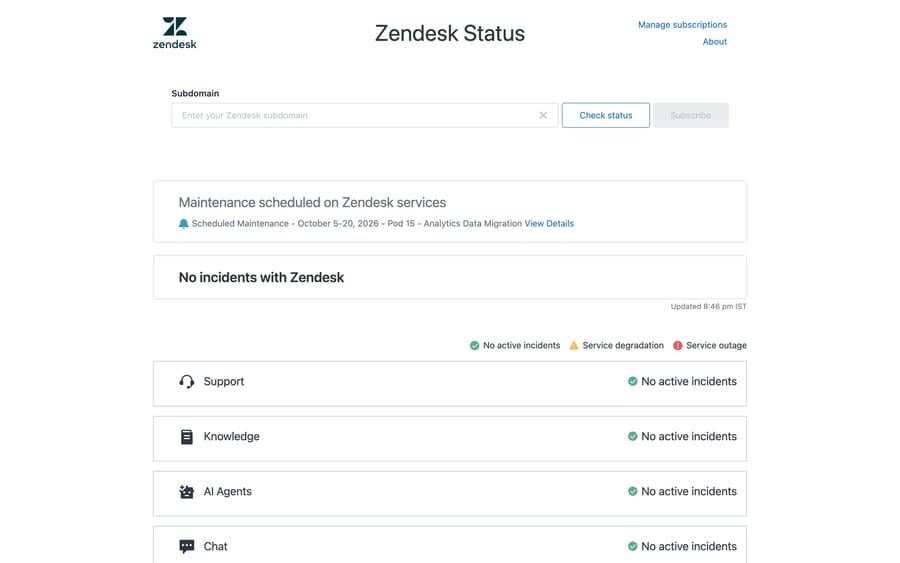
Not every disruption is a fault, and the banner is where you find out. Zendesk posts scheduled maintenance to the same page, above the incident box, and it names the pod. On the day we checked, the banner read "Scheduled Maintenance - October 5-20, 2026 - Pod 15 - Analytics Data Migration", which tells an admin on Pod 15 exactly why Explore might behave oddly for two weeks and tells everyone else to ignore it.
That's the fastest argument for knowing your pod number before you need it. It's displayed at the bottom of Admin Center Home, next to your data center location.
Step 5: subscribe so you hear it first
Refreshing a page during an incident is wasted attention. On the status page, check your subdomain, click Subscribe, enter your email, click Request setup link, open the verification email and click the setup link, choose which products to watch and how, then click Confirm subscription. Email is standard, and SMS is optional once you verify a phone number, per Zendesk's subscription documentation.
What is a Zendesk pod, and why does it change the answer?
A pod is a shared hosting environment. Zendesk describes it as "a high-rise office building with one Zendesk account occupying each floor", where the pod "provides the security, network, application, and database services shared by multiple Zendesk accounts". Your account is assigned to one, usually near where you signed up, and shares its resources with other customers.
The line that matters during an incident: "service incidents affecting one Pod will not affect customers in other Pods." That's exactly why a generic status banner misleads. An incident on Pod 17 is a full outage for the accounts there and a non-event for everyone else, and entering your subdomain is what resolves which group you are in.
It's also why a colleague at another company saying "Zendesk is fine for us" settles nothing. And it's worth naming the incentive behind how the page is written: a status page is published by the vendor whose uptime it reports, so the wording optimizes for the smallest true blast radius. That's why the per-subdomain check exists, and why "no incidents" on the global view is a weaker claim than it looks.
Is it Zendesk, or is it you?
Half of these panics turn out to be local. Before you tell customers Zendesk is broken, run this ladder in order. It goes fastest to most thorough.
- Check the status page for your subdomain. Green across the board for your instance means you're probably looking at a problem on your end.
- Test from another network and device. Open Zendesk on mobile data instead of office Wi-Fi. Working on cellular and failing on the corporate network points at your firewall or proxy.
- Try a private window, or a different browser. If a clean session works, the cause is a browser extension, a corrupted cache or a stale session.
- Corroborate with third-party trackers. Downdetector, IsDown and StatusGator aggregate user reports and mirror Zendesk's components. A spike there alongside a red component on the official page is strong confirmation. Treat them as corroboration, because they're crowd-sourced and the official page is what Zendesk itself stands behind.
- Check your own integrations and DNS. One broken thing with everything else green usually lives in that integration, in a DNS or SSL problem on your domain, or in a third party Zendesk depends on. The Web Widget not showing and API errors and rate limits are the two most common of these, and neither is an outage.
The pattern to internalize: everything broken plus red on your subdomain is Zendesk, and one thing broken with everything green is you or an integration.
What should you do during a real Zendesk outage?
The status page confirms it and your pod has a red or yellow component. The goal now is protecting the customer experience, because you can't fix the platform.
- Subscribe to the incident first, so updates come to you.
- Set customer expectations early. Post a banner on your help center, set an away message on your messaging channel, and say you are aware and waiting on your provider. A short honest note beats silence, and you don't need details you haven't got.
- Leave your configuration alone. Toggling triggers, reinstalling apps or changing routing mid-incident creates a second mess to clean up afterwards. If the status page says it's Zendesk, stop touching settings.
- Capture work out of band. Log incoming issues in a shared doc so nothing is lost, and reconcile once service returns.
- Have a fallback channel decided in advance: your own status page, a social account, or a plain email inbox.
- Verify before you announce all-clear. When the incident is marked resolved, create a ticket, send a reply and load the widget before telling the team it's over.
Crisis management in Zendesk covers the volume spike that usually follows, which is the part teams underestimate, and it's where the real cost lands.
How do you prepare for the next Zendesk outage?
- Subscribe to status notifications for the products you actually use, so Zendesk tells you before a customer does.
- Bookmark the subdomain-specific check and make it the team's first reflex.
- Write a one-page outage runbook: who posts the customer banner, where tickets get logged, which fallback channel you use, who owns the all-clear.
- Know your pod number, from the bottom of Admin Center Home, so you can read incident notes and maintenance windows without decoding them.
- Map your dependencies. Anything sitting on top of Zendesk, including integrations, automations, AI agents and the Web Widget, needs Zendesk to be up. Knowing that chain in advance tells you instantly what will and won't work.
Does an AI agent on top of Zendesk keep working during an outage?
Worth being plain about this, because it's the question support leads ask next. Macha is an AI agent layer that runs on top of your existing Zendesk ticketing system instead of replacing it, which means it reads and resolves tickets through Zendesk's own platform. When Zendesk is down, the layer on top of it is down too. An AI agent can't read or update tickets that Zendesk can't serve, and no layer keeps a help desk running when the help desk is offline.
Where it earns its place is on every other day: resolving the repetitive tickets so your queue is smaller, which incidentally means a smaller backlog to dig out of once an incident clears. Macha bills per ticket, where one thread with one person is one charge however many replies it takes, and the model in use does not change that. It fits teams already running Zendesk, Freshdesk, Gorgias, Front, HubSpot or Intercom who want agents working inside the ticket, and it's the wrong fit if you want a chat widget bolted on beside your help desk. Plans start at $299 a month for up to 750 tickets, setup and monitoring by the Macha team are included on every plan, and the pricing page has the tiers.
How was this checked?
We opened status.zendesk.com on 20 September 2026, captured the page as the screenshot above, and read the legend, the maintenance banner and the component list off the live page rather than from memory. The subdomain flow, the subscription steps and the pod definition were re-checked against Zendesk's current documentation the same day and again on 24 September 2026. One difference worth flagging: the legend wording on the live page and the wording in the docs aren't identical, and the table above gives both. We did not have access to a Zendesk incident in progress, so the descriptions of red and yellow states are Zendesk's and not ours.
Frequently asked questions
Is Zendesk down right now? Go to status.zendesk.com, enter your subdomain in the Subdomain field and click Check status. Green means Zendesk is operating normally for your instance, yellow means degraded service, red means an outage. Because Zendesk runs on isolated pods, always check your own subdomain instead of assuming the global banner applies to you.
What is the Zendesk status page URL? It is status.zendesk.com. Enter your subdomain there to see status for your specific account and pod, plus a 90-day history per product covering Support, Knowledge, AI Agents, Chat, Talk and Explore.
What is the difference between Zendesk status and ticket status? They're unrelated. Zendesk status is the health of the platform, published at status.zendesk.com. Ticket status is the New, Open, Pending, On-hold, Solved and Closed lifecycle on an individual ticket, which is covered in Zendesk ticket statuses explained.
Why does Zendesk work for other companies but not for us? Most likely a pod difference, or a problem on your end. Zendesk hosts accounts on separate pods and states that "service incidents affecting one Pod will not affect customers in other Pods", so an incident can hit your account and not theirs. If your subdomain's green, test from another network, try a private window, and check your integrations and DNS before concluding it is Zendesk.
How do I get notified about Zendesk outages? On the status page, check your subdomain, click Subscribe, enter your email, click Request setup link, confirm through the email, choose the products you care about, then click Confirm subscription. Email notifications are standard, with SMS as an option after phone verification.
What is the difference between service degradation and service outage? Degradation, shown in yellow, means intermittent or partial interruption, so things are slow or flaky but they're largely working. Outage, shown in red, means the service isn't available at all. Green means no active incidents. Yellow is the state most often misreported as "Zendesk is down".
The status page is green but Zendesk is broken for me. What now? That points at a local issue on your side. Test from a different network and device, open Zendesk in a private window, clear your cache, and check whether one specific integration, your DNS or SSL, or a single feature is the only thing failing. One broken feature with everything else green isn't usually a platform-wide outage.
Can I trust Downdetector for Zendesk? Use it as corroboration, not as the answer. Downdetector, IsDown and StatusGator aggregate user reports and mirror Zendesk's components, which is useful for spotting a widespread problem quickly, but they're crowd-sourced. Confirm against status.zendesk.com for your own subdomain.
Status page behavior, legend, pod concept, maintenance banner and subscription flow read off the live page and Zendesk's documentation on 20 September 2026; the documentation was re-checked on 24 September 2026. Zendesk updates its products and UI periodically, so confirm exact labels in your own status view.
Sources:
Add AI agents to your Zendesk
Macha reads the ticket, drafts the reply and takes the action, inside the Zendesk you already run.





