





 Shopify
 Stripe
 Slack
Slack Notion
 Google Workspace
 Confluence

Can a Macha AI Agent Book Meetings Through Cal.com?


Many support tickets are really scheduling requests: an onboarding call, a reschedule, a demo next week. Macha's Cal.com connector lets an AI agent answer them inside the help desk ticket with real open slots from your calendar.
Key takeaways
- Macha's Cal.com connector gives an AI agent two tools, Get Availability and List Bookings, and does not create, reschedule, or cancel bookings through the API itself.
- A Macha scheduling agent proposes two or three real open slots and the booking link, and the customer finalizes the booking on Cal.com's own page with their email and time zone.
- Cal.com's API allows 120 requests per minute on a standard API key, and Cal.com says it can raise that to around 200 on request.
- Connecting Cal.com to Macha takes one API key, generated in Cal.com under Settings, Developer, API Keys, and pasted into the Macha connector.
- A whole scheduling exchange, including availability checks and later booking lookups, counts as one Macha ticket, with pricing from $299 a month for 750 tickets.

Macha's Cal.com connector lets an AI agent call two tools, Get Availability and List Bookings, so it can read live open slots, propose two or three specific times, and look up existing bookings without leaving the help desk ticket it's already working. The customer then confirms the time on Cal.com's own booking page. Setup takes one Cal.com API key.
A quick framing point first, because it matters: Macha is not a scheduling app. It's the AI agent layer on top of the help desk you already run: Zendesk, Freshdesk, Gorgias, Front, HubSpot or Intercom. Cal.com is one of the tools that layer can reach into. So unlike a standalone scheduling chatbot, the booking conversation happens inside the same ticket as the rest of the customer's history.
What can Macha's Cal.com connector do?
The Cal.com connector is live, authenticates with an API key, and exposes exactly two tools your agents can call:
| Tool | What it does |
|---|---|
| Get Availability | Checks available time slots for a specific event type and date range. |
| List Bookings | Lists upcoming and past Cal.com bookings with attendee details, times, and status. |
That's the toolbox. Notice what's there: the agent can see real availability and see existing bookings. The pattern Macha is built around is: detect a scheduling request, call Get Availability, and share the open slots (plus your booking link) so the person can lock one in. The instruction baked into the connector says it plainly: "When someone asks to book a meeting, check availability and share open time slots they can choose from."
So when we say "let your agent book meetings," here's the honest version of the flow: the agent does everything up to the click. It recognizes the intent, pulls real open times from your live calendar via Cal.com's Get available slots endpoint, proposes specific slots in natural language, and hands over the booking link. The final create happens on Cal.com's public booking page, which is where you want the email, time zone, and confirmation handled correctly. Cal.com's programmatic create-booking endpoint is versioned (its docs require cal-api-version: 2026-02-25 as of September 2026) and expects structured attendee data: name, email, time zone, and a start time in UTC. Handing off to the booking page is the clean path precisely because it avoids the agent guessing at those attendee details. Then, after the fact, List Bookings lets the agent answer "when's my call again?" or "did my reschedule go through?" by reading the booking record directly.
If you were hoping for an agent that silently creates a booking with zero human confirmation, set that expectation now: this connector is read-oriented by design, and nobody wants an AI agent quietly putting calendar holds on a customer's behalf from a half-understood message.
Why book inside the ticket instead of a separate widget?
Plenty of tools wire Cal.com into a chat or phone bot: Quickchat, VoiceGenie, Cal.com's own Agents, and voice platforms like ElevenLabs and Retell. They're good at one thing: a standalone scheduling conversation.
Be clear about the trade-off, though. Those purpose-built schedulers go further than Macha on write actions. Because they call Cal.com's API directly, they can create, reschedule, and cancel bookings end to end (POST /v2/bookings, /reschedule, /cancel) without the customer touching a booking page. Macha's Cal.com connector deliberately does not: its two tools are read-and-propose (Get Availability, List Bookings), and the actual create is finalized by the customer on Cal.com's booking page. If your single requirement is "an AI that silently books, reschedules, and cancels over voice or chat with no human click," a dedicated Cal.com agent is the better-fit tool, and you should use one. Macha's bet is that inside a support ticket, the propose-and-hand-off pattern is usually what you actually want.
Macha's angle is different on purpose. The booking lives in the support ticket, next to the order lookup, the refund question, and everything else the same customer is dealing with. That has practical consequences:
- Context carries over. The agent that just looked up someone's Shopify order and saw they're a frustrated VIP can offer a call in the same thread, because it already knows who they are.
- One audit trail. The scheduling exchange is logged on the ticket like every other interaction, not stranded in a separate scheduling tool.
- One set of agents, many tools. The same agent that books a meeting can also check availability and pull a Stripe invoice and search your Notion docs, because Cal.com is just one connector among many in the integrations catalog.
If your scheduling lives entirely on a marketing site, a dedicated scheduling bot is fine. If scheduling requests show up in your support queue (onboarding calls, escalations to a human, demo requests routed from contact forms), handling them where the ticket already is beats bouncing the customer to another surface.
How do you set up the Cal.com connector?
The connection itself is short. In Cal.com, generate an API key under Settings → Developer → API Keys. In Macha, add the Cal.com connector and paste the key. That's the whole auth step.
From there you build the agent that uses it. You can start from a template or describe the agent in plain language and let Macha's builder draft the configuration for you.

The part that matters is the agent's instructions and its tool access. You grant the agent the Cal.com tools, then tell it when and how to use them, something like: "When a customer asks to schedule, reschedule, or get on a call, use Get Availability for the relevant event type, propose two or three specific open slots in their time zone, and share the booking link. If they ask about an existing meeting, use List Bookings to confirm the time and status."
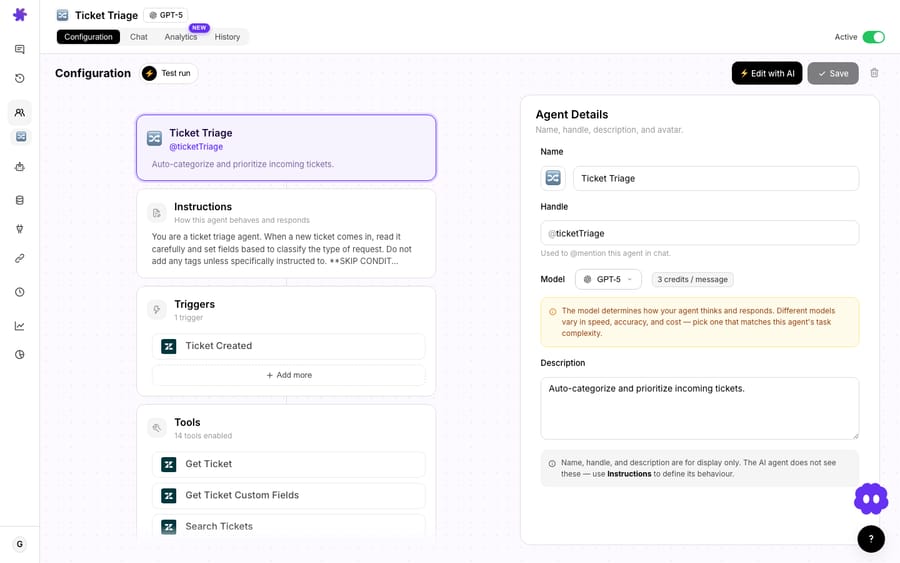
Before you point it at live customers, test it. Macha lets you run the agent against a real or sample ticket and watch which tools it calls and what it would reply, so you can verify it pulls availability correctly and proposes sane slots.
What does a scheduling ticket look like end to end?
Here's how a scheduling ticket plays out end to end:
- Trigger. A ticket comes in: "Hey, can I get a 30-minute onboarding call sometime next week?"
- Intent. The agent recognizes this as a scheduling request, the trigger the connector is designed for.
- Get Availability. It calls the tool for your "Onboarding 30 min" event type, date range = next week, returning real open slots from your live calendar.
- Propose. It replies in the ticket: "Happy to set that up! I've got Tuesday 10:00 or 2:30, or Thursday 11:00 (all your local time). Grab whichever works here: [booking link] and it'll land on your calendar with the invite."
- Confirm later. Two days on, the customer asks "what time was my call again?" The agent calls List Bookings, finds their booking, and answers with the exact time and status.
None of those tool calls adds to the bill. Macha charges per ticket: one thread with one person, charged once however many lookups, replies or bookings it takes, and whichever model runs it. The whole scheduling exchange, follow-up question included, is a single ticket.
Which other tools pair well with Cal.com?
The Cal.com connector earns the most when it's part of a larger agent, not a lone trick. A few combinations worth building:
- Demo routing. A contact-form ticket comes in as a sales lead → the agent qualifies it from the message, proposes demo slots via Cal.com, and tags the ticket. See related patterns in the use-cases library.
- Escalation to a human. When an agent can't resolve a complex issue, instead of a flat "a human will reach out," it offers specific times to talk, pulled live from the team's real availability.
- Onboarding nudges. Paired with a scheduled trigger, an agent can proactively reach out to new accounts that haven't booked their kickoff and offer open slots.
- Voicemail callbacks. Macha's ElevenLabs connector transcribes audio files such as voicemails and call recordings. An agent can read the transcript, spot a "please call me back" request, and reply in the ticket with real open slots from Cal.com.
- "Where's my meeting?" deflection. List Bookings turns a whole category of "confirm my appointment" tickets into instant self-serve answers.
When should you not use the Cal.com connector?
No integration is all upside. Be clear-eyed about these:
- It reads, the customer clicks. The agent proposes and confirms; the booking itself is finalized on Cal.com's page. If your requirement is fully silent auto-booking with no customer action, this connector isn't that.
- Event types must exist in Cal.com. The agent can only surface availability for event types you've already configured. Set up your "Onboarding," "Demo," and "Support call" event types in Cal.com first; the agent reads them, it doesn't create them.
- Time zones are only as good as your data. Tell the agent (in its instructions) to respect the customer's time zone and state it explicitly in replies. Vague "morning slots" cause more back-and-forth, not less.
- Rate limits are real. Cal.com's API allows 120 requests per minute on a standard API key (Cal.com says it can raise that to around 200 on request, and higher, such as 800, possibly at extra cost). That's plenty for support volumes. Cal.com also versions its v2 endpoints with a
cal-api-versionheader:2024-09-04for/slots, while the bookings endpoints have moved to 2026 versions. Macha's connector handles the header for you. - High-stakes scheduling still wants a human. For an angry escalation or an enterprise deal, "here are three times, pick one" is fine, but keep a human in the loop on whether a call is even the right move. The agent is for the routine 80%.
If your scheduling is genuinely complex (round-robin across a large team, paid bookings, multi-attendee coordination), drive those on Cal.com's own surfaces and let Macha handle the support-ticket-shaped slice of scheduling. Don't try to make the helpdesk agent reinvent a scheduling product.
FAQ
Can Macha's agent create a Cal.com booking on its own? No. That's a deliberate scope choice. The connector's tools are Get Availability and List Bookings, so it reads live availability and existing bookings. The agent proposes real open slots and shares your booking link; the customer completes the booking on Cal.com's page, which keeps attendee details, time zone, and confirmation accurate. If you specifically need an AI that creates, reschedules, and cancels bookings end to end via the API, a standalone Cal.com agent (Cal.ai, Quickchat) does that; Macha trades the silent write for a human click inside the support ticket.
What does the Cal.com connector need to authenticate? A Cal.com API key, generated under Settings → Developer → API Keys, pasted into the Macha connector. That's the whole setup.
Which helpdesks does this work with? Macha sits on top of Zendesk, Freshdesk, Gorgias, Front, HubSpot or Intercom. The booking conversation happens inside whichever helpdesk you use, on the ticket itself.
Does the Cal.com connector cost extra? No. It's included, like every Macha connector, and setup and monitoring by the Macha team come with the plan.
How is it priced? Per ticket, not per tool call: Get Availability and List Bookings don't bill separately. The whole scheduling thread is one ticket, and pricing starts at $299 a month for 750 tickets, about $0.40 each. See the pricing page for the tiers.
Can the agent answer "when is my meeting?" later? Yes, that's what List Bookings is for. The agent looks up the customer's booking and replies with the time and status.
How do you get started?
If scheduling requests are clogging your support queue, the Cal.com connector turns them into something your agents handle in a couple of tool calls, with real availability, inside the ticket. Start with $50 of free usage (about 125 tickets), no credit card required, connect Cal.com, and build a scheduling agent. Or browse the full integrations catalog and the docs to see what else your agents can reach.
Written by Abbas (Customer Support & AI, Macha) · Reviewed by Ankeet Guha (Co-founder & CTO) · Published 2026-06-24 · Last updated 2026-09-24.
More integration walkthroughs on the Macha blog.






