





 Shopify
 Stripe
 Slack
Slack Notion
 Google Workspace
 Confluence

How Do You Build a Google Docs AI Knowledge Base? Macha and Google Workspace (2026)


Macha turns Google Docs into an AI knowledge base by syncing the Docs you pick as a live source that its agents answer from inside your help desk. Google Sheets stay out of the knowledge base and are read on demand when an agent needs a current number.
Key takeaways
- Macha builds a Google Docs AI knowledge base in four steps: connect Google Workspace over OAuth, pick Docs in the Google Picker, add Sheet reads, and trigger the agent from the help desk.
- Macha's Google Workspace connector has three actions, Read Google Doc, Read Google Sheet and Sync Docs to Knowledge, and it uses Google's per-file drive.file scope.
- Google Docs synced to Macha act as a live knowledge source, while Google Sheets are read on demand for volatile data such as promo codes or backordered SKUs.
- The Google Workspace connector has no triggers of its own, so a help desk event such as a new Zendesk ticket starts the agent that reads the Docs.
- $299 gets you 750 tickets on Macha and 500 on eesel AI: $0.40 a ticket against $0.60, with setup done for you by the Macha team and a dedicated success manager included.

To build a Google Docs AI knowledge base in Macha, you connect Google Workspace once over OAuth, pick the specific Docs in the Google Picker, and attach them to the agent that works your tickets; the agent then answers from the current version of each Doc. The connector has three actions: Read Google Doc, Read Google Sheet and Sync Docs to Knowledge. Docs become a live knowledge source; Sheets are read on demand when the agent needs a fresh number. Macha is the AI agent layer on top of the helpdesk you already run (Zendesk, Freshdesk, Gorgias, Front, HubSpot or Intercom), so all of this happens inside the ticket, not in a separate chatbot.
| Step | What you do | What the agent gets |
|---|---|---|
| 1. Connect | Authorize Google Workspace over OAuth | Access only to files you pick (drive.file scope) |
| 2. Pick Docs | Select policies and SOPs in the Google Picker | A live knowledge source it reads while answering |
| 3. Add Sheet reads | Enable Read Google Sheet on the agent | Current rows, codes and statuses at answer time |
| 4. Trigger | Wire the agent to a helpdesk event | Runs on each new ticket or customer reply |
Below: how a synced Doc differs from a read-on-demand Sheet, how this compares with the other ways to turn Google Docs into an AI knowledge base (DIY pipelines, Google's own stack, dedicated tools), and the limits worth knowing first.
What can the Google Workspace connector do?
The Google Workspace integration is an OAuth connection (you authorize Macha against your Google account once) in the Productivity category, and it exposes exactly three capabilities:
| Action | What it does |
|---|---|
| Read Google Doc | Reads the full content of a Google Doc by document ID or URL, on demand, mid-conversation. |
| Read Google Sheet | Reads data from a Google Sheet: all tabs, or a specific range. |
| Sync Docs to Knowledge | Syncs selected Google Docs as a live knowledge source the agent searches automatically. |
That's the whole surface, and the restraint is deliberate. This connector is built for knowledge and reference, not for writing back into your Drive. The agent reads and indexes; it does not edit your Docs or append rows to your Sheets. If you want files created (a CSV export, a generated PDF report), that's Macha's separate File Tools; if you want a payment looked up or a refund issued, that's Stripe or Shopify. Google Workspace's job is to be the source of truth your agents read from.
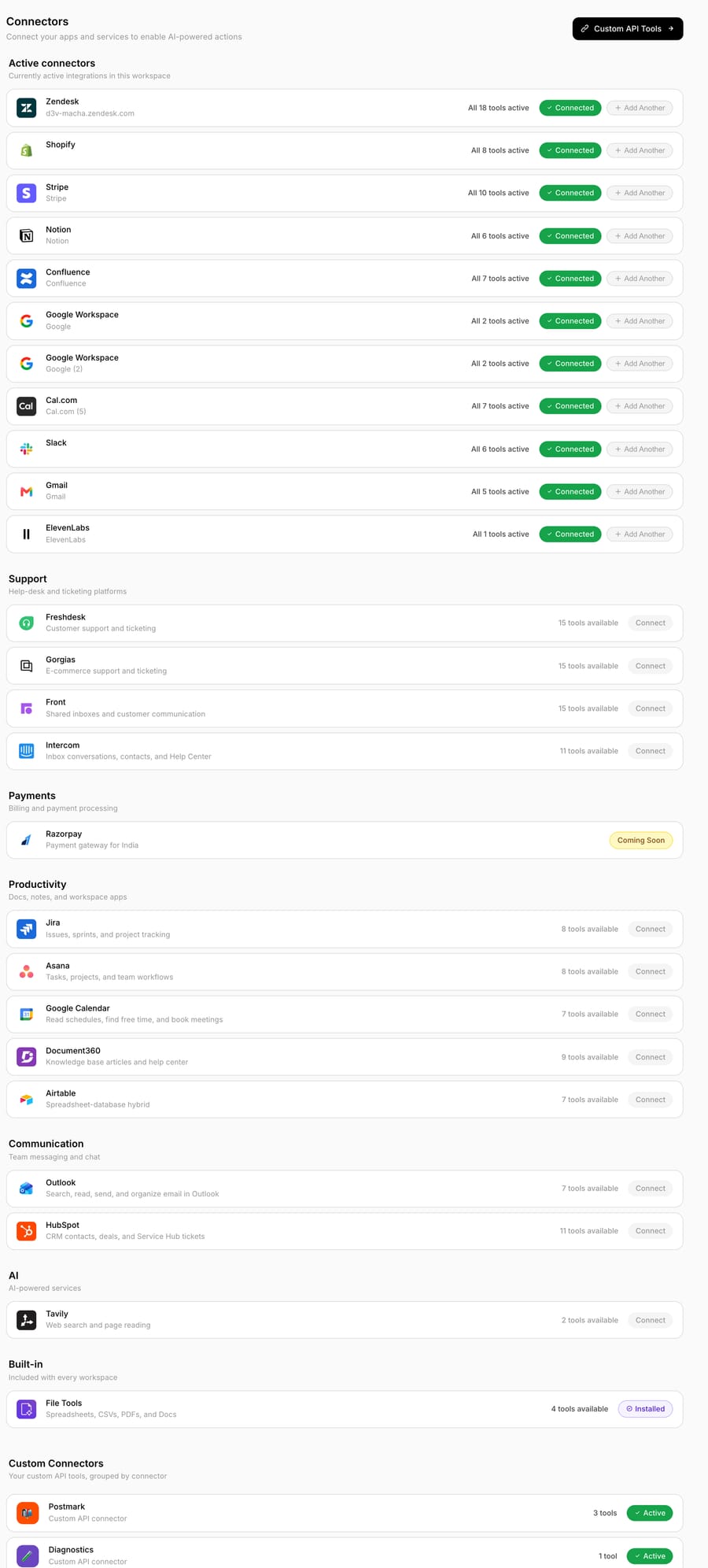
Note one thing that's easy to miss: the Google Workspace connector has no triggers of its own. Nothing "fires" from Google Drive. The work is kicked off by your helpdesk (a new Zendesk ticket, a customer reply in Gorgias) and the agent reaches into Google Workspace as part of resolving it. That's the layer model in one sentence: the helpdesk is where events happen, Macha is the brain, and Google Workspace is one of the things the brain can read.
How auth and file selection actually work
When you sync, you don't hand Macha your whole Drive. You pick specific documents through the Google Picker, Google's polished "File Open" dialog for Drive content (Google Picker overview). This maps to Google's per-file drive.file scope, a non-sensitive scope that, in Google's words, lets the user "choose which files they want to share with your app," so the app only ever touches the files you explicitly select (Choose Google Drive API scopes). That's the right least-privilege default for a support knowledge base: you grant the refund-policy Doc, not the whole company Drive.
What is the difference between a synced Doc and a Sheet read on demand?
These two patterns look similar but behave very differently, and choosing the right one is most of the skill in setting this up.
Google Docs → live knowledge source
When you run Sync Docs to Knowledge, you pick specific documents through the Google Picker and Macha attaches them to the agent as a knowledge source. From then on the agent uses those Docs by default. You don't tell it "go read this URL"; it turns to the relevant Doc when a ticket touches that topic.
The key word is live. The connector's knowledge mode is "Google Docs (live sync)": when someone edits the Doc, the agent answers from the edited version, so the reply reflects the current policy rather than the one that was true when you set it up. Mechanically this is the same idea Google exposes in its own Drive API: push notifications tell an app "this file changed," and the app re-fetches the new version rather than relying on a stale snapshot (Drive API push notifications; Retrieve changes). It's the same model as Macha's Notion connector (see turning a Notion wiki into agent knowledge for the live-sync sibling) and the Zendesk Help Center (auto-sync) connector: one canonical document, many places it's read.
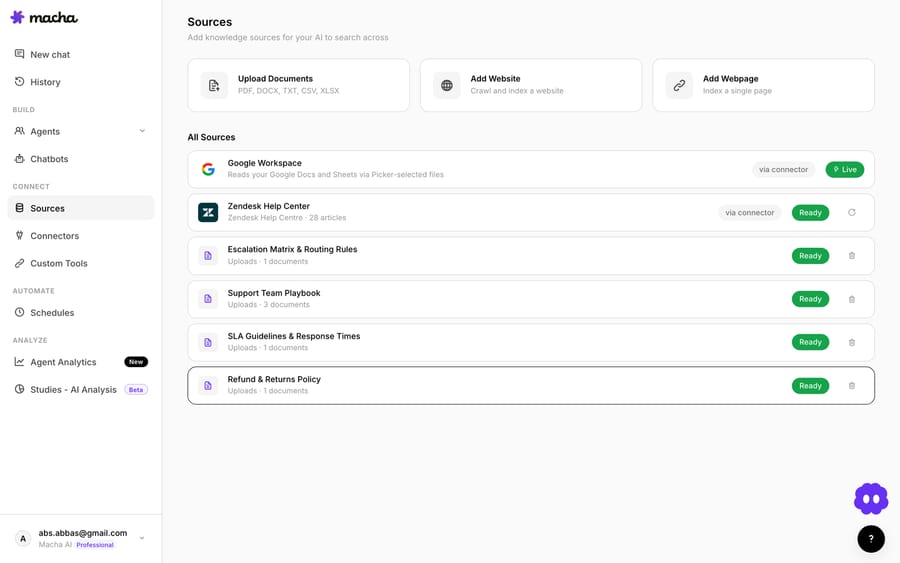
Once a Doc is synced, you attach the source to whichever agents should use it: a refund-policy Doc to your billing agent, a shipping SOP to your WISMO agent, from the agent's Data Sources settings. An agent only searches the sources you give it, which keeps answers scoped and on-topic.
Google Sheets → read on demand
Sheets work differently, and this is the accuracy point worth underlining: Sheets are read on demand, not synced as knowledge. The Read Google Sheet action pulls live data (a full tab or a named range) at the moment the agent needs it. That's exactly what you want for data that changes constantly and is too granular to "memorize": a list of active promo codes, a release-status tracker, a roster of which SKUs are backordered this week, a lookup table mapping plan names to entitlements.
So the rule of thumb is simple:
- Docs = knowledge. Prose your agent should always know: policies, SOPs, tone-and-voice guides. Sync it.
- Sheets = data. Structured rows your agent should look up fresh: codes, statuses, mappings, inventory. Read it.
If you genuinely need a Sheet to behave like permanent knowledge, the move is to keep the prose in a Doc and reference the Sheet for the volatile numbers, not to fight the tool.
What does a real support flow look like?
Put the pieces together and a typical resolution looks like this. A customer emails your Zendesk asking whether their order qualifies for a refund. The Zendesk New Ticket trigger fires, your billing agent picks it up, and:
- It checks its synced Google Doc refund policy (live knowledge) and finds the 30-day window and the exceptions.
- It reads the order's status from a Google Sheet of current fulfillment exceptions to check whether this SKU is flagged.
- If everything lines up, it drafts a customer-ready reply citing the policy; if the order is outside the window, it posts an internal note and routes to a human.
The customer gets a correct, on-policy answer; the human only sees the edge case. Crucially, the agent isn't guessing from a model's training data; it's answering from your current Doc and your current Sheet. That grounding is the difference between a help-desk-shaped chatbot and an agent you'd actually let reply.
It compounds when you combine connectors. Pair Google Workspace knowledge with Stripe or Shopify actions and the same agent can both know the policy and do the refund: read the Doc, look up the charge, issue it, and confirm, all inside the Zendesk ticket. Knowledge alone answers; knowledge plus tools resolves.
How does Macha compare with other ways to turn Google Docs into an AI knowledge base?
If you're searching for a "google docs ai knowledge base," Macha is one of four broad routes. They're not all competing for the same job, so here's an honest map of where each fits and where Macha's helpdesk-layer approach actually wins.
| Approach | What you build | Best when | Trade-off |
|---|---|---|---|
| DIY pipeline (n8n / LangChain + OpenAI + a vector DB like Pinecone) | Drive → chunk → embed → vector store → retrieval chatbot, wired by hand | You have engineers and want total control of chunking, models, and storage | You own the plumbing, the re-sync logic, and the maintenance forever |
| Google's own stack (Agent Assist knowledge base, Vertex AI / Document AI) | A GCP-native QA pipeline over your documents | You're deep in Google Cloud and want first-party Document AI | Heavy GCP setup; built around contact-center/Vertex, not your existing helpdesk |
| Dedicated Docs-KB SaaS (Spaceli, Kbee, eesel AI) | Turn Docs into a hosted help center or a standalone support bot | You want a fast, no-code "Docs in, answers out" product | A separate surface/bot; some are help-center publishers, not in-helpdesk actors |
| Macha (Google Workspace connector) | Docs become a live knowledge source for agents that run inside your helpdesk | Your answers are in Docs and you already run Zendesk, Freshdesk, Gorgias, Front, HubSpot or Intercom | Read-and-sync only; needs an existing helpdesk to act on |
A few notes so the comparison is fair, not a strawman:
- DIY (n8n + Pinecone) gives you full control, with good open templates for exactly this: Drive documents, OpenAI embeddings, Pinecone vector search, a chat front end (n8n template). You get maximum control, but you also own every part that breaks: change detection, re-embedding on edits, scope management, and the glue to your support tooling. Macha's "live sync" exists so you don't rebuild that yourself.
- Google's own Agent Assist knowledge base and the Vertex/Document AI generative knowledge-base pattern are first-party and well documented, but they're a Google Cloud build aimed at Google's own contact-center and Vertex stack, not a connector that drops into the Zendesk you already run.
- Dedicated tools are the closest like-for-like. Spaceli turns Docs and folders into a hosted help center; Kbee reflects Doc edits into its KB; eesel AI auto-syncs Docs, cites the source on every answer, and sells a fixed monthly batch of credits, from $299 for 500 to $1,749 for 5,000, where a ticket or chat is 1 credit, with no platform or per-seat fee, plus 100 free credits to start. Its Enterprise tier is custom-priced (eesel pricing, checked 6 October 2026). Strong if you want a self-contained Docs bot.
Where Macha is different: it isn't a publisher or a standalone bot; it's the agent layer inside the helpdesk your team already lives in, and the Docs/Sheets it reads sit next to commerce, payments, and ticketing tools the same agent can act on. So the synced Doc doesn't just power an answer in a side widget; it grounds an agent that can read the order, issue the refund, set the ticket field, and reply, in the ticket. If your knowledge lives in Docs and your work happens in Zendesk, Freshdesk, Gorgias, Front, HubSpot or Intercom, that combination is the reason to pick the connector over a standalone Docs-KB tool. The other difference is who does the setup. Macha is the done-for-you option: the Macha team analyzes your past tickets, builds the knowledge base (your synced Docs included) and the agent on your existing help desk, and runs it in safe mode until the drafts are right, where eesel's standard plans are self-serve. $299 gets you 750 tickets on Macha and 500 on eesel: $0.40 a ticket against $0.60, with setup done for you and a dedicated success manager who handles your changes included. If you don't run a helpdesk at all, one of the dedicated tools above is the more natural fit, and that's a fine answer too.
How do you set it up?
The flow is short:
- Connect Google Workspace from Macha's connectors gallery and complete the OAuth grant. You authorize once.
- Sync the Docs you want as knowledge. Run Sync Docs to Knowledge, pick the specific documents in the Google Picker, and let Macha index them.
- Attach sources to agents. On each agent's Data Sources settings, select which synced Docs it can use.
- Enable the read actions. If an agent also needs to pull live Sheet data (or read an arbitrary Doc by URL mid-conversation), give it the Read Google Sheet / Read Google Doc actions in its tools.
- Let the helpdesk drive it. Wire the agent to a trigger on your help desk (Zendesk, Freshdesk, Gorgias, Front, HubSpot or Intercom), and the Doc/Sheet reads happen automatically as tickets come in.
Full step-by-step lives in the Macha docs.
When should you not use it?
No connector is the right tool for everything. The honest limits:
- It's read-and-sync, not write-back. The agent can read Docs and Sheets and index Docs; it cannot edit a Doc or write rows to a Sheet. If your workflow needs the agent to update a tracker, this connector won't do it; you'd handle that with a custom tool or a different system of record.
- Only Docs sync into knowledge; Sheets don't. If you sync a Sheet expecting it to behave like a searchable policy, you'll be disappointed: Sheets are an on-demand read. Keep narrative knowledge in Docs.
- Live sync is fast, not instantaneous. A synced Doc tracks edits, but treat it as "kept current," not a real-time database. For data that must be correct to the second, read a Sheet (or query the system of record directly) at answer time instead of relying on a synced copy.
- Garbage in, garbage out. An agent grounded in a contradictory or out-of-date Doc will confidently quote the wrong thing. Syncing your Docs makes your documentation hygiene part of your support quality, which is usually a good forcing function, but it's real work.
- Scope your OAuth and your sources. Picking specific Docs through the Picker (rather than pointing an agent at all of Drive) keeps answers tight and avoids surfacing internal documents that were never meant for customer-facing replies.
- It's not a helpdesk. If you don't already run a help desk Macha supports (Zendesk, Freshdesk, Gorgias, Front, HubSpot or Intercom), there's no ticket for the agent to act on. Macha layers on top of your helpdesk; it doesn't replace one, and for a pure standalone Docs bot, a dedicated tool may suit you better.
If your knowledge already lives primarily in Notion or in your Zendesk Help Center, use those connectors instead (or alongside): the point isn't "everything in Docs," it's "the agent reads your canonical source, wherever it lives." For the bigger picture across sources, see our guide on connecting a knowledge base to an AI agent.
FAQ
Can I turn Google Docs into an AI knowledge base with Macha? Yes, that's exactly what Sync Docs to Knowledge does. You pick specific Google Docs via the Google Picker, Macha adds them as a live knowledge source, and your AI agents use them automatically when a ticket touches that topic. Edits to the Doc refresh the synced version.
Does Macha keep my Google Docs up to date in the agent's knowledge? Yes. Synced Google Docs use live sync: when the Doc changes, agents answer from the current document rather than a stale snapshot.
Can the agent read a Google Sheet? Yes, with the Read Google Sheet action: all tabs or a specific range, on demand. Sheets are read live when the agent needs them; they're not synced into the knowledge base like Docs are.
Can Macha edit my Docs or write to my Sheets? No. The Google Workspace connector is read-and-sync only. It reads Docs and Sheets and indexes Docs as knowledge; it doesn't modify them. To generate files, Macha has separate File Tools.
How does it authenticate, and how much of my Drive does it see? Through Google OAuth. You select files via the Google Picker, which uses Google's per-file drive.file scope, so Macha only accesses the specific documents you choose, not your whole Drive (Drive API scopes).
What fires the agent, and does Google Drive trigger it? No. The Google Workspace connector has no triggers. Runs are triggered by your helpdesk (for example, a new Zendesk ticket or a customer reply), and the agent reads Google Workspace as part of resolving that ticket.
How is it priced? Macha bills per ticket: one conversation, charged once, however many steps the agent takes to finish it. Reading a Doc or Sheet and searching synced knowledge are steps inside that one charge, not extras on top. Pricing is one plan set by ticket volume, starting at $299 a month for 750 tickets (about $0.40 each) and rising to $3,999 for 10,000; the price includes setup by the Macha team and a dedicated success manager who handles your changes, such as new Docs or a new ticket category. See the pricing page for the tiers.
How do you try it?
If your team's real answers already live in Google Docs, this is the fastest way to turn them into a working AI knowledge base: connect Google Workspace, sync the Docs that matter, and let your agents answer from the current version on every ticket, inside the helpdesk you already run. Start a free trial ($50 of usage, no credit card, no time limit), connect your helpdesk, and read the integrations overview or the docs for the full walkthrough.
Written by Abbas (Customer Support & AI, Macha) · Reviewed by Ankeet Guha (Co-founder & CTO) · Published 2026-06-24 · Last updated 2026-09-24.






