
 Shopify
 Stripe
 Slack
Slack Notion
 Google Workspace
 Confluence

What Are the Best Practices for AI Agent Triggers in Macha?


The best trigger is the narrowest event that does the job, such as New Ticket instead of Customer Reply for an agent that should act once per ticket. Clear names, several narrow triggers, a tag-and-exclude guard and a test run keep agents from replying when they shouldn't.
Key takeaways
- Macha trigger best practice starts with the narrowest event, such as Zendesk's New Ticket instead of Customer Reply, so an agent runs once per ticket rather than on every comment.
- Macha bills per ticket however many times a trigger fires, so overfiring costs clarity rather than money, though fair use is 50 messages per ticket.
- Several narrow triggers feeding one Macha agent give more precise control over its input than one broad trigger with complex conditions.
- The tag-and-exclude pattern stops an agent re-triggering itself: add a unique tag when the trigger fires and exclude that tag in the trigger's conditions.
- Naming each trigger after its input and agent, such as New tickets to Bug Summary agent, makes debugging easier months later.

The most important trigger rule is to pick the narrowest event that does the job: on Zendesk that means New Ticket instead of Customer Reply when an agent only needs to act once per ticket. After that, name each trigger after what it receives and which agent it feeds, use several narrow triggers instead of one broad one, and test before you rely on it.
Watch the tips
How do you stop a trigger from overfiring?
The trigger you choose decides how often the agent runs. The classic mistake is a broad event like Zendesk's Customer Reply, which fires on every customer comment on any ticket, or Intercom's Every Customer Message, which fires on every reply in a conversation. A single chatty ticket can run your agent a dozen times, and the customer gets a dozen replies nobody asked for. Macha puts Intercom's version behind a critical activation notice.
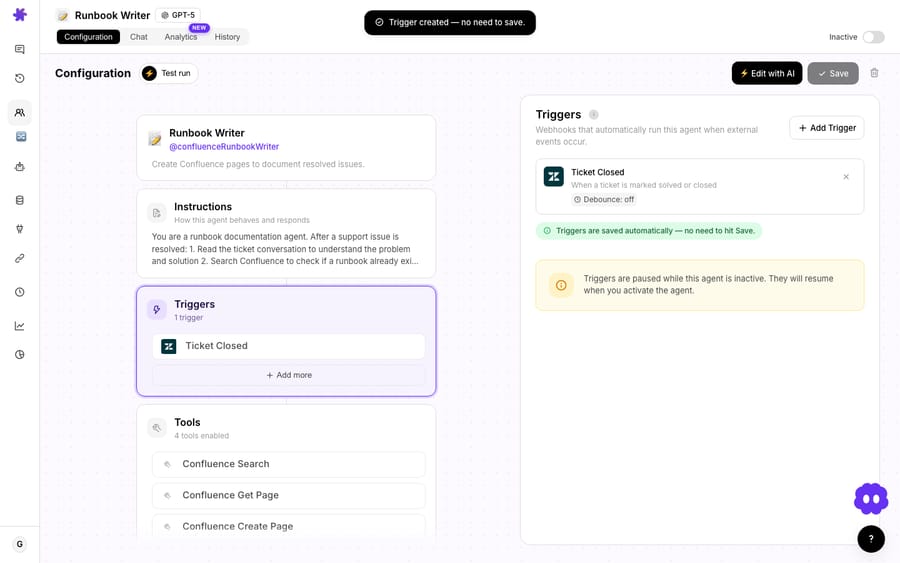
Pick the most specific trigger that matches your workflow. If the agent only needs to act once per ticket, use New Ticket on Zendesk, Ticket Created on Freshdesk or Gorgias, or First Customer Message on Intercom. If it should react only when something specific happens, scope it to that event, such as Status Changed or Ticket Closed. The narrower the trigger, the fewer wasted runs. (See how triggers and billing interact.)
How should you name triggers?
Once you have more than a couple of triggers, vague names become a maintenance problem. Name each one so it's obvious what tickets it receives and which agent it feeds, for example "New tickets → Bug Summary agent." A clear name tells you at a glance what the trigger does, which makes debugging and changes easier later.
When should one agent have multiple triggers?
You're not limited to one trigger per agent, and several are often the cleaner way to control exactly which tickets reach it. Instead of one broad trigger that catches too much, create multiple narrow triggers that each send a specific slice of tickets to the same agent. You get precise control over the agent's input without packing complex conditions into a single trigger.
How do you keep an agent from re-triggering itself?
If the agent updates the ticket it was triggered on, that update can match the trigger again and start a loop. The fix is tag-and-exclude: add a unique tag when the trigger fires, exclude that tag in the trigger's own conditions, and version the tag (v1, v2) when you want to reprocess tickets with new logic.
How do you test a trigger before relying on it?
- Scope each trigger to the smallest set of events that does the job.
- Name it clearly.
- Test it: create a ticket that matches, then check History. For a custom webhook, confirm the payload was copied into the Zendesk trigger body.
- Check internal note vs public reply before turning on autonomous mode.
- Watch the run volume in Agent Analytics. An agent firing far more than expected usually means a trigger that's too broad.
A quick checklist
- [ ] Is this the most specific trigger that does the job?
- [ ] Could it overfire (on every comment, say) and reply when it shouldn't?
- [ ] Is the trigger named so I'll understand it in three months?
- [ ] Would two narrow triggers be cleaner than one broad one?
- [ ] Does the agent's own update need a tag to exclude?
- [ ] Have I tested it and checked the run volume?
Frequently asked questions
What does "overfiring" mean? A trigger that fires more often than needed, like running on every customer comment instead of once per ticket, so the agent answers again when nothing new needs answering.
Does a trigger that fires a lot cost more? No. Macha bills per ticket: one conversation, charged once however many times the agent runs on it. Overfiring costs you clarity rather than money, though fair use is 50 messages per ticket and a noisy trigger works through them faster.
Why name triggers carefully? With several triggers, clear names ("new tickets → Bug agent") make it obvious what each does, which saves you when debugging.
Can I send multiple triggers to one agent? Yes, and several narrow triggers are often cleaner than one broad one.
Tune your triggers: scope them tight and watch the run volume drop. $50 of free usage, no credit card required. Start free.