





 Shopify
 Stripe
 Slack
Slack Notion
 Google Workspace
 Confluence

How Do You Show Custom Object Data to End Users in Zendesk Help Center Forms?


A support form that offers the four products a customer actually owns beats a free-text box, and Zendesk custom objects can do it through a lookup field. Four separate settings have to line up first, and if one is wrong the field simply never appears.
Key takeaways
- A Zendesk lookup field shows on a help center request form only when four settings align: Customers can edit, object View access, a signed-in end user, and form inclusion.
- Only the Customers can edit permission puts a Zendesk lookup relationship field on the request form; Customers can view only shows the value on the request page afterwards.
- Zendesk end users must be signed in to see lookup fields in ticket forms, so anonymous submissions arrive without the value and triggers that depend on it skip them.
- Only lookup relationship fields that point at a custom object can be shown to Zendesk end users; lookups to users, organizations or tickets stay agent-only.
- Zendesk access rules on custom objects do not restrict the Custom Objects API, so an integration authenticating with its own credentials is not bound by them.

A Zendesk lookup field appears on a help center request form only when four settings line up: the field permission is Customers can edit, the Customer role has View access on the custom object, the end user is signed in, and the field sits on a ticket form that end users can reach. Get any one wrong and the field is silently absent, with no error anywhere.
| Setting | Where it lives | Value that shows the field |
|---|---|---|
| Field permission | Lookup field, Permissions | Customers can edit |
| Object permission | Custom object, Permissions tab | Customer role: View (Full or Limited) |
| Sign-in | Help center session | End user signed in |
| Form inclusion | Ticket forms | Field on a form editable for end users |
The sections below take the four in the order they break.
Which field permission puts a lookup field on the request form?
Start here, because it accounts for most of the failures and it reads backwards.
A lookup relationship field has three permission options, and the difference between two of them is a distinction Zendesk draws in one word:

That is the field configured the way this post recommends, with Customers can edit selected. Agents can edit keeps the field internal. Customers can edit means the field "can be edited by the customers when submitting a request". Customers can view means the value "is visible to customers on their request page, but can't be edited". Zendesk's guide to custom ticket fields is blunter about where that leaves the form: the field "appears in tickets and on end users' requests, but isn't included in the support request form in the help center".
Read those last two again, because the nouns differ. One is the request form, the surface where a customer creates a ticket. The other is the request page, where they read a ticket that already exists. So "Customers can view" doesn't put a read-only picker on your form; it shows the value afterward, once somebody else has set it. Zendesk's product catalog workflow says as much from the other direction, calling "Customers can edit" "the only option that allows the field to be visible as part of the request forms in the help center."
The practical rule: if you want the customer to choose a product while raising the ticket, only Customers can edit does that. If you want them to see which product got attached, Customers can view is the right setting and belongs to a different moment in the workflow.
The split makes sense once you see what each surface is optimizing for. A request form is a collection surface: its job is to get a ticket in with enough structure to route it, so the only question it asks about a field is whether the customer fills it in. The request page is a status surface, so read-only display belongs there. Zendesk has drawn the line where its own incentive sits, around ticket flow rather than around account self-service, which is why there's no third surface where a customer browses your object records outside the context of a ticket. If that's what you need, it's a portal requirement, and it's bounded by what the help center is for.
What object permission do customers need?
The field permission controls the field. The object permission controls whether customers can see the records at all, and both have to be right.
Customers need View access on the custom object itself, set on the object's Permissions tab. A new object grants nothing to the Customer role, which we saw first-hand when we created one from scratch:
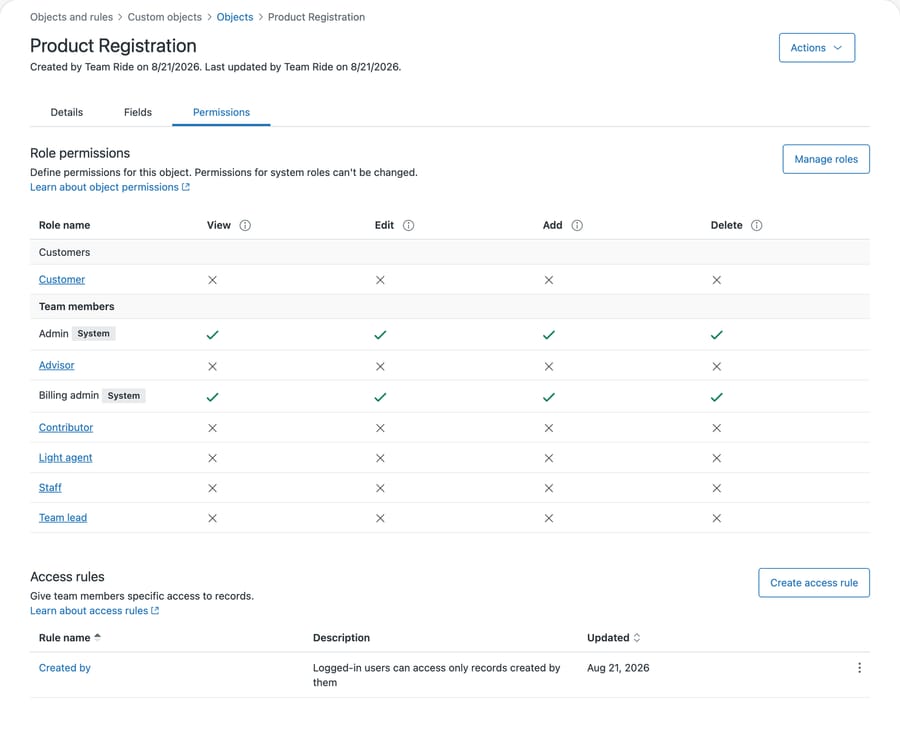
The Customer row is the one to read. On our instance it carries no view, edit, add or delete, and a field permission of "Customers can edit" will not rescue a customer who cannot see the records the field points at.
The Access rules section underneath is the other half of the answer. That default rule, limiting logged-in users to records they created, is what stops Full view access turning your catalog into every customer's view of every other customer's records.
Zendesk's permissions documentation describes customer access as configured at the object level, with Full, Limited or No access on each of the four operations (View, Edit, Add, Delete), on all Suite plans. Limited access is the interesting one, because it uses access rules to narrow which records a person reaches, and on our instance a new object arrived with a rule letting logged-in users access only records they created.
That default deserves a moment's thought before you widen it. A product catalog is usually meant to be visible to everyone, so Full view access is right. A subscription or a device registry usually isn't, and Limited access with a rule tying records to their owner is what you want. Getting this backwards exposes every customer's records to every other customer, which is the failure mode to be slow about.
Do end users have to be signed in?
End users must be signed in to see lookup relationship fields. Zendesk's relationship fields documentation states it as a flat requirement rather than a setting, so an anonymous form will not render the field however the permissions are configured.
If your help center accepts tickets from people who aren't signed in, those submissions arrive without the value, and any trigger depending on it doesn't apply.
The same page carries the companion restriction: only lookup fields pointing at custom objects can be visible to end users at all, so a lookup pointing at a user, an organization or a ticket stays agent-only regardless of permissions.
Which ticket forms need the field?
The last step is the one people remember, which is why it's rarely the problem.
Add the field to the ticket forms end users can reach, and mark those forms as editable for end users. A field configured perfectly and left off the form is invisible for a reason that has nothing to do with permissions, and it's the cheapest thing to rule out.
While you're there, decide whether the field is required. The product catalog recipe marks it "Required to submit a request", which forces a selection before the form submits. That's a real trade-off: a required field improves your data and adds friction to a form a frustrated customer is filling in. Make it required when the answer genuinely changes the routing, and optional when it merely helps.
How do you stop the picker listing every record?
An unfiltered lookup field offers the customer every record in the object. For a catalog of 400 products that's worse than a text box.
Filters narrow the list, and the useful pattern for end-user forms is matching a field on the ticket against a field on the object, such as showing only products in the category the customer already picked. A ticket-based lookup pointing at a custom object can also filter using the ticket's requester and organization, which is what produces a picker showing only the things that customer owns.
One trap carries over from the agent side, covered in our lookup relationship fields guide: drop-down comparisons match on tags, not on the labels displayed. Two category lists that read identically will produce an empty picker if their tags differ, and the customer sees a form field with nothing in it.
In what order should you configure it?
- Set object permissions so the Customer role can view the records, choosing Limited access with an access rule if the records are personal.
- Set the lookup field's customer permission to Customers can edit, because that's the only one that reaches the form.
- Add a filter, so the picker shows a usable number of records.
- Add the field to the end-user-facing ticket forms and mark them editable for end users.
- Sign in as a test end user and submit the form. Not as an admin, and not signed out.
Step five is the one that catches all four failures at once, and it's the step people skip because the field looks right in the admin interface. Every setting above is invisible from an admin seat.
Common questions
Why isn't my lookup field showing in the help center? Most likely the field permission. "Customers can edit" is the only setting that puts a lookup field on a request form; "Customers can view" shows the value on the request page instead, which looks like the field is missing if the form is where you're looking. Check also that the end user is signed in, that the Customer role has view access to the object, and that the field is on a form marked editable for end users.
Can end users see a lookup field without being able to change it? Yes, but not on the submission form. "Customers can view" makes the value visible on their request page after the fact, read-only. Only "Customers can edit" puts the field on the request form itself.
Do end users need to be signed in? Yes. Zendesk documents signing in as a requirement for seeing lookup relationship fields rather than as a setting, so anonymous submissions arrive without the value.
Can I show a lookup field that points at a user or organization? Not to end users. Only lookup fields pointing at custom objects can be made visible to end users.
How do I stop customers seeing each other's records? Use Limited access on the object's customer permissions together with an access rule that scopes records to the person who created or owns them. Full view access makes every record visible to every signed-in customer. One caveat worth carrying from Zendesk's permissions documentation: these filters don't restrict access to records through the Custom Objects API, so an integration authenticating with its own credentials is not bound by them.
Why is my picker empty? Usually a filter comparing drop-down fields whose tags differ, since Zendesk compares tags instead of displayed values. Check the tags on both lists.
What about tickets that never touch the form?
Asking the customer to classify their own ticket works, and it has a known ceiling: it only works for the customers who complete the form.
The people who reply to an email thread, or who write in from a channel with no form at all, arrive with no product selected and no way to select one. Those tickets look identical to a poorly-filled-in form submission, and every rule you built on the lookup field skips them. So a well-designed request form solves the problem for the subset of your volume that came through the request form.
Closing the rest of the gap means reading the ticket and setting the relationship from what the customer wrote. That's a different kind of work from a filter on a picker, and it's the part to automate once the form is doing its share.
Macha reads tickets in your Zendesk, follows lookup relationships into custom object records, and answers inside the ticket using what it finds. It fits teams who've built a catalog and keep seeing tickets arrive without it set, particularly on email and chat where there was never a form. It fits poorly if your object data is stale, because a confident answer from an old import is worse than asking the customer. Our Zendesk integration page covers what it reads.
Get the form right for the customers who use it. Start a free trial for the tickets that never touch one.






