





 Shopify
 Stripe
 Slack
Slack Notion
 Google Workspace
 Confluence

How Do Zendesk Lookup Relationship Fields Link Custom Objects to Tickets?


A lookup relationship field is the custom field that connects a Zendesk ticket, user or organization to a custom object record, so a ticket can say which product it's about without copying the product into it. Three limits decide what you can build with it: the field count per object, one-to-many cardinality, and notification-only use in triggers.
Key takeaways
- A Zendesk lookup field on a ticket, user or organization can point at a ticket, user, organization or custom object; one on a custom object can also point at an article or brand.
- Zendesk lookup relationship fields are capped at 5 per object on Suite Team and Growth and 10 on Suite Professional and above, with ticket lookups capped at 40 across all ticket forms.
- Zendesk compares tags, not displayed values, when filtering a lookup field against a drop-down field, so two lists that look identical can fail to match if their tags differ.
- A Zendesk lookup relationship field is always one-to-many; many-to-many needs a multi-lookup field on tickets, holding up to 20 related records, or a junction custom object.
- In Zendesk ticket triggers, lookup relationship fields can only be used in notification actions, such as emailing a related user or assigning the ticket to them.

A Zendesk lookup relationship field is a custom field that links a ticket, user, organization or custom object to another record, and you can have 5 per object on Suite Team and Growth or 10 on Suite Professional and above. You add it in Admin Center under Objects and rules, then use filters to control which records agents can pick. For the object model itself, start with the practical introduction.
| Limit or rule | What Zendesk allows |
|---|---|
| Lookup fields per object | 5 on Suite Team and Growth; 10 on Suite Professional and above |
| Lookup fields on tickets | Same numbers per ticket form, 40 in total across all forms |
| Relationship type | One-to-many; many-to-many needs a multi-lookup field (tickets, up to 20 related records) or a junction object |
| Tag filters | Standard-object targets only, not custom objects |
| Use in ticket triggers | Notification actions only |
What does a lookup relationship field store?
A lookup relationship field holds a pointer to another record. The record's name is not copied onto the ticket and no tag is written. Change the product record's warranty status and every ticket pointing at it reflects the new value immediately, because the value was never duplicated onto the ticket.
You can put one on a ticket, a user, an organization or a custom object. What it's allowed to point at depends on where it lives, per Zendesk's documentation on lookup relationship fields:
| Field lives on | Can point at |
|---|---|
| Ticket, user, organization | Ticket, user, organization, custom object |
| Custom object | Ticket, user, organization, custom object, article, brand |
Custom objects get the wider range. Articles and brands are only reachable from an object, which matters if you're modeling something like a device that should link to its own documentation.
To see what an object already carries, read its fields back. On our instance GET /api/v2/custom_objects/product_registration/fields returns four fields of our own, serial_number, purchase_date, warranty_status and owner, and the field's type tells you which of them are lookups. One trap when you run this: the endpoint hides Zendesk's predefined name and external_id unless you pass include_standard_fields=true, so a sparse-looking response is sometimes just the default. We tested this the wrong way first and read a new object as emptier than it was.
How do you add a lookup field to a ticket?
Once the object itself is built and its permissions set, the connection is a ticket field. Admin Center, Objects and rules, Tickets, Fields, then Add field. Lookup relationship sits at the bottom of the type list, apart from the ordinary value types:
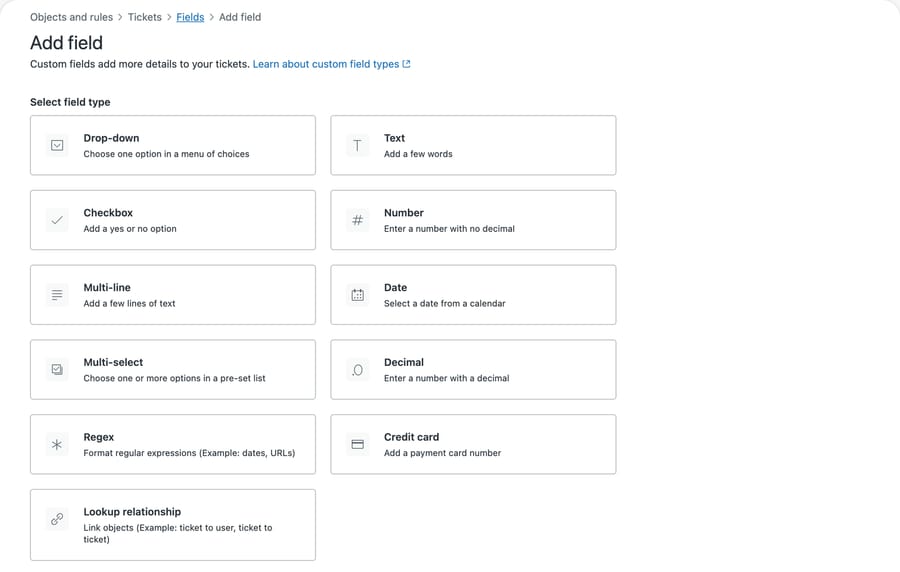
You pick the related object, name the field, and set permissions.
The permission setting is the one to read carefully, because it does more than control editing. If you want the field to appear in the help center at all, Zendesk's product catalog workflow states that "Customers can edit" is "the only option that allows the field to be visible as part of the request forms in the help center." Read-only for customers hides the field on the form entirely.
Two more constraints on the end-user side. Only lookup fields pointing at custom objects can be shown to end users at all, and end users must be signed in to see them. An anonymous request form will not render the field regardless of how you set the permission.
How do filters narrow what agents can pick?
A lookup field with no filter offers agents every record in the target object. On an object with 400 products that picker is unusable, so filters exist to narrow it. The filter builder sits on the field itself, under the related object. Here is one condition configured on our instance, restricting the picker to products still under warranty:
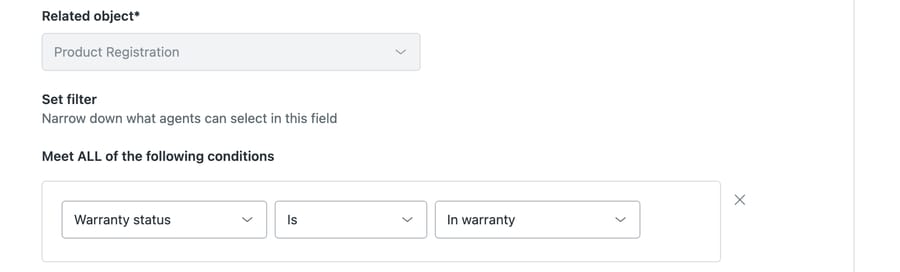
That single row is the whole mechanism: a field on the related object, an operator, a value. Agents opening this picker now see only in-warranty products, and nothing tells them the others exist.
Two things on that screen are permanent once saved, the same way an object key is. The relationship field type can't be changed, and neither can the related object. Only the display name, description, filters and the required flag stay editable, which means a lookup pointed at the wrong object is a new field rather than an edit.
What you can filter on depends on the target, and the custom object case is narrower than the rest. Tickets can be filtered by status, type, priority, assignee, requester, form, organization and channel. Users can be filtered by role. Two things are true at once here, and dropping either one misleads. Lookup fields "also support filtering by other custom fields added to the related object", so a product object's own fields are fair game. Tag-based filtering is the part that isn't: Zendesk is explicit that "this isn't possible for lookup fields that target custom objects".
What a custom object target gets instead is context from the ticket. Ticket lookup fields pointing at a custom object "can dynamically restrict the object records available for selection within the lookup field by using additional filters based on the ticket's current user, assignee, requester, and organization". That is what makes contextual pickers possible: show only the products belonging to this requester's organization.
Filters can also compare a field on the source against a field on the target, and this is where the behavior surprises people. Zendesk's documentation notes that for drop-down fields, "tags (rather than values) are compared." So a filter matching a ticket's category drop-down against a product's category drop-down is comparing the underlying tags, not the labels an agent reads on screen. Two drop-downs that look identical in the interface will fail to match if their tags were defined differently, and nothing in the picker explains the empty result.
The related constraint: "you can only compare values in fields of the same type." A text field will not match against a drop-down even when both contain the string premium.
Two smaller notes. Filters aren't supported at all for custom object lookup fields pointing at articles. And changing a filter later "won't affect the values previously selected within lookup relationship fields", so tightening a filter cleans up the picker without cleaning up historical data. Records selected under the old rules stay attached.
How many lookup fields can you have?
Three numbers, and they're lower than most models assume.
Lookup fields per object. Suite Team and Growth allow a maximum of 5 per object. Suite Professional and above allow 10.
Lookup fields on tickets are counted per form. Read the ticket case carefully, because it is scoped differently: Zendesk notes that "for tickets, these limits apply to the number of lookup fields per ticket form, up to a total of 40 lookup fields for all ticket forms". So a Professional account gets 10 on each form, and 40 is the account-wide ceiling on how many you can create.
Cardinality. A lookup relationship field always defines a one-to-many relationship. One ticket points at one product; one product can be pointed at by many tickets.
Many-to-many needs a different instrument, and Zendesk now documents two. For tickets, a multi-lookup field is a native field type that holds several related records at once, up to a maximum of 20 per field. For other objects, the junction object route puts a custom object between the two sides using parent-child fields rather than a lookup on each side. Both need Suite Professional or above (or Support Enterprise), so on the lower tiers the question is moot before the object allowance becomes the constraint.
The plan gating is optimizing for something specific. Five lookups per object is enough to build something that works and not enough to build something rich, which is a boundary drawn to make the upgrade obvious at exactly the point where you've already committed to the data model. It isn't hidden and it isn't unreasonable. It does mean the relationship count belongs in your design notes, before you build.
What breaks after a lookup model goes live?
Two constraints only show up after the model is live.
A custom object can't be deleted while a Support ticket trigger references it. Zendesk's documentation on using custom objects in ticket triggers states this directly, and it's the right behavior, but it means tearing down an experiment is a multi-step job: find the triggers, unpick the references, then delete.
In ticket triggers, lookup relationship fields can only be used in notification actions. Specifically, where the lookup lives on the ticket and points at a custom object related to a user, you can email that user and assign the ticket to them. You can't set arbitrary ticket fields from a looked-up value in a ticket trigger, which is a common assumption and a source of workflows that quietly do nothing.
The reporting side has its own ceiling, covered in our custom objects versus custom fields comparison: lookup fields on standard objects report in Explore and return the related record's ID and name, but lookup fields present on custom objects can't be reported on at all. Relationship lookup data has two start dates one sentence apart, and custom objects get the later one: April 6, 2023 in general, but September 18, 2023 for relationship data related to custom objects. A lookup field predating that has no history to chart.
Where do agents see the linked records?
Once records are linked, agents reach them in two places. In a ticket, the lookup field renders in the sidebar and opens the related record. On a user or organization profile, a Related tab lists everything pointing at that person or company, grouped by source object and by the name of the lookup field.
That grouping is why field names matter more than they look. "Driver" and "Requester's device" become headings an agent reads under pressure, and a field named lookup_1 produces a Related tab nobody can use. The Related tab doesn't appear on help center profiles, so end users never see it.
Common questions
How many lookup relationship fields can I have? Five per object on Suite Team and Growth and 10 on Suite Professional and above. For tickets the same numbers apply per ticket form rather than per object, with an account-wide ceiling of 40 lookup fields created across all ticket forms.
Can end users see lookup fields? Only lookup fields that point at custom objects, only when the field permission is set to "Customers can edit", and only when the end user is signed in. Any other combination hides the field on help center request forms.
Why is my lookup filter returning nothing? The most common cause is a drop-down comparison. Zendesk compares tags rather than displayed values for drop-down fields, so two lists that read identically won't match if their tags differ. The second cause is a type mismatch, since you can only compare fields of the same type. Note that tag-based filtering isn't available at all when the target is a custom object.
Can a lookup field create a many-to-many relationship? Not on its own; lookup relationship fields are always one-to-many. Zendesk's routes to many-to-many are a multi-lookup field on tickets, which holds up to 20 related records, or a junction custom object joined with parent-child fields. Both need Suite Professional or above.
Can I set a ticket field from a looked-up value in a trigger? No. In ticket triggers, lookup relationship fields are usable only in notification actions, which covers emailing a related user and assigning the ticket to them.
Do lookup fields report in Explore? Lookup fields on standard objects do, returning the related record's ID and name. Lookup relationship fields present on custom objects cannot be reported on, and lookup data only exists from April 6, 2023 onward.
Can an AI agent use lookup fields?
A lookup field is the difference between an automation that knows which product a ticket is about and one that has to guess from the text.
The guessing version is what most AI support tooling actually does. It reads the customer's message, spots a product name, and hopes. A lookup field turns that into a lookup: the ticket carries a pointer to a record, and anything reading the ticket can follow it to a serial number, a warranty date or a plan tier that somebody maintains deliberately.
The catch is the same permission question the field itself has. An integration authenticating as a role without view access to the target object follows the pointer and finds nothing, and nothing looks identical to a customer who never registered a product. Check the role before you trust the answers.
Macha reads your Zendesk under the permissions you grant it, follows lookup fields to the records behind them, and answers inside the ticket rather than in a separate tool. It fits teams who've already done the modeling work described here and want an agent using it. It fits poorly if the records are stale, because a confidently quoted expiry date from a six-month-old import is worse than no answer. Our Zendesk integration page covers what it reads, and the API guide covers reading the relationships yourself.
Build the relationship first. Start a free trial once your tickets can say what they're about.






