





 Shopify
 Stripe
 Slack
Slack Notion
 Google Workspace
 Confluence

How Do You Create a Zendesk Custom Object? The Steps and Two Traps (2026)


Creating a Zendesk custom object takes about a minute, but the object you get has only two standard fields and, for custom roles, no access at all. The object key is the one choice on the create screen you can never change or reuse.
Key takeaways
- A Zendesk custom object is created in Admin Center under Objects and rules, and its object key can never be edited or reused, even after the object is deleted.
- Zendesk custom object allowances are gated by plan: 3 on Suite Team, 5 on Suite Growth, 30 on Suite Professional and Support Enterprise, and 50 on Suite Enterprise and Enterprise Plus.
- A newly created Zendesk custom object arrives with only two predefined fields, name and external_id, both marked with a standard:: prefix, and nothing else until fields are added.
- On the test Enterprise instance, a new custom object's Permissions tab granted full access only to Admin and Billing admin, leaving every custom role with no view, edit, add or delete access.
- Zendesk sandboxes copy custom object definitions but not their records, lookup fields that reference them, or triggers that reference them, so that wiring must be rebuilt or scripted.

To create a Zendesk custom object, go to Admin Center, Objects and rules, Custom objects, Objects, then Create object, and fill in a display name, a plural display name and an object key. The key is the only choice you can never change, and the object you save still needs fields and role permissions before anyone but an admin can use it.
Which Zendesk plans include custom objects, and how many?
Custom objects ship on all Zendesk Suite plans (Team, Growth, Professional, Enterprise and Enterprise Plus) and on Support Enterprise. How many you get is gated by plan, per Zendesk's overview of custom objects: 3 on Suite Team, 5 on Suite Growth, 30 on Suite Professional and Support Enterprise, and 50 on Suite Enterprise and Enterprise Plus. Each object holds a maximum of 100 fields, each record maxes out at 32 KB, and an account cannot exceed 50 million records.
| Plan | Custom objects | Lookup fields per object |
|---|---|---|
| Suite Team | 3 | 5 |
| Suite Growth | 5 | 5 |
| Suite Professional, Support Enterprise | 30 | 10 |
| Suite Enterprise, Enterprise Plus | 50 | 10 |
Limits from Zendesk's overview, checked 24 September 2026. Check the count before you design rather than after. Three objects is the entire Suite Team allowance, and products, orders and subscriptions is three nouns.
What does the create screen ask for?
Admin Center, Objects and rules, Custom objects, Objects, then Create object. Four fields and two checkboxes, and only one of the six is permanent.
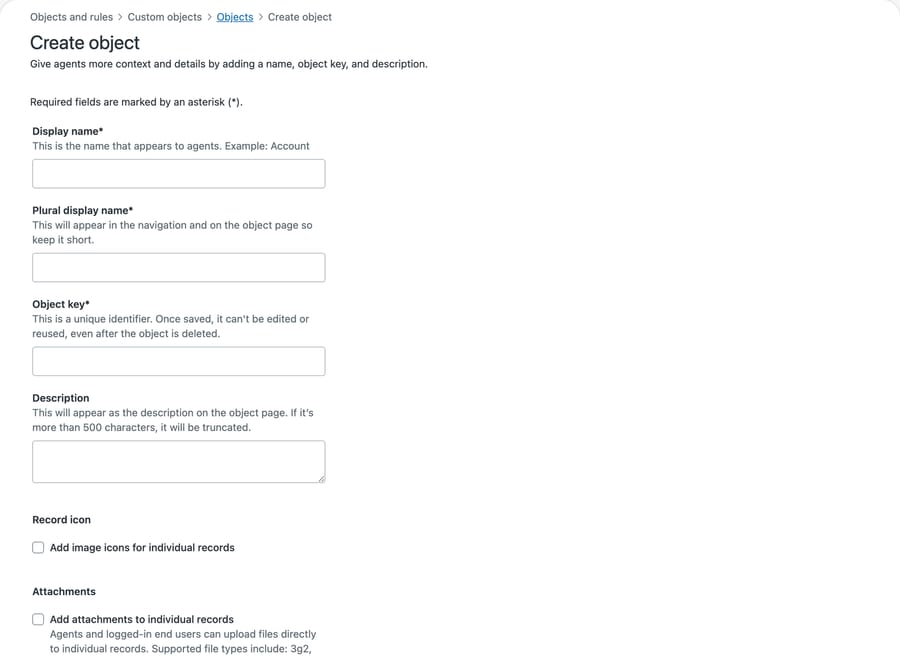
Display name and plural display name are what agents see. Both are editable later, so a wrong guess here costs nothing. Description is optional, appears on the object page, and truncates past 500 characters. The two checkboxes, Record icon and Attachments, turn on per-record images and file uploads; both can be changed afterward.
Object key is the one that matters, and the screen is explicit about it:
"This is a unique identifier. Once saved, it can't be edited or reused, even after the object is deleted."
Read that second clause again, because it is stronger than the usual immutable-key warning. Deleting the object does not free the key. If you create product, decide the model was wrong, delete it and start again, you can't have product back. You will be writing product_v2 in every API call and every placeholder for as long as the instance lives.
Once the object is saved, the key field greys out and stops accepting input, while the display names beside it stay editable:
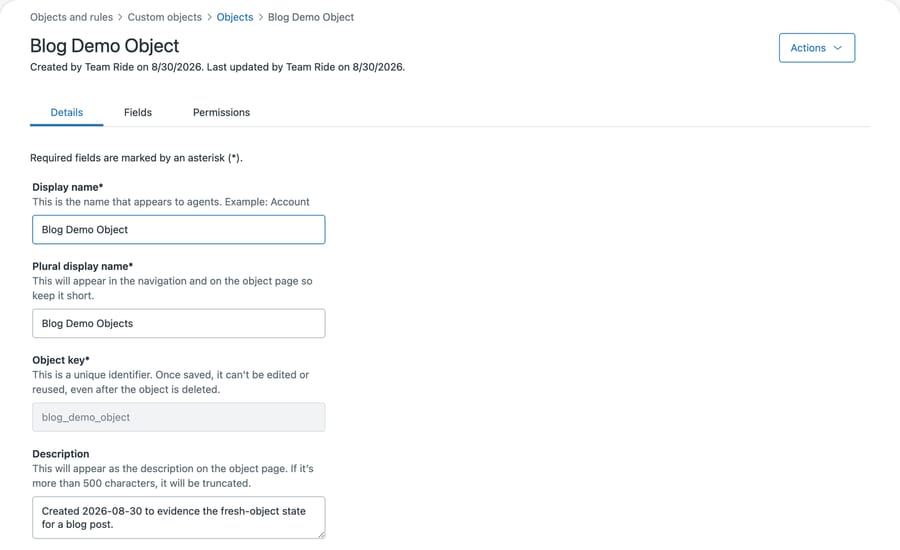
So spend a minute on the key and none on the display names. That's the reverse of where people's attention naturally goes, because the display name is the thing on screen and the key is the thing in the URL.
What fields does a new custom object have?
Create the object, then ask what fields it has. Here is that question asked the way most people ask it:
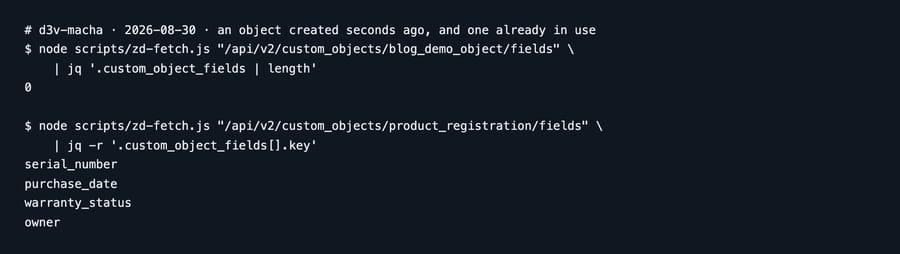
Zero, against four for the product_registration object already in use on the same instance. Hold onto that four; the same call is hiding two fields from it as well, which is the next thing to explain.
That zero is misleading, and it took us a round of review to catch it. GET /api/v2/custom_objects/{key}/fields accepts an include_standard_fields parameter, and Zendesk's API reference describes it as "Include standard fields if true. Exclude them if false", so the call excludes them unless you ask. Some fields, in Zendesk's words, "are predefined and required for every object", and they carry a standard:: prefix that stops you creating, deleting or deactivating them.
Pass the flag and the picture changes:
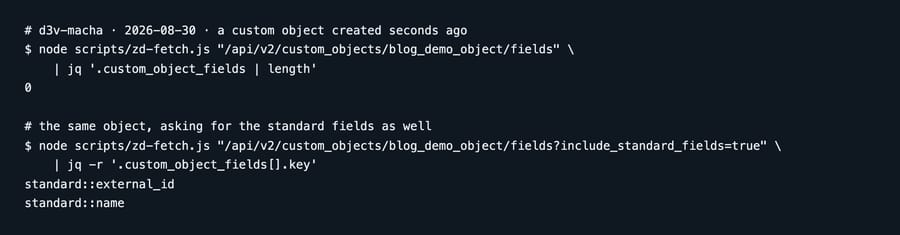
The Fields tab says the same thing without the flag argument, and labels them for you:
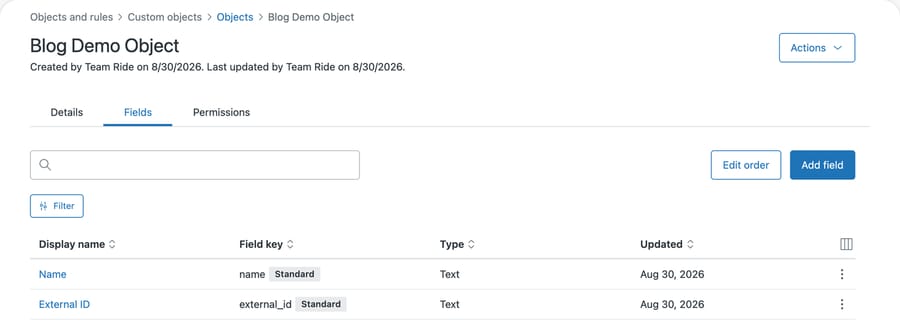
So the accurate statement is narrower than the one we first wrote. A new object has name and external_id, both badged Standard, and nothing else. It is not featureless, but it holds none of the data you created it for, and every field you actually want is one you add.
The practical consequence survives the correction: "create the object" is step one of three, and on its own it produces something you cannot use. Budget for the fields.
Which field types can you add?
Add field offers eleven field types plus two relationship types, split into two groups on the same screen:
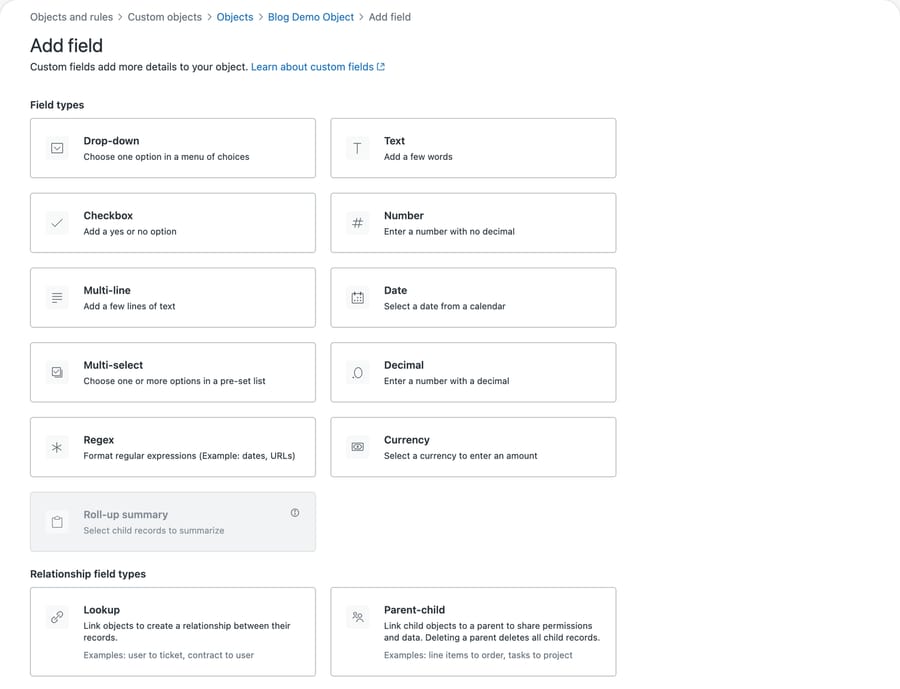
Drop-down, text, checkbox, number, multi-line, date, multi-select, decimal, regex and currency are the ordinary ones. Roll-up summary is on the screen but greyed out, because it summarizes child records and there is nothing to summarize until a parent-child relationship exists. Under Relationship field types you get Lookup and Parent-child.
Two are worth choosing deliberately.
Dropdown stores a value and a name separately. You'll see Gold in the interface and gold in the data, and the difference matters the moment anything automated reads the field. Our custom fields explainer covers the same distinction on ticket fields, and it bites in the same way here.
Lookup is the field that makes custom objects worth having, because it connects a record to a ticket, a user, an organization, or another object. Without at least one lookup somewhere, your object is a list nobody's workflow touches. Note the ceiling: 5 lookup fields per object on Team and Growth, 10 on Professional and above.
Why can't agents see a new custom object?
Now the second surprise, and the more expensive one. Open the Permissions tab on a freshly created object:
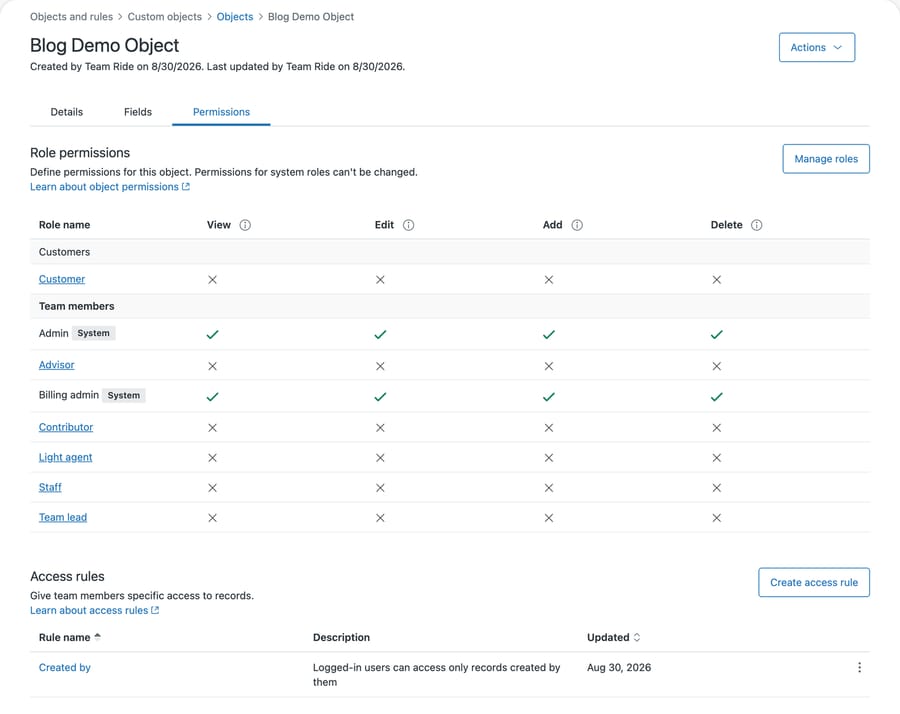
Two System roles have full access. Every other role has nothing. Advisor, Contributor, Light agent, Staff, Team lead: no view, no edit, no add, no delete. The Customer role has none either.
We didn't configure that. The object was created through the API with no permission options at all, and this is what it came with.
Read that screenshot carefully, because the reason it looks so closed is not the one it appears to be. Zendesk's permissions documentation says access is predefined for the standard admin and agent roles on every plan, and that what changes by tier is what you can configure: light agents and contributors on Team, Growth and Professional, and every custom role as well on Enterprise.
Our instance runs Enterprise custom roles. There is no standard Agent row in that table at all; Advisor, Contributor, Light agent, Staff and Team lead are custom roles, and custom roles are exactly the set that arrives at no access. So the accurate reading is narrower and more useful than "agents can't see it": anyone on the standard Agent role would have been fine, and everyone on a custom role would not. If your team runs custom roles, which most Enterprise teams do, this is your default too. The documentation also dates a change: objects created before August 2026 gave light agents and contributors view-only access by default, while objects created after it leave those two roles at no access until an admin configures them.
Think about what that means for the order you do things in. An admin builds the object, adds fields, imports records, wires a lookup onto the ticket form, and tests it. Everything works, because the admin is an Admin. Then the team gets told it is ready and every one of them opens a ticket to find the field empty or absent. The build was fine. The last step was never done.
The incentive behind that closed default is not sinister, and it explains the shape. A permissions model that defaults to open creates support tickets about data somebody saw and shouldn't have; one that defaults to closed creates confusion about data somebody can't see and should. Vendors pick the second every time, because the first is a security incident and the second is a support question. That is the right call, and it does mean the burden of remembering sits with you, on a screen you have to know to open.
The same screen carries two more things worth reading. An access rule is created alongside the object, "Logged-in users can access only records created by them", which is a sensible default and a separate axis from role permissions: roles decide whether somebody can touch the object at all, access rules decide which records within it. And the page states that permissions for system roles can't be changed, which is why Admin and Billing admin show as fixed rather than as choices you made.
What order should you build a custom object in?
- Check your plan's object allowance before you design the model.
- Decide the key, and treat it as permanent, because it is.
- Create the object.
- Add the fields, including at least one lookup relationship.
- Set the role permissions, or nobody but an admin will see any of this.
- Add a record by hand and look at it as a non-admin before you tell anyone it is ready.
Step six is the cheap insurance. Most of what goes wrong here is invisible from an admin account, so testing as an admin proves almost nothing.
Can you create a custom object through the API?
The whole thing is scriptable, which matters if you are creating several objects or rebuilding them across instances. Object creation is a POST to /api/v2/custom_objects with a key, a title and a pluralized title; fields go to /api/v2/custom_objects/{key}/fields; records to /api/v2/custom_objects/{key}/records. Our Zendesk API guide covers authenticating the calls.
Scripting it is not optional for everyone. Zendesk documents that sandboxes copy the custom object definitions but not their records, not lookup fields that reference them, and not business rules such as triggers that reference them. So a sandbox gives you the empty shell and none of the wiring that makes it useful. You either rebuild the rest by hand or you write the script once and run it in both.
One caution learned on our own instance: creating through the API doesn't change any of the above. The object still arrives with only its standard fields and, on our instance, no role permissions, and there's no options block that sets them for you. Scripting the creation means scripting all three steps or you have automated your way to the same unusable object faster.
Common questions
Can I change a custom object's key after creating it? No. The create screen states it can't be edited or reused even after the object is deleted, so a discarded key is gone from that instance permanently. Choose it as though you cannot change it, because you can't.
Does a new custom object have any fields? It has two. Zendesk predefines name and external_id for every object and marks them with a standard:: prefix. Everything else is yours to add. Note that GET /api/v2/custom_objects/{key}/fields hides the standard fields unless you pass include_standard_fields=true, so the default call reports zero on a brand new object.
Why can't my agents see the custom object? Almost certainly custom roles. Zendesk predefines access for the standard admin and agent roles on every plan, but custom roles start at no access, and on our Enterprise instance a new object showed Admin and Billing admin with everything and Advisor, Contributor, Light agent, Staff and Team lead with nothing. Open the Permissions tab and grant what each custom role needs.
What is the difference between role permissions and access rules? Role permissions decide whether a role can view, edit, add or delete records of this object at all. Access rules narrow which records within it a person can reach, such as only the ones they created.
How many custom objects can I create? Three on Suite Team, five on Suite Growth, 30 on Suite Professional and Support Enterprise, and 50 on Suite Enterprise and Enterprise Plus, with a maximum of 100 fields per object.
Does a sandbox copy my custom objects? Only the object definitions. Records, lookup fields that reference custom objects, and triggers or other business rules that reference them are not copied, so script those steps or redo them by hand.
Do I need a lookup field? Practically, yes. Without a lookup relationship connecting records to tickets, users or organizations, the object is a standalone list that no workflow reads. Whether you needed an object at all is a separate question, and we work through that decision in custom objects vs custom fields.
What does a closed permission mean for an AI agent?
An AI agent reading custom object data runs into the permission question in a sharper form than a human does, because it runs under credentials you chose rather than credentials it can complain about.
If the object is invisible to the role your integration authenticates as, the agent doesn't see an error worth surfacing. It sees an absence, and an absence looks exactly like a customer who has no service plan or no registered product. The answer it gives will be fluent and wrong in a way that is hard to trace back to a checkbox on a permissions tab.
So check it explicitly instead of assuming. Confirm the role your integration uses has view access to the object, and confirm it by looking at a record as that role rather than as an admin.
Macha reads your Zendesk under the permissions you give it, which means a custom object it cannot see is one it will never mention. That's the correct behavior and it is also the failure mode to check first when an agent seems to be ignoring data you know is there. It fits teams who already model something Zendesk has no native place for, a plan or a device or a policy, and who want an agent to answer with it. It fits poorly if the object exists but nobody has decided which role owns it, because then the permission question you are about to hit is a people question rather than a configuration one. Our Zendesk integration page covers what it reads, and the practical introduction to custom objects covers the model itself.
Start a free trial once the object is built and the permissions are set.






