





 Shopify
 Stripe
 Slack
Slack Notion
 Google Workspace
 Confluence

What Is a Zendesk Custom Object, and When Do You Need One? (2026)


Zendesk custom objects hold data that fits none of its three built-in buckets, the user, the organization and the ticket, such as a product serial number that outlives every ticket mentioning it. We built one on a demo sandbox to see what the setup involves, which decisions are permanent, and when a plain ticket field does the job.
Key takeaways
- A Zendesk custom object is worth building only when a record outlives the ticket and more than one ticket will reference it; otherwise a custom ticket field does the job.
- Zendesk caps custom objects at 3 on Suite Team, 5 on Suite Growth, 30 on Suite Professional and Support Enterprise, and 50 on Suite Enterprise and Enterprise Plus, with 100 fields per object.
- Building a Product Registration custom object with four fields and three records through the API took about ten minutes on a Zendesk demo sandbox created 21 August 2026.
- A Zendesk custom object's key becomes permanent once saved and cannot be edited or reused even after the object is deleted, so naming conventions come first.
- Zendesk lets every plan configure custom object access for light agent and contributor roles, but only Enterprise plans can set record permissions for every custom role.

A Zendesk custom object is a table of records, such as product registrations or contracts, that lives outside users, organizations and tickets and connects to tickets through a lookup relationship field. You need one only when a record outlives the ticket and more than one ticket will reference it; custom objects need a Zendesk Suite plan or Support Enterprise, and Suite Team caps you at 3 of them (Zendesk limits, checked 24 September 2026).
| Plan | Custom objects | Lookup fields per object | Configurable record permissions | AI object builder |
|---|---|---|---|---|
| Suite Team | 3 | 5 | Light agent and contributor roles only | No |
| Suite Growth | 5 | 5 | Light agent and contributor roles only | No |
| Suite Professional | 30 | 10 | Light agent and contributor roles only | Yes, with Admin Copilot (early access) |
| Support Enterprise | 30 | 10 | Every custom role | No |
| Suite Enterprise and Enterprise Plus | 50 | 10 | Every custom role | Yes, with Admin Copilot (early access) |
Whether you need one matters more than what it is, because parts of the setup are permanent in ways a ticket field is not.
So we built one and timed it. Everything below comes from a Product Registration object created on a Zendesk demo sandbox on 21 August 2026, given four fields and three records, entirely through the API. Four fields took about ten minutes. The screenshots are of that object, and where Zendesk's documentation refers to limits without printing numbers, no numbers are claimed here.
What is a Zendesk custom object made of?
Three layers. We used four fields and three records, and only one field type mattered.
An object is the type of thing: Product Registration, Rental Property, Contract. A field is a property of that thing: a serial number, a purchase date, a status. A record is one instance: this board, this lease, this contract.
None of that connects to a ticket by itself. The connector is a field type called a lookup relationship, which points a field at another object, including Zendesk's own users and organizations. Without one, a custom object is a table sitting beside your helpdesk that no ticket can reach.
The direction of that lookup is the thing to get right, and it is the thing we got wrong first time. We built a lookup on the object pointing at a user, which is useful for saying who owns a record. It does not put anything on a ticket. For that, Zendesk requires a lookup relationship field on the ticket pointing at the custom object: "Your ticket form must have at least one active lookup relationship field pointing to a custom object," and "within the ticket, a valid value must be set in the lookup field." Two lookups, two directions, two jobs.
We created an object called Product Registration on a demo instance, gave it four fields, and pointed the owner field at zen:user.
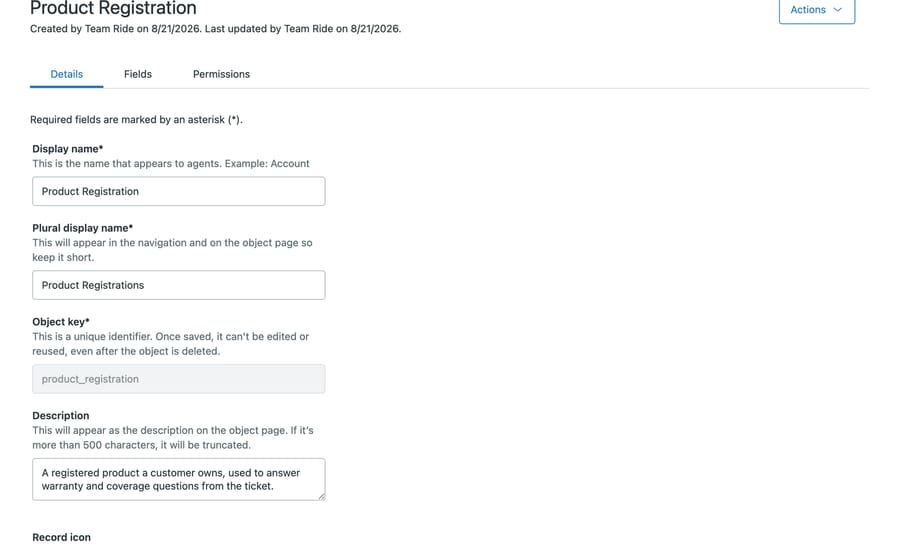
Two things on that screen are worth reading closely before you save anything.
The object key is permanent. Zendesk's own help text says it plainly: "Once saved, it can't be edited or reused, even after the object is deleted." You cannot rename it and you cannot recycle it. If you create product_reg and later decide you wanted product_registration, you keep both keys burned. Decide the naming convention before the first object, not after the third.
The description is not decoration. It appears on the object page and it is what a colleague reads in eighteen months when they are deciding whether to add a field to your object or build a new one. Ours says what the object is for and what question it answers.
Which fields does every custom object get automatically?
We added four fields. The object ended up with six.
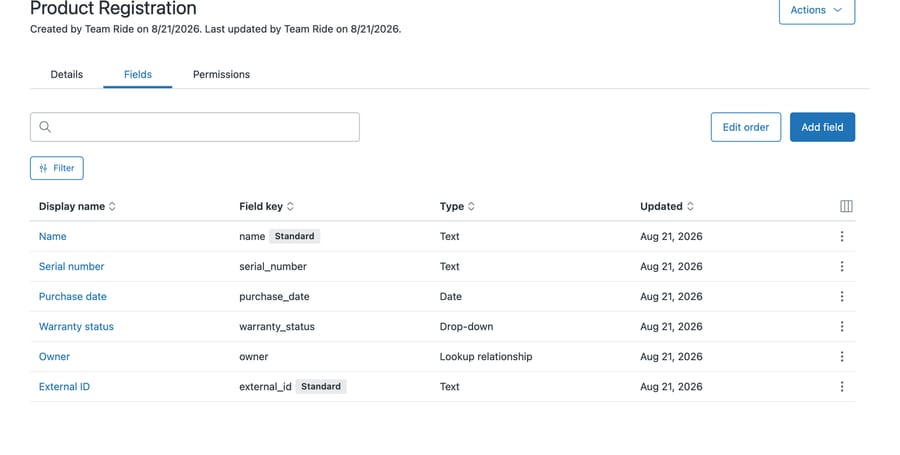
Name and External ID carry a Standard badge, which means Zendesk created them and every record has them. Zendesk's planning guide confirms the first one: "All records have a Name field, which is text-based." That matters for your data model, because it means every record already has a human-readable label and you do not need to invent one. It also means Name is doing double duty as your display value, so whatever you put there is what agents will see in a list.
External ID is the field people miss. If these records originate in another system, a warranty database or an ERP, that is where the foreign key goes. Populate it at creation time. Backfilling identifiers into records that are already referenced by tickets is the kind of migration nobody schedules.
The warranty_status dropdown and the owner lookup are the two that make the object useful. The lookup is typed against zen:user, so a record belongs to a person Zendesk already knows about.
That's the object side done. The ticket side is a second field, created against /api/v2/ticket_fields with type lookup and a target of zen:custom_object:product_registration.
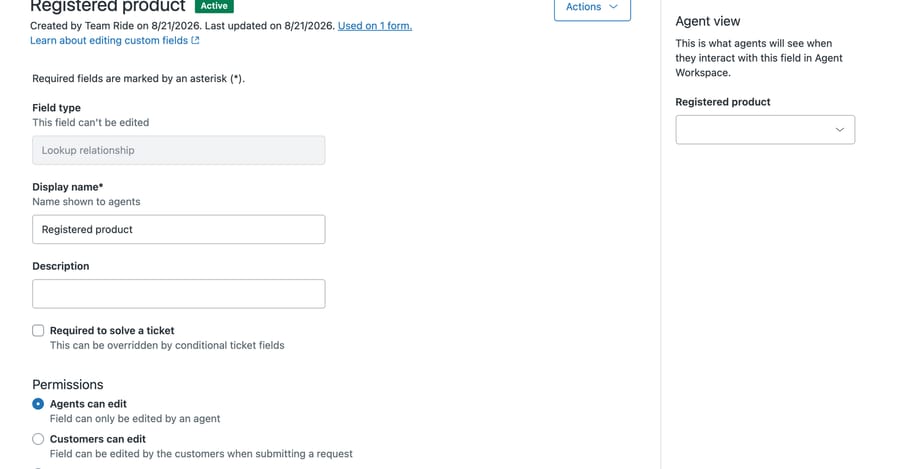
Note two things Zendesk did without being asked. The field type is locked once created, the same permanence rule the object key follows. And it went straight onto a form: the header reads "Used on 1 form," which satisfies Zendesk's stated prerequisite that the ticket form carry an active lookup field pointing at the object. Only now can an agent set a value and see the record.
Which Zendesk plans limit custom objects, and how?
Custom objects are available on every Suite plan and on Support Enterprise, with the Agent Workspace turned on. Three things about them are gated by plan: permissions, the AI builder and the counts.
Full record permissions are configurable on Enterprise only. Zendesk states that "On Enterprise plans, you can configure permissions for object records," and that "On Team, Growth, and Professional plans, agent permissions are predefined." The same article adds one exception: on all plans, access is "pre-defined for the standard admin and agent roles, and configurable for the light agent and contributor roles." If your reason for building an object is that some agents should see the data and others should not, check your plan before you design around it.
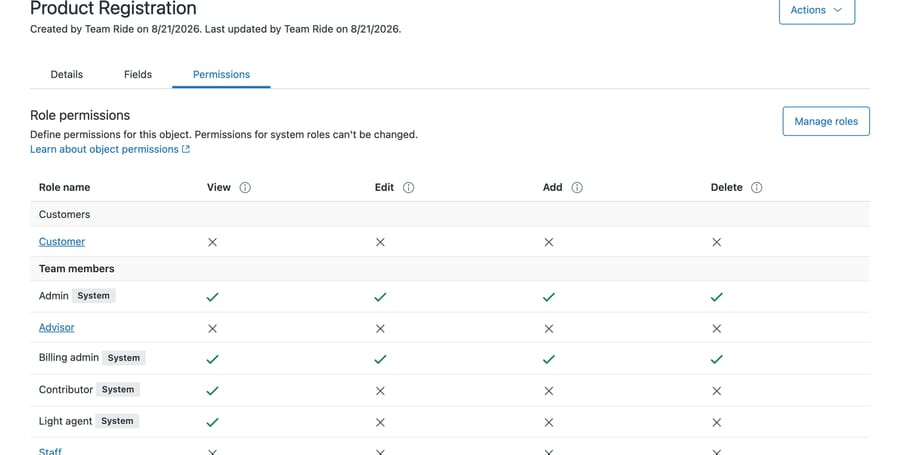
Our sandbox is on Enterprise, so that matrix is editable, and it carries a second constraint the plan documentation does not lead with: "Permissions for system roles can't be changed." Admin, Billing admin, Contributor and Light agent all carry a System badge and are fixed. Only the custom roles on that instance, Customer, Advisor and Staff, are links you can open and change. Enterprise buys you a permissions layer over your own roles, not over Zendesk's.
The AI object builder needs Suite Professional or higher. Zendesk's note is explicit: "You must be on Zendesk Suite Professional or higher to use the AI object builder." Check two more things before counting on it: Zendesk still labels it an early-access program (EAP), and it also requires Admin Copilot enabled, so being on Professional is necessary and not sufficient. On lower plans you build the schema by hand, which is what we did, and which took about ten minutes for four fields.
The counts are capped, and the caps are low at the bottom. Zendesk publishes them: Suite Team gets 3 custom objects, Suite Growth 5, Suite Professional and Support Enterprise 30, Suite Enterprise and Enterprise Plus 50. Each object can hold at most 100 fields. Lookup relationship fields, the ones that make an object reachable, are capped at 5 per object on Team and Growth and 10 on Professional and Support Enterprise and above. Accounts top out at 50 million records, and each individual record is capped at 32 KB.
Three objects is the number worth sitting with. On Suite Team, a customer, a contract and a product registration is the entire budget.
The gating has a shape, and the incentive behind it is worth reading. Zendesk charges at both ends. It caps how many objects you can create on the low tiers, and it sells the governance you need once you have several. What you get in the middle, on Professional, is thirty objects and no way to decide who sees them.
That middle is the interesting spot. Thirty objects is enough to build a real data model, and a real data model is exactly the point at which "every agent sees everything" stops being acceptable. Zendesk optimizes for the upgrade, which is ordinary and worth seeing coming.
One more constraint, and it is narrower than it first looks: the schema designer "can display a maximum of five custom objects and their relationships at a time." That is a limit on the AI object builder's canvas, not on your data model, which can run to 50 objects. It only bites when you are drawing.
When is a ticket field enough instead of a custom object?
A custom ticket field stores a value on the ticket. A custom object stores a record that outlives the ticket and can be referenced by many of them. The test is whether the data has a life of its own.
A serial number belongs to a product the customer will still own next year, and one product can generate five tickets. That's an object.
A refund reason belongs to the ticket and dies with it. That's a ticket field. Build an object for it and you're maintaining a schema, a permission model and a lookup in exchange for nothing.
The honest rule: if you cannot name the second ticket that will reference the same record, you want a field.
How do you get data into and out of a custom object?
Everything above is reachable over the API. The object lives at /api/v2/custom_objects, its schema at /api/v2/custom_objects/{key}/fields, and the rows at /api/v2/custom_objects/{key}/records. We created all three that way, which is worth knowing if you are importing from an existing system rather than typing records in by hand.
The API is not the only import path. Admin Center carries a Data importer under Objects and rules → Tools, which takes CSV up to 1 GB, 500,000 rows and 102 columns. One detail there is worth reading twice, because it turns the External ID advice above from good practice into a requirement: Zendesk states that "if you wish to bulk update the records in the future, you must also include an external_id field." Import without it and your next bulk update has nothing to match on.
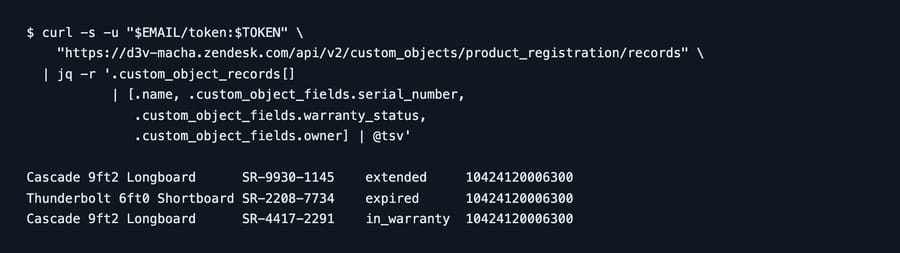
That is the actual response from our sandbox, rendered for legibility. The fourth column is the point: owner returns a numeric Zendesk user ID, because the lookup is typed against zen:user. That ID is the thread back to a ticket.
Custom object records can also be referenced in ticket triggers, which is how the data starts affecting routing rather than just sitting there. And Explore can report on them, so an object is not a dead end for reporting.
Start with the spreadsheet Zendesk's planning guide recommends. One sheet per object, columns as fields, a few real rows. If you cannot fill in ten rows from data you actually have, you are designing a schema for a process that does not exist yet.
Common questions
What is the difference between a custom object and a custom ticket field? A ticket field stores a value on one ticket. A custom object stores a record that persists independently and can be referenced by many tickets. If the data outlives the ticket, use an object.
Can I rename a custom object's key later? No. Zendesk's admin interface states the key "can't be edited or reused, even after the object is deleted." The display name can change; the key cannot.
How does a custom object connect to a ticket? Through a lookup relationship field, which points at another object including Zendesk's users and organizations. Without one, nothing in the ticket can reach the record.
Do I need Enterprise to use custom objects? No. Any Suite plan or Support Enterprise works. You need Enterprise to configure record permissions for every custom role; on Team, Growth and Professional only the light agent and contributor roles are configurable.
Do records come with any fields already? Yes. Name and External ID are created for you and marked Standard. Name is text and acts as the record's display label.
How many custom objects can I have? It depends on the plan. Zendesk publishes the caps: 3 on Suite Team, 5 on Suite Growth, 30 on Suite Professional and Support Enterprise, and 50 on Suite Enterprise and Enterprise Plus. Each object holds up to 100 fields.
How do I get a custom object record to show on a ticket? Add a lookup relationship field to the ticket itself, targeting the object, and make sure it is on the ticket form. Zendesk's requirement is that "your ticket form must have at least one active lookup relationship field pointing to a custom object."
Can I build the schema automatically? Only on Suite Professional or higher, which is where the AI object builder is available. Below that you define fields by hand.
Where does an AI agent fit with custom objects?
An object is only worth building if something reads it at the moment a customer asks. Otherwise it is a table an agent has to remember to open.
Macha runs on top of the Zendesk you already have. It reads the ticket, including custom field values and attachments, and can classify it, add an internal note, or post a public reply, using your existing triggers and webhooks as the entry point. It answers from the sources you connect, so what it can tell a customer about a warranty depends on what you have actually recorded. It suits teams already committed to Zendesk who want agents acting inside the ticket. Setup runs through the Zendesk integration, and billing is per ticket, so one thread with one person is one charge however many replies it takes.
Start your free trial and connect your Zendesk in a few minutes.






