Intercom
 Shopify
 Stripe
 Slack
Slack Notion
 Google Workspace
 Confluence

How Do You Create Custom Ticket Fields and Forms in Zendesk? (Step by Step, 2026)


To create a custom ticket field in Zendesk, open Admin Center, go to Objects and rules, Tickets, Fields, click Add field, pick a type, set permissions and save. Ticket forms are built on the Forms page next to it, and multiple forms need Suite Growth or above or Support Enterprise.
Key takeaways
- Zendesk custom ticket fields are created under Admin Center, Objects and rules, Tickets, Fields, by clicking Add field, and they work on every Suite and Support plan.
- A Zendesk drop-down field supports up to 2,000 values, and every drop-down or multi-select value carries a unique tag that triggers, views and reports can use.
- Multiple Zendesk ticket forms require Suite Growth, Professional, Enterprise or Enterprise Plus, or Support Enterprise, and an account can hold up to 300 ticket forms.
- A Zendesk text or multi-line field holds up to 65,536 characters, while among system fields only Type and Priority can be removed from a ticket form.
- When a Zendesk account runs more than one ticket form, a newly created custom field is not added to any of them until an admin adds it by hand.

To create a custom ticket field in Zendesk, go to Admin Center → Objects and rules → Tickets → Fields, click Add field, pick a type, set permissions and save; to group fields into a ticket form, go to Tickets → Forms → Add form. Custom fields work on every plan, but multiple ticket forms need Suite Growth or above (or Support Enterprise), with up to 300 forms per account (Zendesk's documentation, checked September 24, 2026).
| Build | Admin Center path | Plan | Key limit |
|---|---|---|---|
| Custom ticket field | Objects and rules → Tickets → Fields → Add field | All Suite and Support plans, from Team | Drop-down: up to 2,000 values |
| Ticket form | Objects and rules → Tickets → Forms → Add form | Suite Growth, Professional, Enterprise, Enterprise Plus; Support Enterprise | Up to 300 forms |
| Single Default Ticket Form | Same Forms page | Every plan | New fields join it automatically |
Part A below creates the field and Part B assembles fields into a form. For the concepts first (system vs. custom fields, fields vs. forms), read the companion explainers on ticket fields vs. forms and Zendesk custom fields explained. Zendesk revises its UI periodically, so confirm labels in your own account.
Who can create custom fields and forms in Zendesk?
You need to be an admin to create custom fields and forms, or an agent in a custom role that's been granted permission. If you don't see the paths below, that's why. Ask an admin.
One plan caveat to know up front: a single default ticket form is available on every plan, but multiple ticket forms require Suite Growth, Professional, Enterprise, or Enterprise Plus, or Support Enterprise (Suite Team, Support Team and Support Professional are limited to the one Default Ticket Form). Custom fields themselves are available on all plans, so even on Team you can add fields, you just add them to the single default form rather than building separate forms. We'll flag this again in Part B.
How do you create a custom ticket field in Zendesk? (Part A)
Step 1: Open the Fields admin page
Custom fields live in the Admin Center, not in a ticket:
- Click the Zendesk Products icon (the four-dot grid) and choose Admin Center.
- In the left sidebar, click Objects and rules.
- Click Tickets, then Fields.
The full path is Admin Center → Objects and rules → Tickets → Fields. This page lists every field on your account: the grayed-out system fields (Subject, Status, Priority, etc., which you can't delete) and any custom fields you've already built.
Step 2: Click Add field and pick a type
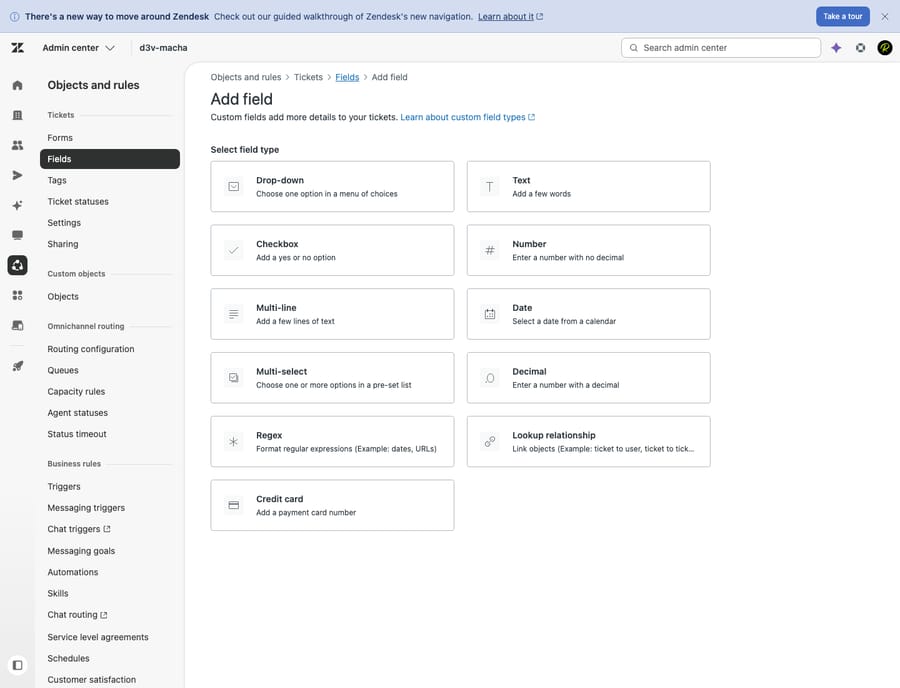
Click Add field in the top-right corner. The first decision is the field type, and it's the one most worth getting right, because the type dictates how the data is stored, validated, and reported on. These are the eleven types you'll use on tickets:
- Drop-down — a single choice from a predefined list (up to 2,000 values). The workhorse for categories like "Issue type" or "Product line."
- Multi-select: like a drop-down, but the customer or agent can pick several values at once (also up to 2,000 values).
- Checkbox — a single yes/no toggle (e.g. "VIP customer").
- Text — a single line of free text (up to 65,536 characters).
- Multi-line: a larger free-text box for longer notes, with the same 65,536-character limit.
- Numeric (whole numbers) and Decimal (numbers with decimals).
- Date — a date picker.
- Regex — text validated against a pattern you define (e.g. an order-number format).
- Credit card — masks all but the last four digits.
- Lookup relationship — links the ticket to a related user, organization, or custom-object record.
Zendesk's custom field types reference now also lists newer types such as currency and multi-lookup, so check the Add field menu in your account for what your plan offers.
The big rule of thumb: prefer a drop-down over free text wherever the answer is a known, finite set. A drop-down is reportable, filterable, and tag-generating; a text field full of "billing," "Billing," and "bil ling" is none of those. More on that in the mistakes section below.
Step 3: Set the display name and titles
Enter a Display name — this is what admins see in the fields list and what agents see on the ticket by default. There's also an optional Description, which is visible to admins only (a good place to note what the field is for and when to use it).
If you later make the field customer-facing (Step 4), you'll be able to enter a separate title shown to customers and a customer-facing description — so the agent-facing label can stay terse ("Cat.") while end users see something friendlier ("What's this about?").
Step 4: Set permissions (who sees and edits it)
Under Permissions, choose one of three options. This single setting decides whether the field is internal-only or appears on the help-center request form:
- Agents can edit — agents view and edit it; end users never see it. Use this for internal triage data (routing category, internal severity).
- Customers can edit — agents and end users can view and edit it. The field appears on tickets and on the support request form in your help center. Use this when you want the customer to tell you something at submission (order number, product).
- Customers can view — agents edit it; end users can only read it. Useful for a status-style field you want to surface but not let customers change.
Step 5: Set required (and required-to-solve)
Two independent "required" toggles control when the field must be filled in:
- Required to solve a ticket — an agent can't move the ticket to Solved until this field has a value. This is how you guarantee, say, a "Resolution category" is captured before closure.
- Required to submit a request — a customer can't submit the help-center form without filling this in (only relevant for customer-facing fields).
Use these sparingly. Every required field is friction; make required only what you genuinely can't close or triage without.
Step 6: For drop-down / multi-select, add the options (these create tags)
If you picked Drop-down or Multi-select, you now define the field values. Each value has a display label and a tag — and here's the part that quietly makes Zendesk powerful: every option you add generates a tag (each must be unique). Those tags then flow into your triggers, automations, macros, views, and Explore reports, so a drop-down isn't just data capture — it's the hook the rest of your Zendesk automation hangs on. (A checkbox works similarly: you define one tag that gets applied whenever the box is checked.)
For example, a "Product" drop-down with values Mobile app, Web app, and API might carry the tags product_mobile, product_web, and product_api — and now a trigger can auto-route any product_api ticket to your developer-support group.
Step 7: Save
Click Save — or click the dropdown arrow and choose Save and add another to build several fields in a row. Your field now exists.
One critical gotcha: if you already have two or more active ticket forms, a newly created field is not automatically added to them. You'll need to add it to each relevant form manually — which is exactly what Part B covers.
How do you build a ticket form and add fields to it? (Part B)
A ticket form is a predefined set of fields shown to agents and end users for a particular kind of request. A "Returns" form might surface order number, return reason, and item condition; a "Bug report" form surfaces product, severity, and steps to reproduce. Different requests, different fields — that's the whole point of forms.
Plan check: building multiple forms requires Suite Growth, Professional, Enterprise, or Enterprise Plus, or Support Enterprise. On Team, you have one Default Ticket Form that you customize instead of creating new ones. You can create up to 300 forms per account on supported plans.
Step 1: Open the Forms admin page
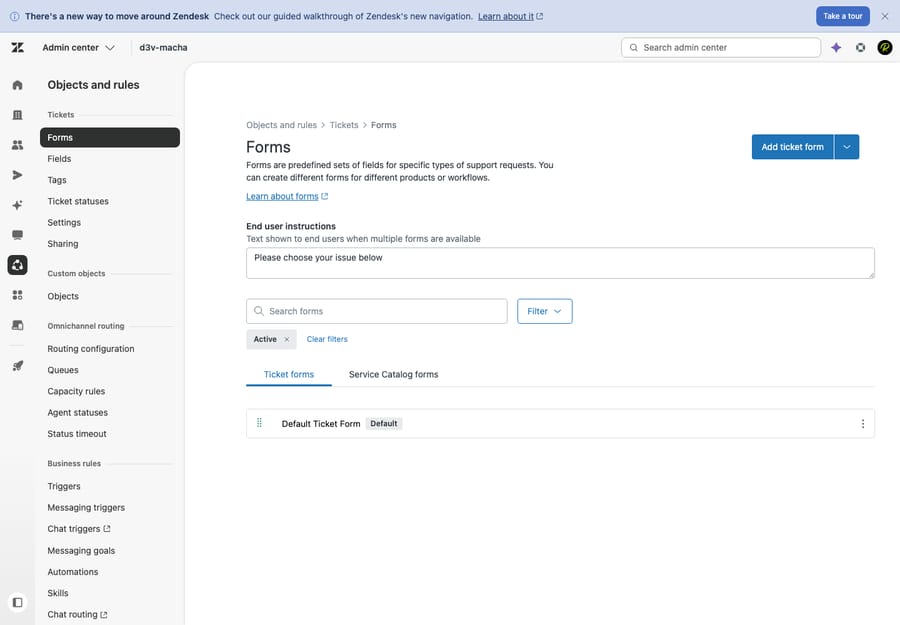
Go to Admin Center → Objects and rules → Tickets → Forms. You'll see the Default Ticket Form plus any others you've built.
Step 2: Click Add form and name it
Click Add form. Click New form at the top to set the form name (this is the agent-facing name). Optionally enter a different Title shown to end users — so agents see "Returns — RMA" while customers see "Return or exchange an item."
If end users should be able to choose this form themselves in the help center, check Editable for end users.
Step 3: Add fields and put them in order
The available fields sit in a panel on the right. Drag a field onto the form (or click the + next to it) to add it, then drag fields up and down to set the order agents and customers see. Click the X on a field to remove it — note that among system fields, only Type and Priority can be removed; the core system fields stay.
This is where the fields you built in Part A come together into a coherent request experience. Lead with what the customer can answer easily, and keep the form short (more on that below).
Step 4: Add end-user instructions
If you let end users pick their form, add a short line of end-user instructions so customers choose the right one ("Use this form for billing questions only"). When several forms are presented in the help center, clear instructions are what stop everything landing on the wrong form.
Step 5: Save, activate, and assign to brands
Click Save. By default a form has Apply to all brands selected. If you run multiple brands and want this form limited to specific ones, deselect "Apply to all brands" and choose which brands it applies to. Once active, the form is available to agents on new tickets and (if you made it end-user editable) in the help center.
What do agents and customers see once the form is live?
To agents, the form's fields show in the ticket interface; required-to-solve fields block the Submit-as-Solved action until filled. To end users, customer-facing fields appear on the help-center support request form, and if you've activated multiple end-user forms, customers first pick a form, then see its fields. The data captured then powers your views, triggers, and reports — which is the entire reason to structure it in the first place.
What mistakes should you avoid with Zendesk fields and forms?
- Use drop-downs, not free text, for anything finite. This is the single biggest mistake. A free-text "Category" field can't be reported on or used to route tickets; a drop-down can (and it generates tags for free). Reserve text fields for genuinely open answers like order details.
- Keep forms short. Every field is friction, and over-collecting at submission drives customers to abandon the form or pick "Other." Capture what you need to triage, and let agents fill the rest. A tight five-field form beats a fifteen-field one nobody completes.
- Make "required" the exception. Required-to-submit fields raise abandonment; required-to-solve fields are gentler (they only bind agents at closure). Require only what you truly can't operate without.
- Plan your tags before you build drop-downs. Because each option becomes a tag, a messy value list becomes a messy automation layer. Name them consistently (
product_*,reason_*) from the start. - Remember the multi-form gotcha. With multiple active forms, new fields aren't auto-added — audit each form after creating a field so it doesn't silently go missing.
Can AI fill in Zendesk custom fields for you?
Yes, and it matters because well-built fields only help if they're filled in correctly. Required-to-submit fields nudge customers but raise abandonment; required-to-solve fields put the classification work on agents, ticket after ticket. The richer your field schema, the more manual tagging someone does.
That's the gap an AI agent layer like Macha helps close. Macha isn't a help desk and it's not a Zendesk replacement. It runs on top of your existing Zendesk. It can read an incoming ticket, classify it, and auto-fill the right custom fields (product, category, severity) and apply the matching tags before an agent ever opens it — so your drop-downs get populated consistently without anyone manually triaging. The honest framing: it's only as accurate as the field structure and knowledge you give it, and the Macha team handles setup and monitoring on every plan. On cost, Macha bills per ticket: one conversation, charged once however many steps it takes, from $299 a month for 750 tickets. So classifying a ticket and setting its fields costs no more than answering it. If keeping fields filled in is eating your team's time, that's the line worth exploring. You can try it with $50 of free usage and no credit card.
Frequently asked questions
Where do I create a custom field in Zendesk? In the Admin Center: Admin Center → Objects and rules → Tickets → Fields, then click Add field. Pick a field type, set the display name and permissions, and save. You must be an admin (or an agent in a custom role with permission).
What's the difference between a ticket field and a ticket form? A field captures one piece of data (e.g. "Product"). A form is a predefined set of fields shown for a particular request type. You build fields first, then arrange them into forms. See ticket fields vs. forms for the full breakdown.
Do drop-down fields create tags? Yes. Every drop-down and multi-select value carries a unique tag that's applied to the ticket when the value is selected, and a checkbox applies one admin-defined tag when checked. Those tags can drive triggers, automations, macros, views, and reports. Lookup relationship and plain text fields do not generate tags.
How do I make a Zendesk field required? On the field, use Required to solve a ticket (agents can't solve until it's filled) and/or Required to submit a request (customers can't submit the help-center form without it). The two are independent.
Why isn't my new field showing on a form? If you have two or more active ticket forms, a newly created field is not added to them automatically — you have to add it to each form manually under Objects and rules → Tickets → Forms.
Can I create multiple ticket forms on any plan? No. Multiple forms require Suite Growth, Professional, Enterprise, or Enterprise Plus, or Support Enterprise, up to 300 per account. On Team you customize the single Default Ticket Form instead (custom fields are available on all plans).
What is the fastest way to set up fields and forms?
Build the field first (Fields → Add field, drop-down over free text, permissions, required settings, tag-bearing options), then the form (Forms → Add form, drag fields into order, end-user instructions, brands). If you run more than one form, add every new field to each form by hand. For the concepts behind it all, see ticket fields vs. forms and custom fields explained.
Steps and plan limits verified against Zendesk's official documentation on September 24, 2026. Zendesk updates its product periodically — confirm labels in your own account before relying on them.
Add AI agents to your Zendesk
Macha reads the ticket, drafts the reply and takes the action, inside the Zendesk you already run.