



 Intercom
 Shopify
 Stripe
 Slack
Slack Notion
 Google Workspace
 Confluence

Why Is Zendesk Email Not Creating Tickets? 9 Causes and Fixes (2026)


When Zendesk email isn't creating tickets, the message usually either reached Zendesk and was held in Suspended tickets, or never arrived because an unverified address or broken forwarding stopped it upstream. Start with a 60-second triage, then work through the nine causes with a confirm step and a fix for each.
Key takeaways
- When Zendesk email isn't creating tickets, check Views then Suspended tickets first, because Zendesk often receives the email but holds it with a cause label.
- Zendesk automatically deletes unrecovered suspended tickets after 14 days, and a recovered ticket's events show the recovery time rather than the original receive time.
- Microsoft 365 blocks external auto-forwarding by default, so admins must allow forwarding in Manage Remote Domains and the outbound spam policy before mail reaches Zendesk.
- Zendesk warns that manually forwarding an email from an external support address results in a suspended ticket, so forwarding must be set up at the server level.
- Zendesk lists 24 suspension causes, including Detected as spam, Failed email authentication and Sender or domain is on the blocklist, each pointing to a different fix.

When Zendesk email is not creating tickets, first open Views → Suspended tickets: if the email is there, Zendesk received it but held it back for a reason shown in the Cause column, and you can recover it within 14 days before it is deleted. If it isn't there, the mail never reached Zendesk, and the usual culprits are an unverified support address or forwarding that Gmail or Microsoft 365 broke upstream.
| What you see | Likely cause | Where to check |
|---|---|---|
| Email sits in Suspended tickets | Spam filter, failed authentication, no-reply sender, blocklist | Views → Suspended tickets, Cause column |
| No ticket anywhere | Unverified support address or broken forwarding | Admin Center → Channels → Talk and email → Email |
| Some senders work, others don't | SPF, DKIM or DMARC, or allowlist/blocklist rules | Suspension cause, DNS records |
| Automated emails never arrive | Suspended by design to prevent loops | Suspended tickets |
| Ticket exists but is solved or elsewhere | A trigger or wrong brand mapping | Search all tickets, Triggers |
Every step below is checked against Zendesk's own documentation (re-checked 24 September 2026). Zendesk revises its admin UI periodically, so confirm labels in your own account as you go.
What does "not creating tickets" actually look like?
Before you change anything, get specific about the symptom. It points straight at the cause:
- No ticket appears anywhere, including Suspended tickets → likely an upstream delivery or forwarding problem (the mail never reached Zendesk), or an unverified support address.
- Nothing in the agent's main views, but tickets sit in Suspended tickets → the mail arrived and Zendesk deliberately set it aside (spam, failed auth, no-reply, blocklist). In our experience this is the most common real cause.
- Some senders work, others don't → authentication (SPF/DKIM/DMARC) or blocklist/allowlist rules hitting specific domains.
- Automated or system emails never come through (order confirmations, alerts, no-reply notices) → suspended by design.
- The ticket exists but is in the wrong place or closed → a trigger or wrong brand/support-address mapping, not a delivery failure at all.
How do you triage it in 60 seconds?
Do these three checks first. They resolve most cases before you touch DNS:
- Open the Suspended tickets view. In Support, click Views in the sidebar, then Suspended tickets. If the missing emails are here, you've found your answer. Jump to Cause 1.
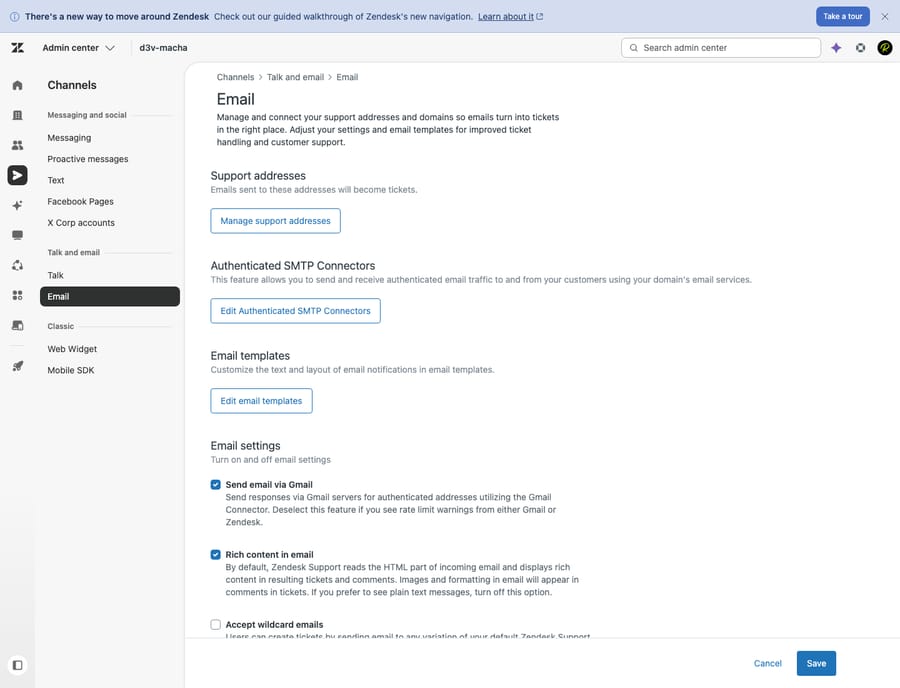
- Check the support address status. In Admin Center, click Channels → Talk and email → Email, then Manage support addresses. Look for a green verified state. Anything showing forwarding check failed or an unverified warning is your problem. Jump to Cause 2.
- Send a controlled test. From a normal external mailbox (a personal Gmail, not a no-reply system), email your support address with a plain-text subject and body. Watch where it lands: a main view, Suspended tickets, or nowhere. That one test eliminates half the possibilities.
What are the causes, and how do you fix each one?
The causes run roughly in the order you should check them, starting with the one we see most.
Cause 1: The email arrived but landed in Suspended tickets
This is the answer far more often than people expect. Zendesk filters out mail it judges to be spam, automated or improperly authenticated, and routes it to the Suspended tickets view instead of creating a normal ticket. The mail is in Zendesk. It just isn't where agents look.
Confirm: Open Views → Suspended tickets. Each row shows a Cause column explaining why it was held. Zendesk's causes list names 24 causes; the common ones include "Detected as spam", "Failed email authentication", "Email for 'noreply' address" and "Sender or domain is on the blocklist". Read the cause before you do anything. It tells you which of the causes below to fix permanently.
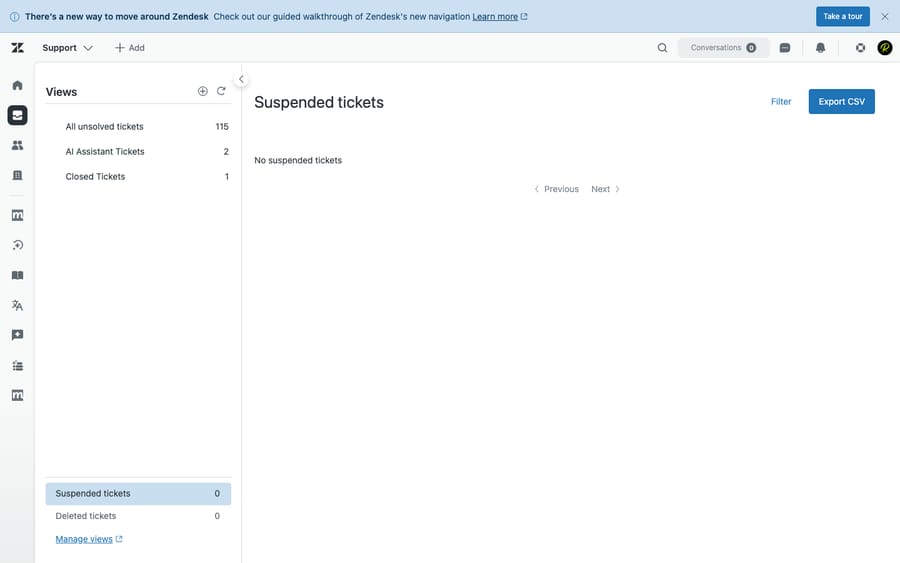
Fix (recover the held mail): Select the legitimate suspended tickets, then use the Recover action. The options are Recover manually, Auto recover and Delete permanently (recovery docs). Recovering turns the email into a real ticket. Two things to know. Zendesk states that "all unrecovered suspended tickets are automatically deleted after 14 days," so check this view on a schedule. And a recovered ticket carries two dates: the conversation shows when the email originally arrived, but the ticket's events and creation date show when you recovered it (Zendesk timestamps article). That matters if you report on first-response SLAs.
Recovery clears the backlog; the causes below stop it from happening again.
Cause 2: Support address not verified, or forwarding never completed
When you connect an external address (for example [email protected]) to Zendesk, the address must be verified before mail flows reliably. A half-finished setup is a classic "no tickets at all" cause.
Confirm: In Admin Center → Channels → Talk and email → Email → Manage support addresses, check the address state. A red "Forwarding check failed" or unverified status means Zendesk isn't confident your forwarding is wired correctly (why isn't my address verified).
Fix: Click the options menu next to the address and select Verify forwarding to re-run the test. The flow to reconnect is Add address → Connect external address → Email forwarding, then enter your external address and save. One trap catches many teams: the verification email Zendesk sends can itself get suspended, because it can be detected as coming from a no-reply or system user (verification email not received). If verification "never arrives," check Suspended tickets for it first.
Cause 3: Forwarding misconfigured in Gmail/Workspace or Microsoft 365
If the address is verified but mail still doesn't arrive, the forwarding rule in your mail provider is the suspect. Zendesk relies on your provider forwarding inbound mail to your Zendesk address.
Confirm: Send a test directly to your original mailbox (for example [email protected]) and watch whether it forwards. If it lands in your inbox but never reaches Zendesk, forwarding is the break.
Fix:
- Google Workspace / Gmail: set up forwarding at the admin/server level (routing rules) rather than a personal client filter, which is fragile and can strip headers. For low volume, Zendesk suggests its Gmail connector instead of forwarding. Our companion guide on connecting Gmail and Outlook to Zendesk walks the exact flow.
- Microsoft 365 / Outlook: Microsoft blocks external auto-forwarding by default through its outbound anti-spam policy. You must explicitly allow it for the Zendesk destination, and Zendesk's own guide says to "allow forwarding in Manage Remote Domains" first (Zendesk forwarding doc). Until you do, M365 drops the forward and you'll see nothing in Zendesk, not even a suspended ticket.
Always forward at the server level, not with a client-side rule. Zendesk's forwarding doc warns that "manually forwarding an email that originates from an external support address results in a suspended ticket," because Zendesk then sees the wrong sender.
Cause 4: SPF, DKIM or DMARC failures
Email authentication protects your domain from spoofing, but a misconfigured record will cause Zendesk to suspend or reject legitimate mail, especially forwarded mail (forwarding often breaks SPF/DKIM alignment).
Confirm: In Suspended tickets, look for "Failed email authentication" or "Email authentication failed". On the address itself, an SPF record check error can appear even when forwarding works (fixing email/SPF/DNS errors).
Fix: Add Zendesk to your domain's SPF record (so Zendesk is authorized to send as your domain), confirm DKIM is set up, and make sure your DMARC policy isn't rejecting forwarded mail. Zendesk's verify forwarding, SPF, DNS, and TXT guide lists the exact records. This is the usual explanation when some senders or domains work and others fail.
Cause 5: Sender on a blocklist, or blocked by allowlist rules
Zendesk can suspend mail from addresses or domains you've blocklisted, or, if you run an allowlist, suspend everything not on it.
Confirm: The causes "Sender or domain is on the blocklist" or "Sender domain not on allowlist" point here.
Fix: In Admin Center → People → Configuration → End users (or your account's allowlist/blocklist settings), review the lists. Remove legitimate senders from the blocklist, or add the needed domains to your allowlist. Be deliberate: an aggressive allowlist quietly suspends every new customer who hasn't been pre-approved.
Cause 6: Automated emails are suspended by design
No-reply addresses, auto-responders, out-of-office replies and notification systems are intercepted on purpose to prevent loops and spam tickets.
Confirm: Causes like "Automated response mail", "Automated response mail, out of office", "Email for 'noreply' address" or "Detected email as being from a system user" (mail-daemon/postmaster) tell you the suspension was intentional.
Fix: If you genuinely need a specific automated sender to create tickets, recover those individually and add the sender to your allowlist so future mail isn't held. Don't blanket-disable suspension for automated mail; that's what invites mail loops.
Cause 7: A trigger routed or closed the ticket, so it only looks missing
Sometimes the ticket was created perfectly, and then a trigger immediately routed it to a group, solved it or set it pending, so it never showed in the view the agent was watching.
Confirm: Search all tickets (not just your view) for the sender's address. If the ticket exists but is solved, closed or assigned elsewhere, a business rule did it.
Fix: In Admin Center → Objects and rules → Business rules → Triggers, review triggers that fire on ticket creation. Look for ones that auto-solve, set assignee or group, or add tags based on the inbound address, and adjust the conditions so legitimate inbound email isn't auto-closed. If you're new to how tickets are meant to flow, our Zendesk ticketing system explained primer is a useful baseline.
Cause 8: Wrong support address or brand mapping
On multi-brand accounts, mail to an address that isn't mapped to the right brand (or isn't added as a support address at all) won't create tickets where you expect.
Confirm: In Manage support addresses, verify the address customers actually email is listed and mapped to the correct brand.
Fix: Add any missing support address and assign it to the right brand. Then re-test from that exact address.
Cause 9: Email loops and bounces
If your support address forwards to an address that forwards back, or a notification triggers a reply that triggers another notification, Zendesk suspends the mail to stop a loop.
Confirm: The causes "Detected as email loop" or "Received from support address" indicate a loop.
Fix: Untangle the forwarding chain so your support address forwards only to Zendesk, and make sure no auto-responder replies to Zendesk's own notifications.
How do you keep email tickets flowing?
- Check Suspended tickets on a schedule (daily, or set up reporting). Unrecovered suspended tickets are deleted after 14 days, so real customer emails can vanish.
- Verify support addresses fully at setup, and re-verify after any DNS or mail-provider change.
- Forward at the server level, never with a client-side filter.
- Get SPF, DKIM and DMARC right once. Most "some emails work, some don't" problems are authentication.
- Audit allowlist/blocklist and creation-time triggers quarterly so they don't silently swallow new senders.
- Send a periodic test from an external mailbox to confirm the whole path end to end.
Where does AI fit once email flows again?
Once email reliably becomes tickets again, the next problem is volume, and that's a different fix. An AI agent like Macha isn't a help desk and doesn't replace Zendesk; it runs on top of your existing Zendesk so the tickets that now flow in get handled faster. Once an email becomes a ticket, an AI agent can triage it (read the message, tag it, set priority, route to the right group) and draft or send a reply from your connected knowledge base and past tickets, escalating to a human with context attached when it isn't confident.
The honest framing: it's another integration to configure, and it's only as good as the knowledge you connect. On cost, Macha bills per ticket, one conversation charged once however many steps it takes, whether that's drafting a reply, tagging or routing, not per resolved ticket. Plans start at $299 a month for up to 750 tickets, with setup and monitoring by the Macha team included. If you want to see it on your own Zendesk, you can explore Macha on Zendesk or try it free with $50 of usage, no credit card required.
Frequently asked questions
Why is my Zendesk email not creating tickets? Most often the email did arrive but was set aside in the Suspended tickets view (spam, failed authentication, a no-reply sender or a blocklist match). If nothing appears there either, the cause is usually upstream: an unverified support address or broken forwarding from Gmail/Workspace or Microsoft 365. Start with Suspended tickets, then the support address status in Admin Center.
Where do suspended tickets go in Zendesk, and how do I recover them? In Support, click Views → Suspended tickets. Select the legitimate ones and use Recover (Recover manually or Auto recover) to turn them into normal tickets. Unrecovered suspended tickets are deleted after 14 days, and a recovered ticket's events show the recovery time while its conversation keeps the original receive time.
My support address shows "forwarding check failed". What do I do? Re-run Verify forwarding from the address's options menu in Admin Center → Channels → Talk and email → Email. Confirm forwarding is set at the server level, and check whether your verification email got suspended (it can be detected as a no-reply or system message). For Microsoft 365, also confirm external forwarding is allowed in your outbound anti-spam and remote-domain settings.
Why do some senders create tickets but others don't? That pattern almost always points to SPF/DKIM/DMARC authentication or an allowlist/blocklist rule hitting specific domains. Check the suspension cause for "Failed email authentication," "Sender or domain is on the blocklist" or "Sender domain not on allowlist," then fix the relevant DNS record or list.
Why don't automated emails (no-reply, order confirmations) create tickets? Zendesk suspends them on purpose to prevent mail loops and spam, with causes like "Automated response mail," "Email for 'noreply' address" or "Detected email as being from a system user." If you need a specific automated sender to create tickets, recover those messages and add the sender to your allowlist.
Does Microsoft 365 block forwarding to Zendesk? Yes. Microsoft 365 blocks external auto-forwarding by default. You must explicitly allow forwarding to your Zendesk address in the M365 admin (outbound spam policy and Manage Remote Domains) before mail will reach Zendesk.
What should you check first next time?
Three things, in order: Suspended tickets, the support address verification status, and a controlled test from an external mailbox. Those steps resolve most cases. From there, work the causes: suspended mail, unverified addresses, broken Gmail or M365 forwarding, SPF/DKIM/DMARC failures, blocklists, intentionally suspended automated mail, and the occasional trigger or brand-mapping quirk that only looks like a missing ticket. Recover what's stuck within the 14-day window, fix the root cause, and put Suspended tickets on a recurring check.
Causes and fixes verified against Zendesk's official documentation, re-checked 24 September 2026. Zendesk updates its product periodically, so confirm labels in your own account before relying on them.
Add AI agents to your Zendesk
Macha reads the ticket, drafts the reply and takes the action, inside the Zendesk you already run.





