Intercom
 Shopify
 Stripe
 Slack
Slack Notion
 Google Workspace
 Confluence

Why Is My Zendesk Macro Not Working? 12 Causes and Fixes


Most Zendesk macros that seem broken are inactive, not shared with your group, or were applied to a ticket that was never submitted. When those three checks pass, the remaining causes rank predictably, from missing form fields to triggers that overwrite the macro on submit.
Key takeaways
- A Zendesk macro not working is usually inactive, missing permission or group access, or applied to a ticket that was never submitted with the Submit button.
- Personal Zendesk macros can only be applied by their creator, while only admins or agents in a custom role granted the permission can create shared or group macros.
- If a Zendesk macro sets a field missing from the active ticket form, or the agent lacks permission for that change, that action is skipped while the rest runs.
- Zendesk's agent-side suggested macros need at least 100 tickets with shared macros applied in nine months, while admin macro suggestions need the AI add-on and appear monthly.
- Rich-content Zendesk macros can fail with 'No plain text comment available' in the mobile app or on Facebook, X and Google Play, fixed by enabling Include plain text fallback.

A Zendesk macro not working is usually one of three things: the macro is inactive (clear the Active filter on the Macros page to check), you lack permission or group access to it, or you applied it but never clicked Submit. The rest of the causes rank predictably, and each has a specific fix checked against Zendesk's own docs. For the fundamentals, see Zendesk macros explained; for setup hygiene, how to use Zendesk macros: best practices.
| Symptom | Most likely cause | Fix |
|---|---|---|
| Macro isn't in the list | Deactivated, personal to someone else, or scoped to another group | Reactivate it, or have an admin share it with your group |
| Click does nothing | Ticket not submitted, field missing from the form, or no field permission | Submit; add the field to the form; grant the permission |
| Blank or raw placeholder text | Mistyped placeholder, or the data isn't on the ticket | Check the token; test on a ticket that has the data |
| Change reverts on submit | A trigger overwrote the field | Check the Events log; adjust the trigger |
| "No plain text comment available" | Rich-text comment on mobile or a social channel | Enable Include plain text fallback |
What does "macro not working" actually mean?
"Not working" hides at least four distinct failures, and naming yours narrows the cause fast:
- Not showing: the macro isn't in your list or the Apply macro menu at all. Usually a visibility problem (active status, permissions, group scope).
- Not applying: you click it but nothing changes, or you get an error. Usually an execution problem (field permissions, an unsaved ticket, a field missing from the form).
- Partially applying: the comment lands but the field/tag doesn't, or vice versa.
- Applied, then reverted: the change appears, then gets overwritten on submit. Usually a conflict problem (a trigger running after you).
What should you check first?
These resolve most cases without touching admin settings:
- Is it in the Inactive list? On the Macros page, clear the Active filter. If your macro shows there, it was deactivated.
- Did you actually submit the ticket? Applying a macro only stages changes. If you applied and walked away without clicking Submit, nothing saved. The comment text will even still be sitting in the composer when you return.
- Does it work for a teammate but not you? If an admin can run it and you can't, it's a permissions or group-scope issue, not a broken macro.
If none of those is it, work down the ranked list.
What are the causes, and how do you fix each one?
1. The macro is inactive (most common)
Deactivating a macro moves it off the Active list and onto the Inactive list, making it unavailable to agents entirely. It isn't deleted, so it's easy to forget, which is why it tops the list.
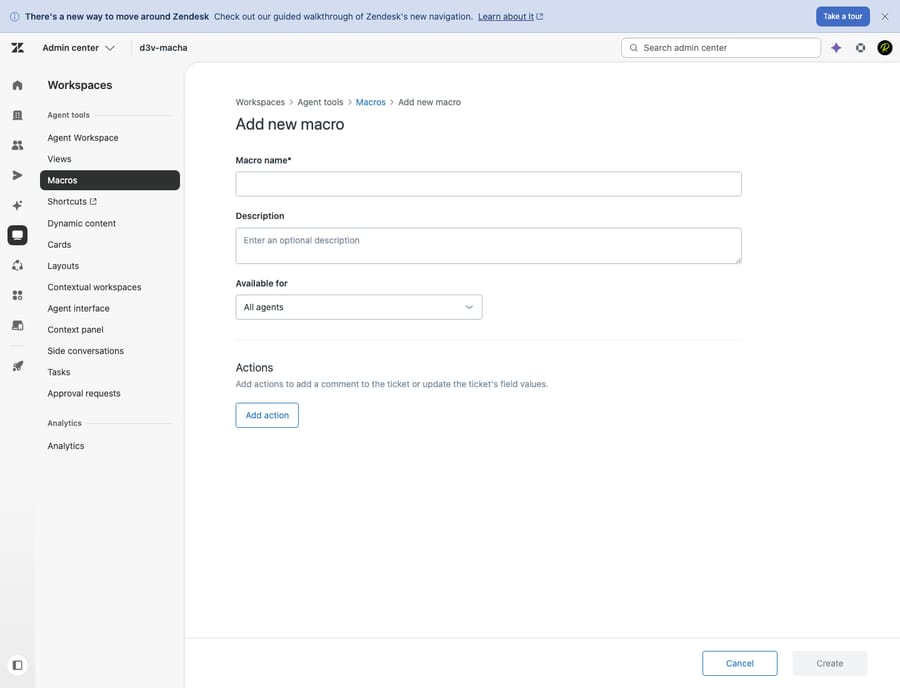
Confirm: Go to Admin Center → Workspaces (icon) → Agent tools → Macros and clear the Active filter so inactive macros show. If yours appears there, it's deactivated.
Fix: Select its checkbox and use the action bar at the bottom of the list to set it back to Active. It's available to agents again immediately (Organizing and managing your macros).
2. You don't have permission (personal vs shared vs group)
Macros come in three flavors, and who can do what is the biggest source of "it shows for them but not me":
- Personal macros: any agent or admin can create them, but only the creator can apply them. A colleague's personal macro will never appear for you.
- Shared macros: available to the whole account or to specific groups.
- Group macros: a shared macro scoped to one or more groups.
The catch: agents can only create personal macros. Only admins, and agents in a custom role granted the permission, can create shared or group macros (Can agents create shared macros?). Granular per-role control over macro management is an Enterprise capability (Announcing improved management of macros permissions for roles).
Confirm: Ask the owner whether the macro is personal or shared. If personal, that's the whole answer.
Fix: An admin (or authorized custom-role agent) should clone the personal macro into a shared one and set availability to all agents or the relevant group. Admins can view and clone agents' personal macros from the Macros page.
3. It isn't shared with your group
Even a properly shared macro is invisible if it's scoped to a group you're not in. A "Refunds" group macro won't appear for a "Tier 1"-only agent.
Confirm: Open the macro's settings and check Available for. If it reads "Agents in a specific group," see whether your group is listed.
Fix: Add your group to the macro, add you to the group, or switch availability to All agents. Mind the trade-off: making everything available to everyone is what creates unmanageable macro lists.
4. Placeholders aren't resolving (blank or literal output)
If a reply goes out with an empty gap, or shows raw text like {{ticket.requester.name}} instead of the customer's name, the placeholder is the culprit. Two common reasons:
- Wrong or mistyped token. Placeholders are spelling- and case-sensitive data references; a typo, a renamed custom field, or a non-existent token renders nothing.
- The data isn't on the ticket. A valid placeholder for missing data (say
{{ticket.organization.name}}on a ticket with no organization) resolves to blank. The macro worked; there was just nothing to fill in.
Niche gotcha: when applying macros with placeholders to problem and incident tickets, you sometimes need to escape the placeholder with a backslash so it populates from the related incident (Using macros to update tickets).
Confirm: Apply the macro on a test ticket that does have the relevant data. If it fills in there, the token is fine and the original ticket was simply missing data.
Fix: Verify the token against Zendesk's placeholders reference, fix typos, and for fields that may be empty, write copy that reads acceptably when blank.
5. You never submitted (or a required field blocked you)
This one fools experienced agents. Applying a macro stages its actions; nothing is saved until you submit. Per Zendesk: "If the macro updated the ticket comment, you can edit the text before submitting the ticket." If you apply and navigate away, the staged comment persists in the composer when you return, but the change isn't real until Submit (Using macros to update tickets).
A close relative: a macro sets some fields, but a required field elsewhere on the form is empty, so the ticket won't submit, and it looks like the macro failed.
Confirm: After applying, look for staged changes, then check whether Submit throws a "required field" warning.
Fix: Fill any required fields and submit. If a macro consistently leaves a required field empty, add that value to the macro's actions.
6. The action conflicts with field permissions or the form
Two execution failures look identical but have different roots, both straight from Zendesk's Using macros to update tickets guidance:
- No permission for the field change. "If you apply a macro but you don't have permission to make the change made by the macro, then the action won't occur," so that field action is silently skipped while the rest runs.
- The field isn't on the active form. "If a macro tries to set a field that isn't present on the active ticket form, the action won't occur." Multi-form accounts hit this constantly.
Confirm: Check whether the field the macro sets is (a) editable by your role and (b) present on this ticket's form.
Fix: Have an admin grant the field permission, add the missing field to the relevant form, or restrict the macro to forms/groups where the field lives.
7. The "ticket doesn't have the latest data" error
If applying a macro prompts you to wait and try again, the ticket changed underneath you: a background workflow is updating it, or another agent is working it at the same time. Macros can't apply against a stale ticket state (Using macros to update tickets).
Confirm: The error is the confirmation: it explicitly asks you to refresh.
Fix: Refresh the ticket so it loads the latest data, then re-apply. If it's chronic, tighten routing so one owner works a ticket at a time.
8. The comment posts as the wrong type (public vs internal)
Sometimes the macro works perfectly; it just posts your internal note as a public reply, or vice versa. That's rarely the macro; it's the composer's public/internal state when you applied it. Macros insert text into whatever channel the composer is currently set to.
Confirm: Reproduce on a test ticket and watch whether the composer is on Public reply or Internal note when you click.
Fix: Set the composer to the intended channel before applying. If a macro should always be one type, build that into its comment action.
9. "No plain text comment available" on mobile or social
A distinct, well-defined error: macros with rich-content comments can fail with "No plain text comment available" in the Zendesk Support mobile app and on channels that don't support rich text: Facebook, X (Twitter), Google Play, and Channel framework apps. The macro is fine; the channel can't render its formatting.
Confirm: If it works on desktop web but breaks in the mobile app or on a social ticket, this is it.
Fix: On desktop, open the macro, enable Include plain text fallback, save, then sign out and back in on the mobile app (I cannot apply macros, or this error appears: No plain text comment available).
10. It applied, then a trigger overwrote it
If your macro's change shows up and then vanishes the instant you submit, suspect a trigger. Macros are agent-applied and staged; triggers run on submit, top to bottom in list order, and one whose conditions match can overwrite what your macro set, such as a status, group, or assignee (About triggers and how they work).
Confirm: Open the ticket Events log after submitting and look for a trigger that changed the same field your macro set.
Fix: Adjust the conflicting trigger's conditions, or reorder your business rules so the macro's intent survives.
11. You can't find it (search, naming, categories)
Sometimes the macro is active, shared, and yours; you just can't surface it among hundreds.
Confirm: Type the name into the search box on the Macros page, or the Apply macro search field in a ticket.
Fix: Use the double-colon (::) naming convention to nest macros into categories: Billing::Refund::Approved groups them under "Billing → Refund," decluttering both the admin list and the agent menu. Admins can also turn on manual ordering to drag the most-used macros to the top (Organizing and managing your macros).
12. Macro suggestions confusion (a different feature)
A frequent mix-up: expecting AI-recommended macros and seeing nothing. Two separate features have confusingly similar names:
- Suggested macros recommend to agents which existing macro to apply to a ticket. They're available on Suite Professional, Enterprise and Enterprise Plus (and Support Professional and Enterprise), and need usage data: at least 100 tickets created in the last nine months with shared macros applied, plus at least three shared macros used in that period (Turning on suggested macros).
- Macro suggestions recommend to admins brand-new macros to create from repeated agent replies. Zendesk says these come with its AI add-on (Why don't I see macro suggestions?). Zendesk's current per-agent AI add-on is Copilot, at $50 per agent/month on Suite Professional and above.
Even with the add-on, macro suggestions are generated from the previous month's data and appear on the first day of each month, so a new purchase shows nothing until the following month. Accounts without repeated reply patterns may never see any. That's expected, not a bug.
Confirm: Check which feature you actually expected, whether your plan and add-ons cover it, and whether you've met the usage thresholds.
Fix: For agent-side suggested macros, turn the feature on once the thresholds are met. For admin macro suggestions, you need the AI add-on and a month of ticket data.
How do you keep macros from breaking again?
Most failures are preventable with a little governance:
- Audit active vs. inactive quarterly so the Inactive list isn't a graveyard people forget.
- Default to shared, scope by group: personal macros for one-off convenience, shared/group for anything a team relies on, so coverage doesn't leave when an agent does.
- Name with
::categories from day one rather than retrofitting taxonomy onto 300 macros later. - Test placeholders on a ticket that has the data to catch blank-rendering tokens before a customer sees
{{ }}. - Match macros to forms and field permissions: if a macro sets a field, make sure it's on the right forms and editable by the right roles.
- Map macro/trigger overlap before launching a macro that sets status or assignment.
Where do AI agents fit alongside macros?
Once the mechanics are fixed, it's worth being honest about what a macro is: a static template a human still has to choose and apply on every ticket. That's a strength (macros are predictable and fully in your control), and it's also the ceiling. A macro can't read a specific question, pull the right answer from your knowledge base, and respond.
That's the layer an AI agent like Macha adds. Macha is not a help desk and not a Zendesk replacement: it runs on top of Zendesk, Freshdesk, Gorgias, Front, HubSpot or Intercom, including your existing Zendesk. Where a macro inserts a fixed block of text you then edit, an AI agent reads the customer's actual message, drafts a context-aware reply from your connected knowledge and past tickets, and handles routine housekeeping (tagging, status, routing), then hands off to a human, with context, when it isn't confident. It doesn't replace your macros; it complements them, taking the volume a one-size template was never going to fit.
The honest framing on cost: Macha bills per ticket, one conversation charged once however many steps the agent takes, from $299 a month for up to 750 tickets (about $0.40 each), with setup and monitoring by the Macha team included. Per-resolution pricing pays the vendor more the more outcomes it counts; per-ticket pricing means the bill never hangs on an outcome definition you don't control. It's also another integration to configure, and only as good as the knowledge you connect. If a chunk of your macro volume is really "answer this repeated question," that's where templates stop scaling. You can try it with $50 of free usage and no credit card.
Frequently asked questions
Why is my Zendesk macro not showing up? Most often it's inactive or it isn't yours to see. Clear the Active filter on the Macros page to check whether it was deactivated, and confirm it's a shared macro (not a personal one belonging to a colleague) scoped to a group you're in. Personal macros are only ever visible to their creator.
Why does my macro apply but nothing changes on the ticket? You probably didn't submit. Applying a macro only stages changes; you must click Submit to save them. Also check that you can edit the fields the macro sets, that those fields exist on the active form, and that no required field is blocking submission.
Why are my Zendesk macro placeholders showing as blank or as {{ }}? Either the token is mistyped or invalid (placeholders are spelling- and case-sensitive), or the data simply isn't on that ticket: a valid placeholder for missing data renders blank. Test on a ticket that has the field populated to tell the two apart.
Can agents create shared macros in Zendesk? By default, no. Agents can create only personal macros. Only admins, and agents in a custom role granted the permission, can create shared or group macros. Granular per-role macro permissions are an Enterprise capability.
Why did my macro's change get overwritten after I submitted? A trigger likely fired on submit and changed the same field. Triggers run in list order when a ticket is updated and can overwrite a value your macro set. Check the ticket Events log to find the culprit, then adjust the trigger's conditions or order.
Why do I get "No plain text comment available" when applying a macro? That macro's rich-content comment has no plain-text fallback, and you're on a channel that can't render rich text (the mobile app, Facebook, X, Google Play, or a Channel framework app). Open the macro on desktop, enable Include plain text fallback, save, and re-sign-in on mobile.
Why don't I see Zendesk macro suggestions? Admin macro suggestions need Zendesk's AI add-on and are generated monthly from the previous month's tickets, appearing on the first day of each month. If your team doesn't send repeated, similar replies, the model has nothing to suggest.
Troubleshooting steps checked against Zendesk's documentation on 24 September 2026. Zendesk revises its UI and add-on packaging periodically, so confirm labels, permissions and plan requirements in your own account.
Add AI agents to your Zendesk
Macha reads the ticket, drafts the reply and takes the action, inside the Zendesk you already run.