Intercom
 Shopify
 Stripe
 Slack
Slack Notion
 Google Workspace
 Confluence

What Are the Best Practices for Zendesk Macros? (2026)


Zendesk macros speed up replies when each one bundles the reply with status, tags and fields, sits in a :: folder, and is applied with the / shortcut. Libraries slow down when nobody owns, measures or prunes them.
Key takeaways
- Zendesk macros save the most time when each one is a full recipe: the reply plus status, tags and field changes, applied with one click or the / shortcut.
- Zendesk reads double colons in a macro's name as category separators, so Billing::Refunds::Refund approved nests into a Billing folder and a Refunds subfolder automatically.
- Suggested macros for agents recommends up to three macros in a ticket on Suite or Support Professional and above, once 100 tickets in the last nine months had a shared macro applied.
- Macro suggestions for admins needs Zendesk's AI add-on, sold as Copilot at $50 per agent per month, and proposes new shared macros from the previous month's agent replies.
- The Macros admin page sorts macros by usage over up to the last 30 days, so longer-term macro reporting in Explore needs a unique tag on every macro.

The fastest way to speed up agent replies with Zendesk macros is to build each macro as a full recipe (reply plus status, tags and fields), name it with the :: convention so it nests into folders, and teach agents to type / in the comment box to apply it from the keyboard. Then use Zendesk's suggested macros (Suite or Support Professional and above) to shorten lookup, and sort the Macros page by usage to prune what nobody applies. If you're still fuzzy on the concept, start with what Zendesk macros are; for the click-by-click build, see how to create a macro in Zendesk.
| Practice | What it gets you | Plan needed |
|---|---|---|
| Full-recipe macros (reply + status + tags + fields) | One click instead of five, consistent ticket data | Any plan |
:: naming (Billing::Refunds::Refund approved) | Automatic folders and subfolders in the macro menu | Any plan |
| Group-scoped shared macros | Team-specific replies only that team sees | Suite Growth / Support Professional or higher |
/ shortcut in the comment box | Apply a macro without leaving the keyboard | Agent Workspace |
| Suggested macros for agents | Up to three existing macros recommended in the ticket | Suite or Support Professional and above |
| Macro suggestions for admins | New shared macros proposed from last month's agent replies | Zendesk AI add-on |
| Sort by usage + tag reporting in Explore | Find workhorses and dead macros | Usage sort on the Macros page; tags for longer periods |
Everything below is checked against Zendesk's own documentation. Zendesk revises its UI periodically, so confirm labels in your own account.
What is a Zendesk macro, in 30 seconds?
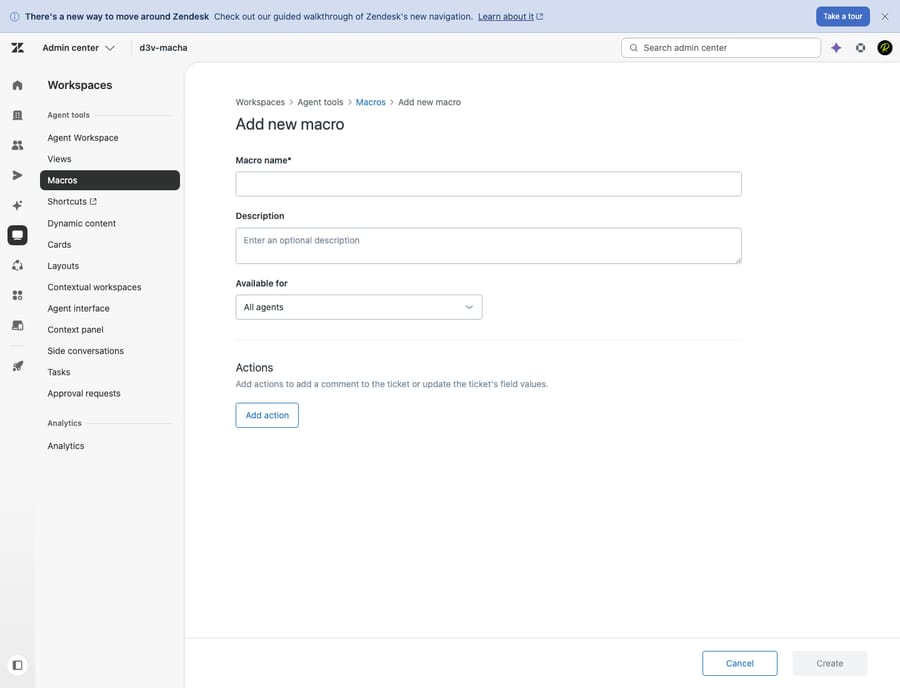
A macro is a saved, one-click bundle of a prepared reply plus the ticket changes that go with it (set status, add a tag, reassign). The defining trait: macros are manual. An agent reads a ticket, decides a macro fits, and applies it. They never fire on their own (that's a trigger's job). Macros live in Admin Center → Workspaces → Agent tools → Macros, and an account can hold up to 5,000 shared ones. That's the whole concept; the full explainer is here. The rest of this post is about doing it well.
What makes a macro actually fast, not just canned?
A macro only saves time if it bundles the whole action, not just the words. The effective ones set several things at once, so the agent clicks once instead of five times:
- The comment: a public reply to the customer or an internal note to teammates. (Getting this type wrong is how a private note reaches a customer, so set it deliberately.)
- Status: Open, Pending, Solved. A "reply + Solved" macro closes a routine ticket in a single motion.
- Assignee or group: hand the ticket to the Billing team or a specific agent.
- Tags: drop
refund_requestedorescalated. A tag a macro adds can fire a trigger and becomes your reporting hook later (see the usage section below). - Ticket fields: set product line, plan tier, or issue category in the same click.
Best practice: build every macro as a complete recipe. A reply-only macro that leaves the agent to set status and tags by hand wastes half the speed-up and guarantees inconsistent ticket data across the team.
How do you write macros agents want to use?
The fastest macro is the one an agent doesn't have to edit before sending. Three habits get you there:
- Write for a human, not a form letter. Lead with the answer, keep it conversational, and leave room for one specific sentence. The goal is a reply the agent tops and tails in five seconds, not a wall of legalese they delete and retype.
- Use the description field as a "use when." Every macro has an optional Description. Put a one-line condition in it ("Use when: customer asks where their refund is, pre-approval"). This is what stops two near-identical macros from being applied interchangeably.
- Personalize with placeholders. A reply that opens "Hi there" reads as canned. Drop in
{{ticket.requester.first_name}}and the customer sees their actual name;{{ticket.id}}inserts the ticket number. For a multilingual queue, pair placeholders with dynamic content so one macro resolves to the requester's language automatically, with no separate macro per locale. The full list of useful placeholders and the dynamic-content setup live in our Zendesk placeholders and dynamic content guide.
How do you organize Zendesk macros into folders?
Use double colons in the name. When you name a macro, Zendesk reads :: as a category separator and nests your macros into folders automatically, with no separate category manager, per Zendesk's guide to organizing macros. It's the highest-leverage habit here, and Zendesk barely advertises it.
Name a macro Billing::Refunds::Refund approved and agents see a clickable Billing folder → Refunds subfolder → the macro, like folders on a computer. A flat list of 200 macros is unsearchable; a tidy tree is a menu.
A naming convention that scales:
- Top level = topic the agent thinks in:
Billing,Shipping,Account,Returns,Internal. - Second level = scenario:
Billing::Refunds,Account::Password reset. - Reserve a branch for internal notes (e.g.
Internal::Escalate to T2) so customer-facing and agent-only macros never get confused.
Best practice: adopt :: from your very first macro. Retrofitting categories onto hundreds of flat-named macros later is miserable. Our rule of thumb (not Zendesk's) is five to ten macros per final folder so the menu stays scannable under pressure.
Should a macro be shared, group or personal, and who builds it?
Macro scope is set by the Available for dropdown, and it doubles as your governance model:
| Scope | Who sees it | Who can create it | Use it for |
|---|---|---|---|
| All agents (shared) | Everyone on the account | Admins, and agents in custom roles granted macro permission | Sanctioned, team-wide responses |
| Agents in group (shared) | One group only | Same as above; requires Suite Growth / Support Professional or higher | Team-specific replies (e.g. Billing-only) |
| Me only (personal) | Just the creator (admins can still see it) | Any agent | An individual's own shortcuts |
Best practice on ownership: every shared macro should have a named owner, a person or team accountable for keeping it current. The most common failure isn't a missing macro; it's a stale shared macro nobody owns. Let agents build personal macros freely as scratch space, but watch for the same personal macro reinvented by ten agents. That's the signal to promote it to one owned, shared macro and retire the copies.
How do agents apply macros fastest?
Speed lives in applying, not building. Zendesk documents two ways to apply a macro in a ticket (Zendesk: using macros to update tickets):
- Apply macro in the bottom toolbar: click it and start typing the name to filter. This is where your
::categories pay off. TypeBillingand the list collapses to billing macros. Typically your five most-used macros from the past week sit at the top of this list. - The keyboard shortcut: in the Agent Workspace, type a slash (
/) in the comment box to pull the macro list inline. Here your seven most-used macros from the past week typically surface at the top.
Applying a macro stages its reply and field changes but doesn't save until the agent submits the ticket, so they can tweak the wording first and stack more than one macro before submitting. Coach agents on the /-to-search flow; it's the difference between a macro that saves ten seconds and one that saves two.
Can Zendesk's AI suggest macros?
Yes. Zendesk has three separate AI features that touch macros. They're easy to confuse, so here's what each does, who it's for, and the plan it needs.
1. Suggested macros for agents (in the ticket)
Zendesk can recommend up to three existing macros at the top of the macro list inside a ticket, matched against similar tickets from the last nine months. The agent still picks and applies; it just shortens the hunt. Turning it on is documented in Turning on suggested macros. It's available on Suite Professional, Enterprise or Enterprise Plus, and Support Professional or Enterprise, and it only kicks in once the account has enough history: at least 100 tickets created in the last nine months with a shared macro applied, and at least three shared macros each used at least once in that window. The Copilot add-on adds confidence levels to the suggestions.
2. Macro suggestions for admins (build new ones)
This one is for whoever maintains the library. Zendesk scans agent replies across the account, finds answers agents keep typing by hand instead of using a macro, and suggests new shared macros to create, which you can turn into macros or dismiss. It's documented in Creating macros from macro suggestions for admins. Note the gating: it needs Zendesk's AI add-on (sold today as Copilot, $50 per agent per month on Suite Professional and above), and because it works from the previous month's data, new suggestions arrive on the first day of each month. If you just bought the add-on, you won't see any until the first of the next month, the usual reason for an empty suggestions list.
3. Generative AI writing tools (polish the text)
When you're editing a macro's comment, Zendesk's generative AI can Expand, Simplify, Make more friendly, or Make more formal in a click, useful for turning a terse draft into a warm, complete reply. Per Enhancing macro content using generative AI, these tools are available on Suite and Support Professional plans and above with the Copilot add-on, under a usage allowance that resets monthly.
Best practice: use the admin suggestions to spot gaps in your library, the generative tools to polish the copy, and the agent suggestions to shorten everyday lookup, but keep a human owner in the loop. AI surfaces candidates; it shouldn't auto-publish your sanctioned responses.
How do you see which macros earn their keep?
You can't prune what you don't measure. Two levels of visibility:
- Built-in usage sorting. On the Macros admin page, the sort by menu orders macros by usage, covering up to the last 30 days (How often are macros used?). Admins can also pull usage for personal macros through the API. This is the fastest way to find both your workhorses (refine these) and dead macros nobody applies (prune these).
- Explore reporting via tags. For anything longer than 30 days, Zendesk points you to tags: Explore has no native macro-usage dataset, so have each macro add a unique tag (e.g.
m_refund_approved), then report on those tags (Explore recipe: Reporting on macros using tags). It takes discipline, one tag per macro, but it gives you usage by agent, by group and over time, alongside CSAT and resolution data.
Best practice: run a quarterly macro audit. Check tag-based usage for the quarter, archive anything with near-zero applications, merge near-duplicates, and re-read the top 20 for stale content. A 50-macro library people trust beats a 300-macro one they ignore.
What mistakes slow macro libraries down?
The inverse of the habits above, and what actually breaks macro libraries:
- Stale macros. A macro still quoting last year's pricing or a retired process is worse than no macro: agents send wrong information confidently. Pruning by usage and a quarterly re-read fix this.
- Over-templated, robotic replies. If every customer gets the identical paragraph with no specifics, customers feel processed. Write macros as a starting point with room for one human sentence, not a script to fire verbatim.
- No owner. A shared macro nobody is responsible for, so nobody updates it. Assign an owner per macro or per category.
- Macro sprawl. Every agent spinning up overlapping personal macros that should be one shared one. Promote the good ones; retire the rest.
- Reply-only macros. Skipping the status, tag and field actions means inconsistent ticket data and a slower agent. Bundle the whole recipe.
- Flat naming. No
::, so the menu is a wall agents scroll past and retype instead.
Where does AI fit beyond the macro menu?
Here's the ceiling of even a well-run macro library: a macro is a static template an agent still has to pick and send. It inserts the exact paragraph you wrote, whatever the customer actually asked. With a few dozen macros that's fast. With a few hundred, "which macro fits here?" becomes its own slow, error-prone task, and the reply is only as relevant as the closest pre-written option.
The next step beyond canned macros is an AI agent layer like Macha. Macha isn't a help desk and it's not a Zendesk replacement; it runs on top of your existing help desk (Zendesk, Freshdesk, Gorgias, Front, HubSpot or Intercom). Where a macro inserts one fixed paragraph the agent chose, Macha reads the customer's actual question, pulls from your connected knowledge base and past tickets, and drafts a reply for this ticket, while still handling the housekeeping a macro would (tagging, status, routing) and escalating to a human with full context when it isn't confident.
This doesn't make macros obsolete. They're still the right tool for truly identical responses, and a well-built library makes any AI layer better. Macha is another integration to configure, and it's only as good as the knowledge you connect to it. On cost, it bills per ticket, one conversation charged once however much drafting, tagging or routing it takes, starting at $299 a month for up to 750 tickets, with setup and monitoring by the Macha team included. If your bottleneck has shifted from typing speed to the volume of replies that need a real, specific answer, that's where macros stop scaling. You can try it free: $50 of free usage, no credit card required.
Frequently asked questions
What are the best practices for Zendesk macros? Build each macro as a complete recipe (reply plus status, tags and field changes, not text alone), name everything with the :: category convention from day one, use placeholders and dynamic content to personalize, give every shared macro a named owner, teach agents the /-to-search shortcut, and prune by usage on a schedule. The fastest libraries are tight and well-named, not large.
How do I apply a macro quickly in Zendesk? In a ticket, type a slash (/) in the comment box to pull up the macro list inline, where your seven most-used macros from the past week typically appear first. Or click Apply macro in the bottom toolbar and start typing to filter. Nothing saves until you submit the ticket, so you can edit the wording first.
Can Zendesk suggest macros automatically? Yes, in two ways. Suggested macros for agents recommends up to three existing macros at the top of the ticket macro list (Suite or Support Professional and above, once you have enough ticket history). Macro suggestions for admins proposes new shared macros from replies agents type repeatedly (requires Zendesk's AI add-on, using the previous month's data).
How do I organize Zendesk macros into folders? Use double colons in the name. Zendesk reads :: as a category separator, so naming a macro Billing::Refunds::Refund approved nests it under Billing → Refunds in the agent's macro menu, with no separate category tool needed.
How can I see which macros my agents use most? On the Macros admin page, use the sort by menu to order macros by usage over up to the last 30 days. For longer periods in Explore, have each macro add a unique tag, then report on those tags; Explore has no native macro-usage dataset, so the tag workaround is the documented route.
Can macros include the customer's name and language? Yes. Add placeholders like {{ticket.requester.first_name}} to greet by name, and pair them with dynamic content so one macro resolves to the requester's language automatically. See our placeholders and dynamic content guide.
What does a fast macro library look like in practice?
Macros speed up replies when they're run as a system, not a junk drawer. Bundle the whole action (reply + status + tags + fields), name with :: so the menu is a tidy tree, personalize with placeholders and dynamic content, scope deliberately across personal, group and shared with a named owner, and teach agents the / shortcut so applying is a keystroke. Let Zendesk's AI suggest macros to agents and new ones to admins, then measure: sort by usage, tag for Explore, and prune every quarter. When the bottleneck shifts from typing the reply to needing a real answer specific to each ticket, look at an AI agent layer on top of Zendesk. For the concepts behind everything here, see what Zendesk macros are; for the rest of the vocabulary, the Zendesk ticketing system explained.
Macro features and plan requirements checked against Zendesk's official documentation on 24 September 2026. Zendesk updates its product periodically, so confirm labels and plan gating in your own account.
Add AI agents to your Zendesk
Macha reads the ticket, drafts the reply and takes the action, inside the Zendesk you already run.