Intercom
 Shopify
 Stripe
 Slack
Slack Notion
 Google Workspace
 Confluence

How Do You Create a Macro in Zendesk? Step by Step (2026)


A Zendesk macro is a saved, one-click bundle of a prepared reply plus the ticket changes that go with it, such as setting status, adding a tag or routing to a group. You build one in Admin Center under Agent tools, and agents apply it from any ticket.
Key takeaways
- To create a macro in Zendesk, go to Admin Center, Workspaces, Agent tools, Macros, click Create macro, add actions, set availability and click Create.
- Naming a Zendesk macro with double colons, such as Billing::Refunds::Refund approved, nests it into a clickable folder structure in the agent's macro menu.
- Limiting a Zendesk macro to Agents in group requires a Suite Growth or Support Professional plan or higher, and an account can hold at most 5,000 shared macros.
- A Zendesk macro never runs automatically; an agent clicks Apply macro or types a slash in the comment box, and changes save only when the ticket is submitted.
- Zendesk shows an agent's five most-used macros from the past week at the top of the Apply macro list, and seven when the slash shortcut is used.

To create a macro in Zendesk, go to Admin Center → Workspaces → Agent tools → Macros, click Create macro, name it, add its actions, choose who can use it, and click Create. That is five clicks and two decisions, and every step below matches Zendesk's own documentation as of September 2026. Zendesk does revise its UI, so confirm labels in your own account.
| Step | Where | What you decide |
|---|---|---|
| 1. Open Macros | Admin Center → Workspaces → Agent tools → Macros | Nothing yet |
| 2. Create macro | Top-right button | Nothing is saved until Step 6 |
| 3. Name it | Macro name, Description | Category path with :: |
| 4. Add actions | Add action | Reply or internal note, status, tags, group |
| 5. Availability | Available for | All agents, Agents in group (Suite Growth+), Me only |
| 6. Save | Create | Live immediately, no publish step |
This is the hands-on companion to what Zendesk macros are and what they can do, which covers personal vs. shared macros, placeholders, and macros vs. triggers.
Who can create a macro in Zendesk?
Two things determine what you can build, so check these first:
- Shared macros (available to a team or the whole account) are created by admins, and by agents in custom roles that have been granted macro permission. These are the official responses everyone is meant to use. An account can hold at most 5,000 shared macros.
- Personal macros (visible only to you, though admins can see them) can be created by any agent for their own use.
If you're an admin, you can do everything below. If you're a regular agent, you can still create a personal macro for yourself; the steps are identical except for the availability setting in Step 5. If you need a shared macro but don't have the option, ask an admin to grant your role permission or to create it for you.
The rest of this walkthrough assumes you want a shared macro, since that's the common case. We'll flag where a personal macro differs.
Step 1: Where is the Macros admin page?
Macros live in the Admin Center, not in a ticket. To get there:
- In the top toolbar, click the Zendesk Products icon (the four-dot grid) and choose Admin Center.
- In the left sidebar, click Workspaces.
- Click Agent tools, then Macros.
The full path is Admin Center → Workspaces → Agent tools → Macros. This page lists every shared macro on the account, and it's also where you'll edit, clone, reorder, and track usage later (Step 8).
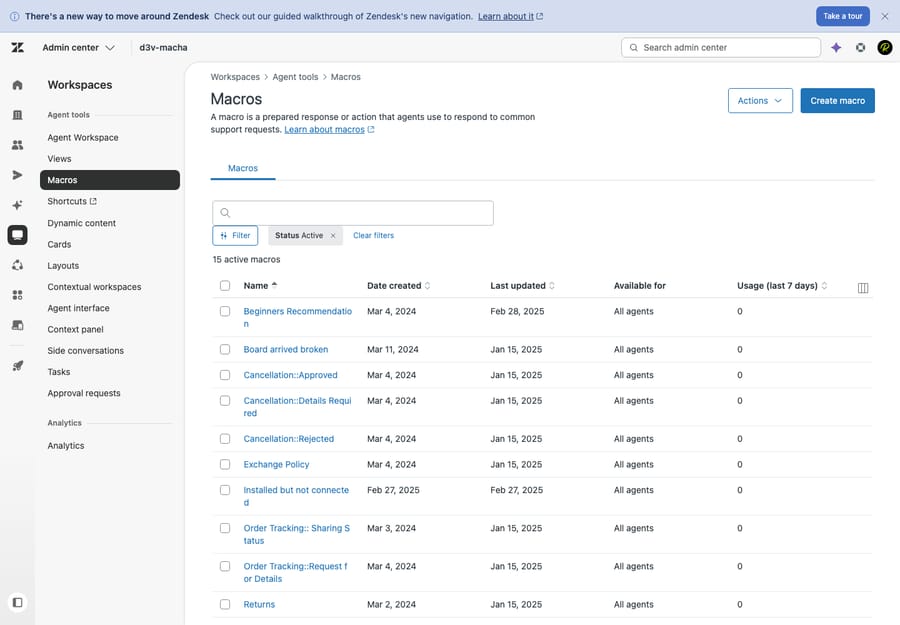
Step 2: Which button starts a new macro?
On the Macros page, click Create macro in the top-right corner. Zendesk's current docs use that label; some older accounts and screenshots show Add macro, which does the same thing. This opens the macro editor, where you'll name it, define what it does, and decide who can use it. Nothing is saved until you click Create in Step 6, so feel free to explore.
Step 3: How should you name a macro?
Give the macro a clear name in the Macro name field. There's also an optional Description. Use it to note when the macro should be applied, which helps the whole team apply macros consistently.
The most useful trick here is one Zendesk barely advertises: use double colons (::) in the name to create categories. Zendesk reads :: as a folder separator and nests your macros for agents. So instead of Refund approved, name it:
Billing::Refunds::Refund approvedAgents then see a clickable Billing folder → Refunds subfolder → the Refund approved macro, exactly like folders on your computer. Zendesk's docs show multi-level examples and state no nesting limit (Account::Password reset, Shipping::Delay apology). A flat list is hard to search and a tidy tree works as a menu, so adopt the convention from your first macro. Retrofitting categories onto hundreds of flat-named macros later is miserable.
Step 4: What actions can a macro perform?
Actions are what the macro does. Click Add action, pick an action type from the dropdown, and set its value. Add as many as you need. A good macro bundles the reply and every field change that normally goes with it, so the agent never forgets to tag or re-status the ticket. The actions a macro can perform:
- Comment / description: insert the canned text. You choose public reply (sent to the customer) or internal note (visible only to agents). This is the most common action by far. Macros support placeholders like
{{ticket.requester.first_name}}, so a canned reply can still greet the customer by name. See the concepts guide for the full list. - Status: move the ticket to Open, Pending, Solved, etc. A "reply + set Solved" macro is a staple.
- Priority and Type: set urgency (Low/Normal/High/Urgent) or classify it (Question/Incident/Problem/Task).
- Tags: add, remove, or set tags (e.g.
refund_requested). A tag a macro adds can in turn fire a trigger. - Assignee and Group: reassign the ticket to a specific agent or hand it to another team (e.g. route to the Billing group).
- Ticket fields: set your own custom fields (product line, plan tier, issue category).
- Subject, followers, attachments, and side conversations: the longer tail for tidying up or looping people in.
A realistic example: a Billing::Refunds::Refund approved macro might combine a public reply confirming the refund + Status: Solved + add tag refund_approved + Type: Question. That is a four-step manual update collapsed into one click, done identically by every agent. Decide public reply vs. internal note deliberately: build the comment as the wrong type and private remarks can reach customers.
Step 5: How do you control who can use the macro?
Set the Available for dropdown to control the macro's scope. There are three options:
- All agents: a shared macro everyone on the account can use. This is the usual choice for a team-wide response.
- Agents in group: a shared macro limited to a specific group (e.g. only the Billing team sees it). This option requires a Suite Growth / Support Professional plan or higher.
- Me only: a personal macro, private to you (though admins can still see it). Choose this if you're an agent building a shortcut just for yourself.
This single setting is the difference between a personal and a shared macro. "All agents" and "Agents in group" are shared; "Me only" is personal.
Step 6: Does a new macro need publishing?
No. Click Create (or Save when editing). Your macro is live and available to the agents you scoped it to, with no separate publish step. If it doesn't apply correctly on a test ticket, reopen it and re-check the actions and availability.
Step 7: How do agents apply the macro on a ticket?
A macro never runs on its own; that's the defining trait of a macro. An agent applies it manually while working a ticket. Here's how, in the Agent Workspace:
- Open a ticket and click Apply macro in the bottom toolbar.
- Start typing the macro's name to filter the list (your
::categories pay off here: typeBillingto narrow instantly). Zendesk's docs say your five most-used macros from the past week typically appear at the top of this list. - Select the macro. Its actions populate the ticket: the reply text drops into the comment box, and the field changes are staged.
- Review, then submit the ticket. Applying a macro does not save anything until you submit the update, so the agent can tweak the wording first.
There's also a shortcut: an agent can type a slash (/) in the comment box to pull up the macro list inline, where the seven most-used macros from the past week typically sit at the top. Agents can apply more than one macro to the same ticket before submitting (Zendesk: applying macros).
Step 8: How do you edit, clone, reorder, and track macro usage?
Back on the Admin Center → Workspaces → Agent tools → Macros page, select a macro's checkbox to reveal an action bar that lets you:
- Edit: change the title, actions, or availability anytime.
- Clone: duplicate a macro as a starting point for a similar one (the fastest way to build a family of related macros).
- Deactivate: move a macro off the Active list without deleting it. Delete removes it permanently.
- Reorder: change a macro's position by drag and drop, once reordering is turned on.
- Track usage: on Suite Growth / Support Professional and up, you can sort by usage, which reflects the past week (Zendesk: organizing macros). This is how you find dead macros to prune and spot the workhorses worth refining.
Cloning is what makes a real library cheap to build: create one solid macro, clone it, and tweak the copy rather than starting from scratch each time.
What mistakes break a macro library?
A few habits keep a macro library healthy, and their opposites are the mistakes that quietly wreck one:
- Name with
::from day one, not "later." A flat list with no categories becomes a wall agents ignore. - Bundle the field changes, not just the text. A reply-only macro that leaves the agent to set status and tags manually defeats half the point.
- Keep the library tight. A focused set of well-maintained shared macros beats hundreds of near-duplicates. If two do nearly the same thing, merge them. Watch for macro sprawl: every agent creating overlapping personal macros that should be one shared one.
- Use the description field with a one-line "use when…" so agents apply the right macro, and prune by usage on a schedule so stale text (last year's pricing, a retired process) doesn't sit in the menu.
- Don't expect a macro to run itself. Macros are manual by design. If you want something to happen automatically when a ticket arrives, you want a trigger (event-based) or an automation (time-based). See automations vs. triggers.
When does a macro stop being enough?
Macros are a good manual shortcut, but notice the ceiling: an agent still has to read each ticket, decide which macro fits, find it in the menu, and apply it. With a dozen macros that's fine. With a few hundred, "which macro do I use here?" becomes its own slow, error-prone task, and the macro only ever inserts the text you wrote, regardless of what the customer actually asked.
That's the gap an AI agent layer like Macha fills. Macha isn't a help desk and it's not a Zendesk replacement; it runs on top of your existing Zendesk. Instead of an agent hunting for the right macro, Macha reads the ticket and the customer's actual question, pulls from your knowledge base and past tickets, and drafts a reply to that question, while still handling the field updates a macro would, like tagging, setting status, and routing. Anything it can't confidently handle goes to a human with full context attached.
The honest framing: it's another integration to set up, and it's only as good as the knowledge you connect to it. On cost, Macha bills per ticket, from $299 a month for up to 750 tickets, with setup and monitoring by the Macha team included. One conversation is charged once, however many steps it takes to draft, tag, route or resolve, so the bill never hangs on an outcome definition you don't control. If your team's bottleneck is the volume of repetitive replies rather than typing speed, that's where macros stop scaling. You can try it free with $50 of free usage, no credit card required.
Frequently asked questions
Where do I create a macro in Zendesk? In the Admin Center, not in a ticket. Go to Admin Center → Workspaces → Agent tools → Macros, then click Create macro (labeled Add macro in some accounts). Name it, add actions, set who it's available for, and click Create.
Who can create macros in Zendesk? Admins can create shared macros, as can agents whose custom role has been granted macro permission. Any agent can create a personal macro for their own use by setting availability to "Me only." If you don't see the option for a shared macro, ask an admin to grant the permission.
How do I create a personal macro vs. a shared one? The steps are identical except for Step 5. In the Available for dropdown, choose Me only for a personal macro, or All agents / Agents in group for a shared one. ("Agents in group" requires a Suite Growth / Support Professional plan or higher.)
How do agents apply a macro to a ticket? In a ticket, the agent clicks Apply macro in the bottom toolbar and starts typing to filter the list (or types / in the comment box). Selecting a macro stages its reply and field changes; nothing is saved until the agent submits the ticket, so they can edit first.
Can I organize Zendesk macros into folders? Yes. Use double colons in the name. Zendesk reads :: as a category separator, so naming a macro Billing::Refunds::Refund approved nests it under a Billing → Refunds folder in the agent's macro menu. No separate category tool needed.
Can I edit, clone, or delete a macro after creating it? Yes. On the Macros admin page, select a macro's checkbox to Edit, Clone, Deactivate, Delete, or reorder it. On Suite Growth / Support Professional plans and up, you can also sort macros by past-week usage to find and prune the ones nobody uses.
How many shared macros can a Zendesk account have? Up to 5,000 shared macros per account, according to Zendesk's macro documentation. Zendesk sets no such limit on personal macros.
What's the short version?
Open Admin Center → Workspaces → Agent tools → Macros, click Create macro, name it with the :: category convention, add the reply and the field changes that go with it, choose who can use it, and save. Agents apply it in one click via Apply macro on any ticket, and you maintain the library by editing, cloning, and pruning by usage. Macros are manual. The moment you want something to happen on its own, you've crossed into triggers and automations. For the concepts behind everything here (placeholders, personal vs. shared, and how macros fit the rest of Zendesk), see what Zendesk macros are.
Macro creation steps checked against Zendesk's official documentation, September 2026. Zendesk updates its product periodically, so confirm labels in your own account before relying on them.
Add AI agents to your Zendesk
Macha reads the ticket, drafts the reply and takes the action, inside the Zendesk you already run.