Intercom
 Shopify
 Stripe
 Slack
Slack Notion
 Google Workspace
 Confluence

What Is the Zendesk Agent Workspace? Anatomy, Setup and AI (2026)


The Zendesk Agent Workspace is the one screen where agents handle email, messaging, live chat, voice and social conversations inside a single ticket. Most accounts already run it, and it's the base that omnichannel routing, apps and Zendesk's AI features plug into.
Key takeaways
- The Zendesk Agent Workspace handles email, messaging, live chat, voice via Talk, and social conversations inside one ticket, so agents switch channels without leaving the conversation.
- The Zendesk Agent Workspace is available on every Suite plan, from Team to Enterprise Plus, and on Support Team, Professional and Enterprise.
- Zendesk says only a few legacy accounts still need to migrate to the Agent Workspace, using a wizard at Admin Center, Workspaces, Agent tools, Agent Workspace.
- The Zendesk migration wizard activates the Agent Workspace for all agents at once and by default merges Chat departments into Support groups with the same name.
- Zendesk's Copilot add-on, which adds ticket summaries and suggested replies to the Agent Workspace, is sold only on Professional plans and above.

The Zendesk Agent Workspace is the single ticket screen where agents handle email, messaging, live chat, voice (Talk) and social conversations in one thread, and it's available on every Suite plan (Team, Growth, Professional, Enterprise, Enterprise Plus) and on Support Team, Professional and Enterprise. Zendesk says most accounts already run it; only a few legacy accounts still need to migrate through Admin Center. The mechanics below are checked against Zendesk's own documentation in September 2026.
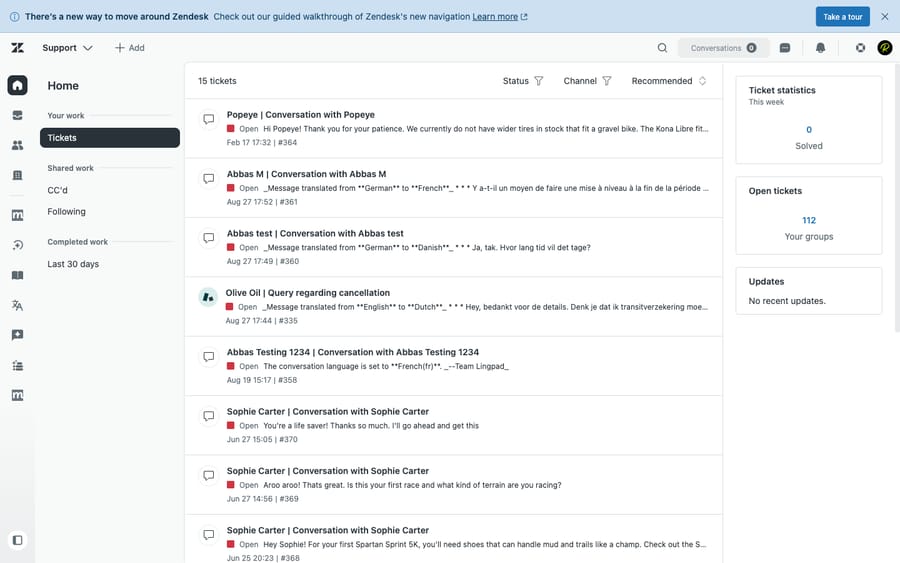
| Region | Where on screen | What it does |
|---|---|---|
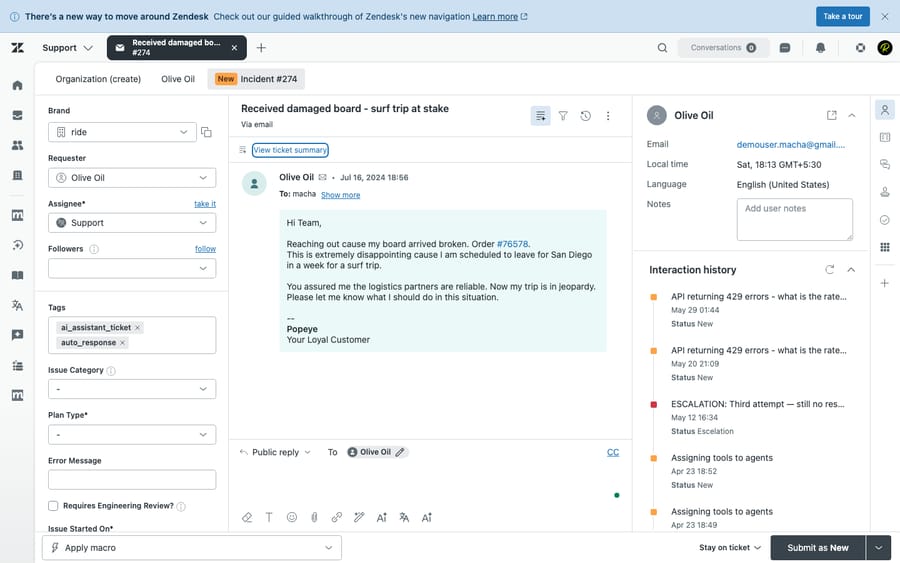
| Views / queue | Left | Saved, filtered ticket lists; what to pick up next |
| Conversation pane | Center | One thread across every channel, oldest to newest |
| Composer | Below the conversation | Public reply, internal note, and the outbound channel |
| Context panel | Right | Requester details, history, apps, knowledge search and quick answers, Copilot |
What is the Zendesk Agent Workspace?
The Zendesk Agent Workspace is Zendesk's unified agent interface: a single ticket view from which an agent handles every channel. Per Zendesk's docs, "ticket conversations can include email, chat, and voice," and agents "can also receive and reply to social messages and web messages." Email, messaging, live chat, voice (Talk), and social all land in the same place, and an agent can switch channels within a single conversation without changing tools.
That last point is the whole idea. A customer might start on the web messaging widget, drop off, come back over WhatsApp, then need a phone call to finish. In the Agent Workspace that's one ticket, one continuous thread, with the full history attached. As Zendesk puts it, "you don't have to maintain separate tickets or use separate dashboards for each ticket type." The agent sees the person, not a pile of disconnected channel records.
Everything sits on the same ticketing backbone, so the channel is almost an implementation detail. For the underlying object (requester, assignee, status, the public-reply-vs-internal-note distinction), start with the Zendesk ticketing system explained. The Agent Workspace is the cockpit; the ticket is the thing the cockpit flies.
What are the parts of the Agent Workspace screen?
Open a ticket and the screen breaks into a few distinct regions. Once you can name them, the whole interface stops feeling like a cockpit and starts feeling like a workbench.
The conversation pane
The center of the screen is the conversation pane: the unified thread of the entire interaction, ordered oldest to newest. This is where the unification is most visible: an email reply, a messaging exchange, a chat transcript, a call recording, and a social DM can all appear in the same thread, each tagged with its channel. The agent reads one story, not five, and when a returning customer's conversation reopens, the prior back-and-forth is right there rather than stranded in another tool.
The composer
Below the conversation sits the composer, where the agent writes. Three things matter here, and confusing them is the single highest-stakes mistake a new agent can make:
- Public reply goes to the customer (and any CCs). It becomes part of the conversation the requester sees.
- Internal note is visible only to other agents and never reaches the customer. Zendesk color-codes notes (tinted yellow) precisely because mixing them up is how a private remark accidentally gets emailed out.
- Channel switcher. The composer is where the agent chooses how to respond (reply by email, send a message, or use the call console for voice), all from the same ticket. This is the mechanism behind "switch channels mid-conversation": you don't leave the ticket, you just change the outbound channel.
Always confirm which mode you're in before you hit submit. It's the one habit that prevents the most embarrassing class of error in support.
The customer context panel
Down the right side is the context panel, the agent's situational awareness, pulling together everything known about the person on the other end so the agent doesn't have to go digging:
- Requester details. Who the customer is, their org, contact details, and tags: the identity of the person the ticket is for.
- Interaction history. Their previous tickets and conversations, so the agent instantly knows whether this is a first contact or the fifth time this week.
- Apps. Integrations surface here: an order lookup from your store, a subscription status from billing, a CRM record. This is where third-party data and your own Macha-style tools appear alongside the conversation.
- Knowledge and Copilot. The knowledge panel lets the agent search help-center articles without leaving the ticket. Zendesk's quick answers feature puts an AI-generated answer above the search results; it's on by default and admins control it at Admin Center > Workspaces > Agent tools > Context panel. For accounts with the Copilot add-on, Zendesk's agent-assist AI surfaces here too, suggesting first replies, summarizing the ticket and recommending macros. More on that below.
Views and the queue
The left side is Views: the saved, filtered queues an agent works from ("All unsolved tickets," "Open tickets assigned to me," "Urgent billing"). The workspace home surfaces the queue alongside at-a-glance counts of Open, Pending, and Solved tickets, so an agent can triage before opening anything. Views are how the firehose of incoming work gets organized into something a person can actually work down in order.
A useful mental model: the context panel tells you who and what, the conversation pane is the story so far, the composer is how you respond, and Views are what to pick up next.
What did the Agent Workspace replace?
The Agent Workspace exists because Zendesk used to be several disconnected products bolted together. Before it, an agent juggling channels had to swap between:
- the standard agent interface (the legacy Support dashboard) for email and web-form tickets,
- the standalone Chat dashboard for live chat, and
- a separate phone/switchboard view for Talk.
Each had its own window, its own availability status and, worse, its own record of the customer; a chat and an email from the same person were two unrelated threads. The Agent Workspace collapsed all of that into one interface with one unified conversation, one status menu, and one customer record. Live chat in particular moved in here: chats now arrive as tickets in the workspace rather than as pop-ups in a separate dashboard, and agents set their chat availability from the workspace's unified status menu.
This is also why the older, session-based Zendesk Chat product is now legacy and Zendesk steers new accounts to messaging instead, a shift we cover in Zendesk messaging vs. live chat. Both channels render in the same pane, so agents barely notice which underlying product a conversation came from.
How does the Agent Workspace support routing and AI?
Unifying the agent's screen also unified the plumbing behind it, which is what makes two of Zendesk's most important capabilities possible.
Omnichannel routing. Because every channel funnels into the same ticket system and the same agent interface, Zendesk can route work across channels from one engine, automatically directing tickets (email, messaging, and Talk alike) to the most available agent with the right skills, so the highest-priority work reaches whoever can pick it up first. That's only coherent because there's a single workspace and a single, unified agent status to route against.
Copilot and agent-assist AI. Zendesk's agent-facing AI lives inside the workspace. For accounts with the Copilot add-on, Zendesk's docs confirm "agent copilot is supported in the Zendesk Agent Workspace." It summarizes the ticket, suggests first replies grounded in your macros and help-center content, and recommends actions, all from the context panel while the agent works. Copilot is sold as an add-on for Suite Professional, Enterprise and Enterprise Plus and for Support Professional and Enterprise (Zendesk: Buying the Copilot add-on). AI translation of ticket conversations, by contrast, is available on every plan the workspace runs on and is switched on under Objects and rules > Tickets > Settings. We unpack what Copilot does, what it costs, and how it differs from autonomous AI agents in Zendesk Copilot explained.
How do you turn on the Agent Workspace?
For most teams there's nothing to do. Zendesk's migration guide says "most Zendesk Suite and Support accounts are already using the Agent Workspace. Only a few legacy accounts need to be migrated," and you only need to act if you see a Get started button on the Agent Workspace page (Zendesk: Migrating to the Agent Workspace).
If you're on an older account that hasn't migrated, an admin opens Admin Center > Workspaces > Agent tools > Agent Workspace and runs the migration wizard. Three things to know before you start:
- It's an account-wide change: the workspace is activated for all agents at once, so brief your team first rather than letting them discover the new layout mid-shift.
- The wizard merges Chat departments into Support groups. By default, a Chat department and a Support group with the same name become one group, so check group names before you run it.
- It's available on all Zendesk Suite plans and on Support Team, Professional, and Enterprise.
What habits and mistakes matter most in the Agent Workspace?
A few habits separate teams that get the most from the workspace from those that fight it:
- Drill the public-reply / internal-note distinction. The highest-stakes mistake in the whole interface. Make "check the mode before you submit" a non-negotiable habit on day one.
- Build a small, well-named set of Views. Agents live in their queues; a handful of clear, group-scoped views beats dozens of overlapping ones and keeps the New queue from quietly piling up.
- Curate the context panel. A panel with the order lookup and CRM record an agent actually needs beats one cluttered with apps no one uses.
- Don't treat messaging like email. A persistent messaging conversation can reopen long after it "ended," so a quiet thread isn't necessarily a closed one. See messaging vs. live chat.
- Keep the unified status honest. Routing is keyed to a single availability status, so agents who leave themselves "online" while away break the queue for everyone.
- Roll it out deliberately. Activation is account-wide, so announce it and train on it before you turn it on; surprise migrations cause more errors than the new layout ever does.
Where does an AI agent layer fit in the workspace?
Everything above is the human version of the workspace: agents reading, classifying, switching channels, and replying. The modern question is how much of that a machine can take off their plate.
Zendesk's own Copilot handles agent-assist inside the workspace. There's also a layer worth knowing about: an AI agent layer like Macha sits on top of your existing Zendesk. It's not a help desk and not a Zendesk replacement. Connected to your tickets and knowledge, it works alongside agents in the same workspace: auto-triaging incoming tickets (type, priority, tags, routing), drafting replies for an agent to approve in the composer, and resolving routine tickets end to end, while anything it can't handle stays a normal ticket for a human, with the full conversation and context intact.
The honest framing: it's another vendor and integration to manage, and it only performs as well as the knowledge and rules you connect to it. Macha bills per ticket: one conversation, charged once, however many steps it takes to finish (summarize, tag, route, look up data, draft, resolve). It's one plan priced by volume, from $299 a month for 750 tickets, with setup by the Macha team included. If your queue or repetitive replies are the bottleneck, that's the gap an AI layer fills. You can try it free with $50 of free usage, no credit card required.
Frequently asked questions
What is the Zendesk Agent Workspace? It's Zendesk's unified agent interface: a single ticket view where an agent handles email, messaging, live chat, voice (Talk), and social conversations, and can switch channels within the same conversation. Instead of separate dashboards per channel, everything appears in one thread with one customer record and one set of queues.
What channels can you handle in the Agent Workspace? Email, web messaging, live chat, voice via Zendesk Talk, and social messaging channels such as WhatsApp and Facebook Messenger. All of them render in the same ticket conversation, so a single ticket can span multiple channels.
What did the Agent Workspace replace? The older split setup where agents worked email in the standard Support interface, live chat in a separate Chat dashboard, and calls in a separate phone view. The workspace consolidates those into one interface with a unified conversation, a single agent status, and one context panel.
Is the Agent Workspace enabled by default? Yes for almost everyone. Zendesk says most Suite and Support accounts already use it and only a few legacy accounts need to migrate. On those, an admin runs the migration wizard at Admin Center > Workspaces > Agent tools > Agent Workspace, which activates it for all agents.
What's in the customer context panel? The right-side panel shows requester details, interaction history (past tickets and conversations), installed apps and integrations (order lookups, CRM records, custom tools), and the knowledge panel with AI quick answers, plus, for accounts with the Copilot add-on, Zendesk's agent-assist AI suggestions.
Which Zendesk plans include the Agent Workspace? Every Suite plan (Team, Growth, Professional, Enterprise and Enterprise Plus) and Support Team, Professional and Enterprise. The Copilot add-on that puts agent-assist AI in the workspace is limited to Professional plans and above.
Does Zendesk's AI work in the Agent Workspace? Yes. Zendesk Copilot's agent-assist features (ticket summaries, suggested replies and recommended macros) appear inside the workspace for accounts with the Copilot add-on, which is sold on Professional plans and above. An AI agent layer such as Macha can also work alongside agents here, triaging, drafting, and resolving. See Zendesk Copilot explained.
Agent Workspace mechanics checked against Zendesk's official documentation on 24 September 2026. Zendesk updates its product periodically, so confirm specifics in your own account before relying on them.
Add AI agents to your Zendesk
Macha reads the ticket, drafts the reply and takes the action, inside the Zendesk you already run.