



 Shopify
 Stripe
 Slack
 Notion
 Google Workspace
 Confluence


Zendesk Messaging in Slack: The DIY Bridge We Use to Answer Website Chats


I answer a lot of our website chats myself, often from my phone. Our chat runs on Zendesk messaging, and when I replied to those chats from the Zendesk app on my iPhone, the reply went out to the visitor as an email. A person waiting on our site got an answer they'd read tomorrow. This post explains why that can happen, the Zendesk API fact underneath it, and the small bridge we built in an evening that turns every website chat into a Slack thread, so a reply in the thread lands in the visitor's chat window straight away. You get the architecture, the setup steps, about 100 lines of generic Node code, and the six gotchas that cost us time.
Key takeaways
- A public comment added to a Zendesk messaging ticket through the Tickets API lands on the ticket but never appears in the customer's chat window, and the API still reports success.
- Replies reach a Zendesk messaging chat through the Sunshine Conversations Post Message endpoint, authenticated with a Conversations API key from Admin Center, which needs Suite Professional or above.
- The bridge has two halves: a Conversations webhook on conversation:message posts each chat into a Slack thread, and a Slack Events subscription posts thread replies back as business messages.
- Slack retries any event not acknowledged within 3 seconds and marks the retry with an x-slack-retry-num header, so a bridge that ignores it can send one reply to the customer twice.
- Zendesk's own Slack integration adds internal notes to tickets from Slack, so it can't send a reply that a website visitor sees in the chat.
What happened on my phone
Two low points made me build this. The first was pulling over and replying to a chat from a laptop on the side of the road, because I'd learned the phone wasn't reliable for it. The second was a chat that came in during a movie. I answered it from the app in the dark, felt good about it, and later found that reply had gone out as an email too.
For a small team the cost is concrete. A visitor who opens the chat on your pricing page is a lead with their attention on you right now. An email they read the next morning is a different conversation, and often no conversation at all.
What Zendesk documents about messaging in the mobile app
Before writing anything that says "the app can't do this", I went and read the docs, and they say the opposite of what I saw. Zendesk's Support mobile app guide says you can reply to a requester "over the messaging or email channels", using a channel switcher on the ticket's Conversations tab. The setup guide says that support comes with the "new agent experience", which you turn on in the app's settings: on iOS the option is labeled "Try our new conversational UI", on Android "New agent experience", and it needs the latest app version.
So messaging replies from the app are a documented feature, and what happened to us isn't a rule. The docs do describe several ways a reply on a messaging ticket ends up as email instead of chat:
- The app is on the old experience. Without the new agent experience turned on, the app doesn't support conversational messaging.
- The channel switcher is on Email. The switcher decides the channel per reply, and Email is one of its options.
- The messaging session has ended. Once a session ends, Zendesk says "the messaging channel option is deactivated for that conversation", and agents reach the customer "through other available channels".
- The visitor has left the page. With continuous conversations turned on, an agent message that stays unread until the conversation goes inactive is also sent to the visitor by email.
Any of these could produce what we saw. I didn't stop to work out which one it was, because the fix I wanted was one that didn't depend on remembering the right toggle at 11pm. Zendesk also rules out the obvious workaround: its system requirements say "Viewing Zendesk through a mobile browser is not supported" and that agents need a mobile app for the agent interface.
Why a Tickets API comment doesn't reach the chat
The first thing anyone tries, and the first thing we tried, is the normal ticket update: add a public comment to the messaging ticket through the Tickets API. We tested it. The API returns success, the comment shows on the ticket, and the visitor's chat window shows nothing. A community member answering someone who hit the same wall on Zendesk's forum puts it plainly: "The ticketing API won't work for messaging—customers don't see comments in their chats."
Zendesk messaging runs on Sunshine Conversations, and the ticket is a record that sits beside the conversation. Writing to the ticket doesn't write to the conversation. Zendesk's developer guide on sending messages names the endpoint that does: Post Message, at /sc/v2/apps/{app_id}/conversations/{conversation_id}/messages, with an author of type business. In our testing, a message posted there appeared in the visitor's chat straight away and on the Zendesk ticket too. If you want the background on how the two layers relate, our explainer on what Sunshine Conversations is covers it.
What Zendesk's Slack integration does for messaging
Before building anything, rule out the official route. The Slack for Zendesk Support integration sends ticket notifications to channels and creates tickets from Slack, and Zendesk documents side conversations in Slack so agents can discuss a ticket with people in Slack. For existing tickets, the documented way to comment from Slack is to "add an internal note (also called a private comment)". An internal note is visible to agents only, so it can't answer a website visitor. Our guide to integrating Zendesk with Slack walks through that integration properly; it's good at what it's for, which is keeping agents informed.
Zendesk also has a Slack Direct Messages channel, and it's the top search result for this topic, so it's worth separating. It works the other way round: people send a direct message to a Slack handle you set up, each DM becomes a messaging ticket, and agents "Reply to the ticket from the Zendesk Agent Workspace". It's built for people already in your Slack, such as employees or contractors on a Slack Connect channel. It doesn't bring website chats into Slack, and Zendesk notes that "Thread conversations are not supported for this iteration."
Zendesk's integration is optimized for keeping the ticket and the agent workspace at the center, which makes sense for a vendor whose business model is seats in that workspace. Slack is treated as a place to be notified and to talk among yourselves, and the customer conversation stays in Zendesk. That's a reasonable design. It just doesn't fit two people covering chat from their phones.
Third-party apps exist in this space. The Zendesk Marketplace and the Slack App Directory list several Zendesk–Slack connectors, and some describe two-way sync, but the listings we read describe syncing tickets, notifications or shared Slack channels, not posting into a Zendesk messaging conversation. If one of them does it, check that it uses the Conversations API before paying for it. The Slack App Directory still lists an older Sunshine Conversations app; its listing says it lets you "speak to your customers directly from Slack" and "completely manage communication with your customers" without leaving it, which is the closest thing to an official version of this bridge. The same listing says "A Sunshine Conversations account is required" and doesn't mention Zendesk messaging. We haven't tested whether it connects to the Sunshine Conversations app behind a Zendesk messaging account, so check that before relying on it.
How the bridge works
The whole thing is two webhooks and a lookup table.
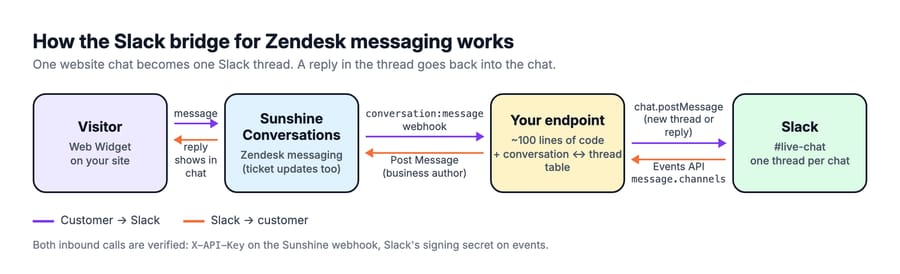
- A visitor sends a message in the Web Widget. Sunshine Conversations fires a
conversation:messagewebhook to your endpoint. - If it's the first message in that conversation, your endpoint posts a parent message to a
#live-chatchannel in Slack and saves the pair: Sunshine conversation ID and Slack thread timestamp (ts). Later messages in the same conversation go into that thread. One chat, one thread. - Someone replies inside the thread. Slack's Events API sends a
messageevent to your endpoint. - Your endpoint looks up the conversation from the thread's
tsand calls Post Message as a business author, with the replier's Slack name and photo. - The reply shows in the visitor's chat window and on the Zendesk ticket.
Slack's mobile app is already on our phones, so a new chat arrives as a thread notification. Nobody on the team has to learn a new app or remember a toggle.
What you need before you start
- Zendesk Suite Professional or above. Both the Conversations API keys page and conversations integrations are documented as Suite Professional and above.
- Zendesk messaging on your website, through the Web Widget.
- A Slack workspace where you can create an app.
- Somewhere to run about 100 lines of code on a public HTTPS URL. We added two routes to an app we already host, so the bridge cost us nothing extra.
- A small table for the conversation-to-thread mapping. Any database you already use will do; it holds two IDs per chat.
Step 1: Create a Conversations API key
In Admin Center, go to Apps and integrations → APIs → Conversations API and create a key. This is a separate page from the API tokens page most people know; Zendesk's authentication guide says the scheme "is distinct from Zendesk API tokens". You get three values: the app ID, a key ID and a secret. Requests use basic auth with the key ID as the username and the secret as the password.
Treat the secret like a database password. Zendesk's guide calls app-scoped credentials "highly sensitive" and says they should only be used server-to-server. You can store up to 10 keys, so give this one a name you'll recognize when it's time to rotate it.
Step 2: Create the webhook (a conversations integration)
In Admin Center, go to Apps and integrations → Integrations → Conversations integrations and create an integration. Give it a name, set the webhook endpoint URL to your inbound route, and subscribe to conversation:message. Tick the option to include the user schema if you want the visitor's name in Slack.
On save, Zendesk shows a shared secret. Copy it. The Sunshine Conversations API reference says this secret is sent "as an X-API-Key header with each webhook request", so your endpoint can reject anything without it. The admin page calls copying it optional. Don't treat it as optional: without the check, anyone who learns the URL can post fake chats into your Slack.
A custom integration isn't added to the conversation's switchboard by default, according to the receiving messages guide, and integrations outside the switchboard receive every event they subscribe to. That's what you want: Zendesk's Agent Workspace stays in control of the conversation and the ticket gets created as normal, while the bridge listens and posts alongside it.
Step 3: Create the Slack app
At api.slack.com, create an app for your workspace and give the bot these scopes:
| Scope | Why the bridge needs it |
|---|---|
chat:write | Post the parent message and the customer's follow-ups into the thread |
channels:history | Receive message.channels events from a public channel |
groups:history | Only if #live-chat is private: receive message.groups events |
users:read | Look up the replier's name and photo with users.info |
Then turn on Event Subscriptions, set the request URL to your Slack route, and subscribe to bot events. The event depends on the channel type. Slack's docs describe message.channels as "A message was posted to a channel" and message.groups as "A message was posted to a private channel". We subscribed to the private-channel one first, for a public channel, and got silence. Install the app, invite it to #live-chat, and copy the bot token and the signing secret.
Step 4: The mapping table
One row per conversation: Sunshine conversation ID (unique), Slack channel ID, Slack thread ts. We also keep the visitor's name and the last few Sunshine message IDs we've handled, which makes webhook retries harmless (more on that below). Lookups run in both directions: by conversation ID when a customer message arrives, and by thread ts when a reply arrives.
Step 5: The code
This is a minimal, generic version in Node with Express, written for this post. It isn't our production file, and it keeps the mapping in memory to stay short; swap the two Maps for your table before relying on it. Every secret comes from an environment variable.
// bridge.js: Zendesk messaging <-> Slack threads. Node 18+, Express 4.
const express = require('express');
const crypto = require('crypto');

const {
  ZD_SUBDOMAIN, SUNCO_APP_ID, SUNCO_KEY_ID, SUNCO_KEY_SECRET, SUNCO_WEBHOOK_SECRET,
  SLACK_BOT_TOKEN, SLACK_SIGNING_SECRET, SLACK_CHANNEL_ID,
} = process.env;
const SOURCE = 'slack-bridge';        // marks messages we post, so we can skip the echo
const threads = new Map();            // conversationId -> thread ts   (use a table)
const convs = new Map();              // thread ts -> conversationId   (use a table)
const seen = new Set();               // Sunshine message ids already handled

const app = express();
// Sunshine checked our URL with a HEAD request when we created the webhook. Answer it plainly.
app.head('/bridge/*', (req, res) => res.sendStatus(200));

async function slack(method, body) {
  const r = await fetch(`https://slack.com/api/${method}`, {
    method: 'POST',
    headers: { Authorization: `Bearer ${SLACK_BOT_TOKEN}`, 'Content-Type': 'application/json; charset=utf-8' },
    body: JSON.stringify(body),
  });
  const j = await r.json();
  if (!j.ok) throw new Error(`slack ${method}: ${j.error}`);
  return j;
}

async function postToChat(conversationId, author, text) {
  const auth = Buffer.from(`${SUNCO_KEY_ID}:${SUNCO_KEY_SECRET}`).toString('base64');
  const url = `https://${ZD_SUBDOMAIN}.zendesk.com/sc/v2/apps/${SUNCO_APP_ID}/conversations/${conversationId}/messages`;
  const r = await fetch(url, {
    method: 'POST',
    headers: { Authorization: `Basic ${auth}`, 'Content-Type': 'application/json' },
    body: JSON.stringify({
      author: { type: 'business', displayName: author.name, avatarUrl: author.avatar },
      content: { type: 'text', text },
      metadata: { source: SOURCE },
    }),
  });
  if (!r.ok) throw new Error(`sunco ${r.status}: ${(await r.text()).slice(0, 200)}`);
}

// Inbound: customer message -> Slack thread
app.post('/bridge/sunco', express.json(), async (req, res) => {
  const key = Buffer.from(req.get('x-api-key') || '');
  const want = Buffer.from(SUNCO_WEBHOOK_SECRET);
  if (key.length !== want.length || !crypto.timingSafeEqual(key, want)) return res.sendStatus(401);
  res.sendStatus(200);                                  // ack first, work after

  for (const ev of req.body.events || []) {
    const { conversation, message } = ev.payload || {};
    if (ev.type !== 'conversation:message' || !message || seen.has(message.id)) continue;
    seen.add(message.id);
    if (message.metadata?.source === SOURCE) continue;  // our own reply coming back
    if (message.author?.type !== 'user') continue;      // only visitor messages open threads
    const text = message.content?.text || `[${message.content?.type} message]`;
    const name = message.author.displayName || 'Visitor';
    try {
      const ts = threads.get(conversation.id);
      if (ts) {
        await slack('chat.postMessage', { channel: SLACK_CHANNEL_ID, thread_ts: ts, text: `*${name}:* ${text}` });
      } else {
        const parent = await slack('chat.postMessage', { channel: SLACK_CHANNEL_ID, text: `New chat from ${name}:\n>${text}` });
        threads.set(conversation.id, parent.ts);
        convs.set(parent.ts, conversation.id);
      }
    } catch (e) { console.error(e.message); }
  }
});

function slackSignatureOk(req) {
  const ts = req.get('x-slack-request-timestamp');
  const sig = req.get('x-slack-signature') || '';
  if (!ts || Math.abs(Date.now() / 1000 - Number(ts)) > 300) return false;
  const mine = 'v0=' + crypto.createHmac('sha256', SLACK_SIGNING_SECRET).update(`v0:${ts}:${req.body}`).digest('hex');
  return mine.length === sig.length && crypto.timingSafeEqual(Buffer.from(mine), Buffer.from(sig));
}

async function slackAuthor(userId) {
  // users.info reads its arguments from the query string or a form body, not JSON.
  const r = await fetch(`https://slack.com/api/users.info?user=${encodeURIComponent(userId)}`, {
    headers: { Authorization: `Bearer ${SLACK_BOT_TOKEN}` },
  });
  const j = await r.json();
  const p = j.user?.profile || {};
  return { name: (p.display_name || p.real_name || 'Support').split(' ')[0], avatar: p.image_192 };
}

// Outbound: reply in a Slack thread -> customer's chat
app.post('/bridge/slack', express.text({ type: '*/*' }), async (req, res) => {
  if (!slackSignatureOk(req)) return res.sendStatus(401);
  const body = JSON.parse(req.body);
  if (body.type === 'url_verification') return res.json({ challenge: body.challenge });
  if (req.get('x-slack-retry-num')) return res.sendStatus(200); // already handled the first delivery
  res.sendStatus(200);

  const ev = body.event || {};
  if (ev.type !== 'message' || ev.channel !== SLACK_CHANNEL_ID) return;                  // one channel only
  if ((ev.subtype && ev.subtype !== 'thread_broadcast') || ev.bot_id) return;          // humans, incl. "also send to channel"
  if (!ev.thread_ts || ev.thread_ts === ev.ts) return;                                   // thread replies only
  const conversationId = convs.get(ev.thread_ts);
  if (!conversationId) return;
  try {
    await postToChat(conversationId, await slackAuthor(ev.user), ev.text);
  } catch (e) {
    await slack('chat.postMessage', {
      channel: ev.channel, thread_ts: ev.thread_ts,
      text: `:warning: That reply did not reach the chat: ${e.message}`,
    }).catch(() => {});
  }
});

app.listen(process.env.PORT || 3000);
A few things the sample skips that you'll want in production. Check at startup that every environment variable is set, since a missing webhook secret makes every delivery fail. Two visitor messages arriving before the parent post exists can open two threads, so make the conversation ID unique in your table and let the second request wait for the first. Slack's message text carries its own markup (<https://url|label> for links, <@U123> for mentions), so convert it to plain text before posting into the chat. Customer text should also be escaped before it goes into Slack, since <, > and & have meaning there.
The six gotchas that cost us time
1. The webhook URL got a HEAD request, and a redirect failed it. When we created the conversations integration, Zendesk rejected the URL with a vague error saying it was redirected. Our server didn't route HEAD requests to the webhook handler, so the HEAD fell through to a login page and returned a redirect. Answering HEAD on the bridge routes with a plain 200 fixed it. We didn't find this check in Zendesk's docs, so treat it as what we saw on our account rather than a published rule.
2. Your own replies come back as webhooks. The conversation:message webhook fires for every message "regardless of author", in the words of the receiving messages guide. That includes the business messages the bridge just posted. Without a filter, every reply gets echoed into the thread. We tag outgoing messages with metadata: { source: "slack-bridge" } and skip anything carrying it. The API reference caps metadata at 4KB, which is plenty for a tag.
3. Public and private channels use different events. message.groups only covers private channels. A public #live-chat needs message.channels and the channels:history scope. Slack doesn't tell you that you subscribed to the wrong one. You just get no events.
4. users.info ignores a JSON body. We sent {"user": "U…"} as JSON, like every other Slack call in the bridge, and got user_not_found for users who plainly existed. The users.info reference lists application/x-www-form-urlencoded as its only content type, and Slack's JSON changelog says you can still POST to read methods, "though those methods do not understand attributes presented as JSON." Pass user as a query parameter.
5. Slack retries slow acknowledgements, and a retry is a second reply. Slack's Events API docs retry a delivery when your server "took longer than 3 seconds to respond", up to three times, and mark each retry with an x-slack-retry-num header of 1, 2 or 3. If your handler does the Zendesk call before it answers Slack, a slow response means Slack sends the event again and the customer gets your reply twice. Acknowledge first, then work, and drop anything with that header. Sunshine Conversations retries too: its API reference says a webhook is attempted "up to 5 times over a 15 minute window" on a non-2xx or no response within 20 seconds. Keeping the last few Sunshine message IDs per conversation makes those harmless.
6. A failed reply has to say so where you'll see it. A reply that silently goes nowhere is the exact failure the bridge exists to remove. If Post Message fails, the bridge posts a warning into the same Slack thread, so the person who replied sees it on their phone within seconds.
Security notes
- Store every credential as a secret. That's the Conversations API key secret, the webhook shared secret, the Slack bot token and the Slack signing secret. None of them belong in the repository or in client-side code.
- Verify both inbound sources. Check
X-API-Keyon the Sunshine webhook and Slack's signature on events. Slack's request verification guide uses an HMAC-SHA256 ofv0:{timestamp}:{raw body}; compute it over the raw body, before any JSON parsing, and reject timestamps more than five minutes old. - Keep scopes to the four in the table. The bridge doesn't need to read DMs or other channels.
- Restrict the bridge to one channel. Ignore events from any channel other than
#live-chat, so a stray thread elsewhere can't post into a customer chat. - Think about who's in
#live-chat. Everyone in the channel can read the chats and reply to customers. That's the point, but it's also an access decision.
Limitations
Replies are API messages, not agent comments. The reply shows in the chat under the Slack user's name and photo, so the visitor can't tell the difference. On the Zendesk ticket it's an API message with that name on it, not a comment by a Zendesk agent user. If you report on agent replies per person, Slack replies won't count toward anyone.
Cold conversations follow Zendesk's normal rules. If the visitor has left, the message still lands in the conversation, and whatever you've configured in Zendesk (continuous conversations, for example) decides whether they hear about it by email. If the session has ended, Zendesk treats the conversation as closed to messaging, and the bridge can't change that.
Text only, as written. The sample posts text replies. Attachments from Slack would need uploading to Sunshine first; we haven't built that.
It doesn't route or assign. The bridge has no idea who should answer, no queues and no assignment. It suits one or two people covering chat on the go. A team with routing rules, skills or SLA reporting is better served by working messaging tickets in Agent Workspace, where those rules apply.
Replies sent from Zendesk don't appear in Slack. The sample mirrors only the visitor's messages. If a colleague answers in Agent Workspace, the Slack thread doesn't show it and someone may answer twice. If both places are in use, also mirror business messages that don't carry your source tag into the thread. Our own version does this, labeled as not from Slack.
It's another moving part. If the endpoint is down, chats still reach Zendesk and the ticket is still there. You just stop seeing them in Slack until it's back. Sunshine retries for 15 minutes, which covers a deploy but not an outage.
What it costs
Nothing beyond hosting. The Conversations API and conversations integrations come with Suite Professional and above, and the Slack app needs no paid plan. We run ours as two routes on an app we already host, so our marginal cost is zero. If you host it on its own, it's two small HTTP handlers, so a small instance should do.
The time cost was one evening, most of it spent on the six gotchas above. With the list in hand, yours should take less.
If nobody's free to answer at all
The bridge solves "the right person is away from their desk". It doesn't help when nobody's available, at 3am or during a launch. That's where an AI agent fits, and it uses the same mechanism: Macha's agents reply inside Zendesk messaging conversations by posting through the Conversations API, using a Conversations API key you add from the same Admin Center page as in step 1. The reply lands in the visitor's chat, not in their inbox.
Macha fits teams already running Zendesk, Freshdesk, Gorgias, Front, Gladly, Crisp, HubSpot or Intercom who want agents answering inside the help desk they have, with a person stepping in when the agent hands over. One live chat is one ticket on our pricing, however many messages it takes. The Macha on Zendesk page shows what the agents can do there, and the Zendesk integration page covers setup.
Frequently asked questions
Can I reply to Zendesk messaging chats from the Zendesk mobile app?
Zendesk documents it. With the new agent experience turned on in the app's settings, you pick the messaging channel with the channel switcher on the Conversations tab. Our replies went out as email anyway; the likely causes are the old app experience, the switcher on Email, an ended session, or continuous conversations emailing a visitor who had left.
Why doesn't a public comment from the Tickets API show in the chat?
Messaging runs on Sunshine Conversations, and the ticket is a separate record. A Tickets API comment writes to the ticket only. We tested it: the API returns success and the chat shows nothing. Post through the Conversations API's Post Message endpoint instead.
Does Zendesk's Slack integration let me answer chats from Slack?
Not to the visitor. Zendesk documents adding internal notes to existing tickets from Slack, plus notifications, ticket creation and side conversations. Internal notes are visible to agents only.
Which Zendesk plan do I need?
Zendesk documents both the Conversations API keys page and conversations integrations as Suite Professional and above.
Will the customer know the reply came from Slack?
No. The reply appears in the chat with the display name and avatar you send, which in our bridge is the Slack user's first name and profile photo. The Zendesk ticket shows it as an API message rather than an agent comment.
Can I use the same bridge for WhatsApp or Facebook Messenger?
The Post Message call is channel-agnostic, and Sunshine delivers business messages to the conversation's channels. Social channels add their own rules: Zendesk's Agent Workspace guide notes agents can't respond on WhatsApp more than 24 hours after the customer's last message. We've only run the bridge on the Web Widget.
What happens if two people reply in the same thread?
Both replies go to the customer, each under its author's name. The bridge doesn't lock a thread to one person, so agree on who's taking a chat, for example with an emoji reaction on the parent message.
If you're wiring this up, start with step 2's HEAD check and step 3's event choice, since those two produce silence rather than errors.