



 Intercom
 Shopify
 Stripe
 Slack
Slack Notion
 Google Workspace
 Confluence

How Do You Integrate Zendesk with Slack? Setup, Triggers and Duplicate Alerts


The Slack for Zendesk Support integration installs from Admin Center under Apps and integrations and connects one Zendesk account to one Slack workspace per install. Triggers then post ticket events into the channels you choose, anyone can turn a Slack message into a ticket, and three documented causes explain most duplicate notifications.
Key takeaways
- The Slack for Zendesk Support integration installs from Admin Center under Apps and integrations and connects one Zendesk account to one Slack workspace per install, so three Zendesk accounts sharing one workspace need three installs.
- Duplicate Slack notifications have three documented causes: several triggers matching the same ticket event, Answer Bot for Slack responding separately per connected Zendesk account, and one channel fed by more than one connection.
- Tickets created from Slack, either from a message's More actions menu or the /zendesk shortcut, are tagged created_from_slack, so a Zendesk view can track internally originated volume.
- A Zendesk trigger's Slack channel dropdown only lists channels the app has been added to, and a private channel appears only if the editing admin is a member with a matching email.
- Disconnecting and reconnecting the Zendesk Slack integration keeps triggers and settings but not channel membership, so the app must be re-added to every channel or notifications stop.

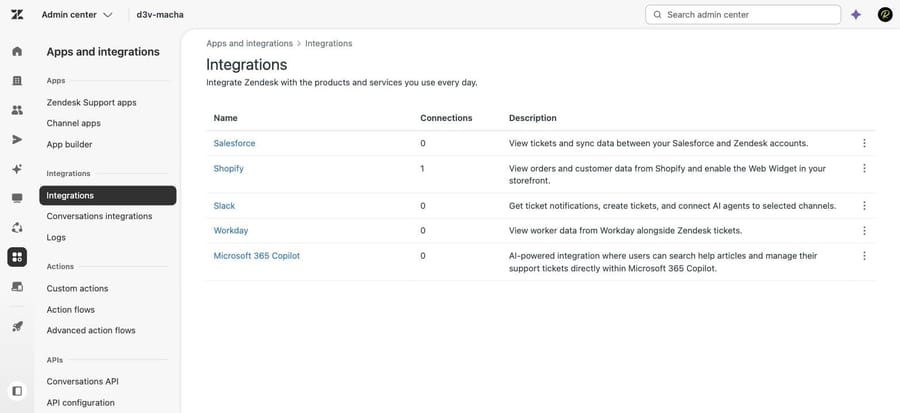
To integrate Zendesk with Slack, open Admin Center, go to Apps and integrations, then Integrations, click Connect workspace next to Slack, authorize the workspace over OAuth, add the Zendesk app to your channels, and build triggers with the Notify Zendesk integration action. One install connects one Zendesk account to one Slack workspace. Every path, setting and limit below was checked against Zendesk's current documentation on September 20, 2026, and the install article was re-read on September 24, 2026.
| Step | Where | What it does |
|---|---|---|
| 1. Open the integration | Admin Center, Apps and integrations, Integrations | Finds Slack in the integrations list |
| 2. Connect the workspace | Connect workspace, then Slack's Allow screen | Links one Zendesk account to one workspace |
| 3. Add the app to channels | /invite @Zendesk or the Channels tab | Enables notifications and Answer Bot there |
| 4. Optional features | Configure screen | Side conversations and approval requests |
| 5. Build triggers | Objects and rules, Business rules, Triggers | Decides which ticket events post to which channel |
One clarification first, because picking the wrong one wastes an afternoon. This is the internal integration: your team gets notifications and creates tickets in Slack. A separate product, the Slack Direct Messages channel, lets end users create tickets by messaging a handle in Slack. Zendesk states plainly that the two are not the same thing. Most teams want this one.
What does the Zendesk Slack integration do?
- Ticket event notifications in channels, driven by triggers, so you decide exactly which events post where.
- Ticket creation from Slack, from a message's More actions menu or the
/zendeskshortcut. - Side conversations, so an agent can branch a ticket into a Slack thread and have the replies sync back.
- Answer Bot for Slack, which watches selected channels and suggests help center articles.
- Approval requests, answered from Slack.
What do you need before you start?
- Zendesk admin access. Installing integrations and creating triggers is admin-only.
- Permission to install apps in the Slack workspace. If your Slack admins have locked down app approval, a workspace owner has to approve the Zendesk app first.
- A workspace you own. The integration cannot be installed on a shared workspace you were invited to as an external user.
- Plans: Support Team, Professional or Enterprise, or any Suite plan from Team to Enterprise Plus.
One install connects one Zendesk account to one Slack workspace. Zendesk supports connecting several Zendesk accounts to one or more workspaces; you run the install once per pair. Three Zendesk accounts sharing one Slack workspace means three installs.
How do you set up the Zendesk Slack integration?
1. Open the integration in Admin Center
In Admin Center, click Apps and integrations, then Integrations, then Integrations again. Click the options menu next to Slack and choose View.
2. Connect the workspace over OAuth
Click Connect workspace. Slack's authorization screen opens. Check the workspace name in the drop-down at the top right before you click Allow, because authorizing the wrong workspace is the single most common setup mistake. Then click Set up in Zendesk Admin Center to configure this connection.
3. Add the app to the channels that need it
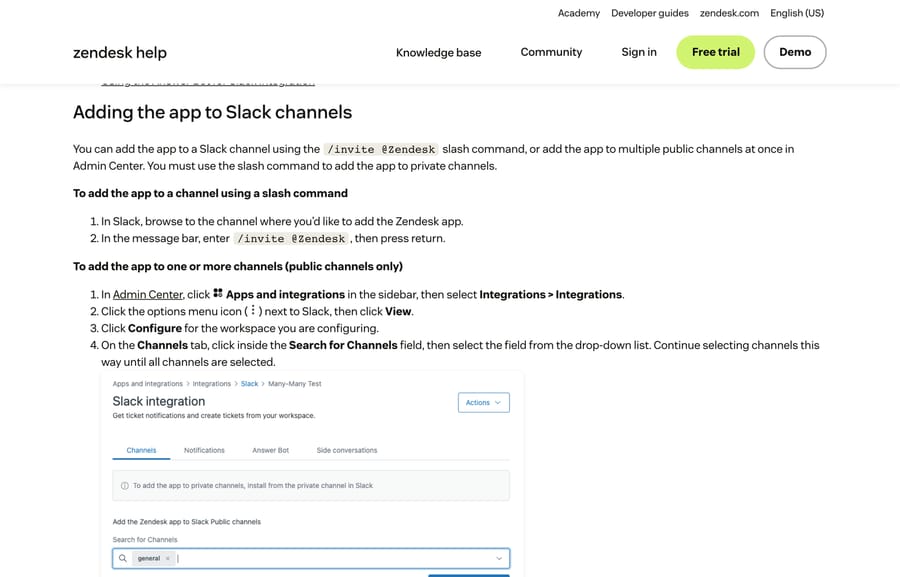
Tickets can be created from any channel once the integration is installed, but notifications and Answer Bot only work in channels the app has been added to.
- Private channels: type
/invite @Zendeskin the channel. This is the only way. - Public channels, in bulk: in the integration's Configure screen, open the Channels tab, search for channels, and click Add app to channels.
4. Turn on side conversations and approvals if you want them
Side conversations have to be turned on for each Slack workspace separately. Approval requests work for only one Slack workspace, so if you run several, pick which one owns approvals.
How do you send Zendesk ticket notifications to a Slack channel?
Notifications are ordinary Zendesk triggers with a Slack action, which is what gives you control over the noise.
- In Admin Center, click Objects and rules, then Business rules, then Triggers. You can also reach them from the Slack integration settings.
- On the Tickets tab, click Add trigger.
- Name it after the workspace and channel. Zendesk's own example is "New ticket for #delivery-support - Workspace 1", and you will thank yourself at trigger number 30.
- Put it in a category. Creating a Slack category keeps them findable.
- Add conditions. Zendesk's advice is to keep them simple, because complex triggers are harder to troubleshoot, and that is doubly true when the symptom is a noisy channel.
- Add the action Notify Zendesk integration, then Slack integration. Pick the workspace if you have several, then the channel.
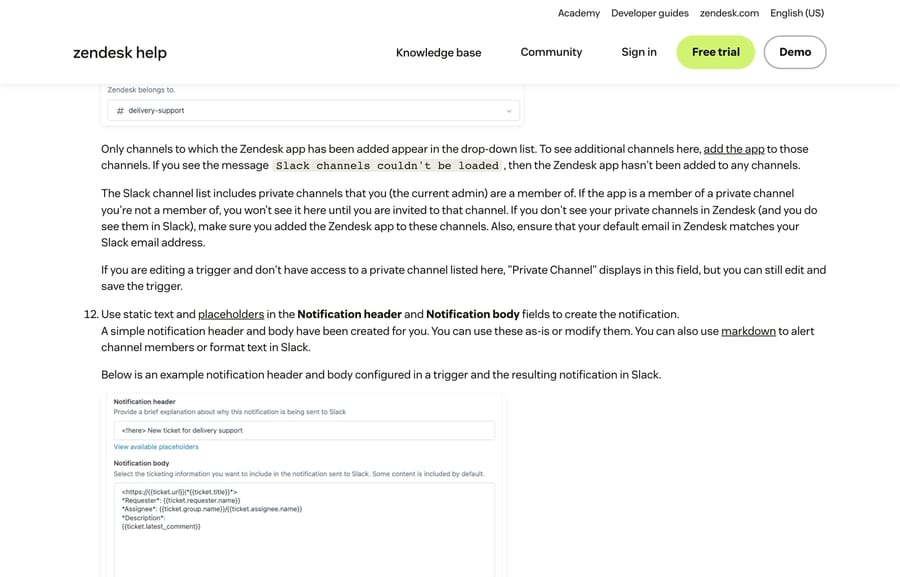
- Write the Notification header and Notification body. Zendesk pre-fills both.
The channel drop-down rules
The drop-down only lists channels the Zendesk app has been added to. Three specific behaviors explain almost every "my channel isn't there" report:
- "Slack channels couldn't be loaded" means the app has not been added to any channel at all.
- Private channels appear only if you, the admin editing the trigger, are a member. If the app is in a private channel you are not in, you will not see it until you are invited.
- Your Zendesk default email must match your Slack email address, or private channels you can see in Slack will not appear in Zendesk.
If you are editing an existing trigger pointed at a private channel you cannot access, the field shows "Private Channel" and the trigger still saves.
Formatting and alerts
Slack's markdown works in both notification fields, which matters more than it sounds: an alert nobody sees is the same as no alert.
| What you want | What you type |
|---|---|
| Bold | *bold* |
| Italic | _italic_ |
| Strikethrough | ~strike~ |
| Emoji | :smile: |
| Notify the whole channel | <!here> |
| Notify one person | <@U024BE7LH> |
| Notify a user group | <!subteam^ID> |
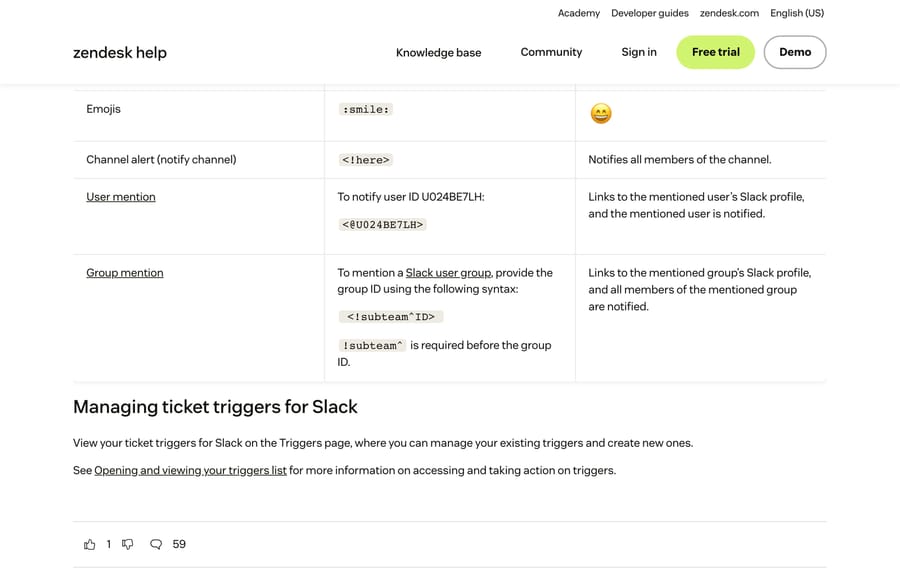
Use <!here> sparingly. A notification that pings everyone on every new ticket is how a channel gets muted, and a muted channel is worse than no integration because people believe they are covered.
How do you create a Zendesk ticket from Slack?
Two routes, both available in any channel once the integration is installed:
- From a message: hover it, open More actions, and choose Create a ticket. The description auto-fills from the message, which is what makes a messy thread into something an agent can act on.
- From scratch: type
/zendeskfor a blank ticket form.
Tickets created this way are tagged created_from_slack, which is worth building a view on. It is the cleanest way to see how much of your queue is arriving from internal Slack requests rather than customers, and whether the integration changed anyone's behavior.
Why you are getting duplicate Slack notifications
This is the most common complaint after setup, and Zendesk documents three separate causes.
Several triggers matching the same event. The usual one. A "new ticket" trigger and a "ticket assigned to group" trigger both fire on creation, and both post. Zendesk's guidance to keep trigger conditions simple exists partly for this. Audit by category, not by scrolling the whole list.
Answer Bot for Slack with more than one Zendesk account connected. Zendesk states that when several accounts are connected and a question is posted, "Article suggestions aren't combined into a single response from Answer Bot, users will see multiple Answer Bots responding." That is by design, and the fix is to limit which channels Answer Bot watches per connection rather than hunting for a setting that merges them.
The same channel fed by several connections. Each Zendesk-to-Slack connection carries its own triggers. Two Zendesk accounts, one shared channel, two notifications.
One more failure worth knowing, because it looks like a bug: if Slack's Approve apps setting is off, Zendesk says another install can break the integration. Either turn Approve apps on, or tell your Slack users not to reinstall the Zendesk app.
What breaks, and how do you check it?
| Symptom | Most likely cause | Check |
|---|---|---|
| Channel missing from the trigger drop-down | The app is not in that channel | /invite @Zendesk in the channel |
| "Slack channels couldn't be loaded" | The app is in no channels at all | Add it to one public channel and reload |
| Private channel missing | You are not a member, or emails differ | Join the channel; match your Zendesk default email to Slack |
| Duplicate notifications | Multiple triggers, or multiple connections | Filter triggers by category; check how many connections feed the channel |
| Integration stopped working after a colleague installed it | Slack Approve apps is off | Turn on Approve apps in Slack |
| Notifications stopped after reconnecting | The app was removed from channels | Configuration survives a reinstall, channel membership does not |
Where does an AI agent layer fit?
Slack notifications tell your team a ticket exists. They do not reduce the number of tickets, and a channel full of alerts can feel like progress while the queue grows.
Macha on Zendesk works on the ticket itself: it reads the incoming request in your Zendesk, answers the repeat questions from your own help center and connected systems, tags and routes the rest, and escalates with the thread attached. The Slack integration then notifies a human about the tickets that actually need one, which is the version of this setup where the channel stays readable.
It suits teams already running Zendesk whose Slack channel is busy because the queue is busy, and it is the wrong fit if your Slack traffic is internal IT requests from 20 employees, where a trigger and a human is the right amount of machinery.
Worth naming the incentive: per-resolution AI pricing means the vendor earns more the more tickets reach you, so nothing in that model rewards a quieter channel. Macha bills per ticket, one thread with one person as one charge however many replies it takes, from $299 a month for 750 tickets on published pricing, with setup and monitoring by our team included and $50 of free usage to start.
How did we research this?
We checked every path, setting and limit against Zendesk's current documentation on September 20, 2026, and re-read the install article on September 24, 2026: the install and overview article (edited August 3, 2026), the configuration article (May 6, 2026), the Slack triggers article (May 1, 2026), the usage article, the approval-requests announcement and the Slack Direct Messages channel article. Three of the four screenshots are of those pages, and they reproduce the Admin Center Slack screens. The fourth is our own Zendesk sandbox, d3v-macha, on September 20, 2026, showing where Slack sits in Admin Center under Apps and integrations, Integrations. We stopped there. Clicking through would have authorized the Zendesk app against a real Slack workspace, so nothing here is presented as first-hand setup.
Frequently asked questions
How do I connect Zendesk to Slack? In Admin Center, click Apps and integrations, then Integrations, Integrations, click the options menu next to Slack and choose View, then Connect workspace. Authorize on Slack's screen with the correct workspace selected and click Allow. You need Zendesk admin rights and permission to install apps in that Slack workspace.
How do I get Zendesk ticket notifications in a Slack channel? Add the app to the channel first, with /invite @Zendesk for a private channel or the Channels tab in Admin Center for public ones. Then create a trigger in Admin Center, Objects and rules, Business rules, Triggers, add the action Notify Zendesk integration and Slack integration, pick the workspace and channel, and write the notification header and body.
Why doesn't my Slack channel appear in the notification drop-down? Only channels the Zendesk app has been added to appear. If you see "Slack channels couldn't be loaded", the app is in no channels at all. For a private channel, you also have to be a member of it yourself, and your default Zendesk email has to match your Slack email address.
Why am I getting duplicate Zendesk notifications in Slack? Usually two triggers matching the same ticket event. The other documented causes are Answer Bot for Slack running with several connected Zendesk accounts, which produces multiple Answer Bot responses because suggestions are not combined, and one channel receiving notifications from more than one Zendesk connection.
Can I create a Zendesk ticket from a Slack message? Yes. Hover the message, open More actions and choose Create a ticket; the description fills in from the message. Or type /zendesk for a blank form. Either way the ticket is tagged created_from_slack, so you can build a view on it.
Can I connect more than one Zendesk account to the same Slack workspace? Yes, by running the install once per pair. Note the limits: approval requests work for only one workspace, side conversations must be turned on per workspace, and Answer Bot will respond separately for each connected account in a shared channel.
Does the integration work with Slack Enterprise Grid? Multi-workspace channels, shared among some workspaces in a Grid organization, are supported. Organization-shared channels, shared with every workspace in the organization, are not.
What happens if I disconnect and reconnect the integration? Your configuration is kept, so triggers and settings survive. Channel membership does not: you have to re-add the app to every channel, and until you do, notifications stop.
Sources: Understanding and installing the Slack for Zendesk Support integration · Configuring the Slack for Zendesk Support integration · Creating and managing ticket triggers for Slack · Using the Slack for Zendesk Support integration · Adding the Slack Direct Messages channel · Announcing the ability to see and respond to approval requests in Slack
Add AI agents to your Zendesk
Macha reads the ticket, drafts the reply and takes the action, inside the Zendesk you already run.





