Intercom
 Shopify
 Stripe
 Slack
Slack Notion
 Google Workspace
 Confluence

How Do You Create a Trigger in Zendesk? Step-by-Step Guide (2026)


A Zendesk trigger is the rule that auto-replies the second a customer emails, drops a billing ticket into the Billing queue, or bumps a VIP's request to Urgent before anyone has read it. You build one in Admin Center in a few minutes, and the only parts that trip people up are ALL-vs-ANY conditions and run order.
Key takeaways
- Zendesk ticket triggers are created in Admin Center under Objects and rules, then Business rules, then Triggers, on the Ticket tab, by clicking Create trigger.
- Meet ALL conditions use AND logic requiring every condition to be true, while Meet ANY conditions use OR logic requiring at least one condition to be true.
- Zendesk runs triggers top to bottom, and when one trigger updates a ticket the cycle starts over with every trigger that has not fired yet.
- The Zendesk ticket events log only records a trigger's actions when they cause a net change in ticket field values, so a no-op trigger will not appear.
- Zendesk allows a maximum of 7000 active ticket triggers per account, and triggers fire only on events, so a wait-24-hours rule needs an automation instead.

To create a trigger in Zendesk, open Admin Center, go to Objects and rules → Business rules → Triggers, stay on the Ticket tab and click Create trigger; then add a name, conditions (the "if"), actions (the "then") and save. The new trigger goes live at once and is added to the end of your trigger list (Zendesk's trigger documentation, checked 24 September 2026). Below, we build one concrete trigger step by step, then cover run order, testing on a real ticket, and debugging when it doesn't fire.
| Step | What you do |
|---|---|
| 1. Open | Admin Center → Objects and rules → Business rules → Triggers → Ticket tab → Create trigger |
| 2. Name | Name, optional description (searchable), category |
| 3. Conditions | Meet ALL (AND) and Meet ANY (OR) blocks |
| 4. Actions | Set fields first, notify last |
| 5. Save | Create trigger, or save as Inactive from the arrow |
| 6. Order | Drag it into place; new triggers land at the bottom |
| 7-8. Test and debug | Run a matching and a non-matching ticket, then read the Events log |
If you want the concepts first (what a trigger is, how conditions and actions work under the hood, the default triggers Zendesk ships with) read Zendesk triggers explained, the companion deep-dive. This post assumes you just want to build one.
What trigger will we build?
To keep things concrete, we'll build a single, useful trigger from start to finish:
When a ticket comes in from a VIP customer, set its priority to Urgent, assign it to the Priority Support group, and notify that group so they jump on it.
It's a good first trigger because it touches every part of the process: a condition that identifies the VIP, multiple actions, a notification, and a run-order consideration. Swap in your own field names and you've got a routing rule you can ship today.
A quick prerequisite: this example assumes you have a way to identify a VIP. Most teams use a vip tag (added manually, by another trigger, or via the customer's organization) or a custom Organization field. We'll key off the vip tag. You'll also want a group to route to (here, "Priority Support"). Create those first if they don't exist.
Step 1: Where do you find the Triggers page?
In Zendesk, triggers live in the Admin Center, not the agent workspace. Here's the exact path (checked against Zendesk's docs, September 2026):
- Click the gear icon (or your profile menu) and open Admin Center.
- In the left sidebar, click Objects and rules.
- Under Business rules, click Triggers.
- Make sure you're on the Ticket tab at the top. Zendesk also has object triggers for custom objects, which is a different feature; for ticket automation you want the Ticket tab.
- Click Create trigger in the top-right.
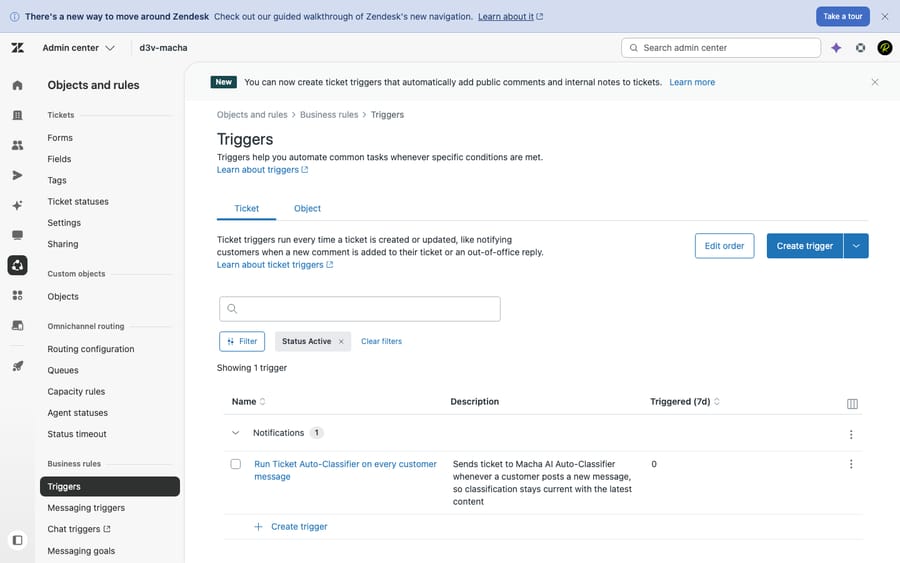
You'll land on a blank trigger form. Everything from here happens on this one page.
Step 2: What should you name it, and which category?
Two quick fields up top, and they matter more than they look:
- Name. Be specific and consistent. "VIP: set Urgent + route to Priority Support" beats "VIP trigger." Future-you, scanning a list of 40 triggers, will thank present-you. A simple convention,
Purpose: what it does, keeps the list readable. - Description (optional). One line on what the trigger does and why. Zendesk lets you search triggers by description, so a good one pays off when you're hunting for "the thing that sets priority" six months from now.
- Category. Zendesk groups triggers into categories. Select an existing one or create a new one (e.g. "Routing & escalation"). Categories are purely organizational, but on a growing instance they're the difference between a tidy list and chaos.
Step 3: How do Meet ALL and Meet ANY conditions work?
Conditions are the "if": the qualifications a ticket must meet for the trigger to fire. Click Add condition and you'll see two separate blocks, and the difference between them is the thing that confuses almost every beginner:
- Meet ALL of the following conditions = AND logic. Every condition here must be true.
- Meet ANY of the following conditions = OR logic. At least one condition here must be true.
When you use both blocks, the trigger fires only when (all of the ALL conditions are true) AND (at least one of the ANY conditions is true). This is straight from Zendesk's ALL-vs-ANY reference, and it's worth re-reading: ALL is a gate that must fully pass; ANY is a gate that needs just one match.
For our VIP example, add these under Meet ALL:
- Ticket | is | Created, so it only fires on brand-new tickets, not on every later update.
- Tags | Contains at least one of the following |
vip, the marker that identifies a VIP customer.
That's it: a newly created ticket carrying the vip tag. If you wanted to also catch your "Enterprise" organization or the vip tag, you'd move those into the Meet ANY block instead: "either of these counts."
The most common reason a trigger misbehaves is a condition mistake here: leaving "Ticket is Created" off (so it fires again on every later update), or putting conditions in ANY when you meant ALL. When debugging later, this is the first place to look.
Step 4: Which actions should the trigger take?
Actions are the "then": what the trigger does when its conditions match. Click Add action for each one. A single trigger can perform several actions in one fire, which is exactly what we want here. Add:
- Priority | Urgent, to escalate it.
- Group | Priority Support, to route it to the right team.
- Notify by → Group | Priority Support, with a short subject and body (e.g. "New VIP ticket #{{ticket.id}}: {{ticket.title}}") so the team gets pinged immediately. Zendesk placeholders like
{{ticket.id}}fill in the live ticket details.
Order your actions logically: set fields first (priority, group, tags), then notify last, so the notification reads cleanly against the ticket's final state. Within a single trigger Zendesk applies the actions together, but the habit keeps triggers readable and matches how run order works across triggers (see Step 6).
Step 5: How do you save it, active or inactive?
Click Create trigger at the bottom. The small arrow next to the button lets you save the trigger as Inactive if you want to set it up now and switch it on later. For a first trigger you're confident in, just Create: it goes live immediately and acts on the very next matching ticket. Zendesk allows up to 7000 active ticket triggers per account, standard and custom combined, so the ceiling is rarely the problem; readability is.
Step 6: Does the order of triggers matter?
Yes. Triggers run top to bottom, in the order they appear in your Triggers list, and your new trigger is added to the end. You can drag triggers to reorder them on the Triggers page.
What Zendesk actually does on each ticket update is run a cycle. Per its documentation: "If a ticket trigger updates a ticket during the cycle, the cycle starts over. All the ticket triggers run again, except any ticket triggers that have already fired." A trigger can be checked several times in a cycle, but it never fires more than once in the same cycle. Zendesk sums it up: "Actions applied by one ticket trigger can affect how other triggers run and fire for a ticket."
That restart changes what order really controls. Take our example:
- Suppose another trigger adds the
viptag based on the customer's organization. - Our VIP trigger fires on that
viptag.
If the tag-setter sits higher, the tag exists by the time our trigger is checked and it escalates on the first pass. If our trigger sits higher, it doesn't match on the first pass, the tag-setter fires, the cycle starts over, and our trigger fires on the second pass. The outcome is the same. Where order does change the outcome is who fires first: a generic notification trigger placed above your routing rules can send its email before the ticket is re-prioritised or re-grouped, and when two triggers set the same field, the one that fires later leaves the final value. The reliable convention (more in the concepts guide):
- Setup triggers first: stamp tags, normalize fields (e.g. "set no-priority to Normal").
- Routing & escalation next: like our VIP rule, which depends on those tags and fields.
- Notifications last: so customers and agents are alerted based on the ticket's final state.
Drag your new VIP trigger so it sits after anything that sets the vip tag and before generic notification triggers.
Step 7: How do you test a trigger on a real ticket?
Never trust a trigger you haven't watched fire. The fastest test:
- Create a test ticket that matches your conditions: for our example, a new ticket with the
viptag (add it manually if needed). Submitting as a real new request via your support email is the most realistic check. - Watch what happens. The priority should flip to Urgent, the Group should change to Priority Support, and the group should get the notification email.
- Also test a ticket that shouldn't match (no
viptag) and confirm the trigger leaves it alone. Half of testing is verifying it doesn't fire when it shouldn't.
Step 8: Why didn't my trigger work, and how do I read the events log?
If the trigger didn't do what you expected, the ticket events log is your best friend. Open the test ticket, find the conversation/events menu (the "…" or events icon in the ticket header), and switch to Events. It shows, in order, which triggers fired on that ticket and what each one changed.
One important caveat, straight from Zendesk's docs: the event log only records a trigger's actions if they result in a net change in ticket field values. If your trigger fired but set priority to a value the ticket already had, it isn't logged. That's expected, not a bug. Quick troubleshooting checklist when a trigger misbehaves:
- It never fired: re-check conditions (Step 3). Usually a missing "Ticket is Created," ANY-vs-ALL confusion, or a tag that isn't actually on the ticket.
- It fired but did nothing visible: the action may have set a value the ticket already had (no net change), or a trigger that fired later in the cycle overwrote it. Check run order (Step 6).
- It fires on every update: a trigger fires at most once per cycle, but every new update starts a new cycle, including updates from apps and webhooks. Add a condition that becomes false after it fires (e.g. add a
processedtag and require "tag is notprocessed"), or keep "Ticket is Created".
What are the best practices and common mistakes?
A few habits keep your triggers healthy as the list grows:
- Order: set fields → route → notify. Stamp tags and normalize fields first, route and escalate next, notify last. It keeps notifications accurate.
- Always add a stop condition to anything that updates a ticket. If a trigger edits the ticket, make sure its conditions can't be true again on the next update.
- Name and categorize everything. "Routing: VIP → Priority Support" beats "Trigger 12." Use categories so the list stays scannable.
- Test the negative case too. Confirm the trigger ignores tickets it shouldn't touch, not just that it catches the ones it should.
- Don't rebuild the defaults. Zendesk already ships triggers that auto-acknowledge new tickets and notify assignees. Building a second "new ticket auto-reply" means customers get two emails. Check the existing list first (we cover the defaults in triggers explained).
And the mistakes that bite new admins most often: misusing ALL vs. ANY (the #1 "why won't it fire?"), placing a generic notification above the routing rules it should follow, and forgetting that triggers fire on an event, not on a timer. If you need "wait 24 hours then remind," that's an automation, not a trigger. See automations vs. triggers for where the line sits, and Zendesk business rules explained for how triggers, automations, and macros fit together.
Where does AI fit when rules aren't enough?
Triggers are excellent at deterministic plumbing, but they're rigid if-this-then-that logic. Our VIP trigger fires on the literal vip tag, but a trigger can't read a message and realize "I've been a customer for five years and this is urgent" is a VIP-grade escalation when no tag exists. It matches keywords; it can't weigh intent, nuance, or context. Every edge case you want handled has to be hand-coded as another condition, and the rule set gets brittle as it grows.
That's the gap an AI agent layer like Macha fills. Macha runs on top of your existing Zendesk (it's not a help desk and not a Zendesk replacement) and adds language understanding and judgment where rules run out: it can classify and route a ticket by meaning rather than keyword match, draft a reply, or resolve routine requests end to end, while anything it can't handle stays a normal ticket for a human. In practice the two work together: keep your triggers for the deterministic stuff (notifications, hard routing, SLA stamps) and let AI handle the fuzzy, language-heavy decisions triggers were never built for.
The honest framing: it's another tool to manage, and it's only as good as the knowledge and instructions you connect to it. Macha bills per ticket (one conversation, charged once however many steps it takes and whichever model you choose), starting at $299 a month for up to 750 tickets, not per resolution, so the bill never hangs on an outcome definition you don't control. Setup and monitoring by the Macha team are included. If keyword-only triggers keep misrouting your nuanced tickets, that's the gap to close. You can try it free: $50 of free usage, no credit card required.
Frequently asked questions
How do I create a trigger in Zendesk? In Admin Center, go to Objects and rules → Business rules → Triggers, make sure you're on the Ticket tab, and click Create trigger. Give it a name and category, add conditions (the "if"), add actions (the "then"), then click Create trigger to save. The trigger goes live immediately and acts on the next matching ticket.
Where are triggers in the new Zendesk Admin Center? Open Admin Center, click Objects and rules in the sidebar, then Business rules → Triggers. Ticket triggers (the kind most teams want) live on the Ticket tab; the Objects tab is for triggers on custom objects.
What's the difference between Meet ALL and Meet ANY conditions? "Meet ALL" uses AND logic: every condition in that block must be true. "Meet ANY" uses OR logic: at least one must be true. If you fill in both blocks, the trigger fires only when all of the ALL conditions are true and at least one of the ANY conditions is true.
Why isn't my Zendesk trigger firing? Almost always a condition problem: a missing "Ticket is Created," conditions placed in the ANY block when you meant ALL, or a tag or field that isn't actually on the ticket. Check the ticket's Events log to see which triggers fired and what they changed, but note Zendesk only logs a trigger's actions when they cause a net change in field values, so a no-op trigger won't appear.
Does the order of triggers matter? Yes. Triggers run top to bottom in your list, and when one fires and updates the ticket, the cycle starts over with every trigger that hasn't fired yet. Order decides which trigger fires first and which one sets a shared field last. You can drag triggers to reorder them. A reliable convention: set fields first, route and escalate next, notify last.
Can a trigger run after a delay, like "wait 24 hours"? No. Triggers fire on an event, the instant a ticket is created or updated, and have no concept of time passing. For time-based rules ("if Pending for 4 days, send a reminder") you need an automation instead. See automations vs. triggers.
How many triggers can a Zendesk account have? Zendesk allows a maximum of 7000 active ticket triggers, counting both standard and custom triggers. Inactive triggers don't count toward that limit.
What's the short checklist for your next trigger?
Open Admin Center → Objects and rules → Business rules → Triggers, click Create trigger, set your conditions (mind ALL vs. ANY), add your actions (set fields first, notify last), save, then drag it into the right run-order position and test it on a real ticket, one that should match and one that shouldn't. The two things beginners underestimate are the ALL-vs-ANY logic and which trigger fires first. When you hit the ceiling of what if-this-then-that rules can do, that's where an AI agent layer takes over. From here, go deeper with Zendesk triggers explained, or step back to the business rules overview.
Build steps checked against Zendesk's official documentation on 24 September 2026. Zendesk updates its product periodically, so confirm specifics in your own account before relying on them.
Add AI agents to your Zendesk
Macha reads the ticket, drafts the reply and takes the action, inside the Zendesk you already run.