Intercom
 Shopify
 Stripe
 Slack
Slack Notion
 Google Workspace
 Confluence

Why Are Zendesk Notifications Not Sending? Causes and Fixes (2026)


In Zendesk every notification email is sent by a trigger, so notifications not sending almost always means a trigger didn't fire or fired with nothing to send. The ticket's Events log tells you in one read whether Zendesk attempted the email or delivery failed afterwards.
Key takeaways
- Zendesk notifications are sent by triggers, so a missing email usually means a trigger failed to fire, which the ticket's Events log confirms by lacking an Email notification entry.
- Customer notification triggers, Notify requester and CCs of received request and of comment update, fire only on a public comment, so an internal note never emails the requester.
- Zendesk's deliverability guide states that a notification email without a placeholder, such as ticket.comments_formatted, does not send at all.
- Zendesk accepts 20 emails from the same user within an hour, suspends the next 20, and rejects the rest, which is an inbound loop guard rather than an outbound limit.
- Zendesk's SPF guidance requires include:mail.zendesk.com in the domain's SPF record, and without DMARC strict email providers may filter or reject notification emails.

Zendesk notifications stop sending because a notification trigger didn't fire: in Zendesk every "we received your request", "an agent replied" and "a ticket was assigned to you" email is sent by a standard trigger, so the fix starts in the ticket's Events log (add /events to the ticket URL) and a check for an Email notification entry. If the entry is missing, a trigger is inactive, its conditions didn't match, the comment was internal, or the email body lost its placeholder. If the entry is there, Zendesk sent the email and the problem is delivery: a bounce, a wrong address, or missing SPF, DKIM and DMARC records.
| What the Events log shows | What it means | Most likely causes |
|---|---|---|
No Email notification entry | Zendesk never sent it | Inactive or broken trigger, no placeholder in the body, internal note, trigger order, agent not assigned |
Email notification entry present | Zendesk sent it; delivery failed | Bounce, no email on the user, spam filtering from missing SPF/DKIM/DMARC |
| Customer replies never reach the ticket | Inbound problem, not a notification | Blocklist reject: entry, loop limit of 20 emails an hour per user |
The causes below are ranked by how often they're the real culprit, split into customer-facing email notifications and agent notifications, with a fix for each. Everything is checked against Zendesk's own documentation as of September 2026; Zendesk revises its UI periodically, so confirm labels in your own account.
What does "notifications not sending" look like?
"Not sending" usually shows up as one of these:
- Customers don't get the auto-reply when they submit a ticket, or the email when an agent replies.
- Agents don't get an email when a ticket is assigned to them or their group.
- Notifications were working and silently stopped after someone edited the account.
- Notifications go out for some tickets but not the one in front of you (e.g. nothing fires when you add an internal note).
All four are diagnosable the same way, and most have nothing to do with Zendesk being "down." Resist the urge to start toggling settings blindly. Read the evidence first.
How do you check whether Zendesk sent a notification?
Every ticket keeps a complete audit trail of who (or what) changed it, including whether a notification was attempted. This is the fastest way to cut the problem in half: Zendesk never tried to send vs. Zendesk sent it but it didn't arrive. Those have completely different fixes.
To open the log on any ticket:
- Add
/eventsto the end of the ticket URL (e.g.…/agent/tickets/12345/events), or - In the Agent Workspace, open the ticket, click the Conversations menu, and choose Events.
Now look for the Email notification property in the events. Zendesk's Troubleshooting email deliverability guide tells you to check, under the agent's comment, "whether a trigger sent the email". Each outgoing notification appears as an Email notification entry followed by an ID number, and clicking the ID shows the exact email that went out and who it went to. That single read splits the problem in two:
Email notificationis present → Zendesk did send it. Your problem is delivery, not Zendesk: a bounce, a blocklist, spam filtering, or a wrong recipient. Jump to causes 4 and 7.Email notificationis absent → Zendesk never sent it. That means a trigger didn't fire (or fired with nothing to send). Work causes 1, 2, 3, 6, and 8.
Because notifications are triggers, this is the same evidence-first method you'd use for any business-rule problem ; see Zendesk triggers not firing for the deeper trigger-debugging playbook (rule analysis, ALL vs ANY, the events log). With the log read, here are the causes, ranked.
Why aren't customers getting Zendesk emails?
These are the emails to the requester and CCs. They are all powered by two standard triggers: Notify requester and CCs of received request (fires when a ticket is created with a public comment) and Notify requester and CCs of comment update (fires when a ticket is updated with a public comment).
1. A notification trigger is deactivated or misconfigured (the #1 cause)
This is far and away the most common reason customers stop getting email. Notifications are triggers, and a trigger that's toggled inactive does nothing. Zendesk's guide to common email channel problems lists "You've deactivated one or more of the default email notification triggers" among its five reasons customers don't get email. Both default customer triggers must show Active. A trigger can also be broken rather than off: Zendesk auto-deactivates a trigger that references a field, group, or form that was later deleted or renamed.
There's a second, sneaky version of "misconfigured": the email body has no placeholder. Zendesk's deliverability guide is blunt: "Without a placeholder, the email does not send." Someone clears out the comment placeholder (the ticket.comments_formatted field, wrapped in double curly braces) while editing the wording, and the notification silently stops.
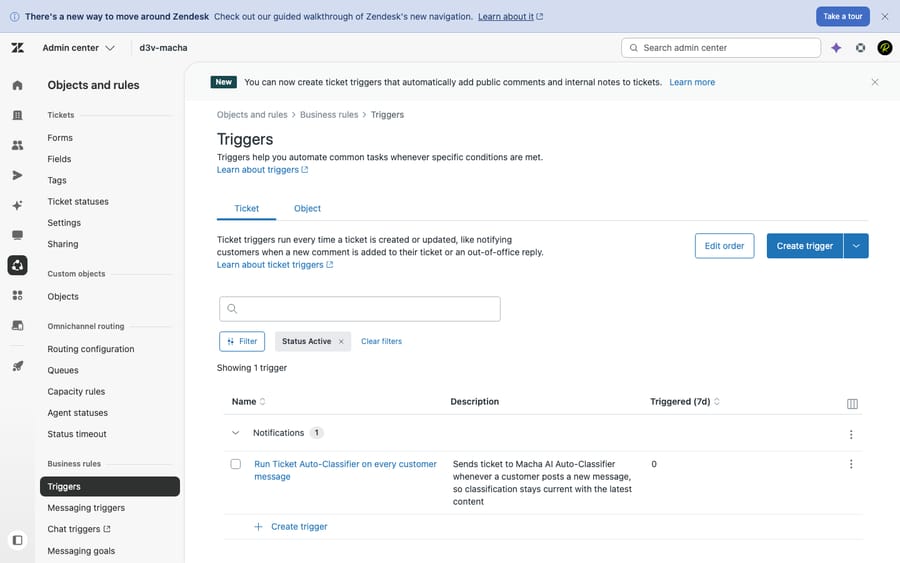
Confirm: Go to Admin Center → Objects and rules → Business rules → Triggers and check the Inactive tab. If a notification trigger is there, that's your answer. If it's active, open it and confirm the email body still contains at least one placeholder. Fix: Reactivate it. If it keeps deactivating, repoint the condition/action that references a deleted field or group. If a placeholder was removed, add it back. A related case: when Anyone can submit tickets is on, Ask users to register is off, and an end user creates the ticket, Zendesk blanks the comment placeholders in creation triggers to end users, so the email sends but arrives mostly blank (placeholder suppression rules). Never edit a standard trigger destructively: clone it, edit the clone, and deactivate the original so you can always restore the default.
2. The comment was internal (public vs. internal note)
This is the "works for some tickets, not others" case, and it's by design. The customer-notification triggers require a public comment. Internal notes are private comments, so adding one never emails the requester. Agents constantly type a careful internal note, assume the customer saw it, and are baffled when "no notification went out."
Confirm: Open the ticket and check whether the comment was posted as Public reply or Internal note. In the Events log, an internal note won't produce an Email notification to the requester. Fix: If the customer should have received it, the comment must be public. There's no notification to "turn on" for internal notes to customers; that's intentional. Train agents to watch the public/internal toggle, the most common cause of "the customer never got my message."
3. Trigger order: an earlier trigger changed the ticket first
The subtle one. Triggers run top-to-bottom in the exact order they're listed. An earlier trigger's action can change the ticket so that, by the time the notify trigger is evaluated, its conditions no longer match. For example, an earlier rule sets the status to Solved or strips a tag the notification trigger depends on, and the notify trigger is skipped.
Confirm: In the Events log, look at what fired before the expected notification. If an earlier trigger changed the status, group, or a tag the notify trigger keys on, that's your interference. Fix: Reorder so notification triggers run after the triggers that set the values they announce, and tighten the earlier trigger so it doesn't overreach. Full method in Zendesk triggers not firing.
4. The recipient is blocklisted, bouncing, or suspended
If the Events log shows the Email notification was sent but it never arrived, the trigger did its job and delivery failed downstream. Three specifics:
- Blocklist: counterintuitively, Zendesk says blocklisted addresses "still receive notifications if the user is the requester or added as a CC on a ticket." The blocklist's
reject:keyword works on inbound mail: the email is dropped and no ticket is recorded, per Understanding the allowlist and blocklist. So a blocklist entry rarely explains a missing outbound notification, but it absolutely explains "their replies never create/update a ticket." - Bounces / delivery failures: when an outbound email bounces, the Agent Workspace shows a delivery-failure message directly on the comment (Understanding email delivery failures). That's your signal the recipient's mail server rejected it.
- No email on the user record: if the requester's user profile has no email address, there's nowhere to send. Zendesk lists this as one of its five common reasons.
Confirm: Click the Email notification ID in the events to see the exact recipient, check the comment for a delivery-failure banner, and verify the user profile has a valid email. Fix: Correct or add the user's email, ask the recipient to allowlist your support address, and follow up on hard bounces (the address may be dead or rejecting you).
Why aren't agents getting Zendesk notifications?
These are emails to agents: assignment alerts and comment updates. They come from a different set of standard triggers: Notify assignee of assignment, Notify assignee of comment update, Notify assignee of reopened ticket, Notify group of assignment, and Notify all agents of received request.
5. The agent isn't assigned, following or CC'd, or has notifications turned off
Agent notifications only reach an agent who has a reason to be notified: they're the assignee, a member of the assigned group, a CC, or a follower. The "Notify assignee" triggers only target the assignee: if the ticket is unassigned (or assigned to someone else), the agent gets nothing. Note too that Notify assignee of assignment fires when the assignee is changed by someone other than the assignee themselves, so an agent who self-assigns won't email themselves.
The second half: each agent can switch off their own ticket emails in their personal settings (see How can I stop receiving email notifications when a ticket is assigned to me?). An agent who muted notifications then reports "I'm not getting notified" is usually the explanation.
Confirm: Check the ticket's assignee/group against the agent in question, and confirm the relevant Notify assignee/group trigger is active. Then check whether the agent disabled their own notifications. Fix: Make sure routing actually assigns the ticket to that agent or their group; activate/repair the assignment trigger; and have the agent re-enable notifications (or add them as a CC/follower if they need visibility without ownership).
6. The agent trigger is deactivated or its conditions don't match
Same root cause as #1, but for agents. Someone disables Notify all agents of received request to stop inbox noise, then wonders why nobody's alerted to new tickets. Or an admin adds a channel/group condition that the actual ticket doesn't meet, so the trigger is skipped.
Confirm: In Admin Center → Triggers, check whether the agent-notification triggers are active and read their conditions against the actual ticket (channel, group, "created by agent vs end user"). Fix: Reactivate, or loosen/correct the over-specific condition. If you turned off "Notify all agents" on purpose, route via Notify group of assignment instead so the right agents are alerted without spamming everyone.
What else blocks both customer and agent notifications?
7. Email deliverability: SPF, DKIM, DMARC, and spam
Even a perfectly fired notification can be filtered or rejected by the recipient's mail server. Per Troubleshooting email deliverability, your domain's SPF record must include include:mail.zendesk.com ("Without an SPF record that includes Zendesk in your domain, recipient email servers may block emails sent from Zendesk"), DKIM signing is "highly recommended", and without DMARC "strict email providers may filter or reject your emails." Miss them and notifications quietly land in spam.
Confirm: The Email notification event exists (Zendesk sent it) but the recipient can't find it. Have them check spam/junk first. Fix: Set up SPF, DKIM, and DMARC for your sending domain, and ask recipients to allowlist your support address. This is the most common reason "it shows as sent but never arrived."
8. Loop protection: Zendesk deliberately holds some mail
Zendesk has two documented loop guards that can look like "notifications not working":
- No-comment suppression on bulk-sender tickets: when a ticket comes from a bulk sender, Zendesk "suppresses any message that is sent when no comment is added", so a status-only update sends nothing until an agent adds a comment (About mail loops and Zendesk email).
- Inbound limit per user: as a last resort, Zendesk accepts 20 emails from the same user within an hour. The next 20 updates are suspended, and beyond 40 every further update that hour is rejected without even creating a suspended ticket (same article). This limit is on mail coming in, so it explains a noisy integration's or auto-forwarder's updates vanishing into Suspended, not a missing outbound email.
Confirm: Check the Suspended tickets view for a burst from one address, and look for an external address auto-forwarding into Zendesk. Fix: Break the forwarding loop, slow down whatever's hammering the account, recover legitimate suspended mail, and make sure updates on bulk-sender tickets include a real comment when they're meant to notify.
9. Sandbox / test environment sending limits
If you're testing in a sandbox, don't treat a missing email as proof of a production fault. A sandbox is a separate test account, and its support addresses, triggers and domain authentication may not match production, so an email that "doesn't arrive" there says little about your live account.
Confirm: You're reproducing the issue in a sandbox or trial, not production. Fix: Validate notification behavior in production (on a safe test ticket to a real address you control). Use the Events log to confirm the trigger fired; that's the meaningful signal in a sandbox, not the inbox.
How do you keep notifications reliable?
- Treat notification triggers as critical infrastructure. Don't edit the standard ones in place: clone, edit the clone, deactivate the original, and name them clearly so the Events log reads like plain English.
- Never delete placeholders from a notification body. If you customize the wording, keep the comment placeholder (
ticket.comments_formatted, in double curly braces) or the relevant one intact. - Order deliberately: set values first, notify last, so an earlier trigger can't strip the conditions a notify trigger needs.
- Get email authentication right once: SPF, DKIM, and DMARC for your sending domain prevents the majority of "sent but never arrived" tickets.
- Test on a fresh ticket after every change, and skim the Events log for the
Email notificationentry to confirm it actually fired, to a real address you control, in production. - Mind the public/internal toggle: the most frequent "the customer didn't get it" is an internal note that was never meant to notify.
For how notifications fit the wider model (tickets, comments, requesters, CCs, and business rules), see how the Zendesk ticketing system works.
Where does an AI agent fit alongside notification triggers?
Notification triggers are deterministic plumbing: if this exact event happens, send that email. They're good at it, and brittle in exactly the ways above, because they fire on conditions, not on whether the customer was actually helped. A perfectly-delivered "we received your request" email is still not an answer.
That's the layer an AI agent like Macha adds. Macha isn't a help desk and doesn't replace Zendesk; it runs on top of your existing Zendesk (and on Zendesk, Freshdesk, Gorgias, Front, HubSpot or Intercom generally). Where a trigger can only acknowledge a ticket and route it, an AI agent reads the actual question, pulls from your knowledge base and past tickets, and can resolve it in the thread, then still handles the housekeeping (public reply, tagging, status, escalation with full context) that you'd otherwise wire up trigger by trigger. It's complementary: keep your notification triggers for deterministic acknowledgements and routing; let an AI agent handle the substantive replies.
It's another integration to configure, and it's only as good as the knowledge you connect. On cost, Macha bills per ticket: one thread with one person, charged once however many replies, tags and lookups it takes, not per resolution, so the bill never hangs on an outcome definition you don't control. The plan starts at $299 a month for up to 750 tickets, with setup and monitoring by the Macha team included, and the trial is $50 of free usage with no credit card.
Frequently asked questions
Why are my Zendesk email notifications not working? Because in Zendesk, notifications are triggers, so "not sending" almost always means a notification trigger didn't fire or had nothing to send. Open the ticket's Events log (/events or Conversations → Events) and look for the Email notification entry. If it's missing, a trigger is deactivated, its conditions didn't match, the comment was internal, or the email body lost its placeholder. If it's present, the email was sent and you have a delivery problem (bounce, spam, blocklist) instead.
How do I check if Zendesk actually sent a notification? Open the ticket events and look for an Email notification property followed by an ID; click the ID to see the exact email and recipient. If that event doesn't exist in the log, no email was sent. That one check tells you whether to debug the trigger or the delivery.
Why isn't Zendesk sending emails to customers? Most often a notification trigger (Notify requester and CCs of received request or of comment update) is deactivated, or its email body lost a required placeholder ("Without a placeholder, the email does not send"). Also check that the comment was a public reply, not an internal note, and that an earlier trigger didn't change the ticket so the notify trigger's conditions no longer match.
Why don't internal notes notify the customer? By design. Customer-notification triggers require a public comment. Internal notes are private comments meant only for agents, so they never email the requester. If the customer should see it, post it as a public reply.
Why is an agent not getting Zendesk notifications? The agent must be the assignee, a member of the assigned group, a CC, or a follower, and the matching Notify assignee/group trigger must be active. Also check that the agent didn't disable their own notifications in personal settings, and remember an agent who self-assigns isn't emailed about it.
It shows as sent in the events but the customer didn't get it. Now what? That's a deliverability issue, not a Zendesk one. Have them check spam/junk, look for a delivery-failure banner on the comment, and confirm your domain has valid SPF, DKIM, and DMARC records so providers don't filter Zendesk's mail.
What is the fastest way to fix Zendesk notifications?
Start from one fact: notifications are triggers. Read the ticket Events log and look for the Email notification entry; its presence or absence splits every problem cleanly. Absent means a trigger didn't fire: check whether a notification trigger is deactivated or lost its placeholder (the #1 cause), whether the comment was internal rather than public, whether trigger order changed the ticket first, or whether the agent simply isn't assigned/following. Present means Zendesk sent it and you have a delivery problem: a bounce, a missing address on the user, or, most often, missing SPF/DKIM/DMARC sending it to spam. Debug from the evidence, fix one cause at a time, and re-test on a fresh ticket to a real address in production.
Causes and fixes verified against Zendesk's official documentation, September 2026. Zendesk updates its product periodically, so confirm trigger names and settings in your own account.
Add AI agents to your Zendesk
Macha reads the ticket, drafts the reply and takes the action, inside the Zendesk you already run.