



 Intercom
 Shopify
 Stripe
 Slack
Slack Notion
 Google Workspace
 Confluence

Zendesk Trigger Not Firing? How to Debug It in 2026


A Zendesk trigger that doesn't fire gives no error message: the ticket just doesn't assign, tag, or send the email you set up. The ticket's events log shows exactly which triggers ran, so the fix starts there.
Key takeaways
- To debug a Zendesk trigger that isn't firing, add /events to the ticket URL and search for the word trigger; if the trigger's name is missing, it never ran on that update.
- Zendesk runs ticket triggers in the order they are listed in Admin Center, and when a trigger updates a ticket the cycle restarts, skipping any trigger that already fired.
- Two statuses such as Open and Pending under Meet ALL create a Zendesk trigger that can never fire, because a ticket can only hold one status at a time.
- Zendesk triggers never fire on elapsed time; a rule that acts after 24 hours with no update needs an automation, and automations run once every hour on non-closed tickets.
- Zendesk triggers do not run on Closed tickets, except for the update that sets a ticket to Closed, and that exception excludes the system closure 28 days after Solved.

To debug a Zendesk trigger that isn't firing, add /events to the ticket URL and search the events for the word "trigger": if your trigger's name is missing, it never ran, and the cause is almost always one of five things (it's inactive, an earlier trigger changed the ticket first, its ALL conditions can't all be true, the rule needed an automation, or the ticket is Closed). Zendesk records every update on every ticket, so you rarely have to guess. The method below follows Zendesk's troubleshooting article, checked in September 2026; Zendesk revises its UI periodically, so confirm labels in your own account.
| What you see | Most likely cause | Fix |
|---|---|---|
| Trigger name absent from the events log | Trigger inactive, or conditions not met | Check the Inactive tab, then read each condition against the ticket |
| Earlier trigger changed status, assignee or tags | Trigger order | Drag your trigger above the one that interferes |
| Two statuses under Meet ALL | Impossible conditions | Move them to Meet ANY |
| Rule depends on time passing | Needs an automation | Rebuild with an Hours since condition (automations run once an hour) |
| Ticket status is Closed | Triggers don't run on Closed tickets | Act while the ticket is Solved, or use a follow-up ticket |
| Trigger fired, email never arrived | Email delivery, not the trigger | Check the recipient, CC settings, bounces and spam |
What does "my trigger isn't firing" usually look like?
"Not firing" usually shows up as one of these:
- A trigger that should assign, tag, or set a field leaves the ticket untouched.
- A trigger that should send an email notification to the requester or a group sends nothing.
- The trigger was working and silently stopped after someone edited the account.
- The trigger fires on some tickets but not the one you're staring at.
All four are diagnosable the same way. Resist the urge to tweak conditions blindly; that's how a small problem becomes three. Read the evidence first.
How do I see whether a Zendesk trigger fired?
Every ticket in Zendesk keeps a complete audit trail of who (or what) changed it. This Events log is the most useful trigger-debugging tool, because it tells you whether your trigger fired at all. That splits your problem in two: the trigger didn't run vs. it ran but did something you didn't expect.
To open it on any ticket:
- Add
/eventsto the end of the ticket URL (e.g.…/agent/tickets/12345/events), or - In the Agent Workspace, open the ticket and click the events icon in the conversation header to toggle between conversations and events.
You'll see every update for that ticket, whether made by a person or a business rule: property changes (changed values show the new value next to the crossed-out old one), notifications sent, and messages pushed to targets. Per Zendesk's Viewing all events for ticket updates, each automated change is attributed to the trigger that made it. A fast trick from Zendesk's troubleshooting doc: search the events for the word "trigger" (⌘/Ctrl-F works) to jump straight to business-rule activity.
Now you can read the result:
- Your trigger's name appears in the events for that update: it fired. If the ticket still looks wrong, your problem is the trigger's actions (or a later trigger overwriting them), not whether it ran. Skip to causes 1–2.
- Your trigger's name is absent: it did not fire on this update. Its conditions weren't met, or it never got the chance to run. Work through causes 3–9.
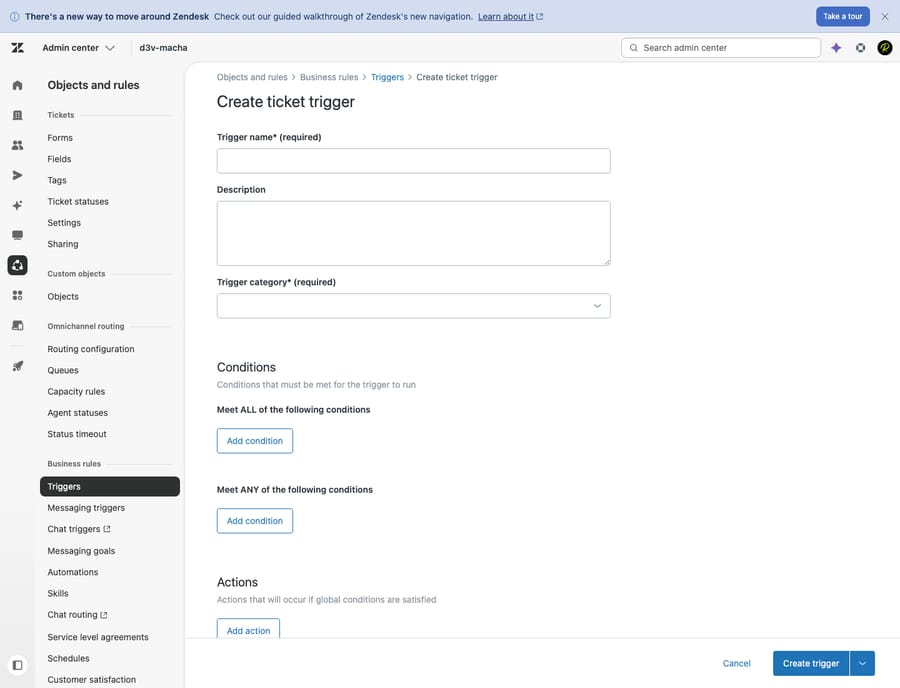
On Enterprise plans, go one level deeper. Per Zendesk's events article, you can click a trigger's title in the events to view the specific version of the trigger that fired: its conditions and actions as they were configured at that moment. That matters when a trigger was edited afterward, because you see what actually ran, not what the rule looks like today. The catch: this only works for triggers that appear in the log, meaning ones that fired. A trigger that didn't fire isn't listed, so there is no per-condition view to click into. To debug a trigger that never fired, open the trigger and read its conditions against the ticket by hand (the next sections show how). Some partner guides describe a green-check/red-X per-condition view; Zendesk's own documentation describes only the version viewer.
One important limitation to know before you trust an empty log: the events log records a business rule's actions only when they produce a net change to the ticket's field values. If a trigger fires but its action sets a field to the value it already had, you may not see a log entry, so "nothing in the log" isn't always "the trigger didn't run." This behavior is described by Zendesk partners rather than in Zendesk's trigger article, so verify it in your own instance. For email specifically, Zendesk does record the outgoing notification as an event.
With the log read, here are the causes, ranked by how often they're actually to blame.
Why is my Zendesk trigger not firing, and how do I fix each cause?
1. The trigger is deactivated (or got deactivated for you)
The most embarrassing and most common one. A trigger that's toggled inactive does nothing, and Zendesk will deactivate a trigger automatically if it references a field, group, or view that was deleted or renamed.
Confirm: In Admin Center → Objects and rules → Business rules → Triggers, switch to the Inactive tab. If your trigger is there, that's your answer. Fix: Reactivate it. If it keeps deactivating, it's pointing at something that no longer exists — open it and look for a condition or action referencing a deleted custom field, group, or form, and repoint it.
2. Trigger order: an earlier trigger already changed (or "satisfied") the ticket
This is the subtle one that fools experienced admins. Triggers run in the order they are listed on the Triggers page in Admin Center (per Zendesk's About triggers and how they work and its trigger-creation article). An earlier trigger's action can change the ticket so a later trigger's conditions no longer match, or it can do the job first, leaving your trigger nothing to do.
Zendesk's execution model matters here. Its trigger-creation article says that if a trigger updates the ticket during the cycle, the cycle starts over and all triggers run again, except the ones that already fired. A trigger never fires more than once in the same cycle, because it isn't checked again after it fires. Zendesk doesn't publish a cycle ceiling.
Confirm: In the Events log, look at what fired before your trigger and what it changed. If an earlier trigger set the status, assignee, or a tag your trigger depends on, that's the interference. Fix: Reorder. Drag your trigger above the one that's stealing its conditions, or tighten the earlier trigger so it doesn't overreach. As a rule, put routing/assignment triggers in a deliberate sequence and keep notification triggers after the triggers that set the values they announce.
3. Conditions too strict, or the wrong ALL vs ANY
If the log shows the trigger didn't fire, conditions are the usual reason. The killer detail is the difference between the two condition blocks: under Meet ALL of the following conditions, every listed condition must be true; under Meet ANY, only one needs to be. Pile too many specifics into ALL and you can build a trigger that essentially never matches.
The classic self-defeating mistake Zendesk calls out: putting two ticket statuses in the ALL block (e.g. Status is Open and Status is Pending). A ticket can only ever have one status, so that trigger can never run. Those belong in ANY.
Confirm: Open the trigger and read each condition against the actual ticket — channel, organization, group, tags, form. One mismatch in ALL blocks the whole trigger. Fix: Move "one of several" conditions into the ANY block, loosen over-specific values, and remove conditions you don't truly need. Save, then re-test on a fresh ticket.
4. You wanted an automation, not a trigger (event-based vs. time-based)
This is the biggest conceptual mix-up: triggers run on an event, the moment a ticket is created or updated. They do not fire as time passes. If your rule is "email the customer 24 hours after the ticket goes Pending" or "escalate a ticket that's been open 3 days," no trigger will ever fire, because nothing is updating the ticket when that time elapses.
That's the job of automations, which are time-based and, per Zendesk's automations article, run once every hour on all non-closed tickets, using conditions like Hours since. They carry their own limits: 500 active automations, 1,000 tickets fired on per hour, and 100 automation updates per ticket (see Zendesk's Using the Hours since condition). For the full breakdown, see our guide to Zendesk automations vs. triggers.
Confirm: Does your rule depend on time elapsing with no agent or customer action? Then a trigger is the wrong tool. Fix: Rebuild it as an automation in Admin Center → Objects and rules → Business rules → Automations, with a time-based condition and a nullifying condition so it stops re-running.
5. Closed (or "solved-then-closed") tickets: triggers don't fire there
Triggers do not run on closed tickets. The one exception is the single update that transitions a ticket to Closed (and that exception excludes the automatic system closure 28 days after Solved). So a trigger you expect to run "on update" of a long-resolved ticket simply won't.
Confirm: Check the ticket's status. If it's Closed, that's why. Closed is final; it can't be reopened. Fix: Don't rely on triggers for post-closure work. If you need late-stage behavior, act while the ticket is still Solved (before the 28-day auto-close), or handle it with a follow-up ticket.
6. Requester / "Notify by" / channel condition mismatch
Notification triggers often carry conditions the author forgot: Channel is, Ticket is created by (end user / agent), Organization is, or a specific requester. If the ticket came in through a channel the trigger excludes, or was created by an agent when the trigger only matches end-user submissions, it won't fire. Zendesk's troubleshooting doc names this directly: a condition on a specific organization or channel that the ticket doesn't meet will stop the trigger.
Confirm: Compare the ticket's actual channel and requester against the trigger's conditions in the log. Fix: Broaden or correct the channel/requester condition, or move it to ANY if you meant "any of these channels."
7. The action's prerequisite isn't met (comment / public reply / specific channel)
Some actions only do anything in the right context. An action set to send a public reply does nothing useful if there's no comment, and notification text that pulls a ticket placeholder can come out blank if that field is empty. The trigger may technically "fire" while appearing to do nothing.
Confirm: In the log, the trigger fired but the visible result is missing, so inspect the action, not the conditions. Fix: Make sure the triggering update actually includes what the action needs (a comment, the right channel), and check placeholders resolve to real values.
8. A nullifying / "is not" condition that quietly excludes your case
Conditions like Status is not Closed or Tags contains none of the following are there to stop re-firing, but they also silently exclude tickets you might have wanted. A leftover Ticket: Status — Less than — Solved or a stale tag exclusion can be exactly why this ticket was skipped.
Confirm: Read every "is not / less than / none of" condition against the ticket. Fix: Adjust the exclusion so it scopes out only what you intend.
9. Cascades, unsaved edits and stale test tickets
Two practical traps to close out:
- Cascades: actions applied by one trigger can affect how other triggers run and fire on the same update. If you've got many cross-referencing triggers, an update can cascade and a deep-chain trigger may not get its turn within the cycle limits. Simplify the chain.
- Unsaved or untested edits: the boring-but-frequent finish. You changed the trigger but didn't click Save, or you're re-checking an old ticket that was updated before your change. Triggers only act on updates that happen after you save. Always validate on a brand-new test ticket.
What if the trigger fired but the email never arrived?
If the Events log shows your trigger fired but the email never arrived, the trigger isn't your problem; delivery is. Zendesk's troubleshooting guidance points to email-specific causes: a notification action that targets the wrong recipient, CC/recipient configuration, suppressed or bounced addresses, or the message landing in spam. Verify the "Email user" action points at the right party (requester vs. assignee vs. group), then follow Zendesk's email delivery checks. Debug the trigger and the email as two separate layers; the log tells you which one to look at.
How do I keep triggers easy to debug?
- Name triggers descriptively (
Notify — assign agent on new web ticket) so the Events log reads like plain English. - Order deliberately. Group by purpose (capture and normalize first, then route and assign, then notify) and use trigger categories to keep a long list manageable.
- Add a nullifying condition to every trigger so it can't re-fire in a loop, and keep cascades shallow.
- Test on a fresh ticket after every change, and skim the Events log to confirm the right rule fired.
- Audit quarterly. Deactivate dead triggers and fix any that reference renamed fields before Zendesk deactivates them for you.
For the underlying concepts (conditions, actions, and how triggers fit the wider ticketing model), see Zendesk triggers explained and how the Zendesk ticketing system works.
Where does an AI agent fit alongside triggers?
Triggers are excellent at deterministic plumbing: if this exact thing happens, do that. They route, tag, and notify. What they can't do is understand a ticket. They fire on conditions, not on meaning, which is why a brittle stack of overlapping triggers is so often the thing you end up debugging.
That's the layer an AI agent like Macha adds. Macha isn't a help desk and doesn't replace Zendesk; it runs on top of your existing Zendesk. Where a trigger can only route a "where's my order?" ticket to a queue, an AI agent reads the actual question, pulls from your knowledge base and past tickets, and can resolve it in the thread, while still handling the housekeeping (tagging, status, escalation with full context) that you'd otherwise wire up trigger by trigger. Keep your triggers for deterministic routing; let an AI agent handle the judgment calls.
The honest framing: it's another integration to configure, and it's only as good as the knowledge you connect. Macha also runs on Zendesk, Freshdesk, Gorgias, Front, HubSpot or Intercom. On cost, Macha bills per ticket, one conversation charged once however much drafting, tagging or resolving it takes, never per "resolution," because a resolution is an outcome definition you don't control and a ticket is something you can count. Plans start at $299 a month for up to 750 tickets, with setup and monitoring by the Macha team included, and the trial gives you $50 of free usage with no credit card.
Frequently asked questions
How do I see if a Zendesk trigger fired on a ticket? Open the ticket and add /events to the end of the URL, or click the events icon in the conversation header in the Agent Workspace. The Events log lists every update, including which triggers fired and what they changed. Use ⌘/Ctrl-F and search "trigger" to find business-rule activity fast. On Enterprise, click a fired trigger's title in the log to see the exact version that ran.
Why is my Zendesk trigger not working even though the conditions look right? Most often a different trigger ran first and either changed the ticket so your conditions no longer match, or did the job before your trigger was checked. Triggers run top-to-bottom in list order. Check the Events log for what fired before yours, then reorder. Also confirm the trigger isn't deactivated and that you're testing a fresh ticket created after you saved.
Why does my trigger work for some tickets but not others? A condition is matching only a subset — usually channel, organization, requester, or a tag. Open the trigger and compare its conditions against a ticket that didn't fire, field by field, and check whether something belongs in the ANY block rather than ALL.
My trigger should send an email but nothing arrives — why? Check the Events log first. If the trigger fired, it's a delivery issue, not a trigger issue: verify the Email user action targets the right recipient, check CC/recipient settings, and look for bounced/suppressed addresses or spam filtering. If the trigger didn't fire, debug the conditions instead.
What's the difference between a trigger and an automation? Triggers are event-based: they run the instant a ticket is created or updated. Automations are time-based: they run once every hour on non-closed tickets and act on elapsed time using conditions like Hours since. If your rule depends on time passing with no ticket update, you need an automation, not a trigger. See automations vs. triggers.
Can a trigger fire on a closed ticket? No. Triggers don't run on Closed tickets, except for the single update that transitions a ticket to Closed (and not the automatic system closure 28 days after Solved). If you need behavior after resolution, act while the ticket is still Solved or use a follow-up ticket.
Can one trigger fire twice on the same update? No. When a trigger updates a ticket, Zendesk restarts the cycle and runs the triggers again, but any trigger that already fired is skipped, so each trigger fires at most once per cycle.
What is the fastest way to debug a trigger?
When a Zendesk trigger isn't working, don't guess. Read the ticket Events log (/events or the events icon), and on Enterprise click a fired trigger's title to see the exact version that ran. That step tells you whether the trigger ran, which splits every problem into "it didn't fire" (check deactivation, order, conditions, ALL vs ANY, channel/requester, closed status, or whether you actually need an automation) or "it fired but did the wrong thing" (check its actions and any later trigger overwriting them). Triggers are event-based, run top-to-bottom, and a deliberate order plus a nullifying condition prevents most of the trouble before it starts. Debug from the evidence, fix one cause at a time, and re-test on a fresh ticket.
Debug method and behavior checked against Zendesk's official documentation, September 2026. Zendesk updates its product periodically; confirm labels and plan-specific features (e.g. Enterprise rule analysis) in your own account.
Add AI agents to your Zendesk
Macha reads the ticket, drafts the reply and takes the action, inside the Zendesk you already run.





