Intercom
 Shopify
 Stripe
 Slack
Slack Notion
 Google Workspace
 Confluence

Why Is My Zendesk SLA Not Calculating Correctly? 11 Causes and Fixes (2026)


A Zendesk SLA that looks wrong is usually following its rules: the first matching policy wins, a ticket with no priority gets no SLA, and the badge always counts down in calendar hours. Read the SLA badge on the ticket first, then work through the cause it points to.
Key takeaways
- Zendesk evaluates SLA policies from the top and applies the first match, so a broad All tickets policy above a VIP policy takes every VIP ticket.
- Zendesk applies no SLA to a ticket with a blank system Priority field, and most accounts created on or after March 3, 2025 ship a trigger that sets missing priorities to Normal.
- The Zendesk SLA badge always shows time left in calendar hours, so an eight-business-hour target on a Friday afternoon can display three days.
- Zendesk lists four SLA targets that keep running in Pending: First Reply Time, Next Reply Time, Periodic Update Time and Total Resolution Time.
- Zendesk SLA policies need Suite Growth, Professional, Enterprise or Enterprise Plus, Suite Team has none, and Group SLAs are Enterprise-only.

A Zendesk SLA that looks wrong is usually doing exactly what its rules say: the ticket matched a different policy (first match from the top wins), has no priority (no priority means no SLA), or is being read off a badge that always counts down in calendar hours, even for business-hours targets. Open the ticket's SLA badge first; it tells you which policy, metric and target applied, and that splits every problem into "wrong policy" or "right policy, wrong clock."
| Symptom | Most likely cause | Fix |
|---|---|---|
| No SLA badge | Blank Priority field, or no policy matched | Set a priority by trigger; loosen conditions |
| Wrong target | A broad policy sits above a specific one | Move the most restrictive policy to the top |
| Breached though the agent replied | First action was an internal note | Reply publicly, or opt in via advanced settings |
| Clock runs overnight | Badge shows calendar hours by design | Check the target's hours setting, not the badge |
| Old tickets keep the old SLA | Policy edits are never retroactive | Update the tickets to re-evaluate |
| No SLA at all on your plan | Suite Team doesn't include SLAs | Growth or above; Enterprise for Group SLAs |
Everything below is checked against Zendesk's Troubleshooting common SLA issues (updated August 25, 2026) and the SLA articles it links to. Zendesk revises its UI and behavior periodically, so confirm details in your own account.
What does "my SLA is wrong" usually look like?
"SLA not calculating correctly" almost always shows up as one of these:
- A ticket has no SLA badge at all, when you expected one.
- The badge shows the wrong target (e.g. a Normal-priority time on an Urgent ticket).
- The clock counts down at the wrong speed: too fast off-hours, or never pausing.
- The ticket shows breached even though an agent replied in time, or shows not breached when it should have.
- The SLA changed for everyone after you edited a policy: except on the tickets you actually cared about.
All of these are diagnosable. Resist the urge to start rewriting policies blindly: that's how one wrong number becomes five. Read the evidence on the ticket first.
What should you check first when an SLA looks wrong?
Before you touch a policy, open a ticket that's behaving wrong and look at the SLA badge in the ticket properties (Agent Workspace). The badge tells you three things at a glance: which metric is being measured (first reply time, next reply time, resolution, etc.), the target, and how much time is left (or how far past breach it is). Hover or click into it to see the next target and the policy in play.
This single check splits your problem in two:
- No badge, or the wrong policy/target is shown → the ticket matched the wrong policy or none at all. Work through causes 1, 2, and 6 below.
- The right policy is applied but the clock is off → the metric, the hours, or the pause behavior is the issue. Work through causes 3, 4, and 5.
For a fleet-wide view, use Explore's SLA dataset to see policy attainment, breaches by metric, and which tickets slipped: it's the reporting layer that turns one weird ticket into a pattern you can act on. And to surface at-risk tickets live, add an SLA column to a view and sort ascending (Zendesk says there's currently no way to send notifications to agents based on SLA breaches, so a sorted view is the standard workaround). The column shows calendar time left, and a breached target shows a negative value in red.
With the badge read, here are the causes, ranked by how often they're actually to blame.
What causes a Zendesk SLA to calculate wrong, and how do you fix each cause?
1. Policy order: a broad policy above a specific one steals the ticket
This is the number-one cause of "wrong target." SLA policies are evaluated top-down, and the first match wins. Per Zendesk, "starting at the top of your list of policies and moving down… the first policy whose conditions are satisfied by the ticket is applied to the ticket." A ticket carries at most one standard SLA policy at a time (plus, on Enterprise, one Group SLA).
So if you have a broad "All tickets" policy sitting above a specific "VIP customers" policy, every VIP ticket matches the broad one first and never reaches the specific one. The target looks wrong because the wrong policy is applying.
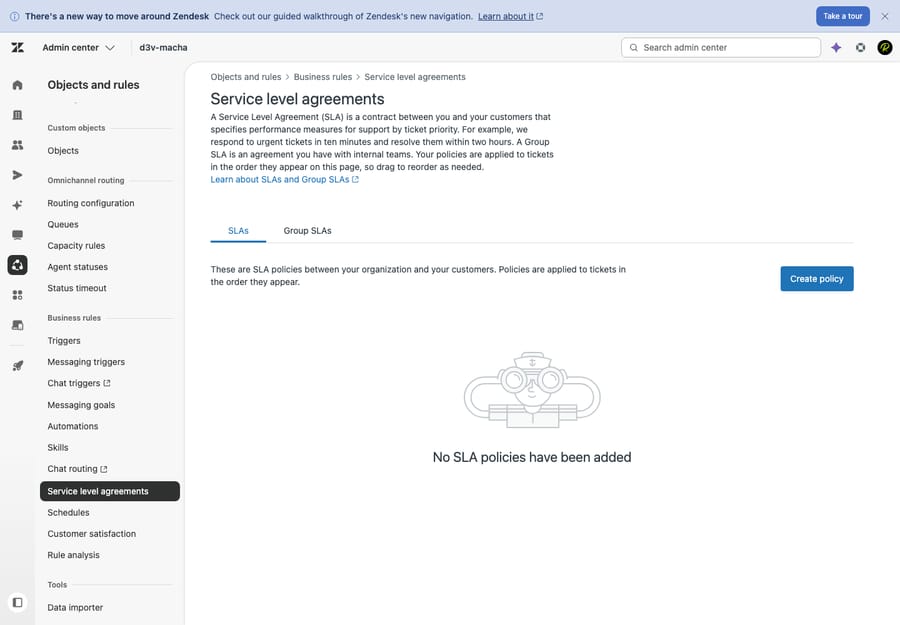
Confirm: In Admin Center → Objects and rules → Business rules → Service level agreements, read your policy list from the top. Find the first policy whose conditions your problem ticket satisfies: that's the one applying, regardless of what you intended. Fix: Reorder so your most restrictive (most specific) policies sit at the top and the catch-all sits at the bottom (Ordering SLA policies). Drag the VIP policy above the general one. Then tighten conditions so two policies don't overlap ambiguously.
2. The ticket didn't match any policy, and the missing-priority trap
If there's no SLA badge at all, the ticket matched no policy. The most common reason isn't a typo in your conditions: it's the priority field. Zendesk is explicit: "tickets must have a priority for the SLA target to apply," and it must be the system default Priority field (Low / Normal / High / Urgent). A ticket that comes in with priority blank gets no SLA, full stop, even if it satisfies every other condition. SLAs also don't apply to custom priority-style fields.
Newer accounts have a safety net you may have switched off. Per About SLA policies, most accounts created on or after March 3, 2025 ship with a standard SLA named Set first reply time (a one-hour first reply target at Normal priority) and a standard trigger, Set tickets with no priority to normal. If someone deactivated or edited that trigger, blank-priority tickets start slipping through with no SLA. A second, rarer no-badge case: a ticket created with a private comment by a user who isn't a light agent defers its first reply target until the end user adds the first public comment.
Confirm: Open the ticket and check the Priority field. Empty? That's your answer. Also re-read the conditions of the policy you expected to match against the ticket's real channel, group, tags, and form. Fix: Make sure tickets get a priority before SLAs need them: set a default with a trigger on ticket creation, or require priority on intake forms. For the policy conditions, loosen anything over-specific. (For building conditions and targets correctly, see how to set up Zendesk SLA policies.)
3. Business hours vs calendar hours: the wrong schedule, or none
If a target is genuinely measured at the wrong speed: counting down 24/7 when you only promised business-hours response, or never pausing for weekends: you may have a calendar-vs-business-hours mismatch. Each target in a policy can be measured in calendar hours (24/7, the wall clock) or business hours (only your working schedule). Set a target to calendar hours by mistake and it truly keeps counting at 2am; set it to business hours but never assign a schedule and the math has nothing to anchor to.
One critical gotcha before you "fix" anything: the SLA badge on a ticket always displays its countdown in calendar hours, even when the target is calculated in business hours. That's documented, expected behavior, not a bug. Zendesk's own example: a ticket with an eight-business-hour target that arrives on a Friday afternoon rolls over to Monday morning, and the badge shows three days. So a business-hours SLA badge that appears to tick down overnight is very often working correctly; the badge just shows wall-clock time remaining while the underlying breach calculation still respects your schedule. Don't reconfigure a correct policy because the live badge looked like it ran overnight.
Confirm: Don't diagnose this from the badge's overnight movement. Instead, open the policy and check, per metric and per priority, whether each target is actually set to calendar or business hours. If it's business hours, confirm a schedule exists and is assigned (Admin Center → Objects and rules → Business rules → Schedules). Fix: Set each target to the hours you actually promise: most teams want first reply / next reply in business hours and may keep resolution in calendar hours, or vice versa. Be deliberate; mixing them silently is a top source of "the clock is wrong."
4. Which metric is set, and why first reply time only counts the first public agent reply
SLAs measure seven distinct metrics: First reply time, Next reply time, Periodic update, Pausable update, Requester wait time, Agent work time, and Total resolution time, and a policy only tracks the ones you added. If the badge measures something you didn't intend (or doesn't measure what you assumed), the policy is set to the wrong metric.
The single most common "it says breached but my agent replied!" cause lives here: first reply time is satisfied only by the first public agent comment: the customer-visible reply. Per Zendesk's Understanding ticket reply time, an internal note does not satisfy first reply time under standard settings. So an agent who triages a ticket with a private note, then replies publicly an hour later, "breaches" a 30-minute FRT even though they touched it in five minutes.
Confirm: On the breached ticket, check whether the agent's first action was a public reply or an internal note. If it was a note, that's why. Fix: Coach agents that a public reply is what stops the FRT clock. If your workflow legitimately wants notes to count, Zendesk's advanced SLA settings let an internal note fulfill first reply time. That's an explicit opt-in, off by default, and it's available on the same plans as SLAs themselves. The mirror case also trips people up: when an agent creates a ticket on behalf of a customer with a public first comment, that comment fulfills first reply time on creation, so no first reply timer ever appears.
5. Misunderstanding when the clock pauses or stops
Even with the right metric and hours, the clock can look "wrong" because each metric pauses on different statuses. This trips up almost everyone:
- Requester wait time counts time in New, Open, and On-hold, and pauses on Pending (waiting on the customer).
- Agent work time counts only New and Open, and pauses on both Pending and On-hold.
- Total resolution time counts all time to resolution, including Pending. It doesn't pause.
- First reply time stops when the first public reply goes out; next reply time restarts on each new customer reply.
Zendesk's troubleshooting article lists the four targets that don't pause in Pending: First Reply Time, Next Reply Time, Periodic Update Time and Total Resolution Time. So a ticket parked in Pending will look like its requester-wait clock "froze" (it did, by design), while its first reply clock keeps running until an agent replies publicly. Both are correct behavior.
Confirm: Check the ticket's status history against the metric. A "frozen" clock on a Pending ticket with a requester-wait or agent-work target is working as intended (Can I pause the SLA timer?). Fix: Pick the metric that matches what you actually want to hold the team to. If you don't want time-on-customer counting against you, use requester wait time or agent work time rather than total resolution time. Don't try to "pause" SLAs with workarounds. Choose the right metric instead.
6. You edited the policy, but existing tickets kept their old SLA
Classic. You fixed a policy (corrected a target, reordered, changed the hours) and new tickets behave, but the ones you were debugging still show the old numbers. That's expected: Zendesk's advanced settings article says policy changes only apply when tickets are subsequently created or updated and are never retroactively applied. The change takes effect on the next ticket event (a public comment, status change, priority change or policy change), not the instant you save.
Confirm: Did the wrong tickets get created before your edit, with no update since? Then they're still on the old policy. Fix: Trigger a ticket event by updating the ticket; a priority change is the cleanest, since it re-evaluates SLA targets. For a backlog, a bulk update will re-evaluate them. Then re-check the badge.
7. The schedule's timezone is off
Business-hours targets are only as correct as the schedule's timezone. If your schedule is set to a different timezone than your team actually works, "9am–5pm" lands in the wrong window and the clock pauses and resumes at odd times. This is subtle because everything looks configured.
Holidays behave the same way as policy edits. When you add or remove a holiday, existing SLA targets don't update until the ticket gets a public comment, status change, priority change or policy change. Zendesk's advice is to minimize schedule changes for exactly this reason.
Confirm: Open the assigned schedule and verify its timezone and the holiday list. Compare a paused/resumed ticket against when your team is genuinely online. Fix: Set the schedule to the correct timezone and keep holidays current. If you support multiple regions, you may need multiple schedules mapped to the right policies. (More in Zendesk business hours and schedules.)
8. Plan gating: SLAs (and Group SLAs) aren't on your plan
Sometimes the SLA isn't miscalculating: it isn't available. SLA policies require Suite Growth, Professional, Enterprise, or Enterprise Plus (or Support Professional/Enterprise). Suite Team does not include SLAs. And Group SLAs are Enterprise-only. If you're on a lower plan, or expecting a Group SLA on a non-Enterprise plan, the feature simply won't behave.
Confirm: Check your plan in Admin Center → Account → Billing → Subscription, and confirm whether you're relying on a standard SLA or a Group SLA. Fix: Standard SLAs need Growth or above; Group SLAs need Enterprise. Upgrade if the capability matters, or rework the requirement to what your plan supports.
9. Using next-reply or periodic-update incorrectly
The reply/update metrics have specific semantics that get misused. Next reply time starts when a customer adds a reply to an open conversation and stops when an agent replies publicly, so a ticket sitting quietly with no new customer message won't show a next-reply countdown. Periodic update expects an agent comment at a recurring interval and resets each time one is posted; people often expect it to behave like a one-time deadline.
Confirm: Match the metric's definition to what you see. A "missing" next-reply clock usually means there's no outstanding customer reply to answer. Fix: Use first reply time for the initial response, next reply time for ongoing back-and-forth, periodic update for "keep the customer posted every N hours," and a resolution metric for the close. Don't stack metrics that contradict each other.
10. The policy applied late, so the ticket looks instantly breached
If you apply an SLA to a ticket that's already been open for a while (you created the policy after the ticket existed, or a later update finally matched its conditions), the metric calculates from the ticket's original creation time, not from the moment the SLA attached. Zendesk can't modify past ticket events, so a long-open ticket can show up already breached the instant the policy lands. It's not miscalculating; it's correctly measuring against a clock that started in the past. If the ticket had already breached under the old policy, applying a new one (even a lightly modified copy) records a second breach event.
Confirm: Check whether the ticket pre-dates the policy (or pre-dates the update that triggered the match). A brand-new policy "breaching" old tickets en masse is the classic signature. Fix: Expect this when introducing or re-scoping policies; it's normal. If it skews reporting, filter your SLA reports to tickets created after the policy went live, and communicate the change so the initial breach spike isn't mistaken for a team failure.
11. An agent created the ticket, or it was solved on creation
Two edge cases quietly skip SLAs. If an agent creates the ticket on a customer's behalf with a public first comment, that comment fulfills first reply time immediately, so no first reply clock appears. And Zendesk states that SLAs don't apply to tickets solved on creation (some automations and integrations do this): the solved status satisfies the SLA and prevents the policy from activating.
Confirm: Look at who created the ticket and its status history: no badge on an agent-created or born-solved ticket is expected, not a bug. Fix: If these tickets genuinely need SLAs, route them through a normal end-user/open flow, or adjust the integration that's creating them pre-solved.
Why does an SLA breach show wrong when the policy is right?
When a breach looks wrong, work it as two layers. First, confirm the right policy and metric applied (Step 1). Then confirm what satisfied the clock: for first reply time, a public reply, not a note. Also expect the badge to show Now when a target changes after a breach (a public comment, status, priority or policy change); Zendesk documents that as normal. Remember you can't build a trigger on SLA breach status in Zendesk; if you want breach escalation, use an automation with Hours until next SLA breach / Hours since last SLA breach, and surface at-risk tickets in a view sorted by SLA ascending. The badge plus Explore's SLA dataset will tell you whether the "breach" is real or a measurement artifact.
How do you keep Zendesk SLAs accurate?
- Order policies most-restrictive-first, and keep one clean catch-all at the bottom so nothing falls through.
- Guarantee a priority on every ticket (default trigger or required field): no priority, no SLA.
- Set hours deliberately per metric: decide calendar vs business hours on purpose, and make sure every business-hours target has a schedule with the right timezone.
- Standardize the first-reply rule with agents: a public reply stops the clock, an internal note doesn't.
- Re-save and re-test on a fresh ticket after every change. Policy and holiday edits don't reach existing tickets until an event.
- Keep the standard priority trigger active (Set tickets with no priority to normal) if your account has it.
- Watch attainment in Explore monthly, not just on the tickets people complain about.
For the underlying concepts, what each metric means and how policies are built, see Zendesk SLAs explained and the step-by-step how to set up SLA policies in Zendesk.
Can an AI agent help you hit Zendesk SLA targets?
Yes, but only on the input side. An AI agent doesn't change how Zendesk calculates SLAs: the policies, metrics, hours, and pause logic above are all still the engine. What it changes is the input to the first-reply clock.
The single most common SLA miss is first reply time, and that clock stops on the first public reply. An AI agent like Macha can post an accurate first response in seconds, pulled from your knowledge base and past tickets, which is exactly the public reply that satisfies FRT. To be clear about positioning: Macha isn't a help desk and it doesn't replace Zendesk. It runs on top of your existing Zendesk. It doesn't bend your SLA math; it just helps your team hit the targets you've set, and escalates with full context when it isn't confident.
The honest framing: it's another integration to configure, and it's only as good as the knowledge you connect. On cost, Macha bills per ticket, not per resolution: one conversation, charged once however many drafts, tags and lookups it takes, from $299 a month for up to 750 tickets (see pricing). The incentive difference matters for SLAs specifically, because a per-resolution vendor earns nothing on the fast first reply that stops your FRT clock. To see how faster first replies move your attainment, the trial gives $50 of free usage with no credit card required.
Frequently asked questions
Why is my Zendesk SLA not showing on a ticket? The ticket matched no policy. The most common reason is a missing priority: Zendesk requires the system Priority field (Low/Normal/High/Urgent) to have a value, or no SLA applies. Otherwise, re-read your policy conditions against the ticket's actual channel, group, tags, and form. Check the SLA badge in the ticket properties to confirm.
Why does my Zendesk SLA show the wrong target? Almost always policy order. Policies are evaluated top-down and the first match wins, so a broad "all tickets" policy sitting above a specific one steals the ticket. Reorder so your most restrictive policies are at the top, with the catch-all at the bottom.
My agent replied in time but the SLA says breached: why? First reply time is satisfied only by the first public agent comment. An internal note does not stop the clock under standard settings, so triage-by-note then reply-later can breach FRT. Coach agents to reply publicly, or enable Zendesk's advanced first-reply-time setting to let notes count.
Why does my SLA clock count down overnight or never pause? First, know that the SLA badge always displays its countdown in calendar (wall-clock) hours even when the target is calculated in business hours, so a business-hours target whose badge appears to move overnight is usually working correctly. If the actual breach time is wrong (not just the live badge), then check for a real calendar-vs-business-hours mismatch: open each target's hours setting, and if it's business hours, confirm a schedule is assigned with the correct timezone.
I edited my SLA policy but old tickets still show the old SLA: is that a bug? No. Zendesk doesn't retroactively apply an updated policy to tickets already using an SLA. The change takes effect on the next ticket event (an update or priority change). Update or bulk-update the affected tickets to re-evaluate them.
Which Zendesk plans include SLAs? SLA policies are on Suite Growth, Professional, Enterprise, and Enterprise Plus (and Support Professional/Enterprise). Suite Team does not include SLAs, and Group SLAs are Enterprise-only.
Which three rules cause most Zendesk SLA confusion?
When a Zendesk SLA isn't working, don't rewrite policies blindly: read the SLA badge on the ticket first. That tells you whether the wrong policy applied (check policy order and whether the ticket has a priority) or the clock is off (check calendar vs business hours, which metric is set, and how it pauses). Remember the three quiet rules that cause most of the confusion: first match wins on policy order, first reply time counts only the first public reply, and edits don't reach existing tickets until a ticket event. Confirm one cause at a time against the evidence on the ticket and in Explore, fix it, and re-test on a fresh ticket.
Causes and fixes verified against Zendesk's official documentation, September 2026. Zendesk updates its product periodically: confirm labels and plan-specific features (e.g. Group SLAs, advanced first-reply-time settings) in your own account.
Add AI agents to your Zendesk
Macha reads the ticket, drafts the reply and takes the action, inside the Zendesk you already run.